Triggering Logics (TL) for an activity specify when and how the activity should be prompted to the participant. Avicenna supports the following types of TLs:
- User TL: The participant decides when and how often to start the activity and respond to it.
- Time TL: The activity is prompted according to a specified schedule.
- Proximity TL: The activity is triggered based on data from Bluetooth Beacons.
- Public TL: Allows anyone to answer your survey anonymously, even without an account.
- Researcher-responded TL: Researchers initiate the session and respond on behalf of the participant.
- Geofencing TL: The activity is triggered when the participant enters or exits a predefined geographic area.
[!note] Note
Not all activity types support every TL. For example, while survey activities can use any of the above TLs, activities such as Matrix Reasoning or Time Use cannot be triggered using a proximity TL.
Create Triggering Logics
Depending on the activity type, different types of TLs can be created. This section covers the general steps for creating TLs. For configuration details specific to each TL type, refer to the corresponding sections.
[!note] Note
The eligibility survey and dropout survey can not have Triggering Logics.
To create a TL, follow these steps:
- Open the Activity you want to configure.
- Go to the Triggering Logics section.
- Choose the TL type from the available options.
- Enter a button caption.
- (Optional) Select an icon for the button.
- (Optional) Define TL criteria to control when the activity is triggered.
- Click Save.
- Publish the activity.
Edit Triggering Logics
To edit a TL, follow these steps:
- Open the Activity you want to configure.
- Go to the Triggering Logics section.
- Click the Edit button on the TL you want to modify.
- Make your changes and click the Save button on the TL.
- The Save button at the top of the page will show Saving and apply the changes automatically. If it remains clickable or you want to apply the changes manually, click it.
- Publish the activity.
Duplicate Triggering Logics
Researchers can duplicate an existing TL to create a copy with the same settings. All properties, including type, button caption, icon, and criteria, are retained from the original TL.
[!note] Note
User TLs cannot be duplicated.
To duplicate a TL, follow these steps:
-
Open the Activity containing the TL you want to duplicate.
-
Go to the Triggering Logics section.
-
Find the TL you want to duplicate and click Duplicate.
-
The duplicated TL will appear in the list with a new ID and identical properties.
Delete Triggering Logics
Researchers can remove an existing TL when it is no longer needed.
To delete a TL, follow these steps:
- Open the Activity containing the TL you want to delete.
- Go to the Triggering Logics section.
- Find the TL you want to remove and click Delete.
- Confirm the deletion when prompted. The TL will be permanently removed from the activity.
User TL
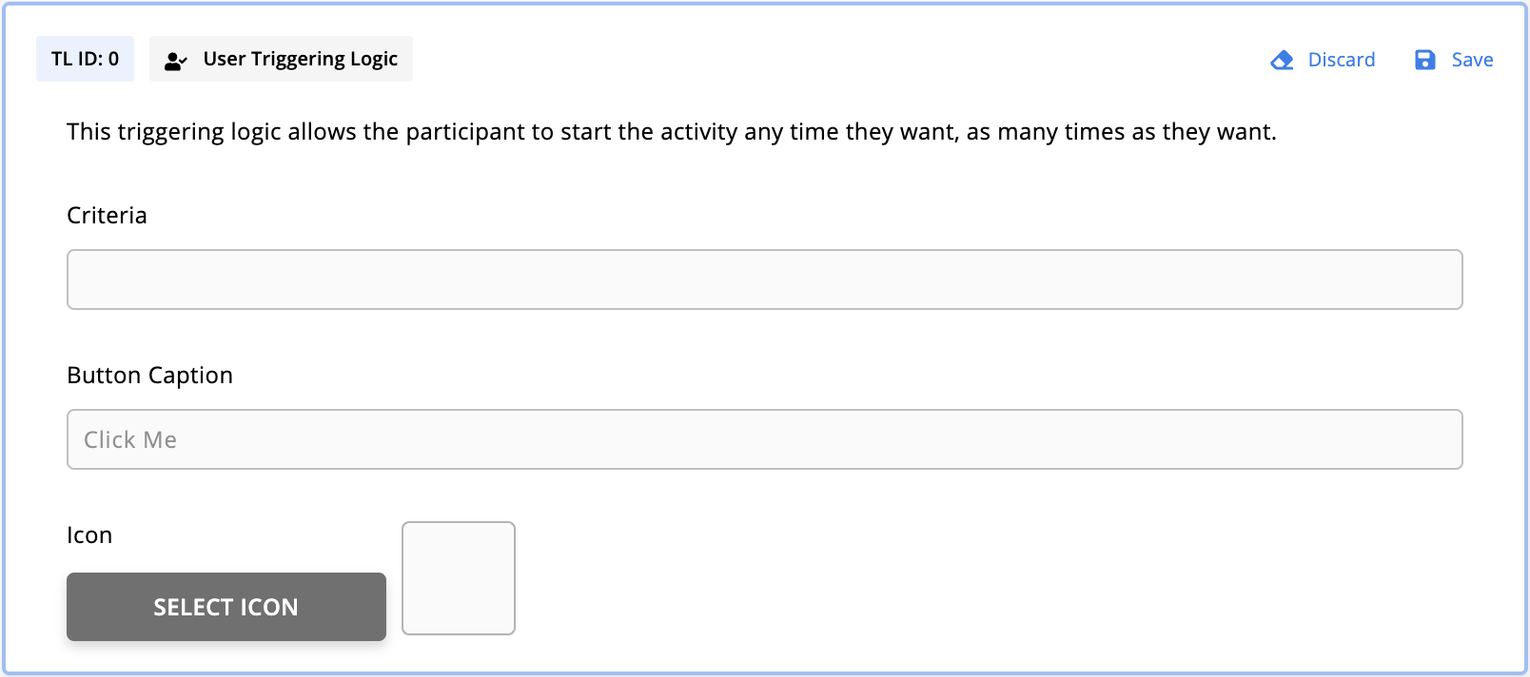
A user TL places a button for the activity on the study’s homepage, labeled with the caption you provide. The button remains visible as long as the activity has this TL, and participants can respond to the activity as many times as they want. Each time a participant clicks the button, Avicenna creates a new session for the activity.
[!note] Note
Each activity can have only one user TL.
All activities, except for eligibility and dropout surveys, have a user TL by default. You can go to the Triggering Logics section in your activity and configure it as needed.
You can set a button caption and optionally select an icon for the button. If you do not provide these, the activity will be displayed on the homepage with the default Avicenna caption and button icon. You also have the option to define TL criteria. Learn more about criteria here.
The following shows how an activity with a user TL appears in the participant app.
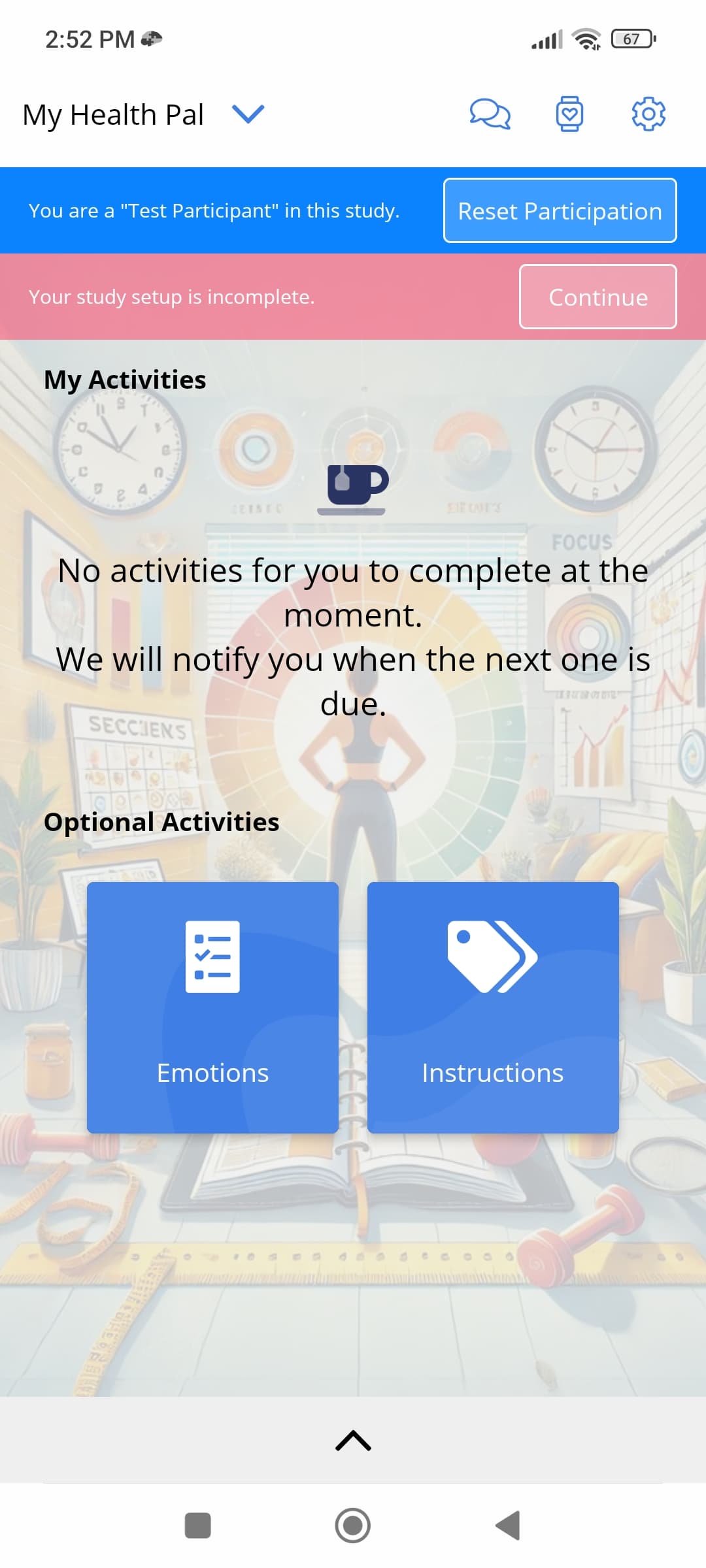
As shown above, activities with a user TL appear under the Optional Activities section. You can rename this section to any title you want. Learn more here.
[!info]
Avicenna does not automatically send notifications to researchers for activities started via user TL, unless you specifically ask us to do it for you. This is because the participant is already using the app, so any automatic notifications for the activity will not be sent when the session is started this way.
Time TL
A time TL specifies a schedule that determines when the activity is prompted to the participant.
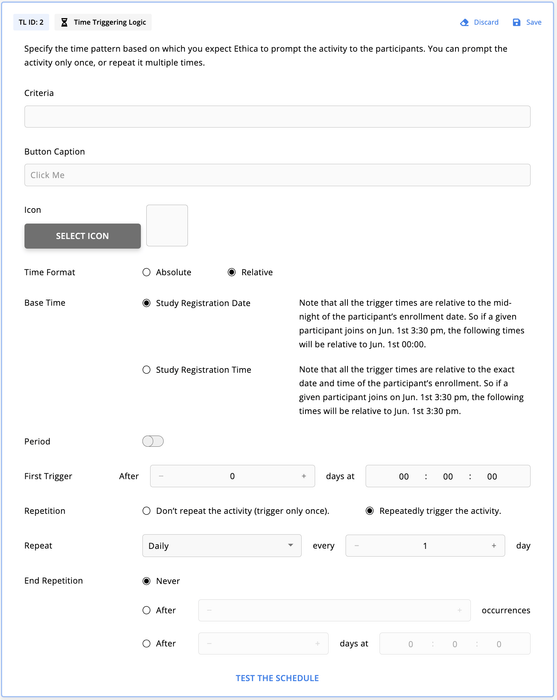
In the setup dialog, you’ll need to specify the timing for the first prompt, the frequency and pattern of any subsequent repetitions, and when these repetitions should end.
Similar to other TLs, you can define criteria for triggering. Additionally, you can choose a caption and an icon for the button that Avicenna displays on the participant’s homepage for the prompted session.
Time TL Parameters
You can configure the following parameters for a time TL:
Time Format
Time Format specifies whether the schedule is defined in Absolute or Relative terms:
-
Absolute: Set a specific date and time (e.g.,
2020-12-04 12:22:00). The activity will be prompted exactly at this time. -
Relative: Specify the time as a duration. Avicenna calculates the exact prompt time by adding this duration to a base time, which can be either the participant’s Registration Date or Registration Time:
- Registration Time: The exact date and time when the participant joined the study.
- Registration Date: The 00:00 of the date when the participant joined the study.
Period
You can set the activity to be prompted at a random time within a specified window by enabling the Period option.
When using the Period option:
- For Absolute time format: provide specific start and end dates and times.
- For Relative time format: provide start and end times relative to a Base Time. Avicenna adds these to the base time to determine the period.
- Avicenna selects a time within the period using a Uniform or Normal distribution, as specified by the researcher.
[!note]
When the base time is set to the study registration date:
- If a participant registers after the lower bound of the first trigger, no session is generated on the registration day. Sessions start the next day.
- If a participant registers before the lower bound of the first trigger, they receive a session on their registration day within the specified trigger window.
Repetition
After defining the time of the first prompt, you can decide whether your time TL should be repeated. Repetition can be configured as Daily, Weekly, Monthly, or Yearly, and you must also specify when the repetition ends.
[!note]
When you configure a time TL with weekly repetition, Avicenna aligns sessions to the chosen weekday(s), starting from the first occurrence of that weekday after the first trigger.If the registration day does not match the chosen weekday, the first trigger will be delayed.
Example:
- A time TL repeats every 2 weeks on Mondays, starting 2 weeks after registration.
- If a participant joins the study on Monday, their first session is 2 weeks later.
- If they join on Tuesday (or later), they miss that week’s Monday, so the first session is pushed to the next cycle (4 weeks later).
Test the Schedule
After configuring your time TL, you can test the schedule using a hypothetical participant. Specify the participant’s join date, and Avicenna will display up to 10 upcoming scheduled triggers in an ascending order. This allows you to verify that the activity prompts occur according to your TL settings.
Example: Daily Mood and Stress Assessment
Let’s go through setting up a time TL for a clinical trial where we aim to assess how participants’ mood and stress levels fluctuate at different times of the day. In this scenario, we want to prompt a survey every day at a random time between 8 am and 8 pm. We want to prompt the survey for 1 month after the participant joins the study. Here’s how we set it up in Avicenna:
Prerequisite:
- Activity Name: Daily Mood and Stress Assessment
- Type of Triggering Logic: Time TL
- Time Format: Relative
Creating a Randomized Assessment Window:
- Period Option: Enabled
- First Trigger: Between
0 days at 08:00:00and0 days at 20:00:00, creating a 12-hour window for prompts.
Adjusting for Participant Entry:
- Base Time: We check the study registration date, so when the first trigger period is added to it, it always ends up being between 8 am and 8 pm.
Randomizing Assessment Times:
- Distribution Function: Uniform, to randomly select times within the 12-hour window
- Repetition: Daily (every 1 day), so participants receive prompts at varying times each day
Deciding When to Stop:
- End Repetition: After
31 days at 00:00:00, marking the conclusion of the daily assessments.
The setup appears as shown below:
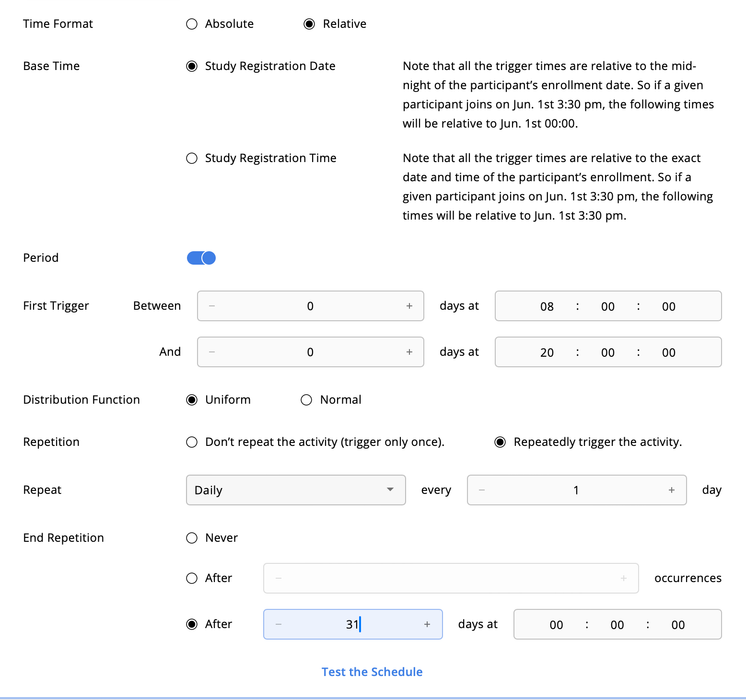
Through this setup, participants will receive random prompts for mood and stress assessments each day within a 12-hour window, offering insights into how their emotional states change during different times of the day. This method allows for a dynamic and comprehensive analysis of daily mood and stress patterns in the context of the clinical trial.
Generating Future Sessions
When a new participant joins your study, Avicenna generates future sessions for each time TL in every activity. Therefore, you can see ahead of time when a given participant is prompted with which Activity. For longer studies, the number of sessions generated this way can be very large. To manage this load, Avicenna generates a limited number of sessions and generates more as needed, following the logic explained below.
- When a participant joins, Avicenna generates up to 50 sessions per time TL.
- If more sessions are required, the system marks the TL for additional session generation. Every time the number of sessions for such TLs drops below 25, Avicenna generates another 50 sessions.
- New sessions are generated whenever the study is reloaded in the participant’s app. This can occur when:
- The researcher reloads the study on the participant’s device
- The participant presses Reload Studies
- Other study updates take place. See Audit Trail’s Study Update Started.
- If a study reload does not occur one week before the last scheduled session, Avicenna automatically reloads the study on the participant’s device and generates additional sessions for such TLs.
Proximity TL
If your study is configured to record participants’ interactions with each other or with physical objects using Bluetooth Beacons, the proximity TL allows you to prompt an activity when proximity with certain attributes begins or ends. Please refer to the Bluetooth Beacon page for the definition and details on some of the terminologies used below.
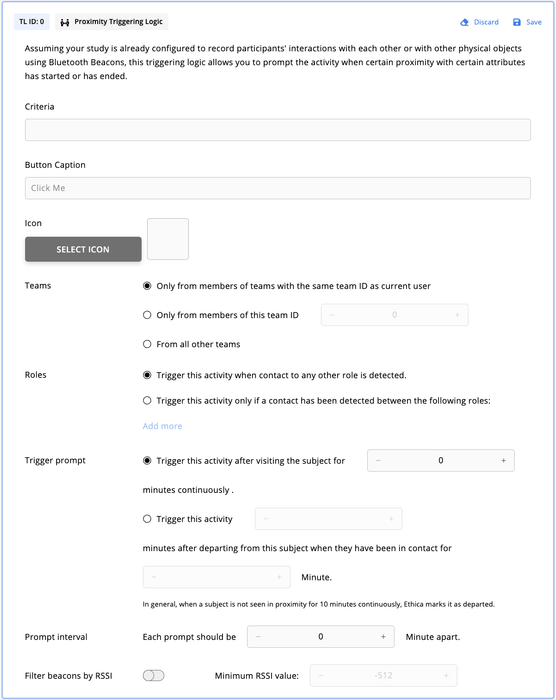
Similar to other TLs, you can define criteria for triggering. You can also select a caption and an icon for the button displayed on the participant’s homepage.
Proximity TL Parameters
You can configure the following parameters for a proximity TL:
Teams
Specify the team associated with the visiting beacon for this proximity TL.
Roles
Specify the role ID of the visiting beacon that is relevant for this proximity TL.
Trigger prompt
Choose whether the activity should be prompted:
- When the beacon of interest is visited.
- After it’s departed, given a minimum contact duration.
Prompt interval
Use this field to define the minimum time between two sessions triggered by this TL.
Minimum RSSI value
The Received Signal Strength Indicator (RSSI) filter allows you to specify how strong the signal of a visiting beacon must be considered for this proximity TL. As the signal strength is commonly used as an indicator of the distance, you can use this option to specify how far the participant should be from the visiting beacon.
Public TL
A public TL allows anyone to complete a survey anonymously, without needing an account or signing in.
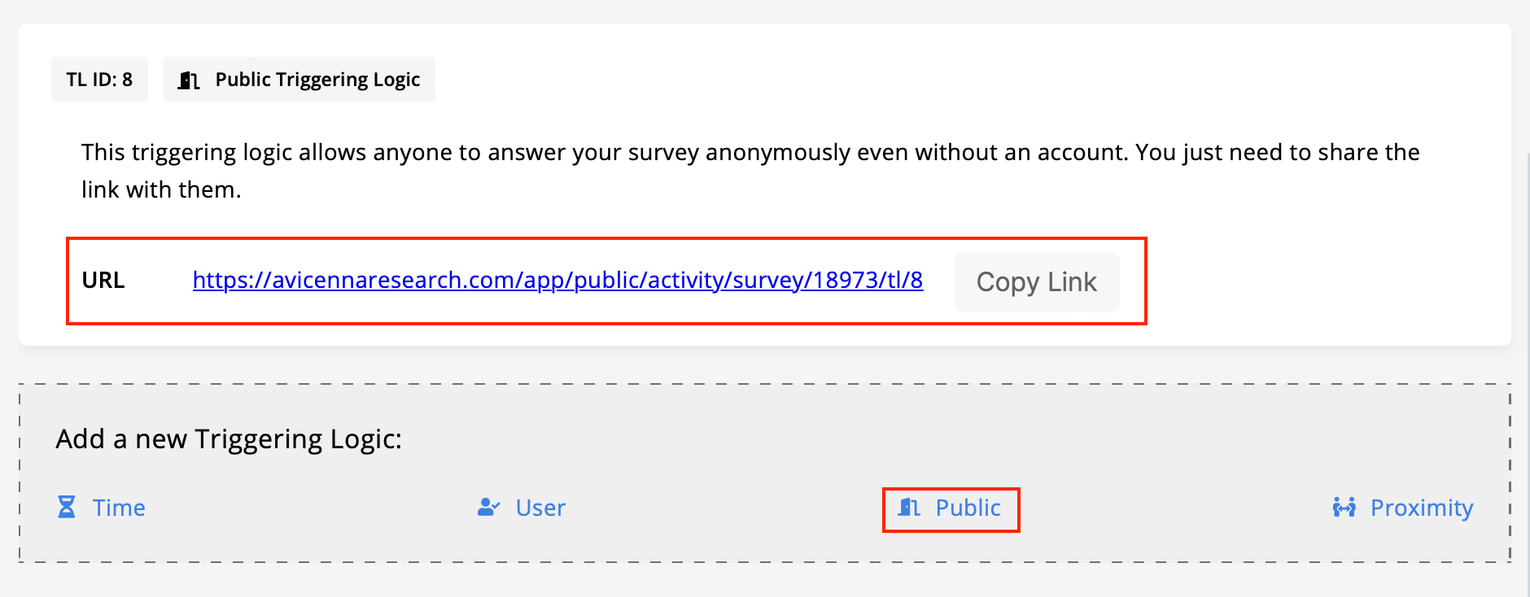
When you add a public TL to your activity, Avicenna generates a unique link for you that you can share with anyone to complete this activity. Each time someone opens that link, Avicenna starts a new session.
Participant responses for the current session are saved directly in the web browser. This means that if participants close or refresh their browsers, they can resume the session from the point where they stopped. However, if participants clear their browser’s data, such as cookies and cached files, switch to a different web browser, or cancel the activity, clicking the link will result in a new session.
It’s also important to clarify what happens when participants cancel or submit a survey. Participants can cancel their participation at any time. If they do, Avicenna notifies them that their responses and any progress made in the survey have been deleted.
When a survey is completed and submitted, participants receive a confirmation message letting them know that their submission was successful.
[!note]
Avicenna does not support notifications for anonymous participants.
Survey Content for Public TL
When creating a survey with a public TL, the survey’s setup is similar to other surveys, with one key difference: receiver questions, criteria, and placeholders cannot reference other surveys’ sessions. However, they can reference the current session’s questions. If you attempt to use criteria that reference another session, it will be evaluated as false. Similarly, using placeholders that reference other sessions will result in being replaced with an empty string.
Managing Anonymous Participants
All participants who complete a survey through a public TL will be listed on the Participation page under one log with an anonymous ID. This means that regardless of the number of participants, there will be only one row with an anonymous ID.
If you need to remove all data submitted through the public TL, open the 3-dots menu at the end of that row and select Delete.
Exporting Anonymous Participant Data
You can export survey responses and audit logs for anonymous participants by filtering the data using their anonymous ID.
Activity Responses Page
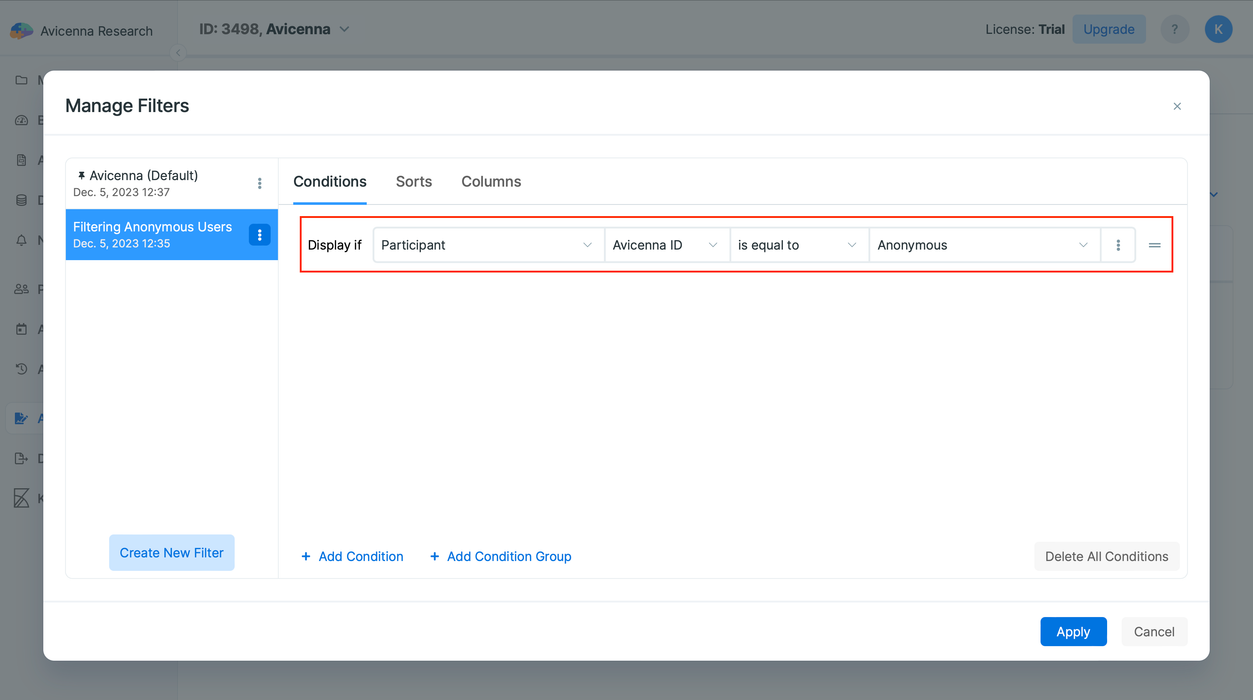
Assuming you are familiar with creating a filter, follow these steps on the Activity Responses page:
-
Choose Participant as the category.
-
Select Avicenna ID as the field.
-
Choose Anonymous as the value.
Audit Trail Page
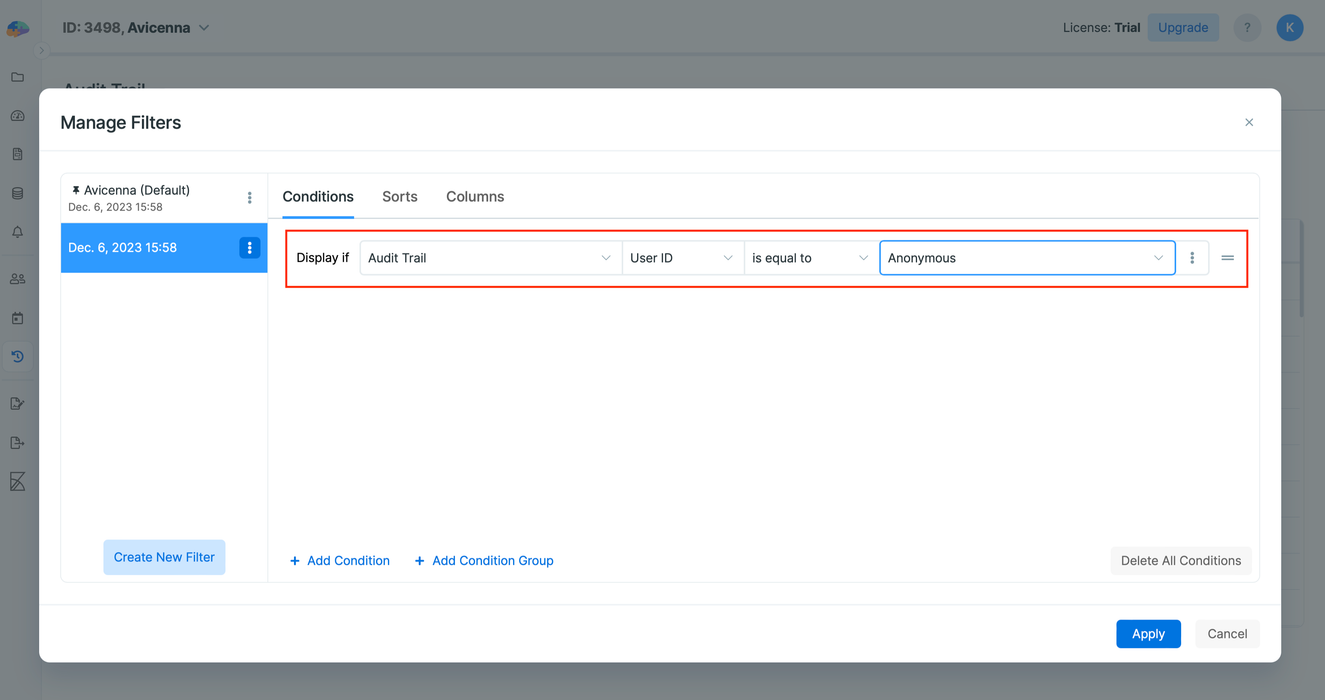
You can do the same on the Audit Trail page, following these steps:
-
Choose Audit Trail as the category.
-
Select User ID as the field.
-
Choose Anonymous as the value.
After applying the filter to display anonymous participant data, you can download the filtered results by clicking the Export as CSV button located next to the Filter button.
URL Variables in Public Surveys
URL variables in public survey links allow researchers to capture metadata about survey sessions. They can be used to:
- Track recruitment channels and campaigns
- Assign participants to experimental groups
- Link surveys to anonymous participant IDs
- Capture context about when and how surveys were accessed
These variables are automatically captured at session creation and stored in the dataset, enabling analysis without collecting personally identifiable information (PII).
Configure URL Variables
1. Get your public survey link
From your survey, copy the public survey link.
https://avicennaresearch.com/public/activity/survey/12345/tl/1
2. Add URL variables to the link
Append query parameters using standard URL syntax:
- First parameter: start with
? - Additional parameters: join with
&
[!example]
https://avicennaresearch.com/public/activity/survey/12345/tl/1?source=email&campaign=spring2024&group=controlCaptured variables:
source:campaign:spring2024group:control
3. Distribute the link
Share the configured link with participants through your recruitment channels.
[!note]
- If a participant resumes an in-progress survey, the original URL variables are preserved (parameters from the resume URL are ignored).
- If a participant completes a survey and starts a new session, URL variables from the new link are captured.
Important Notes:
- Maximum 20 parameters stored per session (first 20 unique keys)
- Key length: truncated to 50 characters
- Value length: truncated to 500 characters
- Duplicate keys: last value is stored
- Example:
?group=A&group=B→"group": "B"
- Example:
- Empty values are captured as empty strings
- Example:
?flag→"flag": ""
- Example:
- Standard URL decoding is applied
- Example:
?name=John%20Doe→"name": "John Doe"
- Example:
[!example]
The following examples demonstrate how URL variables can be used for different purposes:1. Campaign Tracking
Track which recruitment channel participants came from:?source=email ?source=social_media ?source=newsletter2. A/B Testing
Assign participants to experimental groups via the URL:?variant=treatment ?variant=control3. Participant Identification (Non-PII)
Link surveys to external participant IDs:?participant_id=12345 ?cohort=2024_spring4. Context Metadata
Capture additional context about when and how the survey was accessed:?referrer=conference ?device_type=mobile ?language_preference=fr
Localization Parameter
Use the client-side only localization parameter to set the survey language:
?localization={languageCode}-{regionCode}
Examples:
?localization=fr-CA French (Canada)
?localization=es-MX Spanish (Mexico)
[!important]
- Use a dash (
-) between language and region codes:fr-CA, notfrCA- The survey must have translations configured for the requested language
- Invalid or missing codes default to the survey’s base language
localizationis not stored in the URL Variables JSON; it only affects the UI language
Privacy and Security Considerations
-
Do not include personally identifiable information (PII) in URL variables (e.g., names, email addresses, phone numbers, social security numbers, health records, IP addresses, precise geolocation, or any identifying data)
-
Avoid including sensitive data, such as authentication tokens, passwords, API keys, financial information, or protected health information (PHI)
-
Be aware that URL parameters:
- Are visible in browser history
- May appear in server logs and analytics systems
- Can be exposed through referrer headers
- May be unintentionally shared if participants forward or reuse survey links
Best Practices
- Use indirect identifiers: Replace personal data (e.g.,
?email=john@example.com) with non-identifying codes (e.g.,?participant_code=ABC123) and store mappings securely - Encrypt sensitive links: Use secure token systems if transmitting identifying information instead of plain URL parameters
- Document parameters: Maintain clear documentation of all variables for consistent analysis
- Review ethics approval: Ensure usage aligns with your ethics/IRB protocol
Data Export
URL variables are included in session data exports alongside survey responses. To learn more about exporting data, refer to Activity Responses. All captured variables appear in a URL Variables column as a JSON object.
Example:
{"source":"email","campaign":"spring2024","group":"control"}
[!note]
Values are sanitized for safe use in Excel and other tools. URL variables are automatically processed to prevent:
- XSS attacks: HTML and script tags are removed
- CSV injection: Values starting with
=,+,-, or@are prefixed with a single quoteSanitization is performed automatically on the server side.
[!FAQ]FAQ
Q: Can I change URL variables after a session starts?
A: No. URL variables are captured only at session creation and remain unchanged for that session.
Q: What if a participant shares their survey link?
A: URL variables are associated with the first session created from that link.
Q: Can I use URL variables for randomization?
A: Yes, but for proper statistical randomization, use the platform’s built-in features. URL variables are better suited for tracking pre-assigned groups.
Q: Do URL variables work with authenticated (non-public) surveys?
A: No. They are only captured for public survey links. Use participant metadata for authenticated surveys.
Q: How do I test URL variables?
A: Create a test survey, generate a public link with parameters, complete the survey, and export session data to verify.
Q: Can URL variables pre-fill survey answers?
A: No. They are stored as metadata and do not populate responses.
Q: What happens if more than 20 parameters are included?
A: Only the first 20 unique parameters are stored; additional ones are ignored.
Researcher-responded TL
The researcher-responded TL allows researchers to schedule a new session for the current date and time, for a specific participant, and respond to it on their behalf. This means that the participants won’t have access to the responses and can’t edit them, but the entered data will be linked to their participation record.
This TL allows your study to implement researcher-administered surveys, or electronic case-report forms (eCRF), along with ecological momentary assessments (EMA) and ecological momentary interventions (EMI).
For example, in a study measuring cognitive bias in patients with anxiety disorders, researchers might administer surveys at specific times following therapeutic interventions by directly interviewing participants. The participants would not complete the surveys themselves; instead, researchers would observe behaviors or responses in a controlled setting and record the data on their behalf.
[!note] Note
Even though participants do not directly provide answers in this case, their responses are still considered when determining outcomes or criteria for other questions or activities.Additionally, a researcher-responded TL cannot be added to an activity through the Activity Editor page. This TL is automatically assigned to the sessions that are generated and responded to by the researchers.
Also, if a Notification Template is linked to an activity and the recipient of it is set to participants, it will not send notifications to participants for sessions filled out by researchers. However, if the recipient of the notification template is set to researchers, the notification will be sent as planned.
[!info]
Currently, researchers can only respond to surveys; other types of activities are not supported.
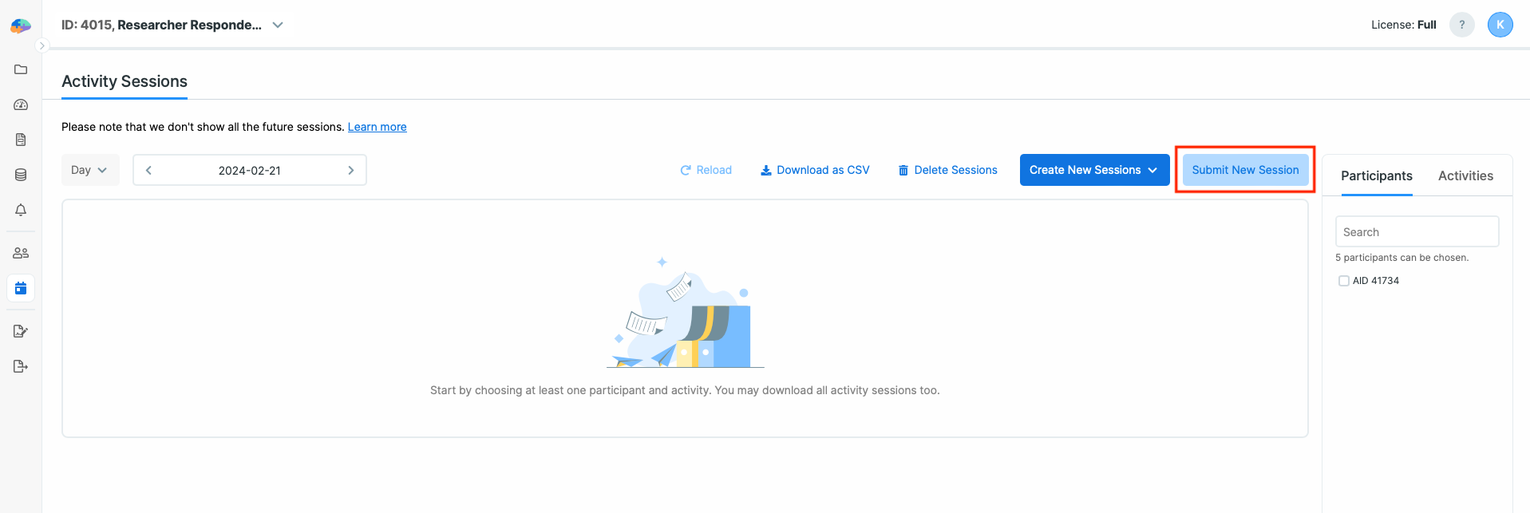
To submit a session as a researcher, follow these steps:
-
Go to the Activity Sessions page.
-
Click on the Submit New Session button.
-
Select the participant and the activity you want to respond to.
-
Click on the Next button.
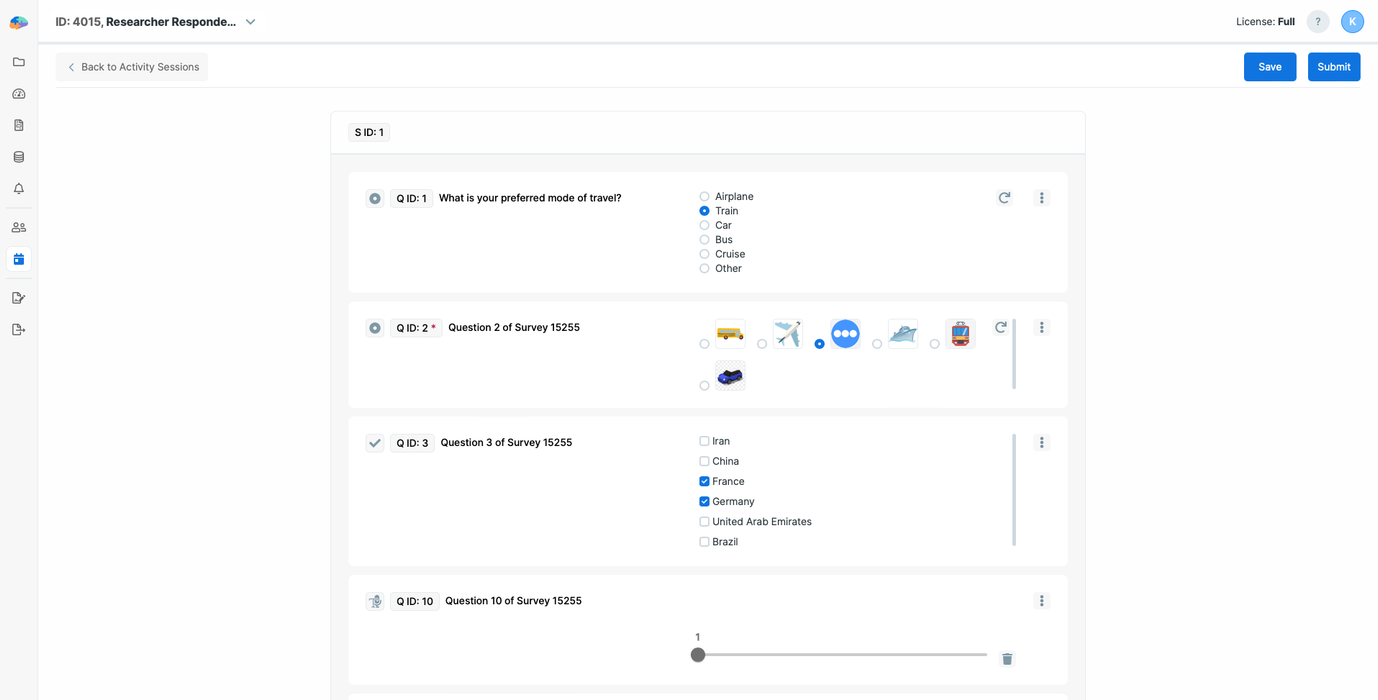
-
You will then be directed to the activity’s questions page, where you can enter responses as a researcher.
-
After answering the questions, you can:
- Save your session
- Submit your session
- Edit your responses later if needed.
Geofencing TL
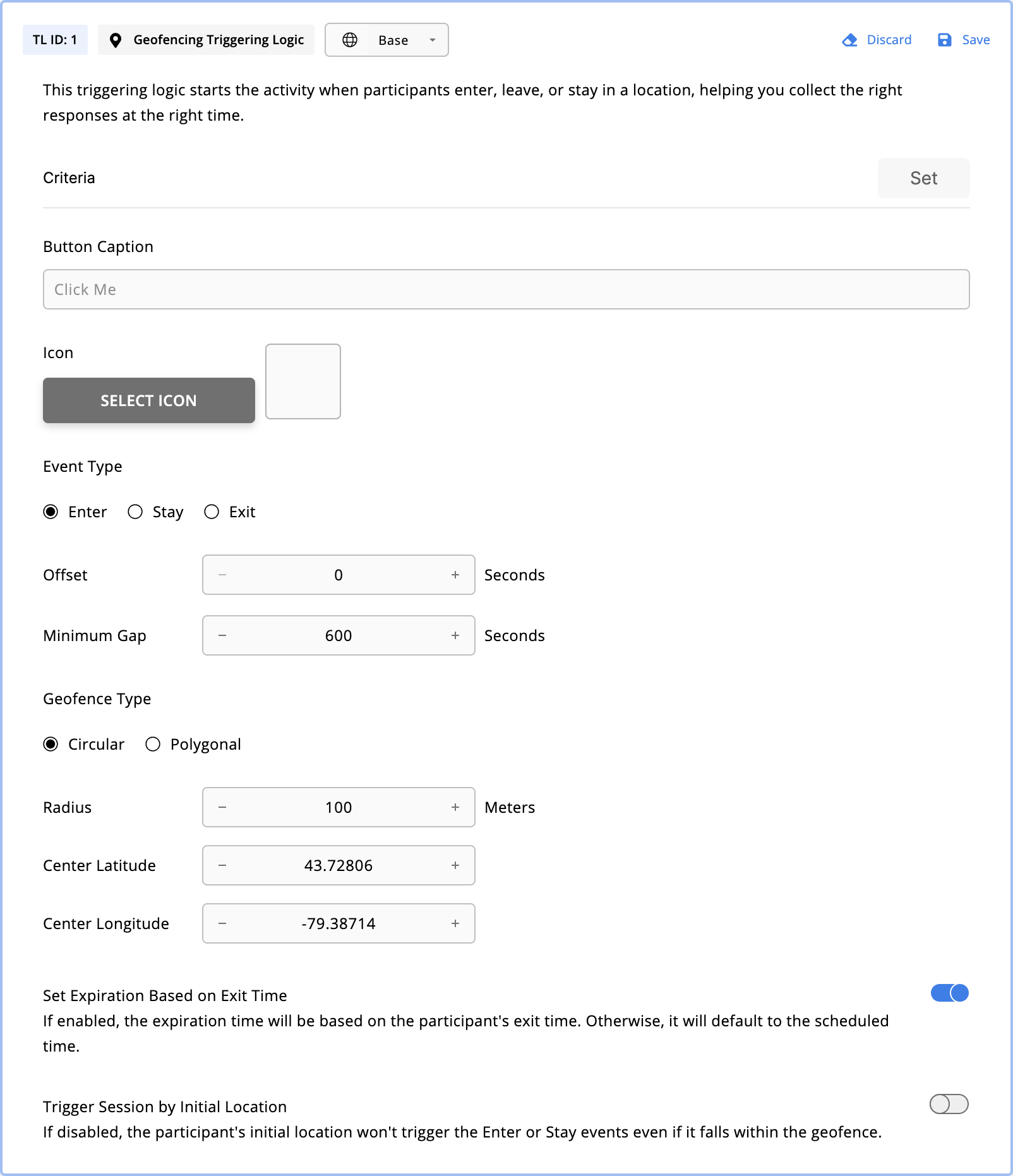
Geofencing TL allows activities to be triggered based on participants’ presence relative to specific geographic boundaries. You can add this TL to Surveys, Matrix Reasoning, Stroop, Working Memory, and Time Use activities, but only if the GPS data source has been added to your study.
Geofencing TL Parameters
You can configure the following parameters for a geofencing TL:
Event Type
It can be one of the following:
- Enter: Triggers a session based on the time the participant enters the geofence.
- Stay: Triggers a session based on the participant’s continuous presence within the geofence for at least the amount specified in the Minimum Duration field.
- Exit: Triggers a session based on the time the participant exits the geofence.
Minimum Duration
Only available for the Stay event. The minimum amount of time the participant should be within the geofence for the Stay event to trigger a session. Defaults to 600 seconds.
Offset
Delay the session trigger after the event. Defaults to 0 seconds.
Minimum Gap
The minimum gap between two consecutive sessions of this TL. If the TL condition is met within this gap period, the new session won’t be triggered. Operates only on the same triggering logic, so if you have multiple geofencing TLs within your activity, multiple prompts within the specified minimum gap can occur. Defaults to 600 seconds.
Geofence Type
It can be one of the following:
- Circular: Defines the center coordinates and the radius (in meters).
- Polygonal: Defines a polygon by specifying the coordinates of at least three vertices in the order they are connected. Each vertex should be unique, and the polygon must be simple, meaning it should not intersect itself.
[!note]
All coordinates are expected in the Geodetic decimal degrees format.
[!info]
This video might help you define your polygonal geofence using Google Maps. After downloading the KML/KMZ or CSV file, you can open the file using a text editor and extract the coordinates.
Set Expiration Based on Exit Time
Only available for Enter and Stay events. If enabled, the sessions created by this triggering logic will expire after the activity’s Expiry Time has passed when the participant exits the geofence. In this case, a study-reload request will be sent to the participant’s mobile apps so they get the calculated expiration time. On the other hand, if this option is disabled, the Expiry Time will be added to the scheduled time of the session (which is the default behavior) to determine the calculated expiration time.
Trigger Session by Initial Location
Only available for Enter and Stay events. If enabled, when the participant joins the study, their initial location will also be considered for Enter and Stay events. In such cases, for Stay events, the duration timer starts at the first location recording.
[!info]
This triggering logic needs participants to be online and upload their GPS data to Avicenna regularly, if you want the triggering to be near real-time; sessions will be created on the server side and not the mobile apps.
On the other hand, scheduling and expiring sessions will be done on the server based on the time GPS data is collected on the mobile app (record_timeof the GPS records) and not the time such data is received by the server.
[!note]
After creating such sessions, the server will send the sessions to the participant’s mobile apps.
Manually Triggering an Activity
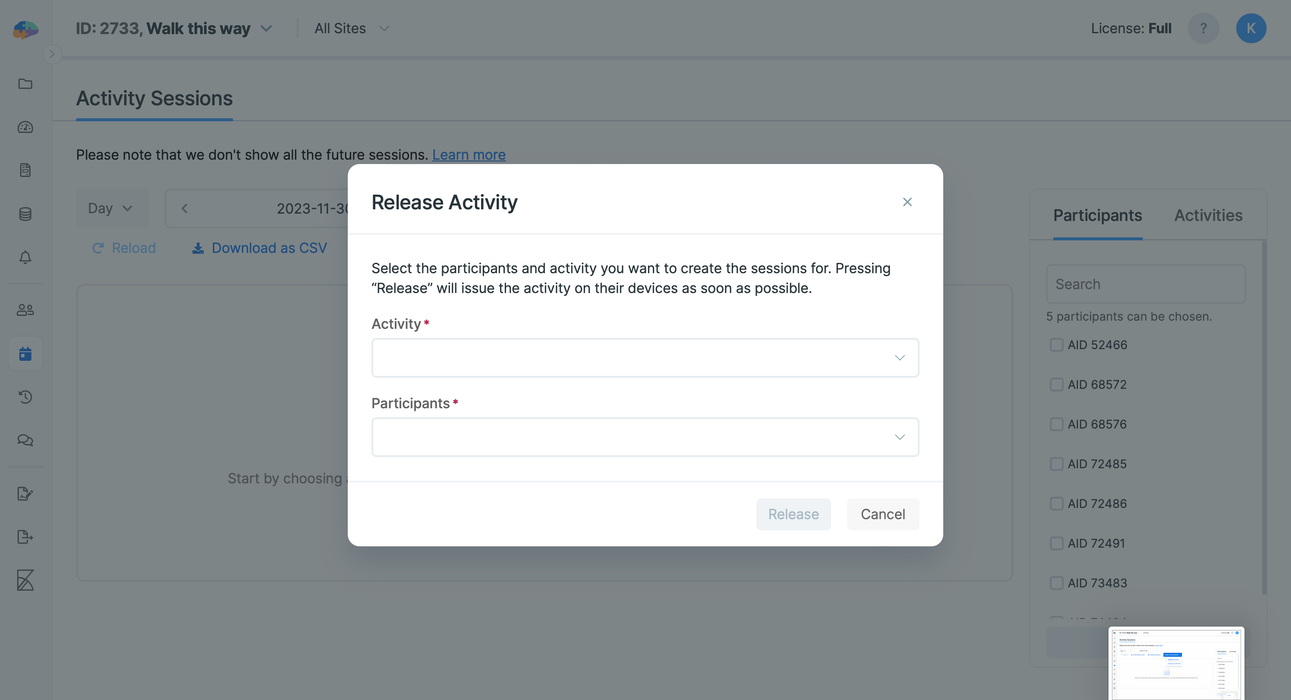
While TLs** allow you to specify when or how Avicenna should present an activity to a participant, there may be situations where you want to prompt the Activity immediately for one or more participants.
Avicenna allows you to manually trigger an activity. When you do this, Avicenna will ignore the activity and TL Criteria (if any) and prompt the activity to the participant right away.
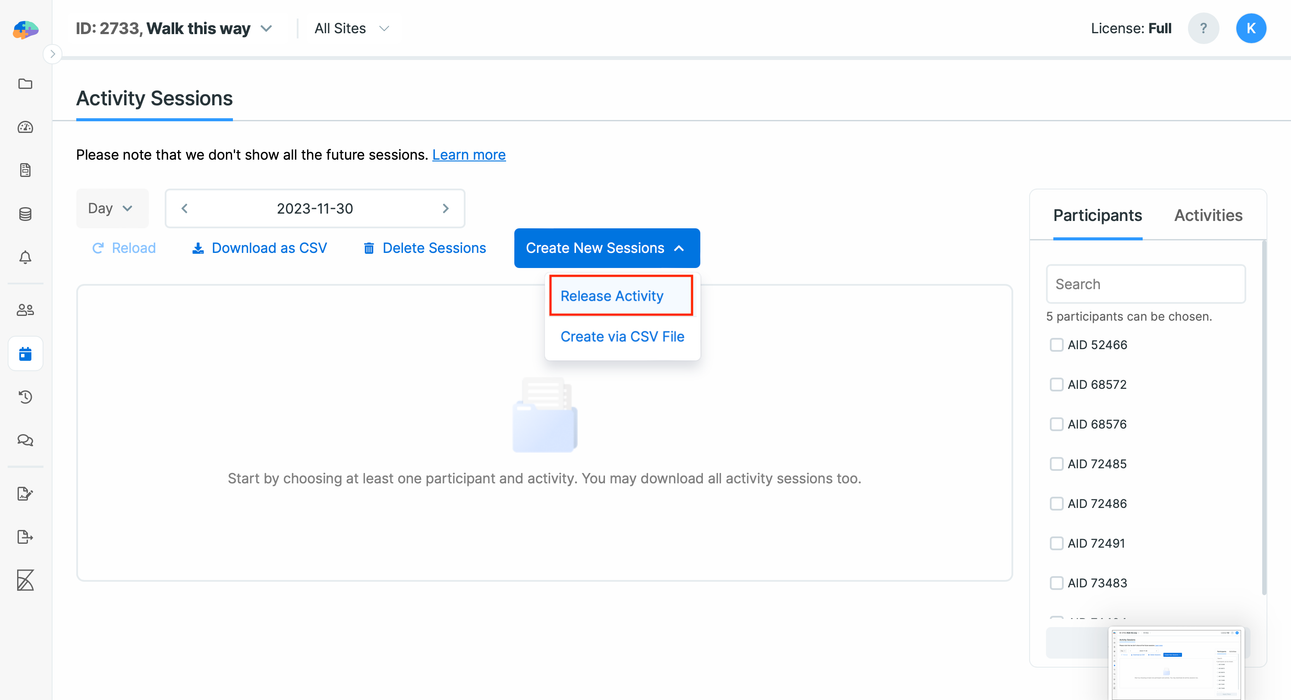
To trigger an activity manually:
- Go to the Activity Sessions page.
- Click on the Create New Sessions button.
- Select the Release Activity option.
- In the release activity dialog, choose the specific activity you wish to manually trigger.
- Select the participants who should receive the activity.
- Click on the Release.
This will prompt the selected activity to the chosen participants immediately.
How-Tos
- Create a Baseline Survey
- Create a One Time Optional Survey
- Create Personalized Surveys
- Prompt a Survey More Than Once a Day
- Enable Triggering Logic Only for One Participant