Page activity allows you to display an external web page within the Avicenna app. You can create the page using any tool you prefer, for example, blog platforms or a custom-coded site hosted on your server. The page can include any type of information you’d like to show your participants.
Use Cases
Use Page activities to:
- Display instructions for the participants to follow.
- Display external dashboards or visual reports.
Creating and Configuring a Page Activity
To create a Page activity in your study, follow these steps:
- Go to the Activities page in the researcher dashboard.
- Click on Create New Activity, and then select Page.
After creating the activity, you’ll be taken to the Page activity editor. Here’s what you need to do:
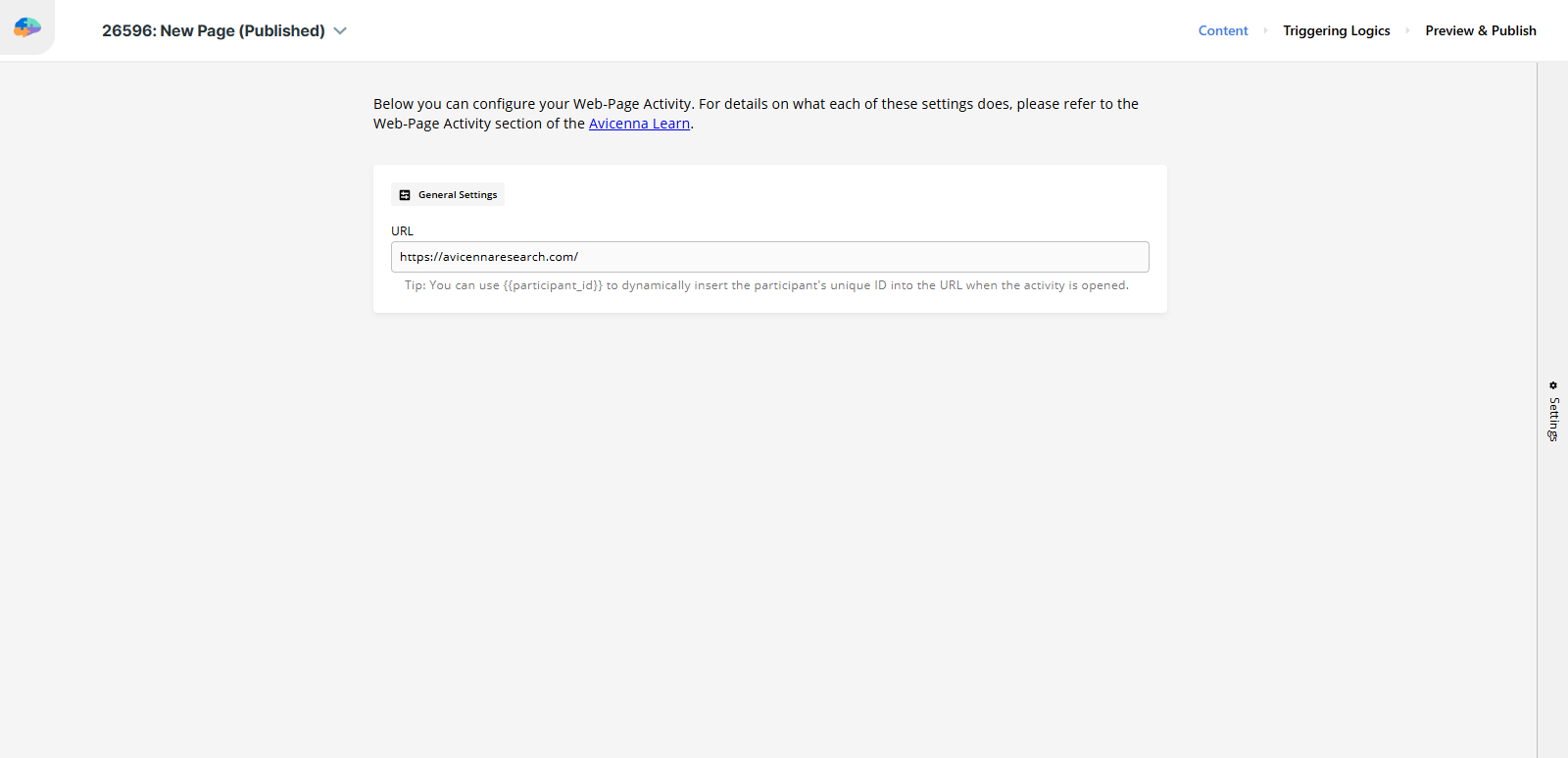
- Enter the URL to be shown to participants. Note that the embedded page must have a public URL (e.g., https://avicennaresearch.com) and be hosted on a secure website, i.e., the URL should start with
https. - Publish to finalize the activity and test it in the Avicenna app.
[!info]
Page activities:
- Support only User Triggering Logics. Other types of triggering logics are not supported.
- Do not create sessions.
- Do not support notification templates.
- Allow defining criteria (if necessary) at both the activity and triggering logic levels.
Using Placeholders in URLs
You can use placeholders in the URL of a Page activity to show different web pages to different participants based on their context. The placeholders are replaced with the actual values when the participant opens the Page activity.
Currently, we support only one placeholder:
-
{{participant_id}}: Replaced with the participant’s unique ID.[!example]
https://example.com/profile/{{participant_id}}becomes:
https://example.com/profile/12345when the participant with ID
12345opens the activity.[!info]
Page preview won’t function properly if your URL contains the placeholder{{participant_id}}. This is expected behavior. Participants will see the correct page when using the app.
On the Participant Side
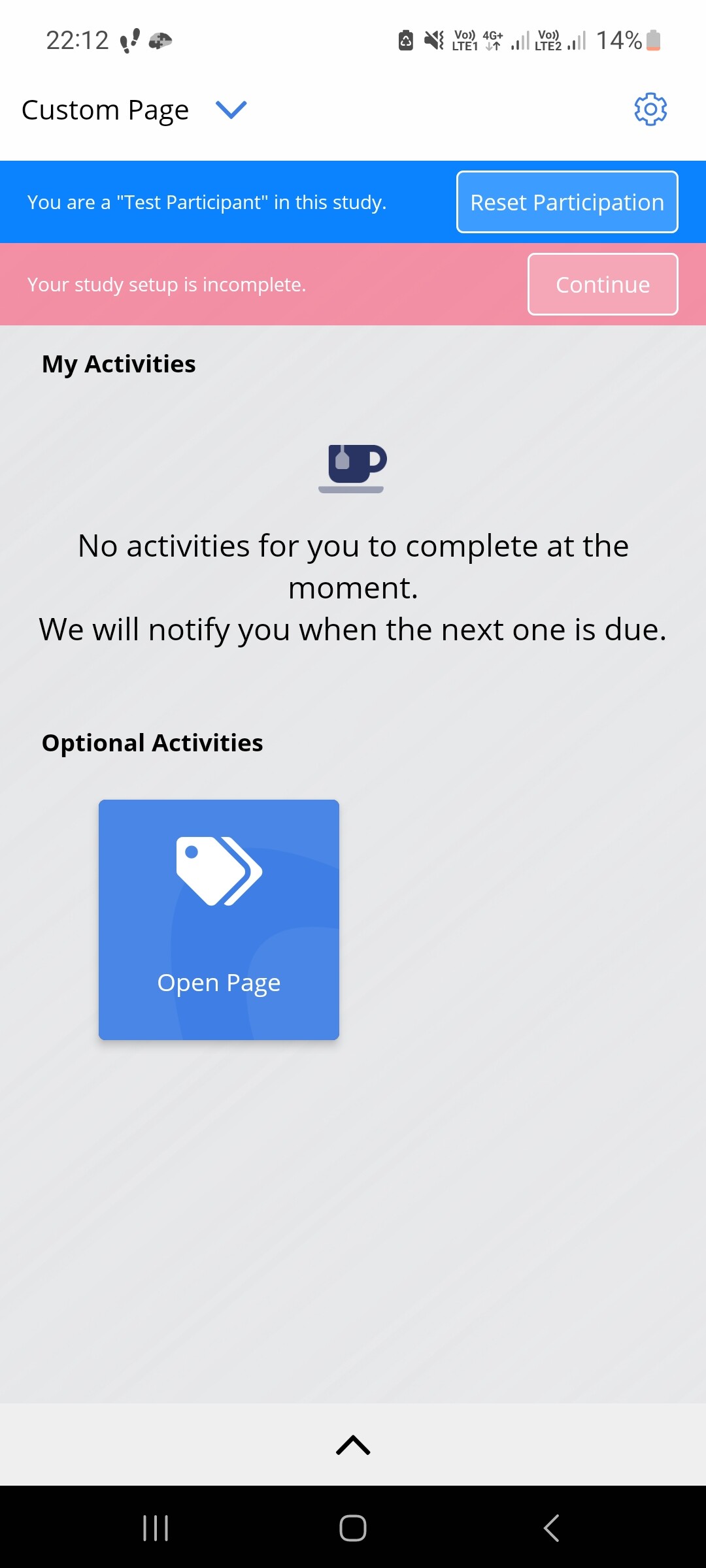
In the Avicenna app, Page activities appear as buttons on the home screen, just like other activities. Participants will always have access to the button to launch the activity and view the specified web page.
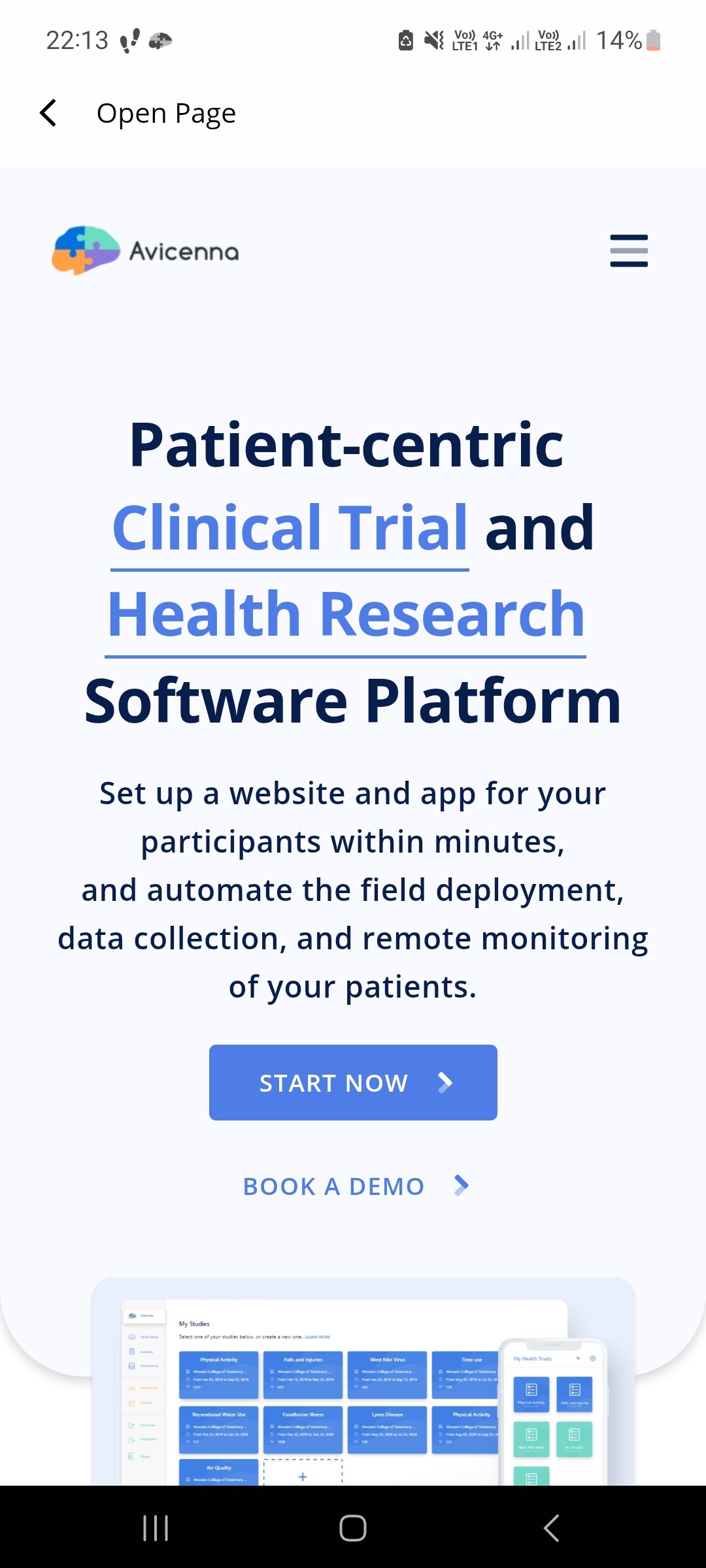
When a participant taps the button, the URL is opened within the app, not in an external browser.
To provide a seamless experience for participants, the Page activity viewer displays only minimal interface elements. This ensures that your embedded web page integrates smoothly with the Avicenna app and feels like an integral part of the main application. This allows you to extend the app’s functionality by adding dynamic content to it.
Troubleshooting
The page refuses to connect on the participant web app and Preview
This issue is often due to the X-Frame-Options header or Content Security Policy (CSP) settings on the web server hosting the page. Many websites set these security headers to prevent their content from being embedded in iframes on other domains, which is how the Avicenna web app displays Page activities.
[!info]
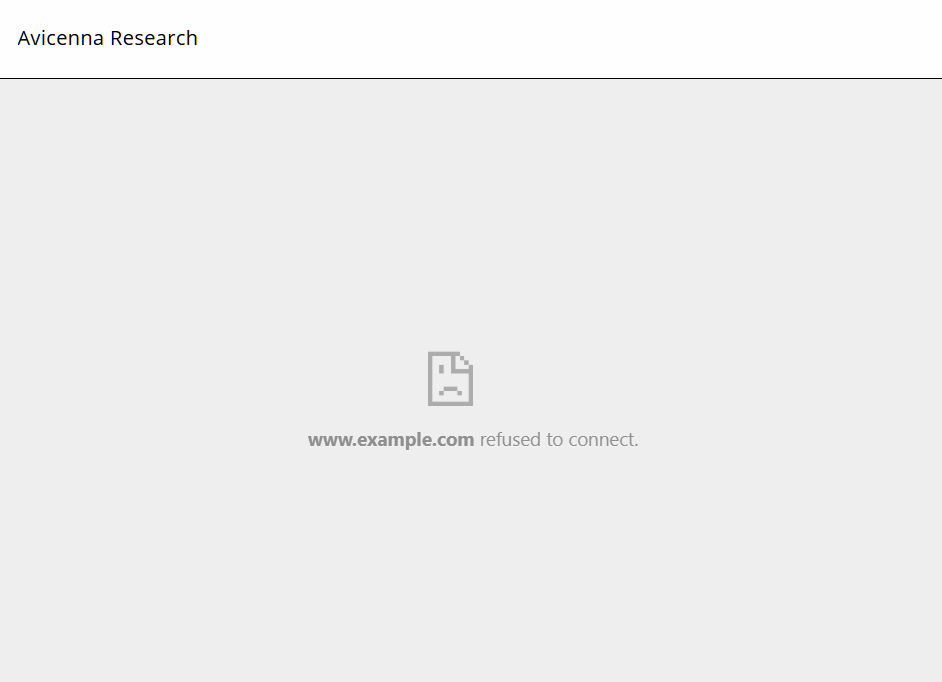
- In Chrome, for example, you might see an error message like:
www.example.com refused to connect.- Other browsers may show similar messages.
To resolve these issues, modify your web server configuration to allow the web page to be embedded within the Avicenna app. Below are common solutions:
-
Option 1: X-Frame-Options Header (Deprecated)
Set the
X-Frame-Optionsheader toALLOW-FROM:X-Frame-Options: ALLOW-FROM https://avicennaresearch.com[!note]
TheALLOW-FROMdirective from theX-Frame-Optionsheader is deprecated and not supported by all browsers. -
Option 2: Content Security Policy (Recommended)
Use the modern
Content-Security-Policyheader:Content-Security-Policy: frame-ancestors 'self' https://avicennaresearch.com
If you don’t have direct access to the server configuration, contact your web administrator or hosting provider for assistance in implementing these changes. We assume you are the page owner.