This guide explains a workaround to send a one-time message to all participants in a study using a manually released survey.
The Situation
You are running a study and need to send a one-time message to all participants (e.g., over 600 people). The standard one-off notification tool is designed for smaller, targeted groups and lacks a “select all” option, making it impractical for large cohorts.
To send a message to everyone at once, you can manually release the survey. However, if you try to publish the survey, you will encounter an error. This error occurs because your notification template is set to trigger on “Session Released”. Since the activity lacks a scheduled triggering logic, the system cannot determine when to send this notification.
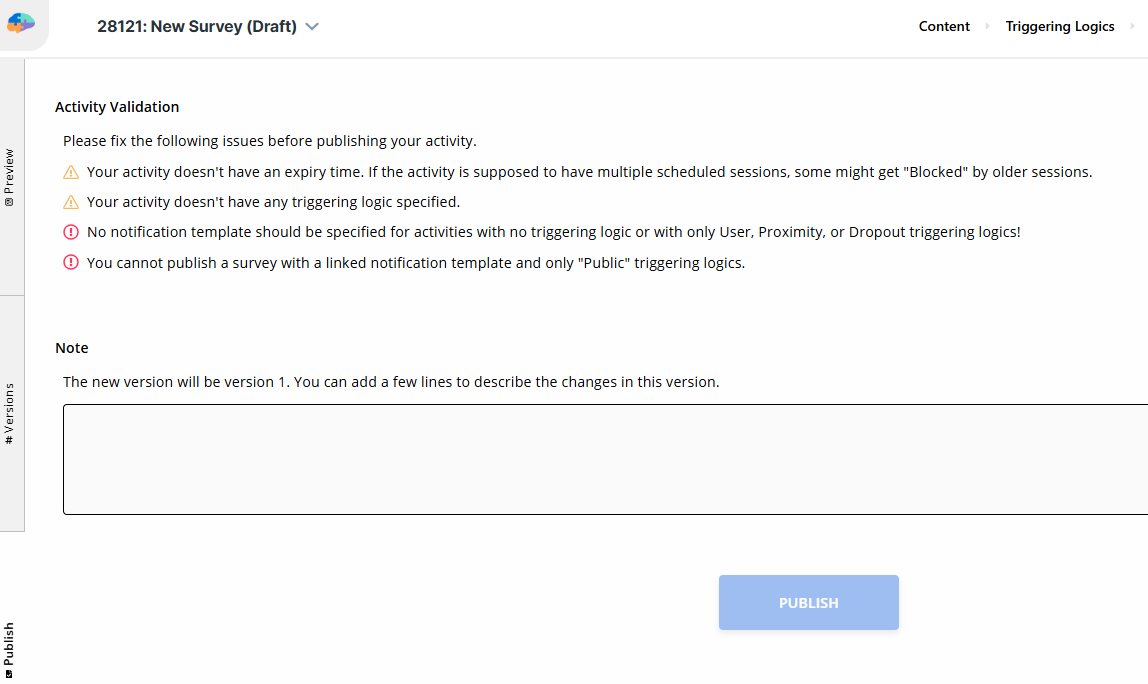
The system requires a schedulable trigger (like a Time TL) to validate a “Session Released” notification, even if you only plan to release the activity manually.
What to Do?
Here is a simple workaround: add a dummy Time Triggering Logic that never automatically triggers a session. This will allow you to publish the activity with the notification linked.
-
Create Your Survey:
-
Create a new survey and add an Information question containing the message you want to send.
-
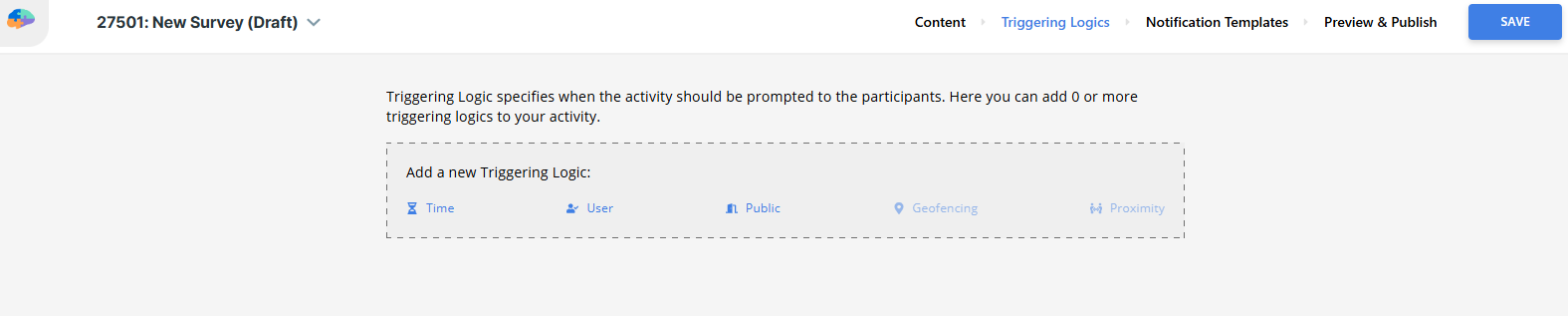
In the Triggering Logics tab, remove any existing triggers.
-
-
Add a “Dummy” Time Triggering Logic:
-
In the Triggering Logics tab, add a new Time Triggering Logic. You can ignore the schedule settings, as this trigger will be disabled.
-
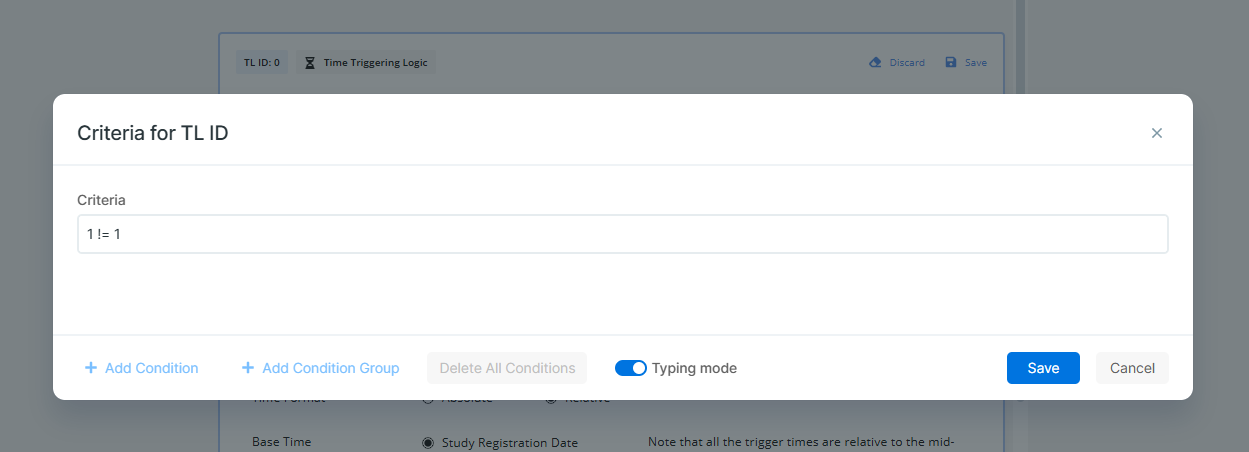
In the Criteria field, enter
1 != 1. This creates a condition that is logically impossible (always evaluates to False). It satisfies the system’s requirement for a trigger (bypassing the validation error) while ensuring that the trigger never automatically schedules a session.
-
-
Link Your Notification Template:
-
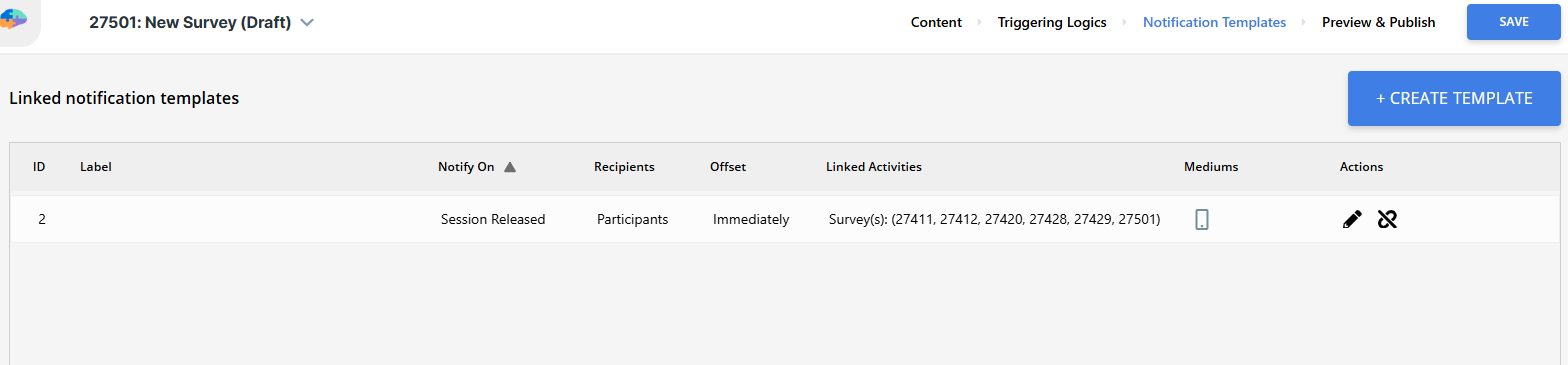
Go to the Notification Templates tab.
-
Ensure your “Session Released” notification template is created and linked to the activity.
-
-
Publish the Activity:
-
Go to the Preview & Publish page. The error messages should now be gone.
-
Click Publish.
-
-
Release the Activity to Participants:
-
After publishing, go to the Activity Sessions page.
-
Click Create New Sessions and select Release Activity.
-
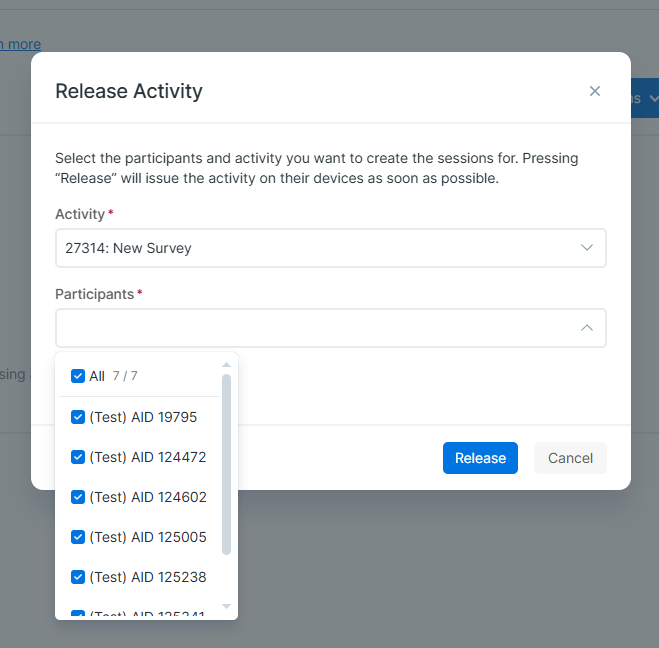
In the dialog, choose your activity. In the Participants dropdown, select “All Participants” to release the activity (and send the notification) to everyone at once.
-
Pro Tip
You can reuse this activity for future announcements. Instead of creating a new survey from scratch each time, simply edit the content of the Information question, publish the changes, and release the activity again to your participants.