The Activity Responses page allows you to review the survey responses submitted by each participant in your study. This page also displays the metadata that is stored with each survey response.
Viewing Survey Responses
- Open the Researcher Dashboard.
- Go to the Activity Responses page.
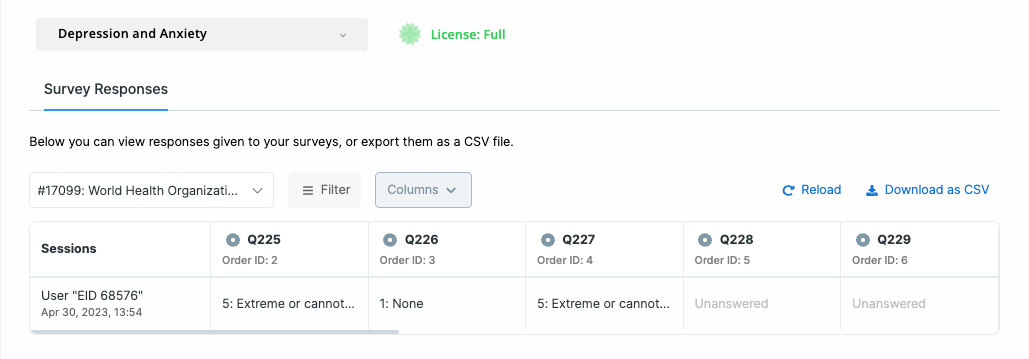
- At the top of the page, select the Survey you would like to review.
[!note]
You can only view one survey at a time on the Activity Responses page. This is because each survey may contain different questions and, therefore, different table columns.
However, you can export responses from multiple surveys at once. When you select more than one survey for export, the system will generate a ZIP file. This ZIP file contains one CSV file per survey, with each CSV including only the responses for that specific survey.
Survey Responses Table
Each row in the Survey Responses table represents a single survey session completed by a participant.
- The first column identifies the survey session.
- Each additional column represents a question in the survey.
- Each cell in the table contains the participant’s answer to that question during that session.
Viewing More Details for an Answer
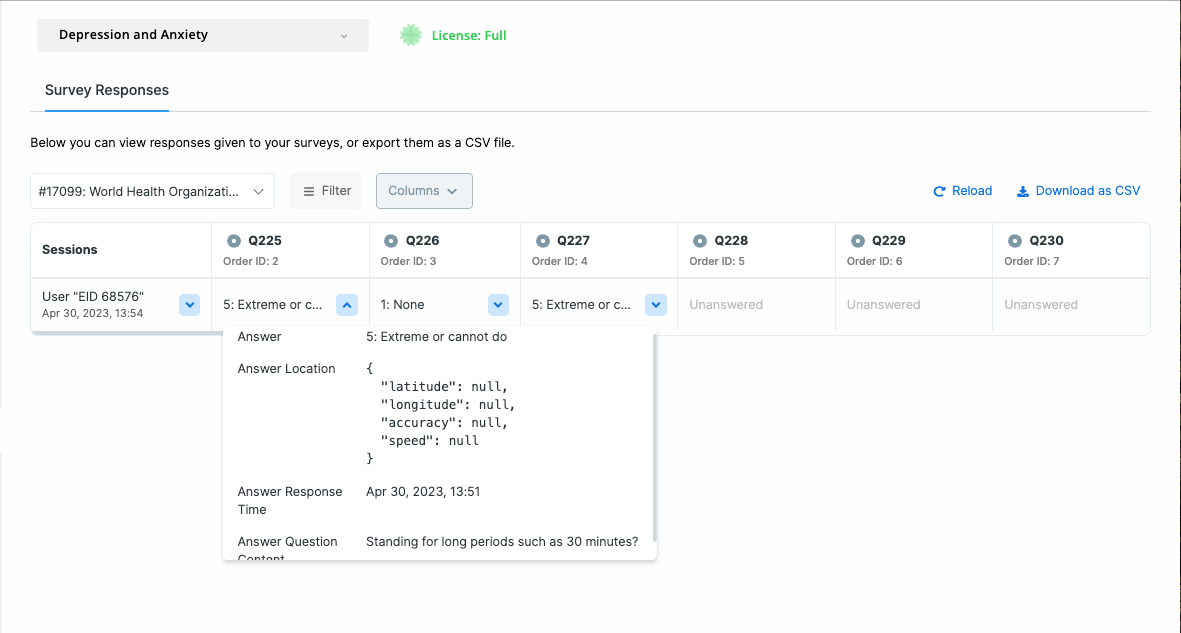
Each answer cell includes a dropdown menu that lets you view additional metadata about that response. When you open the dropdown, you will see two options:
- Response History
- Comments
Selecting Response History displays metadata associated with that answer, such as submission details and any captured context. These metadata fields are described in detail in the corresponding section.
Viewing Session Metadata
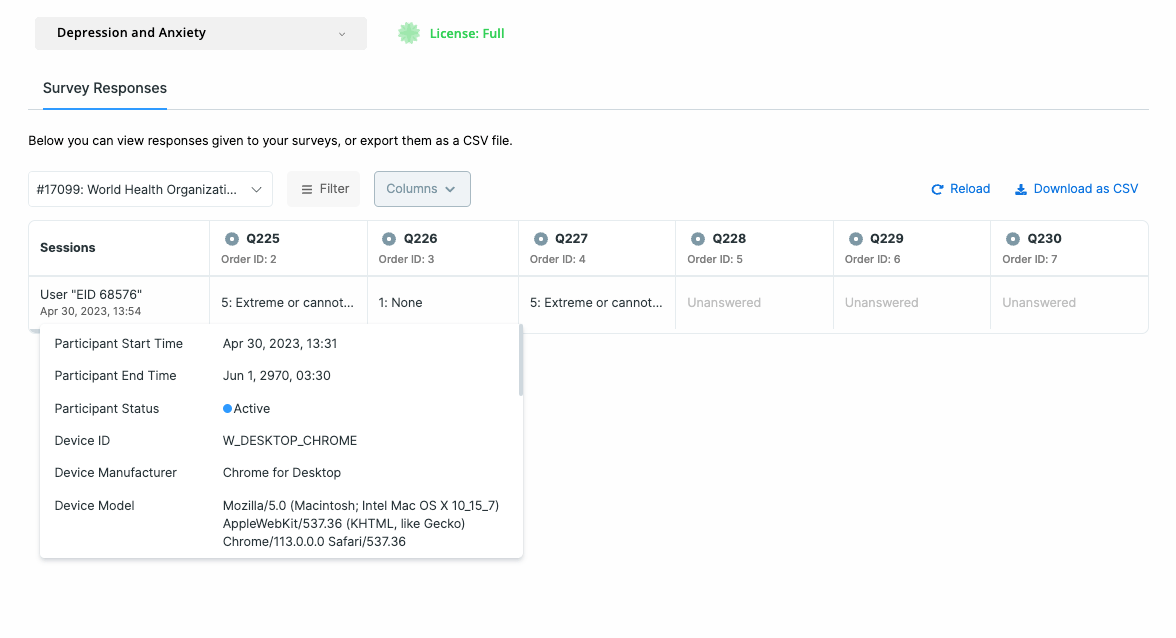
Each cell in the first column (the Sessions column) includes a dropdown menu. Clicking this dropdown opens a panel that displays session-level metadata for that survey submission. This metadata includes:
- Device ID: The unique identifier of the participant’s device
- UUID: The unique identifier of the survey response
- Activity Version: The version of the survey that was completed
- Prompt Time: The date and time when the participant was prompted to complete the Survey
- Record Time: The date and time when the response was recorded
- Status: The completion status of the Survey session (for example, Completed)
- Triggering Logic ID: The identifier of the logic or condition that triggered the activity
Viewing Responses for Loop-Iterated Questions
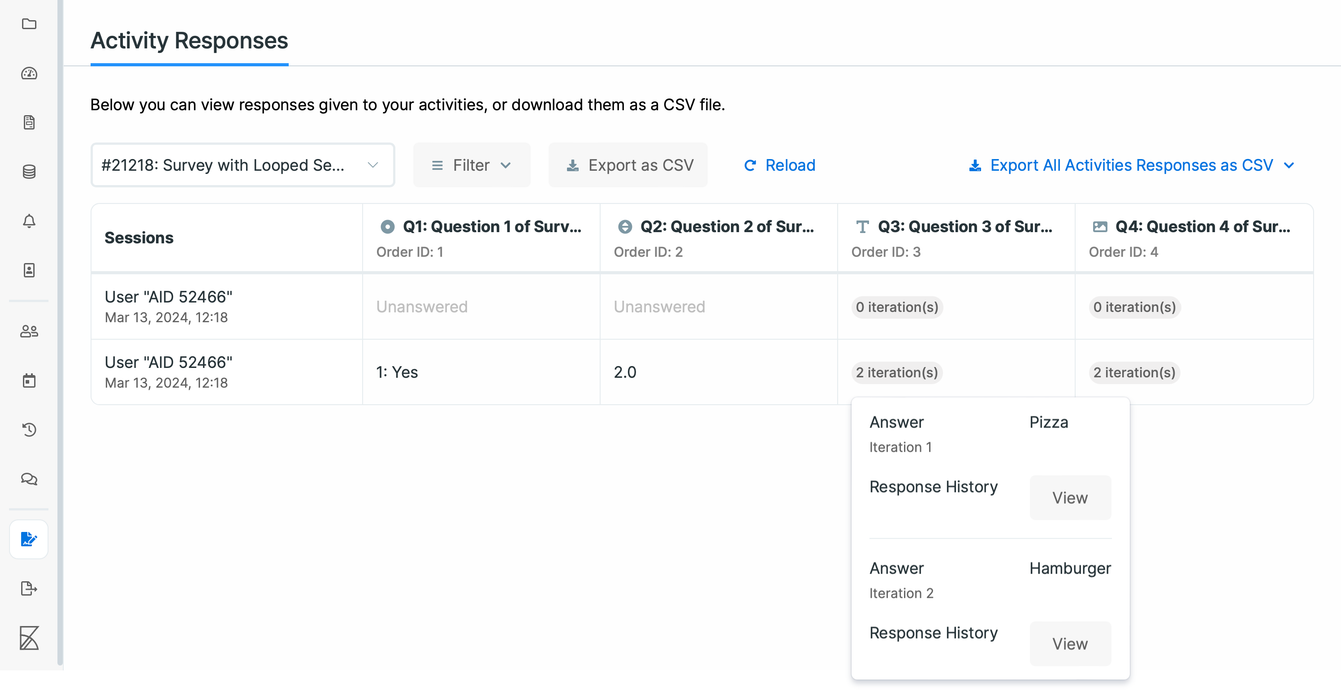
If a question has been answered in multiple loop iterations, you can see the answer given in each iteration along with an option to view the complete response history. For instance, in the third question (Q3: Question 3 of Survey 21218), you can observe two iterations, indicating that the user answered this question twice, with responses ‘Pizza’ and ‘Hamburger’ for the first and second iterations, respectively. This setup helps to track and analyze the patterns in responses over multiple loops within the same session.
Reason for Unanswered Questions
Sometimes a question may not have a recorded answer. When this happens, the response cell will indicate the reason the question is unanswered. The possible reasons are:
- Skipped (ID: 1): The respondent chose to skip the question.
- Due to question criteria (ID: 2): The question was not shown because its criteria evaluated to
false. - Due to section criteria (ID: 3): The question was not shown because the criteria for its containing section evaluated to
false. - Due to question randomization (ID: 4): The question was omitted due to randomization.
- Due to section randomization (ID: 5): The containing section was omitted due to randomization.
- Due to disabled question (ID: 6): The question was disabled and therefore not shown to the respondent.
- Due to zero section loop iterations (ID: 7): The section was not looped over, based on the response to the loop-source question.
- Due to sections flow (ID: 8): The containing section was skipped using the Next Section ID setting on a question or section.
- Due to session status (ID: 9): The Survey session was Expired, Canceled, or Blocked before the respondent answered the question. This can also be due to the session being Unanswered or In-Progress.
- Due to sender question not answered (ID: 10): The sender question was not answered for any reason
- Due to response to sender question not providing answer options (ID: 11): The sender question was answered, but the response did not produce any valid answer options for the receiver question.
- Due to response to sender question not available for anonymous participants (ID: 12): The sender question was in another survey, or the receiver question comes before the sender question.
- Due to file rejection (ID: 13): The file uploaded for a File question was removed because a security issue was detected (for example, malware), and the answer was rejected.
[!note]
For unanswered questions that were submitted before this categorization was introduced, the response cell will display: Unanswered — Due to unknown reason (ID: -1).
[!note]
In exported survey responses, the reason for an unanswered question is included in theMetadatacolumns for each question, under the field nameunanswered_status_id.
Data Filtering and Exports
After selecting the Survey you want to view responses for, clicking on the Filter button allows you to filter, sort, and organize your data as you want.
Also, you can export the responses as a ZIP file when necessary. The ZIP file will contain a CSV file for the textual information of the responses. On the other hand, any media-based response file (such as image, audio, which includes the audio part of Audio/Text responses, and video) will be in a separate folder named response-files under the ZIP file. The CSV will also include the paths to the media-based response files for easy reference.
For more information on how to filter your data, see Data Filtering.
[!note]
On the Activity Responses page, you will only see responses based on the latest published version of the survey. The same is true for all the corresponding exports you create using the researcher dashboard.
If you need to access responses to deleted questions from earlier versions of the survey, you need to use Kibana.
Formats for Exporting All Activities Responses
When you choose Export All Activities Responses as CSV from the Activity Responses page, you’ll see two format options:
-
New Format: Includes all the latest improvements. You can also adjust the output so it closely matches the Old Format if you need backward compatibility.
-
Old Format: It’s still available for now, but it will be removed soon. If you select it, Avicenna will notify you about its deprecation and ask you to confirm before continuing.
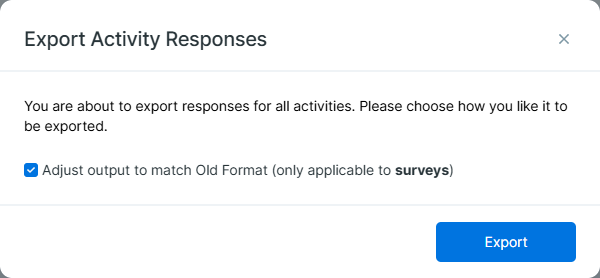
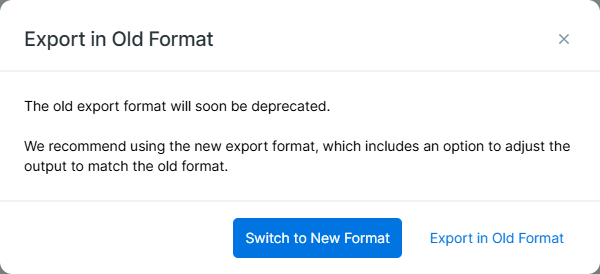
The Old Format contains a simpler set of columns with participant identifiers, scheduling information, and responses. In contrast, the New Format provides much more detailed metadata about responses, participants, devices, and sessions. This makes the New Format richer, more structured, and easier to analyze for complex studies.
Some specific differences include:
- In the Old Format, responses to single-answer questions are stored by their answer ID, while in the New Format, they are stored by their answer content.
- The Old Format shows responses to length questions in feet, while the New Format records them in centimeters.
[!note]
If you wish to use the adjusted format, please ensure that your export filter includes all the columns available in the Old Format to avoid missing data.
Survey Data Structure
When a survey is prompted to a given participant, Avicenna creates a session that is associated with both the survey and the participant. When the session concludes, either because the participant completed the survey, the survey expired, or for another reason, the Avicenna app collects all available responses and uploads the session and its responses to the Avicenna servers.
Each session contains metadata that describes the session itself. In addition, each question and response within the session also contains its own metadata.
Below, we describe these metadata fields in detail.
Session Metadata
The following fields are stored with every session:
User ID
The Avicenna ID of the participant associated with the session. Internally stored as user_id.
Activity ID
The ID of the survey for this session. This also determines the set of questions and expected responses. Internally stored as activity_id.
Version
The version number of the survey associated with the session. Survey versions allow Avicenna to track which participants responded to which revision of a survey when updates are made after participants have already joined the study. Internally stored as version.
Unique ID
A unique identifier for the session. Internally stored as uuid.
Device ID
The ID of the device used by the participant during this session. This is useful for identifying sessions completed across multiple devices. Internally stored as device_id.
Scheduled Time
The time the Survey was scheduled to be prompted to the participant. Internally stored as scheduled_time.
- For time-triggered surveys, this is the predetermined scheduled time.
- For other triggering logics (e.g., proximity-triggered), this time is recorded when the session is first created.
Prompt Time
The specific time when the survey was actually presented to the participant.
Record Time
The time when the session reached its final state (Completed, Expired, Blocked, or Canceled). Internally stored as record_time.
See the Activity Sessions page for details on session statuses.
Status
The session status, internally stored as status_id, and may have one of the following values:
- Completed: The participant successfully completed the survey.
- Canceled: The participant explicitly canceled the survey.
- Expired: The participant did not respond within the allowed time window.
- Blocked: The Survey could not be triggered because another active session already existed for the same participant and survey.
Triggering Logics ID
The ID of the triggering logics that initiated the session. This is useful when a survey can be triggered using multiple triggering logics, and you need to identify which one was responsible for a specific session.
Triggering Logics Type
Indicates the type of triggering logics used for the activity. See the Triggering Logics page for more information on available types.
Response Metadata
Each activity session contains a set of responses, one for each answer provided by the participant. The metadata stored with each response is described below. Not all responses will include every field listed here. For more details on the structure, field meanings, and hierarchy, see the Survey Response schema.
Question ID
The ID of the question associated with the response. Internally stored as q_id.
Question Type ID
The ID of the type of question that this response belongs to. Internally stored as q_type_id.
Possible values are:
- 0 - Single Answer
- 1 - Information
- 2 - Multiple Answer
- 3 - Text
- 4 - Number
- 5 - Image
- 6 - Audio
- 7 - Video
- 8 - Visual Analog Scale
- 9 - Mass
- 10 - Length
- 11 - Audio & Text
- 12 - Barcode
- 13 - Calendar
Question Content
The text or media content of the question that is presented to the participant. This may vary between sessions if the question features dynamic content, meaning the question content can change each time it is asked. Internally stored as q_content.
Answer ID
The ID of the answer option selected by the participant. This field is only available for Single Answer and Multiple Answer question types. Internally stored as answer_id.
Answer Content
The content of the participant’s response. The format depends on the question type and may include:
- Numeric values (e.g., Number, Mass, Length questions)
- Dates (Calendar questions)
- Text (Text or Barcode questions)
Internally stored as answer_content.
Answer URL
The URL of the media submitted by the participant as their response to the question. Depending on the question type, the URL may point to an image, audio, or video file. Internally stored as answer_url.
Response Time
The timestamp indicates when the participant submitted this response. This value always falls between the session’s scheduled time and record time. Internally stored as response_time.
Loop Count
Indicates the total number of times this question was answered within the session. This applies when the question belongs to a looped section that repeats multiple times. Internally stored as loop_count.
Iteration
The loop iteration index at which the participant responded to this question. This applies when the question is part of a section located in a loop, meaning it is presented to the participant multiple times within the same session. Internally stored as iteration.
Location
The latitude, longitude, speed, and accuracy values of the participant’s GPS coordinates at the time they responded to the question. This is only captured if the survey is configured to geo-tag responses and the participant has granted the Avicenna app permission to access GPS. Internally stored as location.
Media Interactions
If the question content includes any videos, this attribute indicates how many times the video was viewed and which portions were watched. Internally stored as media_interactions.
Preferred Unit
The unit selected by the participant when responding to the question. For Mass questions, the available units are Kg or Lbs. For Length questions, the available units are cm or ft & in. This field is not defined for other question types. Internally stored as preferred_unit.
Viewing Survey Response History
Avicenna records any modifications made to survey responses and allows you to track changes for each answer. This feature, called Survey Response History, helps ensure data accuracy and provides insight into participant behavior over time.
To view the history of a survey response:
- Click the dropdown menu in the response cell.
- Select View under the Response History section.
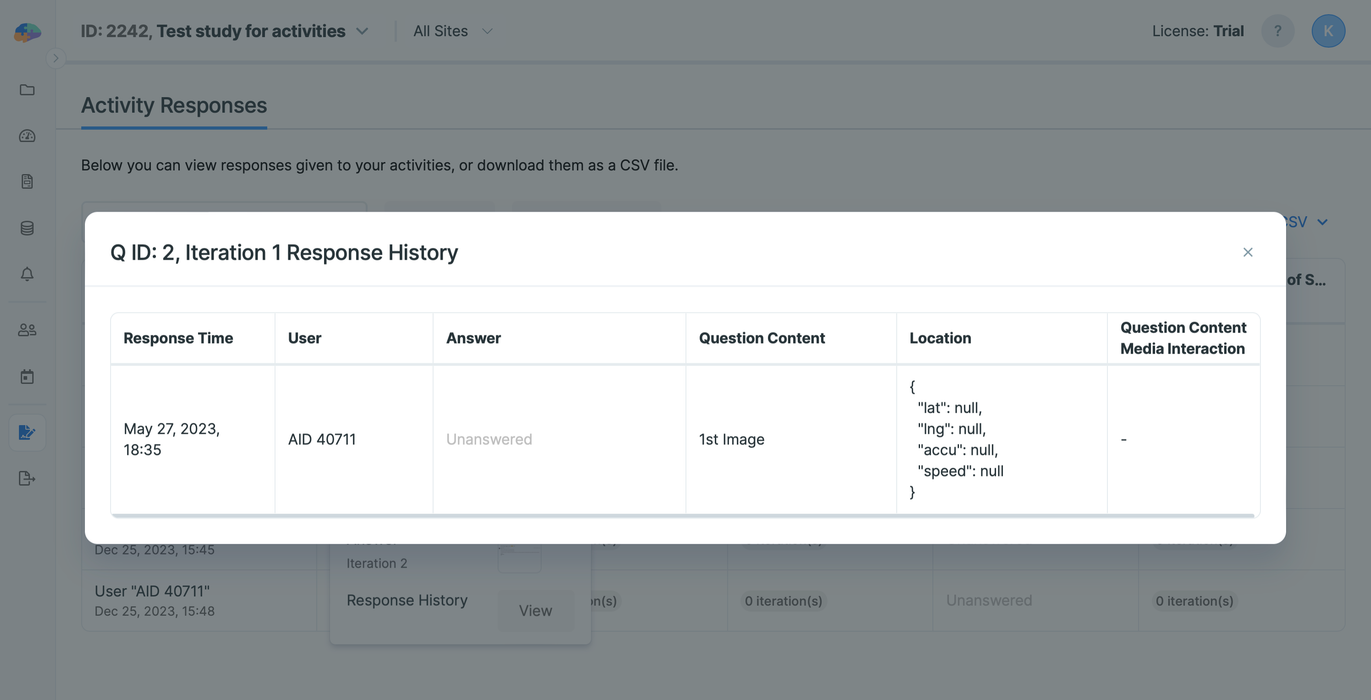
This will display a chronological list of changes to the response. The Response History includes previously Submitted or Saved versions of the answer, allowing you to review how the response has evolved.
Response History Details
The detailed view of a response’s history includes the following data elements:
- Response Time
- User
- Answer (and in case there’s no answer, the reason behind it as described under Reason for Unanswered Questions)
- Question Content
- Location
- Question Content Media Interaction
Commenting on Survey Responses
Researchers can add comments to survey responses, facilitating communication and collaboration with other researchers.
To view existing comments or to add a new comment, whether the response belongs to a simple question or a question within a loop, click the dropdown menu in the response cell, then select View under the Comments section.
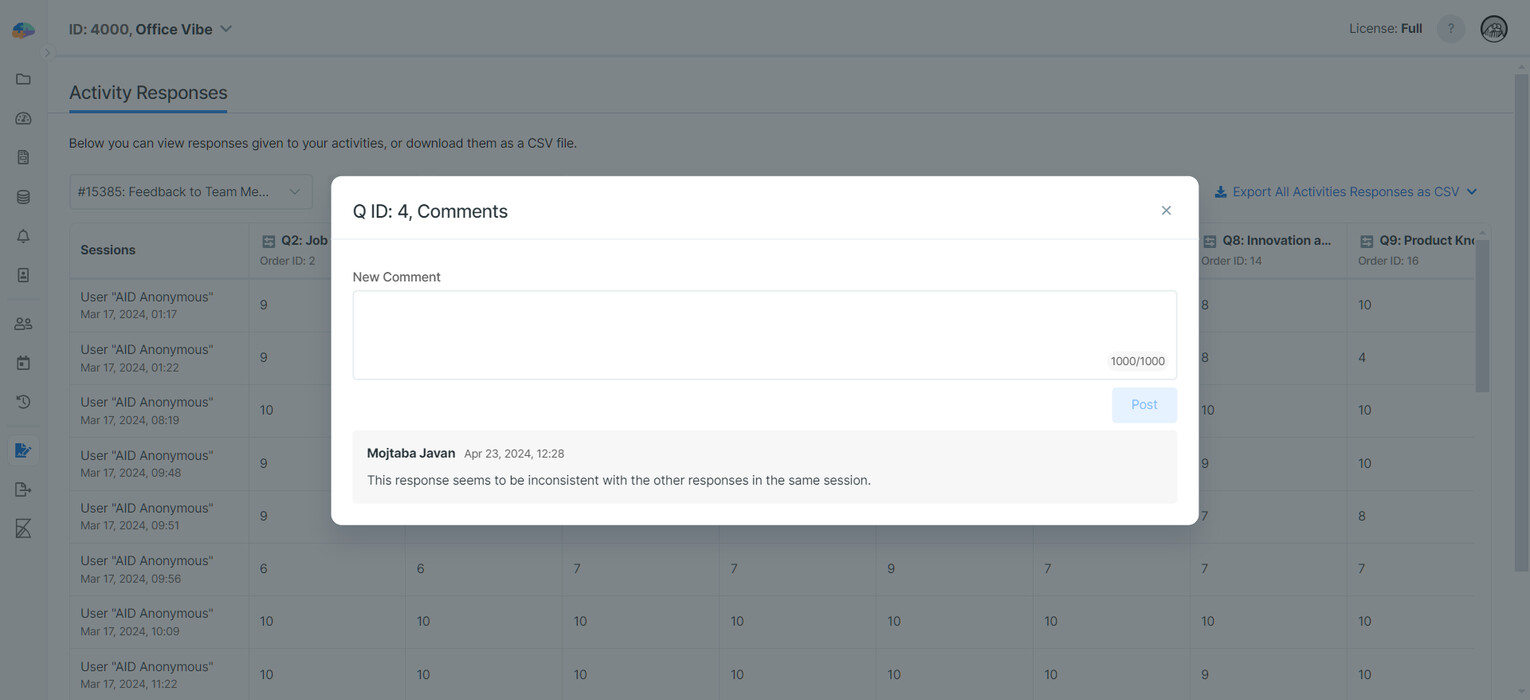
Each comment includes the date, time, and the author, and comments are ordered by date/time descending.
After a researcher adds a comment to a response, all other researchers associated with the study will receive an email notification. The researcher who posted the comment will not receive a notification. To opt out of these notifications, see Notification Settings for Researchers.
[!note]
You cannot comment on responses that have not yet been stored in Avicenna. This includes unanswered sessions.
[!note]
You cannot edit or delete a comment after it has been submitted. This behavior is intentional to preserve the integrity and transparency of collaboration among researchers.