In Avicenna, a survey consists of one or more sections that are presented to participants in a predefined sequence. By default, sections are displayed consecutively until the final section is completed, at which point the survey session ends (or transitions to a post-submission End Section).
Avicenna provides multiple ways to modify the flow of surveys based on participants’ responses, including:
- Showing or skipping a section or question, which can be done via:
- Criteria
- Enable Questions option
- Section and question properties
- Looping through a section
- Section and question randomization
- Customizing the post-submission flow (using End Sections)
Criteria is the most versatile approach, which lets you display or skip questions or sections based on participants’ responses to earlier questions, either within the current survey or in previous surveys in the study. Although powerful, this method can be complicated and challenging to manage.
Avicenna also provides simpler options for basic showing and skipping patterns, allowing you to show or skip specific questions or alter the survey flow. If you find these options easier than using criteria, you are encouraged to use them instead.
[!example] Used in Research
COBRA, National University of Singapore: used branching so participants only saw the questions that applied to their earlier answers.
Below, we explain each of these approaches in more detail.
Using Criteria to Control Survey Flow
Criteria enables you to set conditions that decide whether a survey section or question should be displayed or skipped. When a section or question with criteria is reached, Avicenna evaluates the condition using the participant’s responses collected up to that point. Then, the condition is assessed as either True or False.
- If the condition evaluates to
True, the section or question is displayed. - If the condition evaluates to
False, the section or question is skipped, and Avicenna continues to the next section or question in the survey.
[!note]
If the section or the question with the criteria is the last, and the criteria evaluates toFalse, Avicenna will finish the survey.
[!note]
The system always evaluates the most recent available response, not necessarily the response given in the current session. If a respondent skips a question in the current session, the system falls back to the response provided in the previous session. This behavior can affect how the criteria control the survey flow.
This section demonstrates how to use criteria to control the visibility of sections and questions in a survey.
[!example] Example 1: Showing a Section Using Criteria
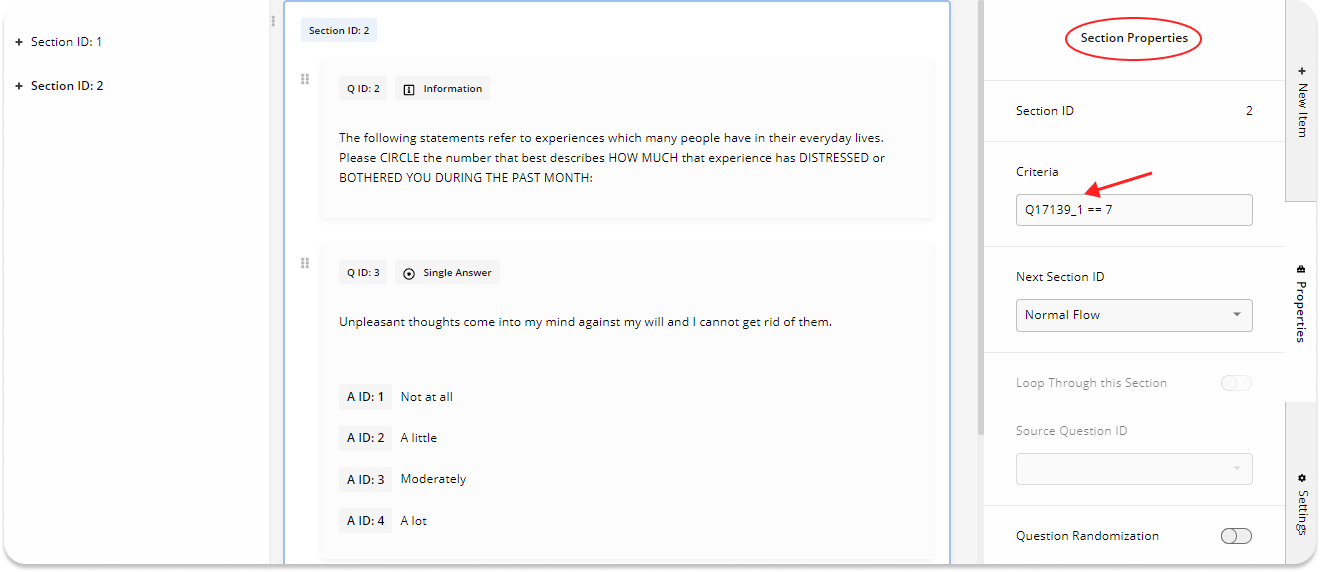
Survey Structure:Section ID: 1 (QID-1 - Multiple Answer): Have you been told by a doctor that you have any of the following? A ID: 1: Depression A ID: 2: Generalized anxiety disorder A ID: 3: Social phobia A ID: 4: Agoraphobia A ID: 5: Post-traumatic stress disorder A ID: 6: Panic disorder A ID: 7: Obsessive-compulsive disorder Section ID: 2 (Questions related to the "Obsessive-compulsive disorder") (QID-2 - Information): The following statements refer to experiences that many people have in their everyday lives. Please CIRCLE the number that best describes HOW MUCH that experience has DISTRESSED or BOTHERED YOU DURING THE PAST MONTH: (QID-3 - Single Answer): Unpleasant thoughts come into my mind against my will, and I cannot get rid of them. A ID: 1: Not at all A ID: 2: A little A ID: 3: Moderately A ID: 4: A lot (QID-4 - Single Answer): I think contact with bodily secretions (sweat, saliva, blood, urine, etc.) may contaminate my clothes or somehow harm me. A ID: 1: Not at all A ID: 2: A little A ID: 3: Moderately A ID: 4: A lotGoal:
Show Section 2 only to participants who select Answer ID 7 (Obsessive-compulsive disorder) in Question 1.Configuration:
- Select Section 2 in the Survey Editor.
- Open Section Properties from the right-side panel.
- In the Criteria field, enter:
Q17139_1 == 7Where:
17139is the Survey ID
1refers to Question 1
7refers to Answer ID 7Result:
Section 2 is shown only to participants who select Answer ID 7 in Question 1. All other participants skip this section.
[!example] Example 2: Showing a Question Using Criteria
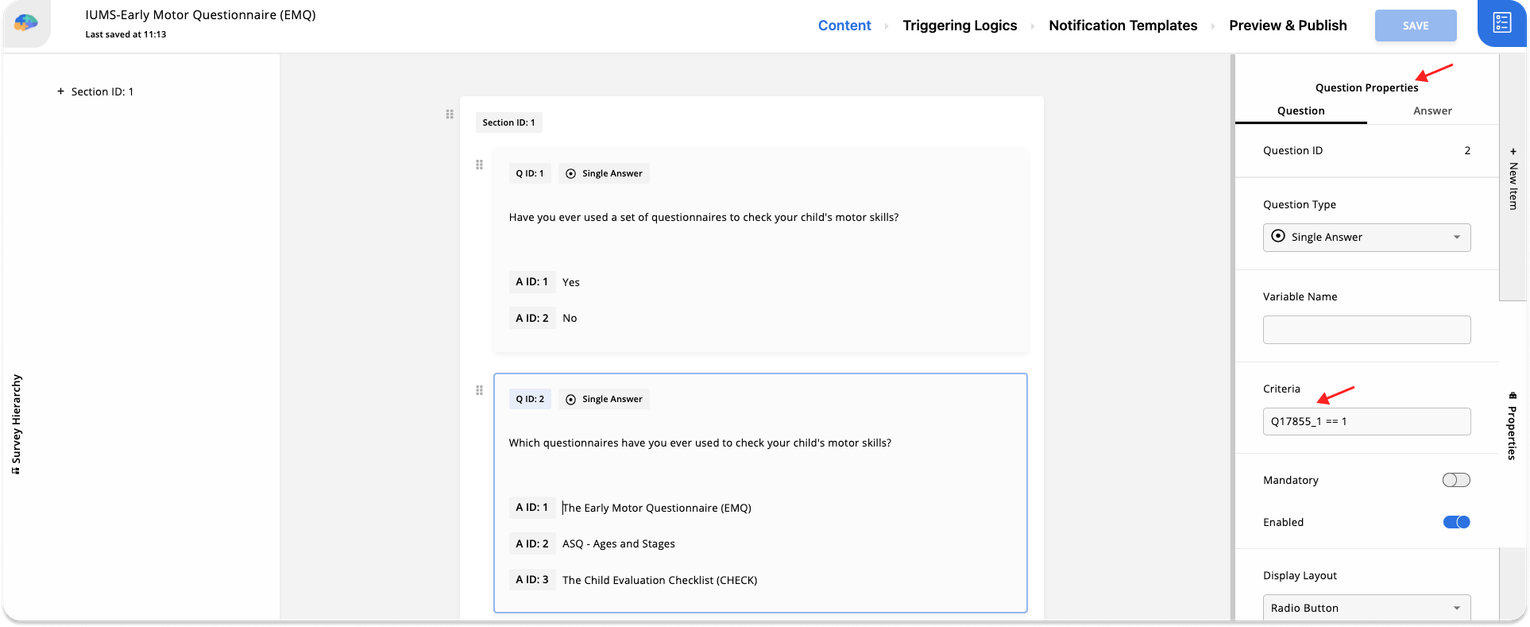
Survey Structure:(QID-1 - Single Answer): Have you ever used a set of questionnaires to check your child's motor skills? A ID: 1: Yes A ID: 2: No (QID-2 - Multiple Answer): Which of the following questionnaires have you used to check your child's motor skills?? A ID: 1: The Early Motor Questionnaire (EMQ) A ID: 2: ASQ - Ages and Stages A ID: 3: The Child Evaluation ChecklistGoal:
Show Question 2 only to participants who select Yes in Question 1.Configuration:
- Select Question 2 in the Survey Editor.
- Open Question Properties from the right-side panel.
- In the Criteria field, enter:
Q17855_1 == 1Where:
17855is the Survey IDThe first
1refers to Question 1The second
1refers to Answer ID 1Result:
Question 2 is shown only to participants who select Yes in Question 1. Participants who select No will skip Question 2.
Using the Enable Questions Option to Control Survey Flow
Avicenna allows you to show or hide questions within a section based on a participant’s response to another question. Each potential answer for a single answer or multiple answer question includes an Enable Questions property, which accepts a list of question IDs. When a participant selects that answer option, the specified questions are enabled.
[!note]
All questions that are shown or skipped using the Enable Questions option must be in the same section as the single or multiple answer question that contains the triggering answer.
[!example] Example: Showing a Question Using the Enable Questions Option
Survey Structure:(QID-1 - Single Answer): Did you experience coughing or wheezing last week? A ID: 1: Yes A ID: 2: No (QID-2 - Single Answer): Do you believe that it is likely that these symptoms were related to poor air quality? A ID: 1: Yes A ID: 2: NoGoal:
Show Question 2 only to participants who select Answer ID 1 (Yes) in Question 1.Configuration:
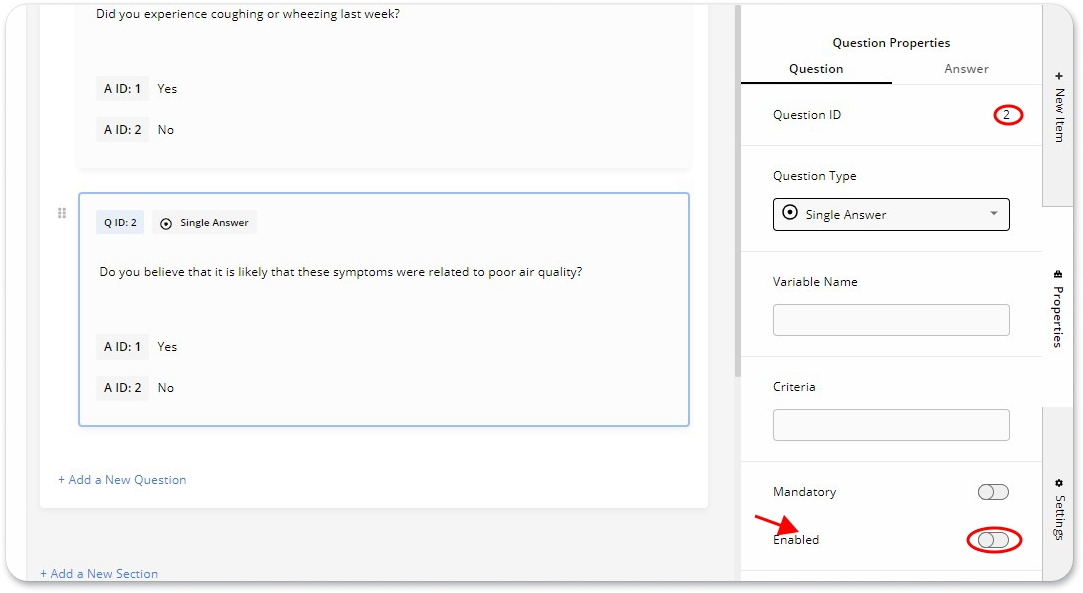
Select Question 2 in the Survey Editor.
Open Question Properties from the right-side panel.
Scroll down and turn Enabled → Off.
This ensures Question 2 is skipped by default.
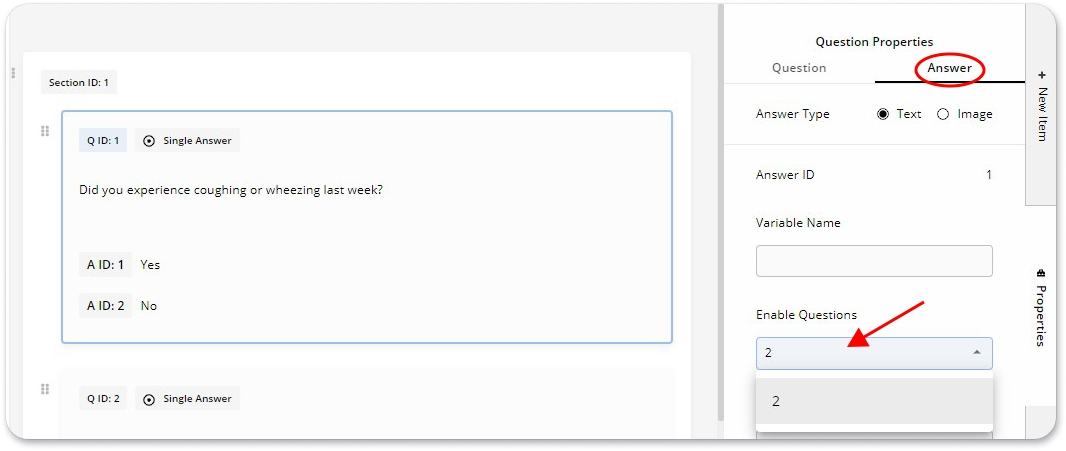
Go back to Question 1.
Open Question Properties → Answer.
Go to the Answer ID 1 section.
In Enable Questions, select Question 2.
Result:
Question 2 is shown only to participants who answer Yes to Question 1. All other participants skip Question 2 automatically.
Using the Section and Question Properties to Control Survey Flow
Each section specifies what section should be shown next or whether the survey should be marked as completed after the section is done. By default, each section points to the next section in order, or finishes the survey if it is the last section. You can change this flow using the Next Section ID property of each section’s settings.
[!example] Example: Skipping a Section Using the Next Section ID Property
Survey Structure:Section ID: 1 (QID-1 - Single Answer): Do you receive treatment for heart disease (For example, angina, heart failure, or heart attack)? A ID: 1: Yes A ID: 2: No (QID-2 - Single Answer): Does your heart disease limit your activities? A ID: 1: Yes A ID: 2: No Section ID: 2 (QID-3 - Single Answer): Do you receive treatment for high blood pressure? A ID: 1: Yes A ID: 2: No Section ID: 3 (QID-4 - Single Answer): Do you have regular physical activity? A ID: 1: Yes A ID: 2: NoDefault Behavior:
Participants see Section 1 → Section 2 → Section 3 in order.Goal:
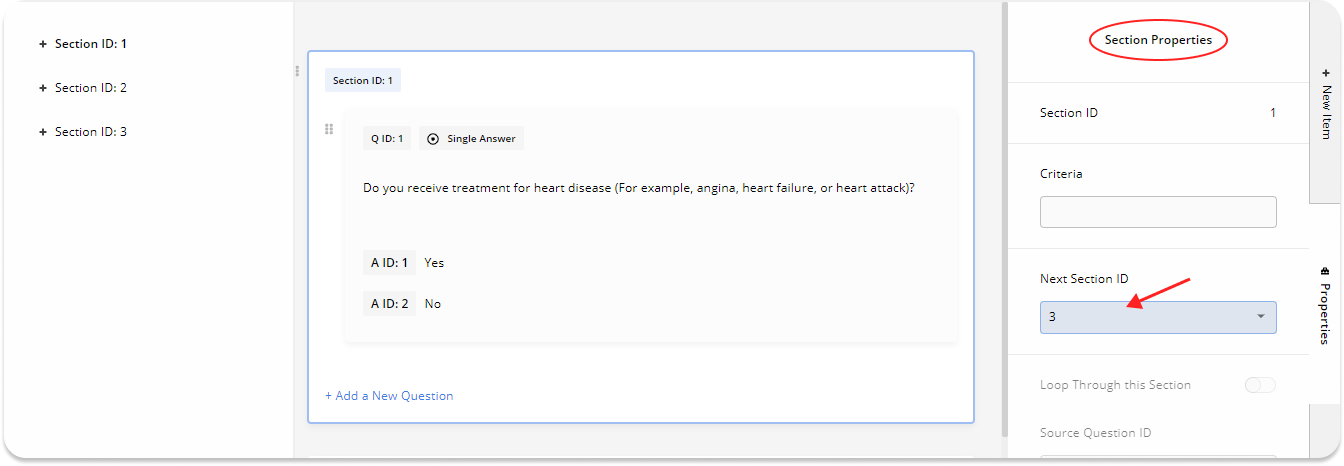
After Section 1, go directly to Section 3 and skip Section 2.Configuration (Using Section Properties):
Select Section 1 in the Survey Editor (the selected section is highlighted with a blue border).
Open Properties from the right-side panel.
In Next Section ID, select 3.
Result:
After completing Section 1, Avicenna takes participants directly to Section 3, and Section 2 is skipped.Overriding the Flow Using Question Properties
You can also change the next section based on how a participant answers a question.Goal:
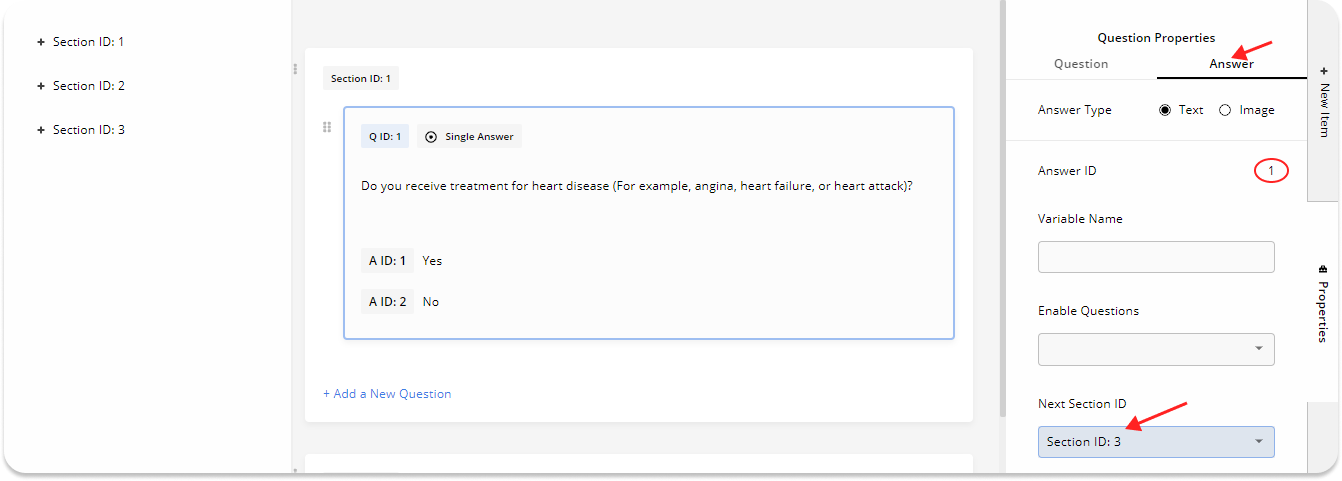
Show Section 2 only if the participant reports NOT having heart disease in Question 1.Configuration (Using Question Properties):
Select Question 1 in Section 1.
Open Properties → Answer.
Go to the Answer ID 1 section.
Set Next Section ID = 3.
Result:
- If the participant selects Yes in Question 1 → Avicenna skips Section 2, and goes to Section 3.
- If the participant selects No → the normal flow continues, and Section 2 is shown.
[!note]
Even when the next section is changed at the answer level, all remaining questions in the current section are still shown. In this example, participants will always see Question 2 in Section 1, regardless of their answer to Question 1.
[!caution]
Any answer option in a single or multiple answer question can specify the next section that should be shown after the current section. However, in a multiple-answer question, if different answers specify different next section IDs, the last answer selected by the participant will override the previous values.
This results in nondeterministic behavior and is not recommended. If answers in a multiple-answer question are expected to change the index of the next section, you need to make sure that they all point to the same section.
Looping Through a Section
You can configure a section as a Loop Section, which allows Avicenna to repeat that section multiple times based on a participant’s response to a Source Question. Specifically, Avicenna will iterate through the loop section X times, where X is determined by the response to the source question.
[!example]
Survey Structure:Section ID: 1 (QID-1 - Single Answer): Have you eaten any processed food since last week? A ID: 1: Yes A ID: 2: No (QID-2 - Number): How many processed foods have you consumed? Section ID: 2 (QID-3 - Text): What is the name of the food? (QID-4 - Image): Take a picture of the food.Goal:
Ask participants to report details of each processed food they have consumed.Configuration:
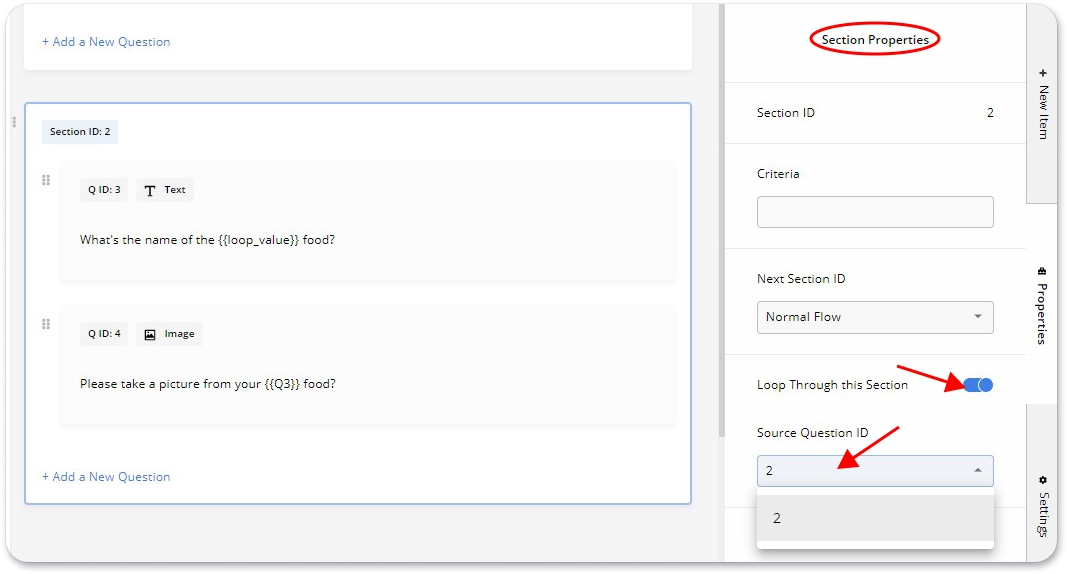
Select section 2.
In the Properties panel, enable Loop Through this Section.
Set Question ID 2 as the Source Question ID.
Result:
Avicenna will repeat the questions in section 2 as many times as the number of processed foods reported by the participant for the past week.
Supported Source Question Types
The source question can be one of the following:
- A Number question:
The loop section will be looped X times, where X is the response to the Number question. - A Multiple Answer question:
The loop section will be looped once for each chosen option.
[!info]
If the reply to the number source question is 0, or no option is chosen in a multiple answer source question, the loop section will be skipped.
Questions inside a loop section also support specific placeholder: {{loop_value}}. This placeholder allows you to refer to the option being asked inside the loop section.
- For number source questions,
{{loop_value}}will be replaced by an ordinal iteration number, i.e.,1st,2nd,3rd,4th, and so on. - For multiple-answer source questions,
{{loop_value}}will be replaced by the content of the selected answer.
[!example]
Let’s continue our example above. To use the Loop Value placeholder:
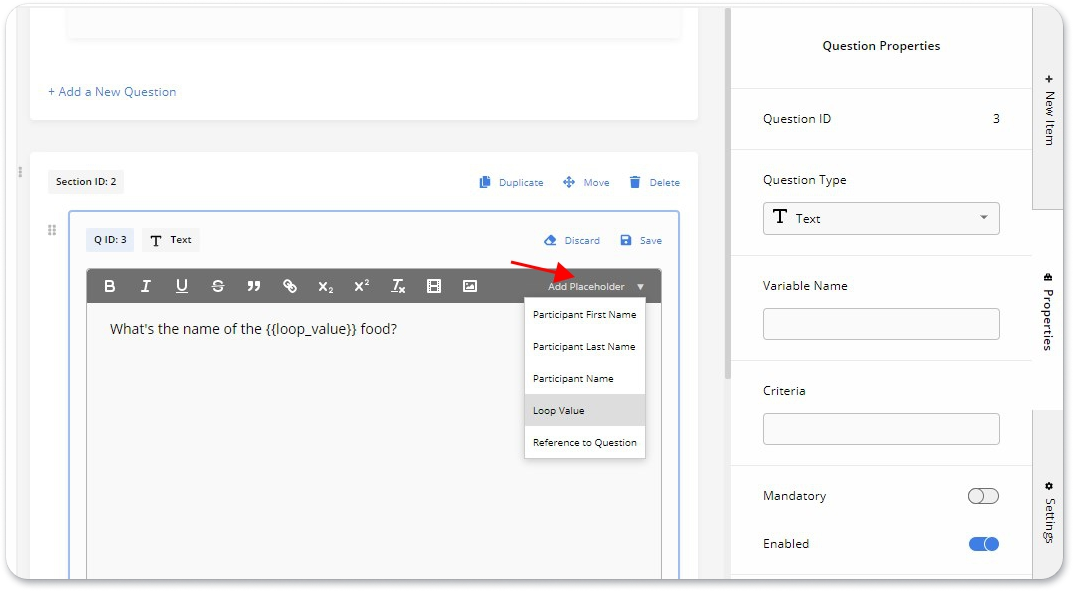
- Select the question you want to edit.
- Click on Edit to open the content box.
- While writing the question text, click Add Placeholder and choose Loop Value.
Your questions should look like this:
Section ID: 2
   Q ID: 3: Text: What is the name of the {{loop_value}} food?
   Q ID: 4: Image: Take a picture of the {{loop_value}} food.
Result:
Assume the participant reports 2 processed foods in Question 2.
Avicenna will loop Section 2 twice, and the questions will look like this:Section ID: 1 Q ID: 2: Number: How many processed foods have you consumed? Answer: 2 Section ID: 2 - Iteration 1: Q ID: 3: Text: What is the name of the 1st food? Q ID: 4: Image: Take a picture of the 1st food. Section ID: 2 - Iteration 2: Q ID: 3: Text: What is the name of the 2nd food? Q ID: 4: Image: Take a picture of the 2nd food.
Question Randomization
We have previously discussed Section Randomization. In addition to that, you can randomize the selection of questions within each section using Question Randomization. To randomly select a subset of questions within your section, you need to use the Included Question ID(s) and Selection Count options.
[!example]Example: Randomly Showing One Question from a Group
Assume your survey section contains seven questions with IDs from 1 to 7:
Goal:
Questions 1, 2, 3, and 4 should always be shown. From questions 5, 6, and 7, only one question should be randomly included in the section.Configuration:
- Open Section Properties
- Go to Question Randomization.
- Select questions 5, 6, and 7 under Included Question ID(s).
- Set the Selection Count to 1.
Result:
The section will always include questions 1–4, plus one randomly selected question from questions 5, 6, and 7.
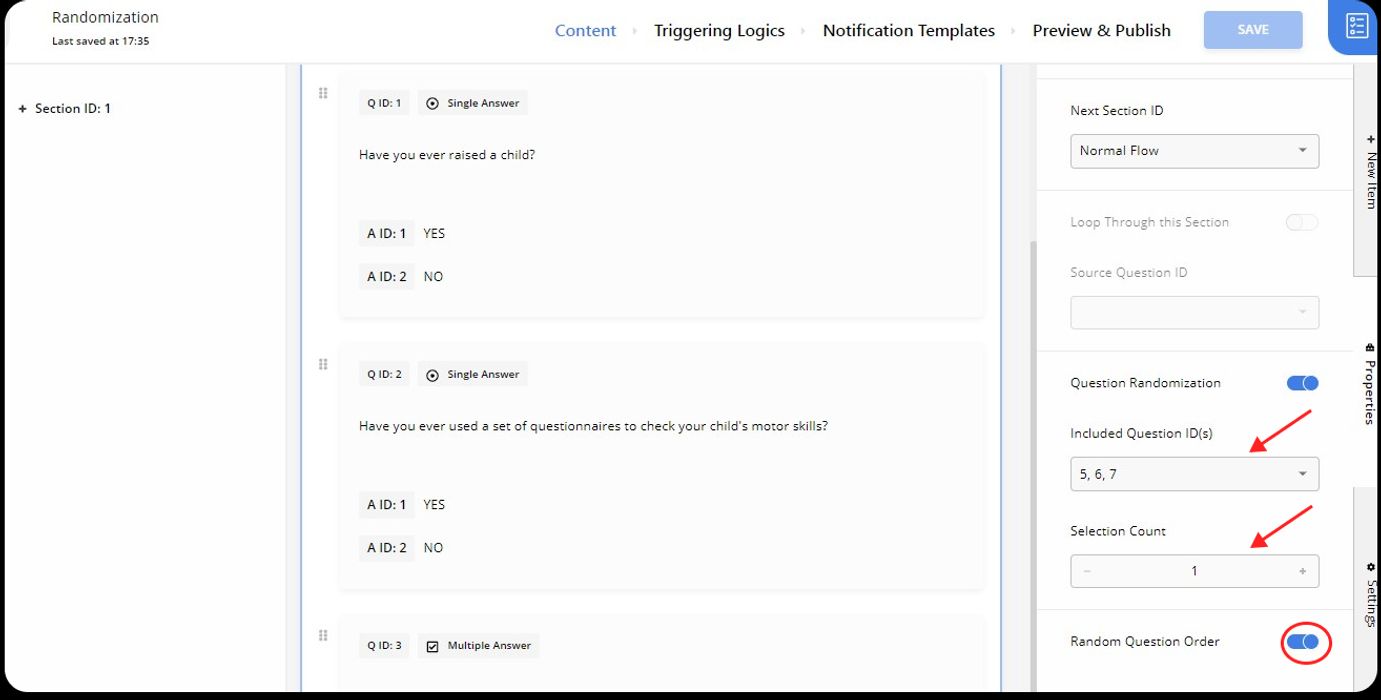
Random Question Order
You can also enable the Random Question Order option to randomize the order in which these questions are displayed.
[!note]
These randomizations are applied only once per survey session.
[!example] Used in Research
WARN-D, Leiden University: showed its mood questions in a random order at every prompt.
End Sections
End Sections are currently supported only in public (anonymous) surveys.
Unlike the other methods described on this page, End Sections do not change which questions a participant answers. The methods above control the flow through a survey, while End Sections control what is displayed after the survey is submitted.
An End Section is a special type of survey section that is displayed after a participant successfully submits a survey. End Sections allow you to display different completion messages, instructions, links, or other content based on a participant’s responses. This is particularly useful for anonymous participants, where the completion screen may be the only opportunity to provide follow-up information.
You can define criteria for End Sections and create as many as needed. When a survey is submitted, the system evaluates End Sections from top to bottom and displays only the first one whose criteria evaluate to True. Evaluation then stops. For this reason, place more specific End Sections above more general ones. An End Section without criteria matches all participants. If placed last, it serves as a default End Section for anyone who does not match the criteria of earlier End Sections.
[!note]
After an End Section is displayed, the participant cannot navigate back, modify previous responses, or resubmit the survey.
[!example] Example: Displaying an End Section Using Criteria
Survey Structure:Section ID: 1 (QID-2 - Number): Distress level (0–10) End Section ID: 1, Support Resources End Section ID: 2, Thank You MessageGoal:
Display the Support Resources End Section to participants who report high distress, and the Thank You End Section to all other participants.Configuration:
Create an End Section named Support Resources.
In its Criteria field, enter:
Q4521_2 >= 8where:
4521is the Survey ID2is the Question ID (QID-2), the distress itemAdd the support information, links, and helpline content.
Create a second End Section named Thank You with no Criteria defined.
Confirm that Support Resources is ordered above Thank You.
Result:
The Support Resources End Section is shown only to participants who report a distress level of 8 or higher (8, 9, or 10). The Thank You End Section is shown to participants who report a distress level below 8.
[!note]
While standard question placeholders are supported in the End Section’s content, the{{loop_value}}placeholder is not supported.