This data source allows researchers to collect participants’ Google Chrome browsing history through a manual upload process. Participants export their browsing history from Google Takeout and upload the resulting file to Avicenna using a survey File question.
[!note]Important
- Google History is a manual, retrospective export of Chrome browsing history using Google Takeout.
- Web Activity is an automated, real-time collection method available only through Firefox Nightly on Android.
Use Cases
- Behavioral research: Understanding long-term browsing habits and exposure to online content for Google Chrome users.
- Digital footprint analysis: Correlating manually uploaded web activity with survey responses or other passively collected data.
- Media consumption studies: Analyzing engagement with various online platforms and news sources.
Data Structure
Google Takeout exports Chrome browsing history as a ZIP archive containing a file typically namedBrowserHistory.json.
While the file organizes data into “Sessions” and “Tabs” (which may look complex if you open the file in a text editor), it contains specific details for every webpage visited.
The most important fields available for analysis include:
- URL: The specific web address visited. Internally stored as
virtual_url. - Title: The title of the webpage.
- Time of Visit: A timestamp indicating exactly when the visit occurred. Internally stored as
timestamp_msec. - Transition Type: How the user arrived at the page (e.g.,
LINKfor clicking a link,TYPEDfor typing the address, orRELOAD).
Data Collection Behavior
Google Chrome browsing history is collected through a manual export and upload process:
- Participants export their Chrome browsing history from Google Takeout.
- Google provides the export as a
.ziparchive containing aBrowserHistory.jsonfile. - Participants upload the exported file to Avicenna using a survey File question.
Setting Up Google History Collection in Avicenna
To collect Google Chrome browsing history from participants, create a survey that includes a File question for uploading exported Google Takeout files.
Step 1: Create a Survey with a File Question for Upload
-
Create a new survey in your study (e.g., “Google History Upload”).
-
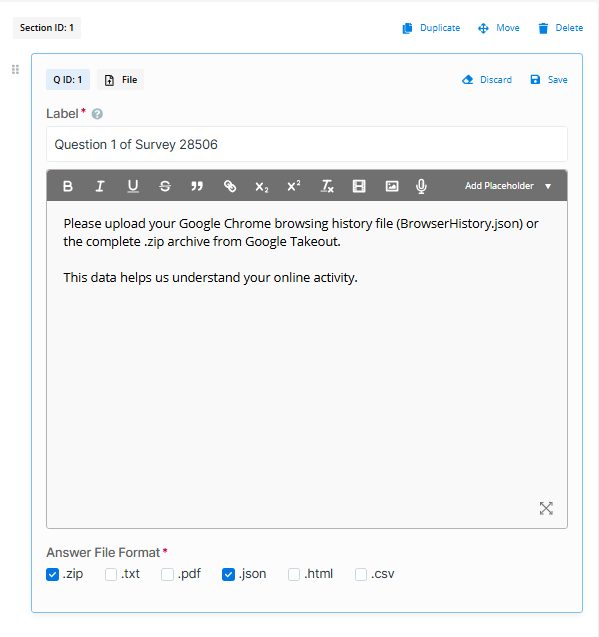
Add a File question to the survey.
-
Configure the Answer File Format for the File question to allow
.jsonand/or.zipfiles. -
Add clear instructions describing which file participants should upload.
-
Publish the survey.
Step 2: Export Chrome History from Google Takeout
You will need to provide your participants with detailed instructions on how to export their Chrome history from Google Takeout. These instructions should be communicated clearly to participants (e.g., in a Page activity within Avicenna, or via email).
Here are the step-by-step instructions for participants:
1. Request your data from Google Takeout
-
Navigate to the Google Takeout page.
-
Sign in with your Google account if you are not already logged in.
-
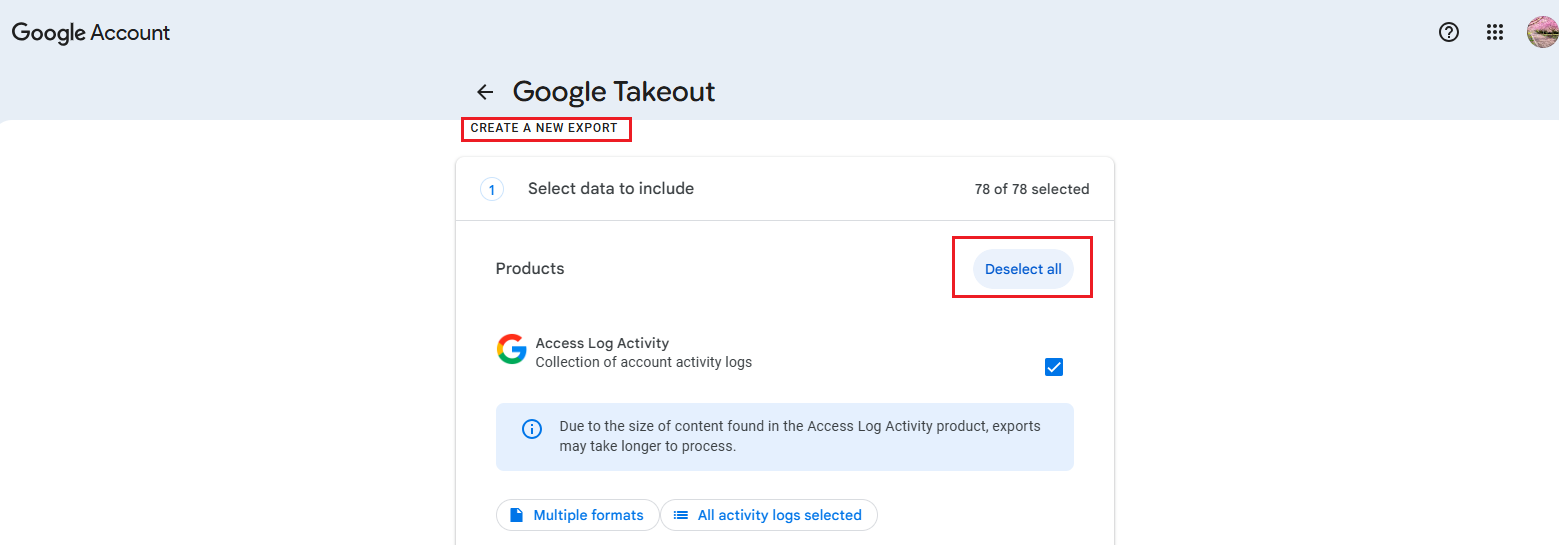
On the “Create a new export” page, click Deselect all.
-
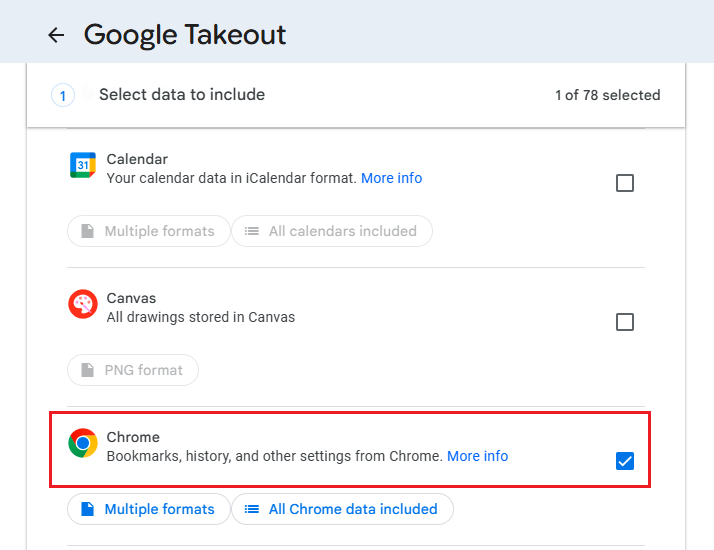
Scroll down the list of products and select Chrome.
-
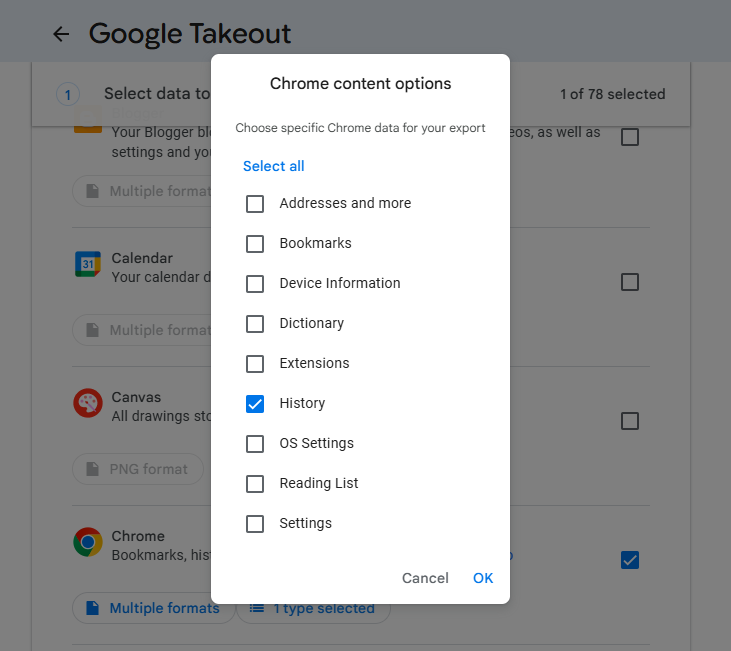
Click on “All Chrome data included” to open the customization options. Ensure only History data is selected. Then click OK.
2. Customize the export
-
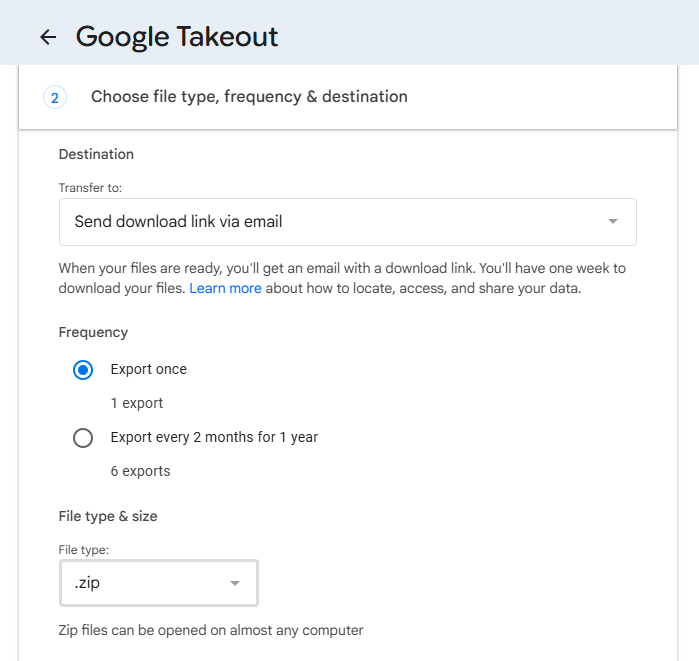
Choose delivery method: Select how you want to receive your data. The most common method is Send download link via email, which sends a link to your email address.
-
Choose frequency: Select Export once for a one-time download of your history.
-
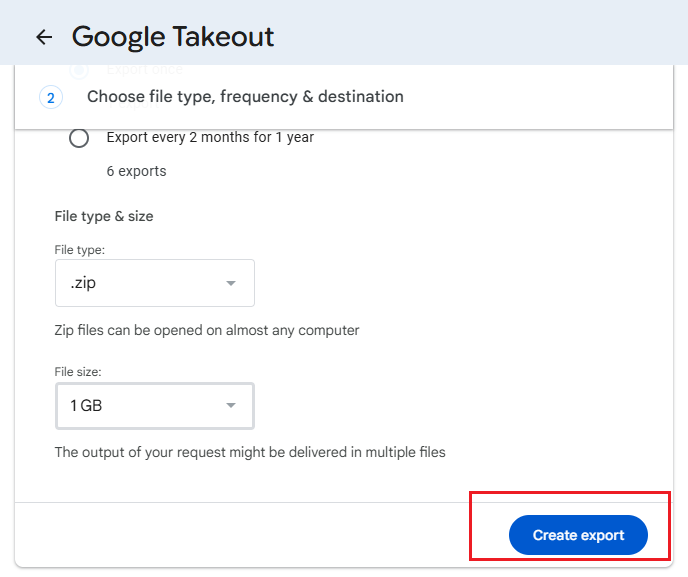
Choose file type and size: For the Archive format, select
.zipfrom the dropdown menu. This will be the format of the compressed file Google will provide, and it will contain yourBrowserHistory.jsonfile. Set the maximum archive size; if your data is larger, it will be split into multiple files. -
Click Create export. Google will begin creating a copy of your Chrome history. This process can take anywhere from a few minutes to a few days, depending on how much history you have.
3. Download the exported archive
-
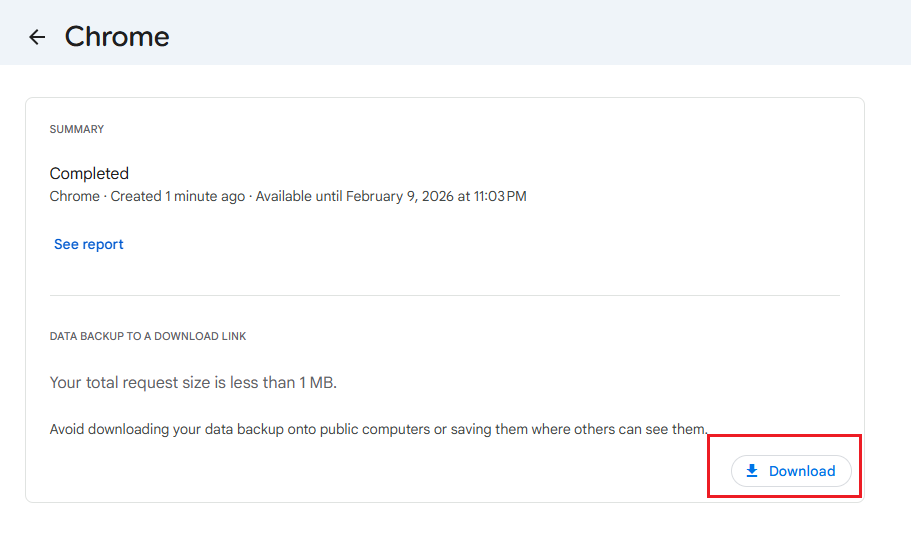
You will receive an email from Google when your archive is ready. Open this email and then click the Download your files button. You may need to enter your Google account password to proceed.
-
Download the zipped archive to your computer or device.
-
Extract the files from the zipped archive. Inside, you will find the
BrowserHistory.jsonfile.
Step 3: Upload History to Avicenna
Once participants have downloaded and extracted their BrowserHistory.json file (or have the .zip archive containing it) from Google Takeout, they should:
-
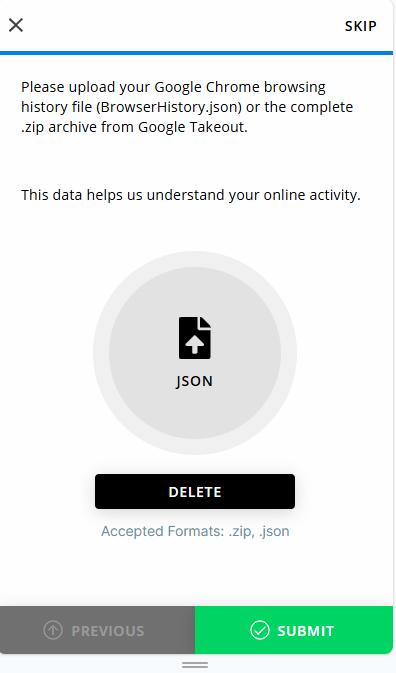
Open the Avicenna app and navigate to the survey containing the File question you created for this purpose.
-
Tap the ADD FILE button in the File question.
-
Select the
BrowserHistory.jsonfile (or the.ziparchive if you configured the File question to accept.zip). -
Submit their survey response.
Monitoring and Exporting Google History Data
Once participants upload their history files through the survey, the files will be accessible:
- On the Activity Responses page for the survey, where you can view responses and download the uploaded files.
- As part of a full survey response export as a ZIP file.
Troubleshooting
- “File type not supported” error: Verify the File question is configured to accept
.jsonand/or.zipfile formats. - “File too large” error: If the exported file exceeds the 200 MB limit, advise participants to select a smaller Maximum archive size during the Google Takeout export process (Step 2.3).
- Missing or incomplete data: Confirm participants understand Google Takeout does not include incognito browsing history. Also, ensure they correctly selected ‘Chrome’ and specifically ‘History’ data during the export process as instructed in Step 2.