Sending timely reminders can significantly boost participant engagement and survey completion rates in longitudinal or experience-sampling studies. By setting up a sequence of notifications, you can gently nudge participants to complete their tasks without being intrusive, which can improve data quality and participant retention.
The Situation
You are running a study with a daily survey and want to maximize the completion rate. To achieve this, you need to set up a multi-step reminder system for participants who do not respond promptly.
The desired notification sequence is:
- An initial notification is sent immediately when the survey session is released.
- A second reminder is sent 15 minutes later if the survey has not been completed.
- A final reminder is sent 30 minutes after the initial release if the survey is still incomplete.
- The survey should remain active and available for one hour after the final reminder before it expires.
Each of these reminders can be sent in the app, by email, or by SMS, and you can enable more than one medium on the same reminder.
What to Do?
This automated reminder system can be configured in Avicenna by creating three distinct Notification Templates linked to your survey, each with a different time delay (offset). You will also need to adjust the survey’s overall Expiry Time to accommodate the reminder schedule.
Step 1: Navigate to Your Survey
First, locate the specific survey you want to add reminders to within your study protocol.
- From your Researcher Dashboard, navigate to the Activities page using the left-side menu.
- Find the survey in the list of activities. Click on the three-dot menu at the end of its row and select Edit. This will open the Activity Editor for that survey.
Step 2: Create the Notification Templates
You will need to create a separate template for each reminder. This gives you full control over the timing and content of each message.
- In the Activity Editor, click on the Notification Templates tab at the top of the page.
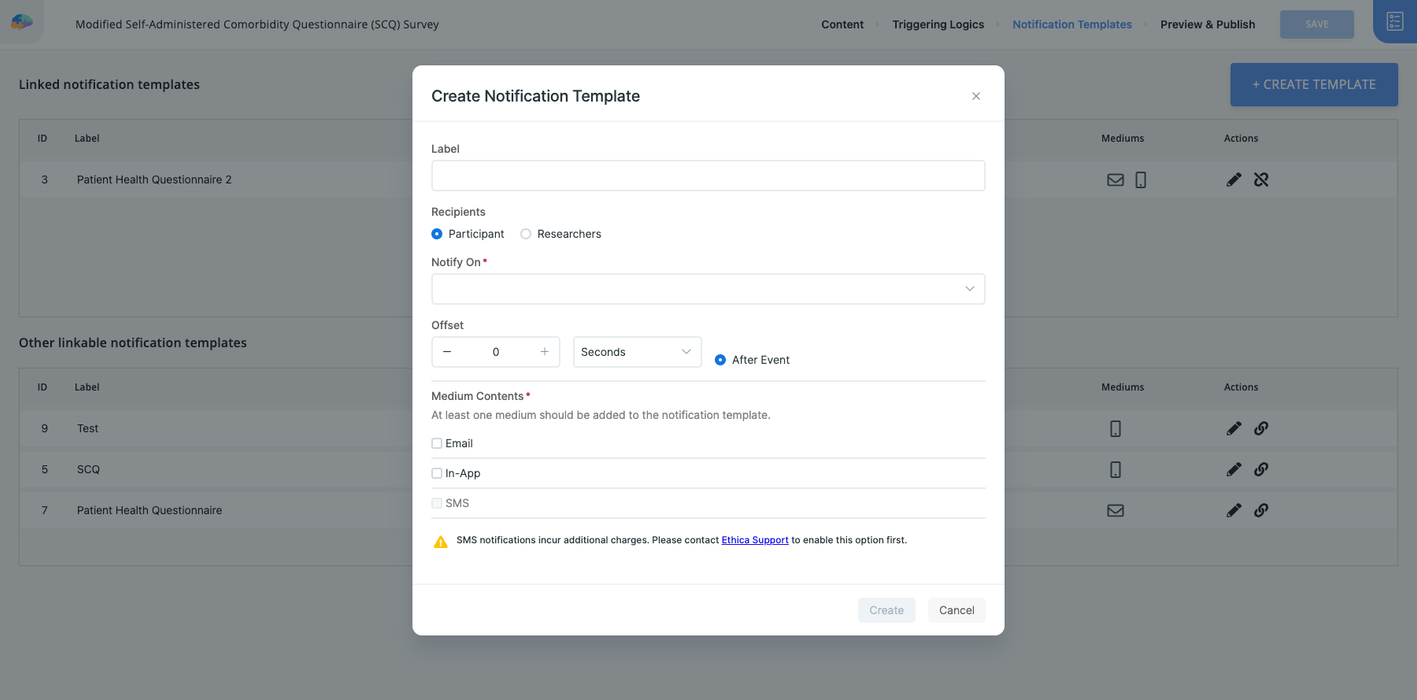
- You will create three templates by clicking the Create Template button for each one.
A. Initial Notification (Immediate)
This notification is sent the moment the survey becomes available to the participant.
- Label: Give it a clear name for your reference, such as Immediate Notification.
- Recipients: Choose Participant.
- Notify On: Select Session Released. This event triggers the notification when the survey session starts.
- Offset: Set it to send 0 minutes after the event. This ensures the notification is sent immediately.
- Medium: Choose your channels. You can enable In-App, Email, and SMS on the same template, and each one gets its own content.
- Click Create.
B. Second Reminder (15 Minutes)
This reminder is sent 15 minutes after the survey is released, but only if the participant has not yet completed it.
- Click Create Template again.
- Label: 15-Minute Reminder.
- Recipients: Participant.
- Notify On: Session Released.
- Offset: Set it to send 15 minutes after the event.
- Medium: Write a slightly different message for this reminder (e.g., “Just a friendly reminder to complete your daily survey.”).
- Click Create.
C. Final Reminder (30 Minutes)
This is the last reminder the participant will receive for this session.
- Click Create Template one more time.
- Label: 30-Minute Final Reminder.
- Recipients: Participant.
- Notify On: Session Released.
- Offset: Set it to send 30 minutes after the event.
- Medium: Write your final reminder message, perhaps mentioning the upcoming expiry (e.g., “Your daily survey is about to expire. Please complete it soon!”).
- Click Create.
[!note]
Avicenna’s notification system is designed to automatically check the session status. If a participant completes, cancels, or expires a session, any subsequent scheduled reminders for that session will be automatically canceled. You do not need to add any special conditions for this.
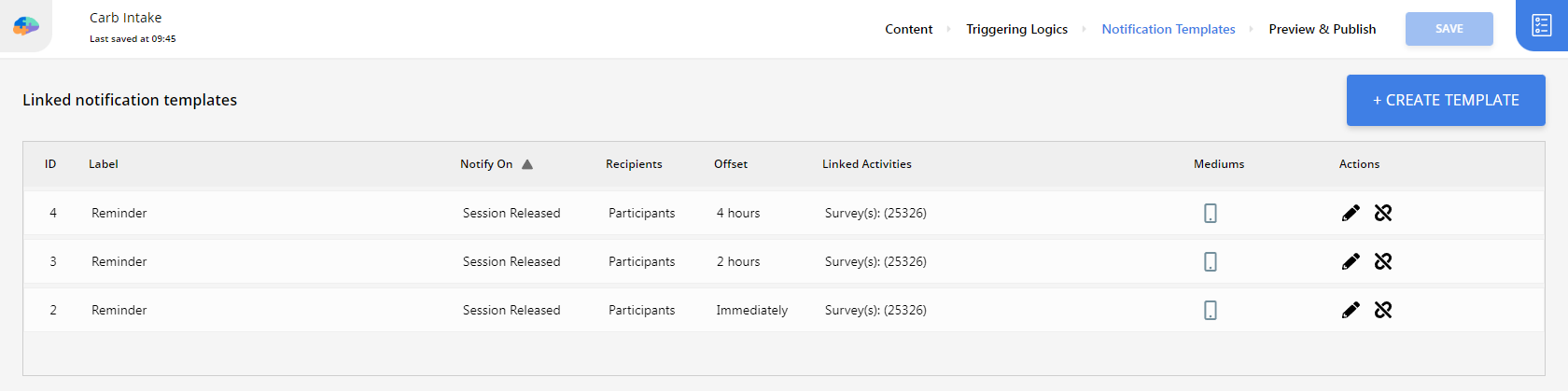
Once created, all three templates will be linked to your survey and will appear in the “Linked Notification Templates” list.
Step 3: Adjust the Survey’s Expiry Time
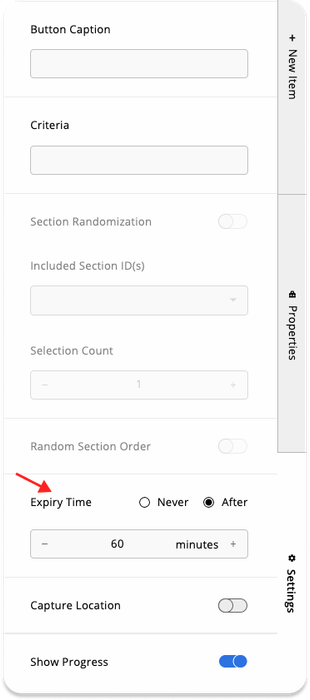
To ensure the survey remains available for one hour after the final 30-minute reminder, you must set the total expiry time correctly.
- Navigate back to the Content page in the survey editor.
- Open the Settings tab in the lower-right corner of the editor.
- Find the Expiry Time setting.
- Calculate the total duration as follows: Time of final reminder (30 minutes) + Desired active period after final reminder (60 minutes) = 90 minutes.
- Set the Expiry Time to After 90 minutes. This ensures the session remains open for the full duration you intend.
[!note]
Getting this number right matters. If a reminder’s offset is longer than the activity’s expiry time, Avicenna skips that template and the reminder is never created, with nothing on the Notifications page to show that it failed. See Why setting an Expiry Time is critical.
Step 4: Publish Your Changes
After configuring the notification templates and the expiry time, your changes are saved as a draft. To make them active for participants, you must publish the survey.
- Navigate to the Preview & Publish page.
- Click the Publish tab.
- Review any validation messages and click the Publish button to apply your new reminder system.
Sending These Reminders by SMS
The same three templates can be sent by SMS, on their own or alongside in-app and email. Two things need to be in place first: contact Avicenna Support to enable SMS for your study, then turn on Verify phone number under Basics, Edit Study, Participant Verification. Participants without a verified number will not receive SMS, and the verification setting silently reverts to off until support has enabled SMS.
See How SMS Notification Costs Are Calculated for details on SMS message length, billing, and how message volume affects your study costs.
Pro Tips
- Use Criteria for Targeted Reminders: If you only want to send reminders to a specific group of participants (e.g., those in an “intervention” arm), you can add a Criteria to your notification templates. For example, a criteria like Q123_1 == 1 would only send the reminder if the participant’s answer to question 1 in survey 123 was option 1.
- Vary Your Messages: To prevent “notification fatigue,” consider using slightly different wording for each reminder. This can make the notifications feel more dynamic and less repetitive.
- Combine with Gamification: Reminders can be paired with gamification features like Achievements. Awarding points or badges for timely survey completion can provide an extra layer of motivation for participants.
- Monitor Notification Status: If a participant reports not receiving a reminder, you can investigate by checking the Notifications page to see the status of each sent notification (e.g., Success, Failed). You can also check the session’s status (e.g., Completed, Expired) on the Activity Sessions page to understand why a reminder might not have been sent. For SMS specifically, Step 5 of the notification troubleshooting guide covers the most common causes.