The Situation
You have a study with a fixed duration (e.g., 14 days), and you want to automate the tasks that need to happen at the end of each participant’s participation:
- Know when a participant reaches their final day.
- Tell the participant which activity is their final activity.
- Confirm that the participant has read the final-day instructions.
- Verify that they completed all required activities and process their incentive.
- Make sure the participant does not disconnect their devices or accounts before their final data has been received.
This process assumes your study uses a recurring activity (e.g., a daily EMA survey) that runs for the entire participation duration.
[!note] Studies Without a Fixed Duration
The criteria below count forward from each participant’s registration date, so they work when participants have the same participation duration. If participants have different end dates, schedule the final activity for each participant instead, as described in Schedule Sessions with Customized Timing for Each Participant.
What to Do?
1. Create a Notification Template for Yourself
First, set up a notification that alerts you when a participant completes an activity on their final day.
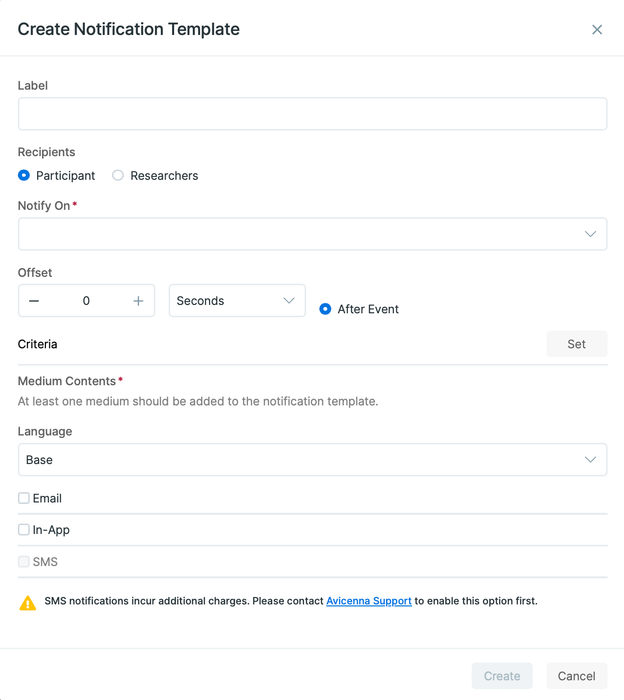
- Navigate to the Notifications page and go to the Notification Templates tab.
- Click Create Template.
- Configure the template with the following settings:
- Recipients:
Researcher, and select yourself or your research team from the list. - Notify On:
Session Completed. - Criteria:
_days_since_reg_date >= 13for a 14-day study.
- Recipients:
- Link the template to your recurring activity. Open the activity in the Activity Editor, go to the Notification Templates tab, and click the link button on the template’s row.
[!note]
This template only fires when a participant submits something on their final day.
2. How the Day Count Works
The notification should only be triggered for sessions completed on the participant’s final day.
_days_since_reg_date counts full days since the participant’s registration date. It is 0 on the day they register, so it is one lower than the day number you might expect. For a 14-day study, it is 13 on the final day.
For a study lasting N days, use >= N - 1 to target the participant’s final day.
You can learn more about keyword-based criteria here.
3. Customize the Notification Content
Make the notification content useful so you know which participant it refers to.
In the Medium Contents section, use placeholders such as:
- Subject:
Incentive Reminder for Study: {{study_name}} - Body:
Participant with ID {{participant_id}} has completed an activity on their final day. Please navigate to the Activity Sessions page to verify full compliance and process their incentive.
Click Create to save the template. You can find more information about placeholders here.
4. Tell the Participant Which Activity Is Their Final Activity
Use another notification template to tell participants when they are completing their final activity.
Create a notification template with the following settings:
- Recipients:
Participant. - Notify On:
Session Released. - Criteria:
_days_since_reg_date >= 13for a 14-day study. - Medium Contents: In-App, Email, SMS, or any combination.
Link this template to your recurring activity as well, in the same way as the template in Step 1.
In the notification content, clearly tell the participant that this is their final activity and when it closes.
The criteria is evaluated just before the notification is sent, so participants only receive it on their final day. On other days the notification is recorded on the Notifications page with the status Invalid Criteria and is not delivered.
5. Send the Final-Day Instructions as an Activity They Can Confirm
A notification tells you that a message was delivered, but it does not confirm that the participant read it. When the final-day instructions are important, such as returning a device or keeping an account connected, put them in a survey instead. The participant’s confirmation is then recorded as a response that you can review.
Build the activity:
- Create a survey and name it something like End of Study Instructions.
- Add an Information question containing the instructions.
- Add a Single Answer question below it, such as I have read the instructions above and know what to do, and mark it Mandatory so it cannot be skipped.
- Link a
Session Completednotification template to this activity, with Recipients set toResearcher. No criteria is needed because this activity is prompted only once. - Publish the survey.
Schedule it for the final day, or the day before:
- For a study where every participant has the same duration, add a Time TL with Time Format set to
Relativeand Base Time set toRegistration Date. Relative offsets count from the registration day the same way the criteria above do, so0 daysis the day the participant joined. In a 14-day study,13 dayslands on the final day and12 dayson the day before. Use Test the Schedule to confirm before you publish. - For a study where end dates differ between participants, create the session for each participant instead, as described in Schedule Sessions with Customized Timing for Each Participant.
- Set the Expiry Time so the session closes at the end of participation. Avicenna does not accept an expiry time later than the participant’s participation end time.
6. Verify Completion and Send a “Thank You” Note
When you receive one of the researcher notifications from Step 1 or Step 5:
- Go to the Activity Sessions page on your researcher dashboard.
- Filter for the participant ID mentioned in the notification.
- Review their session history to confirm that they completed all required activities.
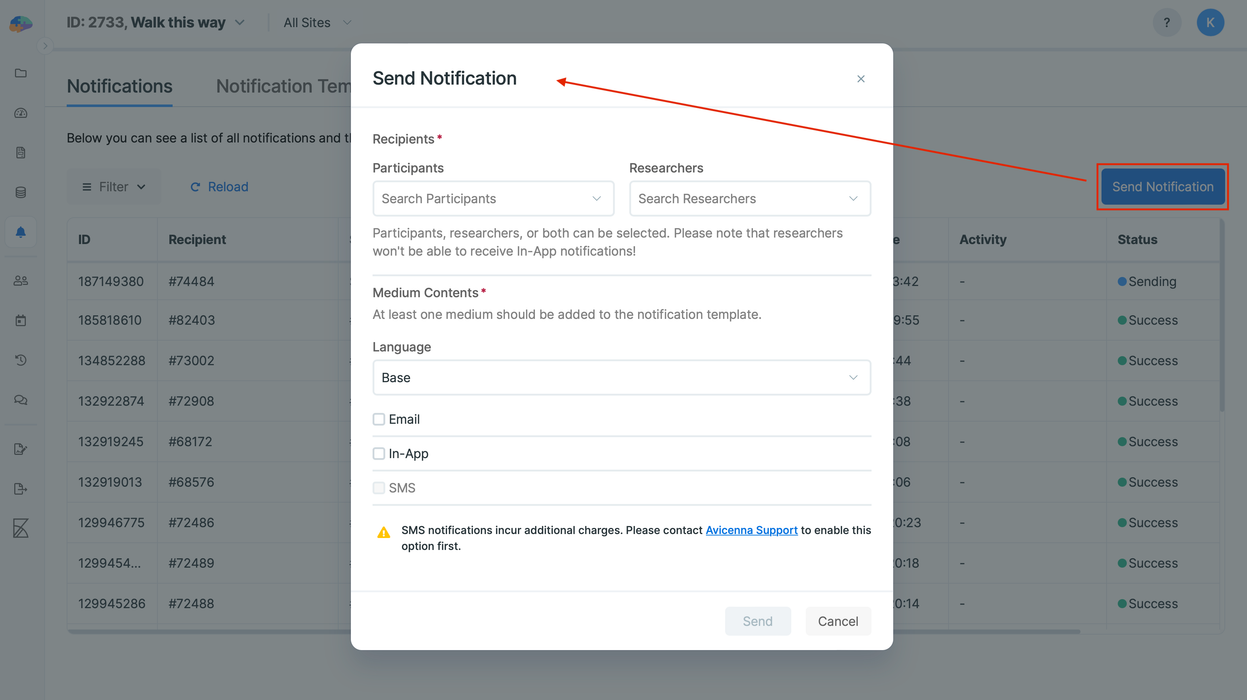
- If they are compliant, go to the Notifications page, click Send Notification, and send a one-off notification thanking them for their participation and explaining when they will receive their incentive.
Tell Participants What to Do on Their Final Day
The final message to a participant should include the information they need to finish the study without interrupting data collection.
Tell participants:
| Tell them | Why it matters |
|---|---|
| Which activity is their final activity and when it closes | They know when they need to complete their final activity. |
| To keep the Avicenna app installed until you confirm their data has been received | Responses and sensor data are uploaded from their phone, so uninstalling the app can prevent queued data from being uploaded. |
| When and how their incentive will arrive | Participants know what to expect after completing the study. |
| Who to contact after the study ends and until when | Participants know where to go if they have questions after participation ends. |
| What happens to their data after the study | Participants understand what happens to their data after they finish the study. |
You can include this information in the final activity, the final-day notification from Step 4, or the thank-you notification from Step 6. Keep the message short and focused on what the participant needs to do.
Wearables and Connected Accounts
The instructions for a participant’s device depend on how its data reaches Avicenna.
| Integration | How the data reaches Avicenna | What to tell the participant |
|---|---|---|
| Paired with the phone, such as Garmin Health SDK | The watch records data, and the Avicenna app collects it while the watch is near the phone with Bluetooth enabled. | Wear and charge the device through the final day. Then open the app and tap Sync. Keep it paired until you confirm that the data has arrived. |
| Connected through the vendor’s account, such as Fitbit, Whoop, or Garmin Health API | Avicenna collects data from the account authorized by the participant. | Keep the connection active after the final day. Using Revoke Access on the Data Sources page stops collection immediately, including any data the vendor has not delivered yet. |
[!note] Confirm Before You Ask Participants to Disconnect
Check that the final day’s data has arrived before telling a participant to unpair a device, revoke access, or uninstall the app. Once a device is unpaired or access is revoked, anything still waiting to sync may not arrive later.
If your study lends participants hardware, include the return instructions in the same message. Tell them what to return, including chargers, cables, and the box; how and when to return it; and who to contact if anything is missing or damaged.
Pro Tips
-
Testing a Study with a Future Start Time: If your study has a future start date but you want to test it now, avoid changing the main study’s settings. Instead, you have two better options:
- Duplicate your study: Create a full copy and set an earlier participation start time in the new (trial) version for testing.
- Modify the participation period for specific test participants: Invite your research assistants and yourself, then adjust only your start times on the Participation page. Make sure to set these accounts as Test participants.
-
What if notifications don’t “buzz” a participant’s phone? If a participant reports that they see notifications but their phone doesn’t vibrate or play a sound, this is almost always related to their device’s settings, not the Avicenna app itself. Even if
Do Not Disturbis off, many phones (especially Android) allow users to set custom notification behaviors (such as sound, vibration, or silent pop-ups) for each app individually. The participant should check their phone’s settings for the Avicenna app and ensure that sound and vibration are enabled for its notifications. You can find more troubleshooting steps here. -
Smart Reminders: Avicenna automatically prevents unnecessary reminders from being sent. If a participant completes a survey session, any scheduled reminder notifications for that specific session (e.g., “1 hour before expiry”) will be canceled automatically. You do not need to configure any special criteria for this behavior.