Achievements is a tier-based engagement option that rewards participants with points for completing study activities and groups those points into customizable tiers (e.g., Copper through Diamond). Researchers define how points are earned, how scores are accumulated, and what participants see, helping to sustain engagement throughout a study. Points are currently awarded only for survey submissions.
Use Cases
- Reward survey completions to encourage consistent participation.
- Assign more points for key activities, like baseline or final surveys, to emphasize their importance.
Setting Up Achievements
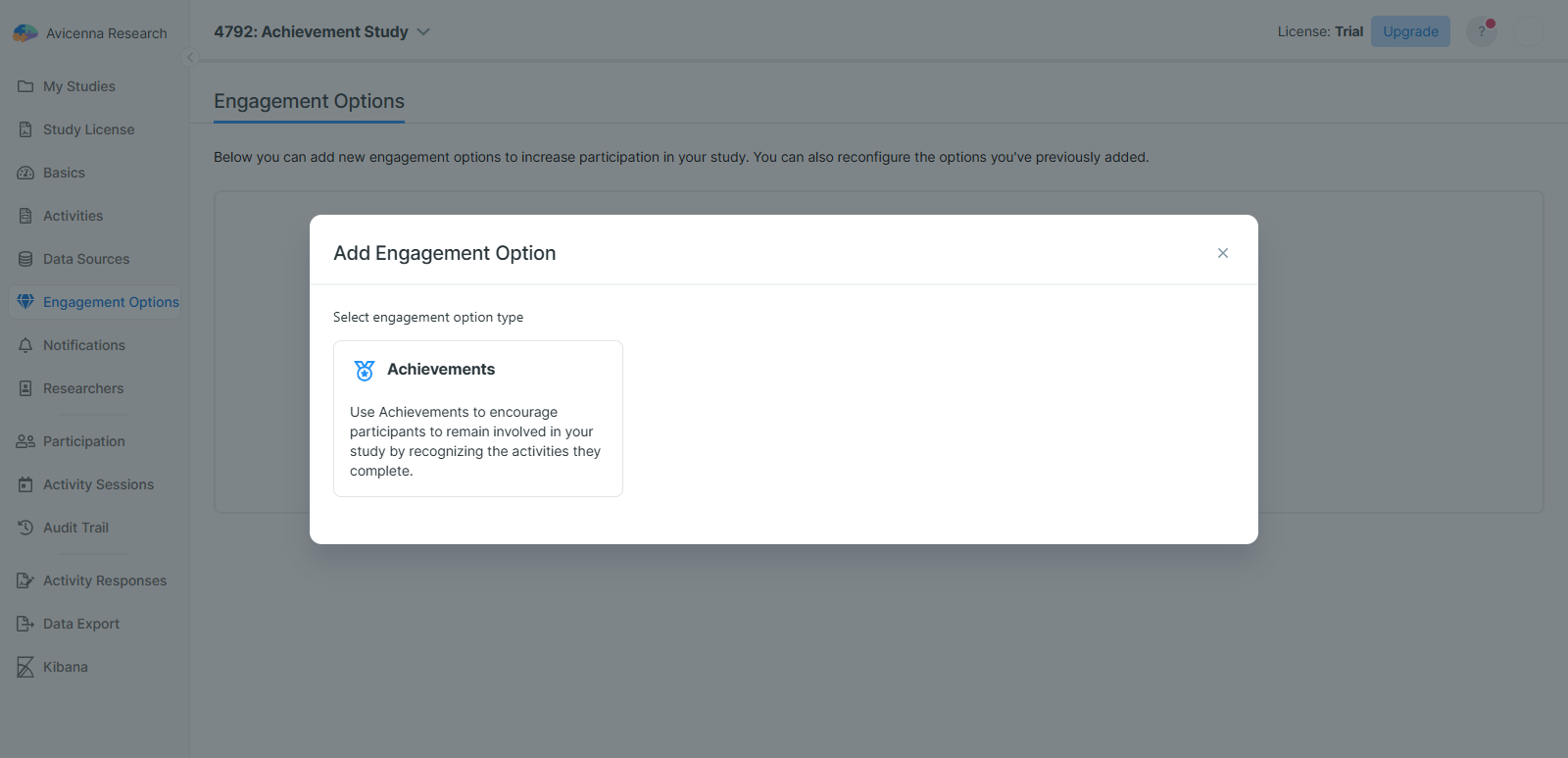
To add Achievements to your study:
- Go to the Engagement Options page on your researcher dashboard.
- Click on Add Engagement Option.
- Select Achievements.
- Configure the following sections, then publish.
General Settings
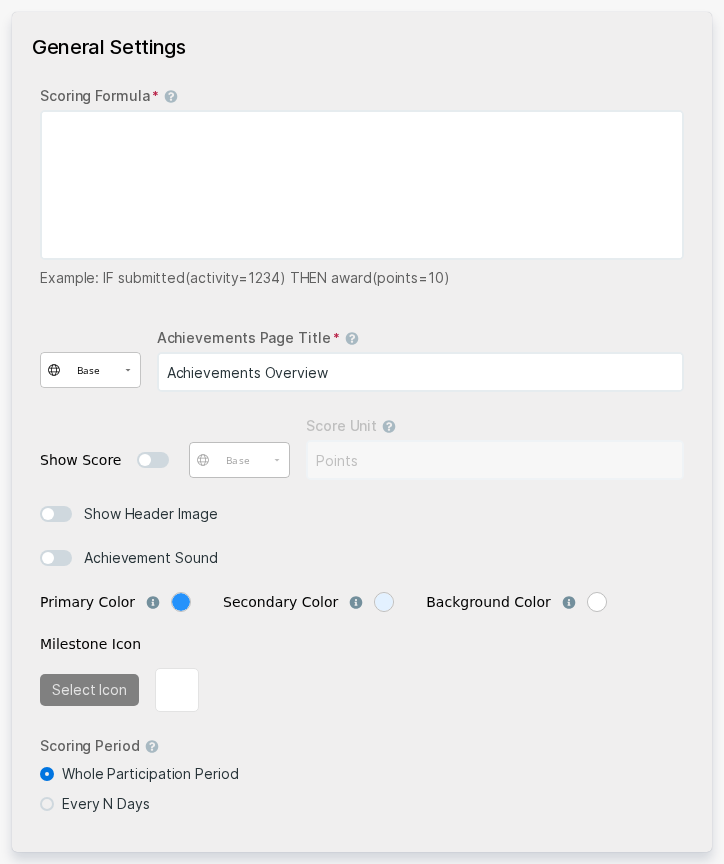
In General Settings, you can define how the Achievements feature behaves and appears to participants. Here, you configure how study activities are converted into points, the time period over which scores are calculated, and the overall appearance of the participant’s Achievements page.
Scoring Formula
This determines how participants earn points for completing specific activities. A basic rule follows this format:
IF submitted(activity=x) THEN award(points=y)
activity=x: Replacexwith the ID of the specific activity you want to reward.points=y: Replaceywith the number of points to award for completing that activity.
To award points for multiple activities, add one rule per line.
You can optionally limit a rule to a specific date range:
IF submitted(activity=x, start=YYYY-MM-DD end=YYYY-MM-DD) THEN award(points=y)
If no start or end dates are defined, the rule applies at all times during the study.
[!note]
The scoring formula only awards points for activities prompted by scheduled or automated triggers (e.g., Time Triggering Logics). Sessions initiated by participants through a User Triggering Logic are not scored.
[!note]
Achievements can be published without any tiers. In this case, participants will not see the Achievements feature in their app, but scores will still be calculated and visible on the Participation page.
Achievements Page Title
The title displayed to participants on the Achievements Overview page.
Show Score
A toggle to control whether participants can see their numerical score on the Achievements Overview page.
Score Unit
A label for the points (e.g., “Points”, “Stars”). This is only visible if the Show Score toggle is enabled.
Show Header Image
When enabled, a header image can be configured for each tier in both Desktop and Mobile formats. The banner displayed at the top of the participant’s Achievements page automatically updates to match the participant’s current tier.
Achievement Sound
When enabled, a celebration sound plays alongside the confetti animation when a participant reaches a new tier. When disabled, the confetti animation still plays without sound.
Theme Colors
There are three color settings:
- Background: Sets the page background.
- Primary and Secondary: Customize the appearance of the participant’s Achievements page, including the progress path, milestone markers, achievement cards, and tooltip.
Milestone Icon
The icon displayed at each tier marker along the participant’s progress path. You can choose between a Star or a Medal icon. As participants reach each tier, the corresponding milestone icon is unlocked and filled.
Scoring Period
This determines the time window over which a participant’s score is calculated. It has two modes:
- Whole Participation Period: Points accumulate continuously from the participant’s participation start date with no score resets. The displayed score remains a single, running lifetime total across their entire time in the study.
- Every N Days: Points are tracked inside a repeating time window (e.g., every 7 days) anchored to each participant’s individual participation start date. At the start of each new cycle, the score automatically starts fresh from 0, meaning points from previous periods are archived and no longer affect the current score, tier, or progress.
Tiers
Tiers represent the different levels participants can reach by accumulating points. By default, the Achievements feature includes six predefined tiers: Copper, Bronze, Silver, Gold, Platinum, and Diamond. You can rename, edit, delete, reorder, or add tiers to match your study design.
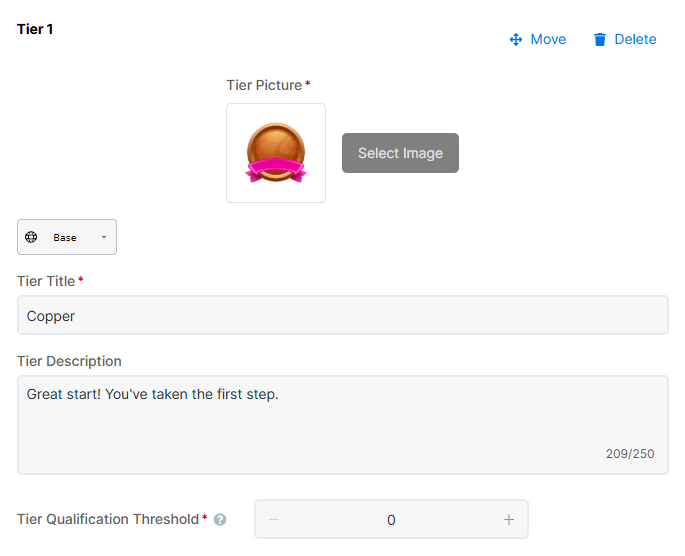
Each tier has the following properties:
- Tier Picture: The image displayed in the participant app when a participant reaches this tier. Participants can also view all tier images on the Achievements Overview page.
- Tier Title: The name of the tier (e.g., Copper).
- Tier Description: A short description shown to participants (e.g., Great start! You’ve taken the first step.).
- Header Image: When Show Header Image is enabled, each tier also requires a header image for both Desktop View (2:1 aspect ratio) and Mobile View (1:1 aspect ratio).
- Tier Qualification Threshold: The minimum score a participant must achieve to qualify for this tier.
After publishing, the list of tiers is automatically sorted based on the Tier Qualification Threshold in ascending order.
Monitoring Participant Scores
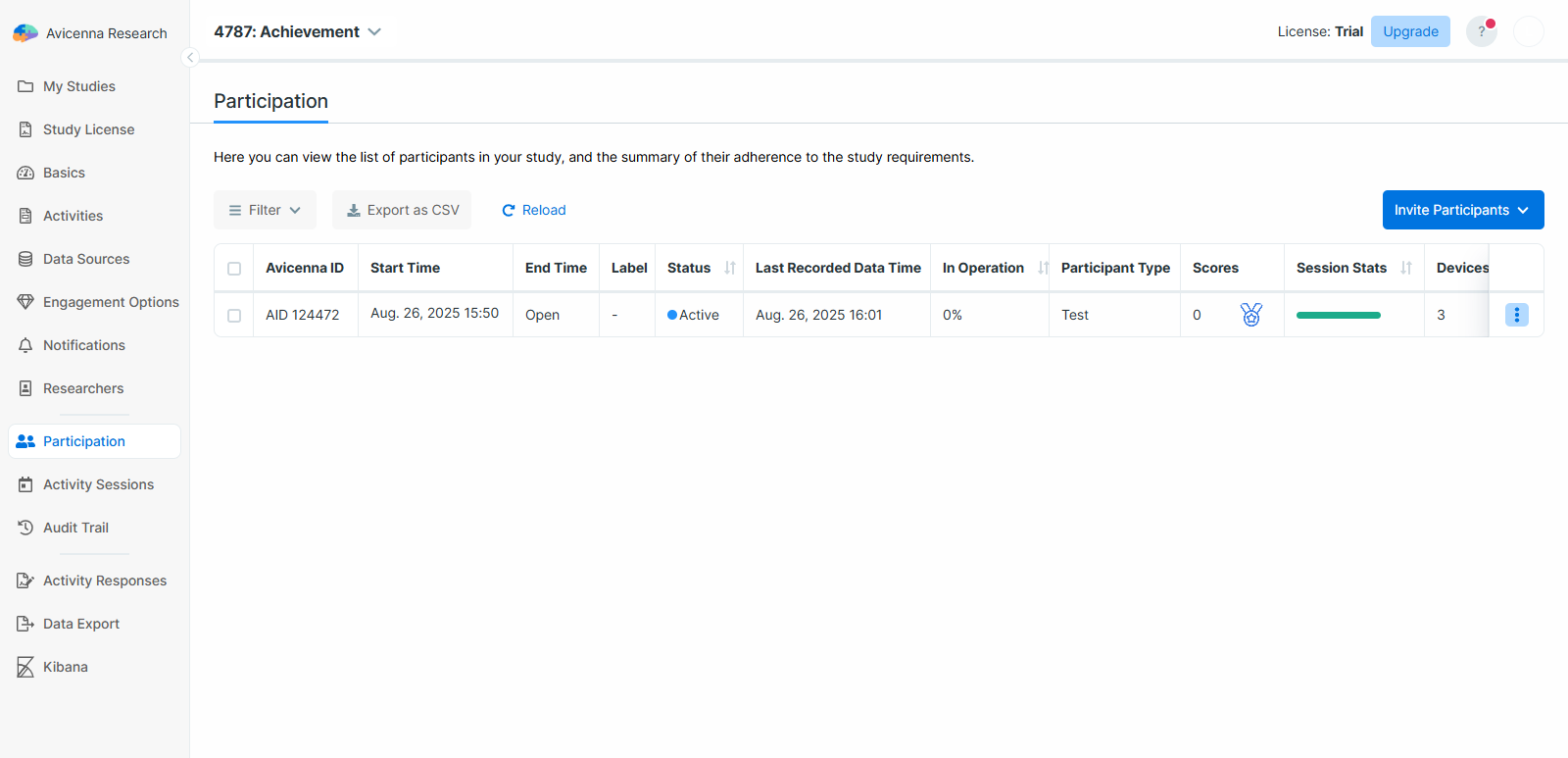
After publishing Achievements, a new Scores column will appear on the Participation page. This column displays each participant’s current score and their corresponding tier thumbnail.
Achievements in the Participant App
Once you publish the Achievements feature with at least one tier defined, participants can track their progress in the Avicenna app. The study homepage displays their current achievement tier on the right-hand side. If a participant has not yet reached the first tier, it is shown in gray. Tapping the tier image opens the Achievements Overview page.
Achievements Overview Page
The Achievements Overview page displays all achievement tiers, including achieved, current, and upcoming tiers. Each tier shows its title, image, description, and progress bar. If Show Score is enabled, participants can also view their current score.
