The Situation
You have a study with a fixed duration (e.g., 14 days), and you want to automate two key tasks at the end of each participant’s involvement:
- Send a “thank you” message to participants who have successfully completed all their required activities.
- Notify yourself or your research team to process the incentive for that participant.
Avicenna does not have a built-in “end-of-study” trigger. This guide provides a workaround to achieve this using a combination of notification templates, criteria, and manual verification.
What to Do?
This process assumes your study uses a recurring activity (e.g., a daily EMA survey) that runs for the entire participation duration.
1. Create a Notification Template for Yourself
First, set up a notification that will alert you when a participant completes their final scheduled survey session.
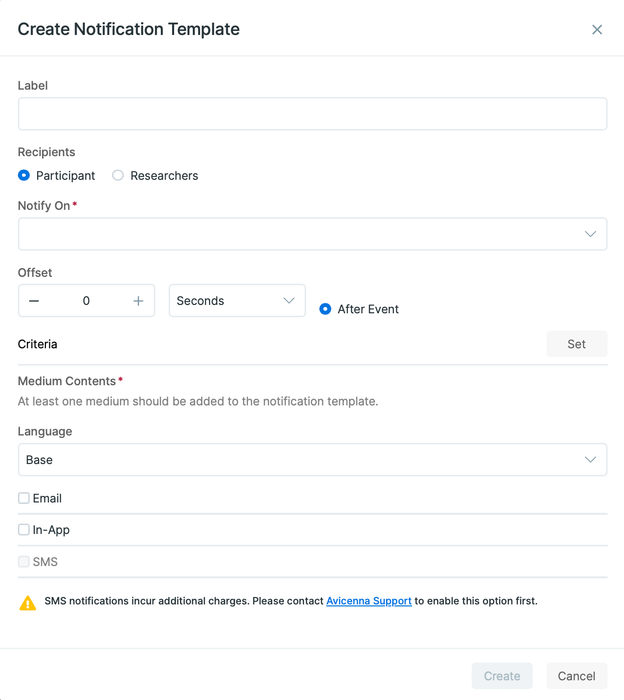
- Navigate to the Notifications page and go to the Notification Templates tab.
- Click Create Template.
- Configure the template with the following settings:
- Recipients:
Researcher(and select yourself from the list). - Notify On:
Session Completed.
- Recipients:
2. Set the Criteria to Target the Final Session
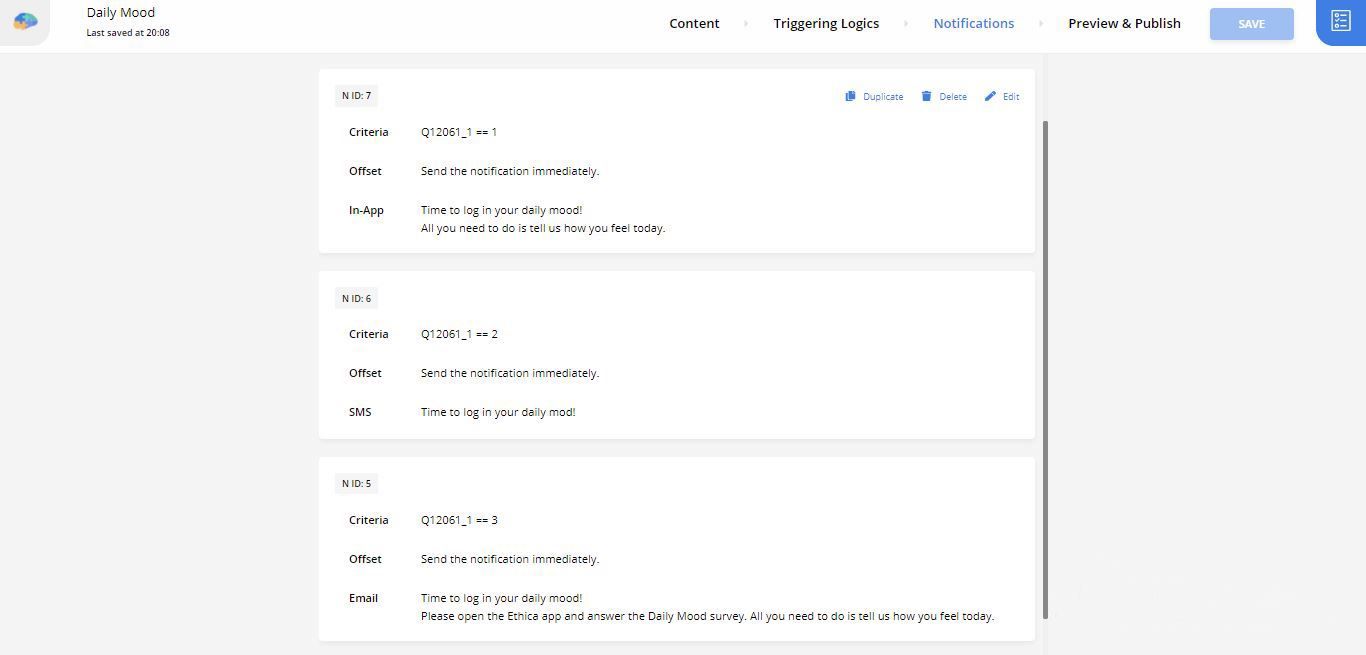
To ensure this notification only triggers for the last session of the study, you need to use criteria based on the participant’s registration date.
- In the Notification Template dialog, find the Criteria field.
- Assuming your study’s duration is 14 days, enter the following criteria:
_days_since_reg_date >= 14 - This condition ensures the notification will only be sent for sessions that are completed on or after the 14th day of participation. You can learn more about keyword-based criteria here.
3. Customize the Notification Content for Clarity
Make the notification content useful so you know which participant it refers to.
- In the Medium Contents section (e.g., for Email), use placeholders.
- Subject:
Incentive Reminder for Study: {{study_name}} - Body:
Participant with ID {{participant_id}} has completed their final survey. Please navigate to the Activity Sessions page to verify full compliance and process their incentive. - Click Create to save the template. You can find more about placeholders here.
4. Manually Verify Completion and Send a “Thank You” Note
When you receive the email notification from the template you just created, you need to perform the final steps manually.
- Go to the Activity Sessions page on your researcher dashboard.
- Filter for the specific participant ID mentioned in the notification.
- Review their session history to confirm they have completed all required surveys.
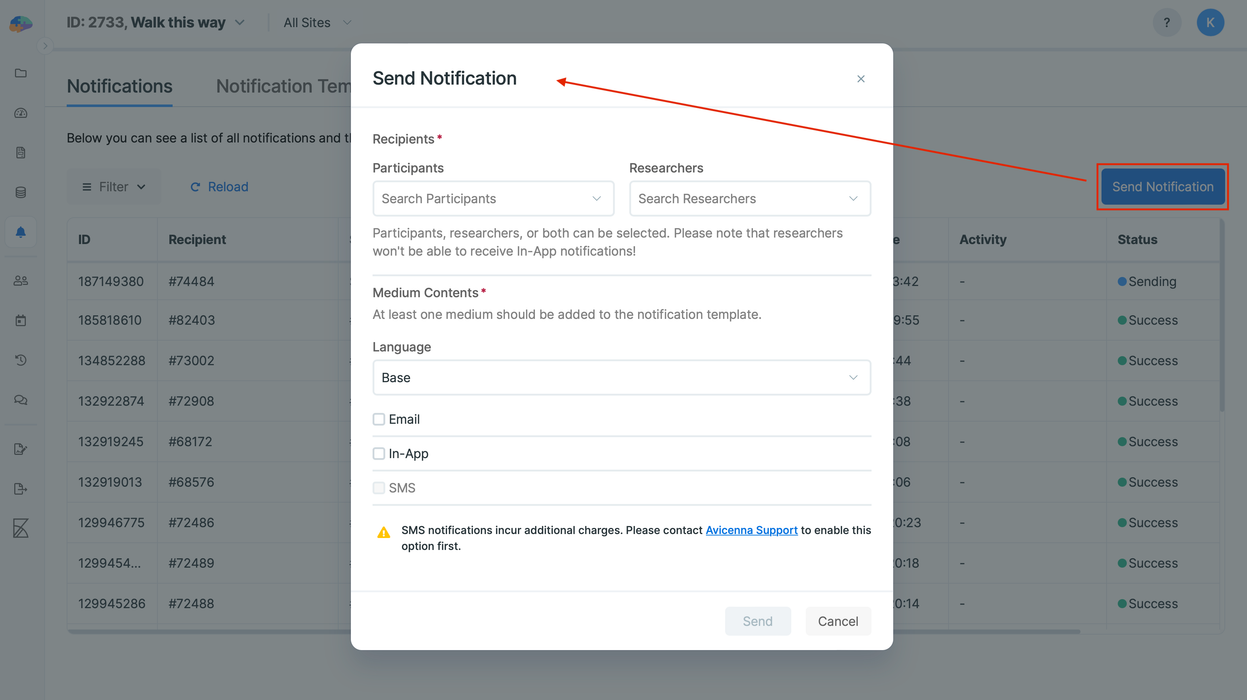
- If they are compliant, go to the Notifications page, click Send Notification, and send a one-off notification to thank them for their participation.
Pro Tips
-
Testing a Study with a Future Start Time: If your study has a future start date but you want to test it now, avoid changing the main study’s settings. Instead, you have two better options:
- Duplicate your study: Create a full copy and set an earlier participation start time in the new (trial) version for testing.
- Modify the participation period for specific test participants: Invite your research assistants and yourself, then adjust only your start times on the Participation page. Make sure to set these accounts as Test participants.
-
What if notifications don’t “buzz” a participant’s phone? If a participant reports that they see notifications but their phone doesn’t vibrate or play a sound, this is almost always related to their device’s settings, not the Avicenna app itself. Even if
Do Not Disturbis off, many phones (especially Android) allow users to set custom notification behaviors (like sound, vibration, or silent pop-ups) for each app individually. The participant should check their phone’s settings for the Avicenna app and ensure that sound and vibration are enabled for its notifications. You can find more troubleshooting steps here. -
Smart Reminders: Avicenna automatically prevents sending unnecessary reminders. If a participant completes a survey session, any scheduled reminder notifications for that specific session (e.g., “1 hour before expiry”) will be canceled automatically. You do not need to configure any special criteria for this behavior.