Integrating SwitchBot’s smart home devices with Avicenna provides researchers with comprehensive environmental monitoring capabilities for behavioral and environmental research studies.
Supported SwitchBot Devices/Metrics in Avicenna
For each device below, we included the fields Avicenna will store. Also, all records include the common data fields.
WoIOSensor (Indoor/Outdoor Thermo-Hygrometer)
It is an IP65‑rated smart sensor that monitors temperature and humidity indoors or outdoors with real‑time app alerts and SwitchBot ecosystem integration.
- Temperature: Measures ambient temperature, in Celsius (°C). Internally stored as
temperature_celsius. - Relative Humidity: Measures relative humidity, in percentage (%). Internally stored as
relative_humidity. - Absolute Humidity: Measures absolute humidity, in grams per cubic meter (g/m³). Internally stored as
abs_humidity. - Dew Point Temperature: Calculates the dew point temperature, in Celsius (°C). Internally stored as
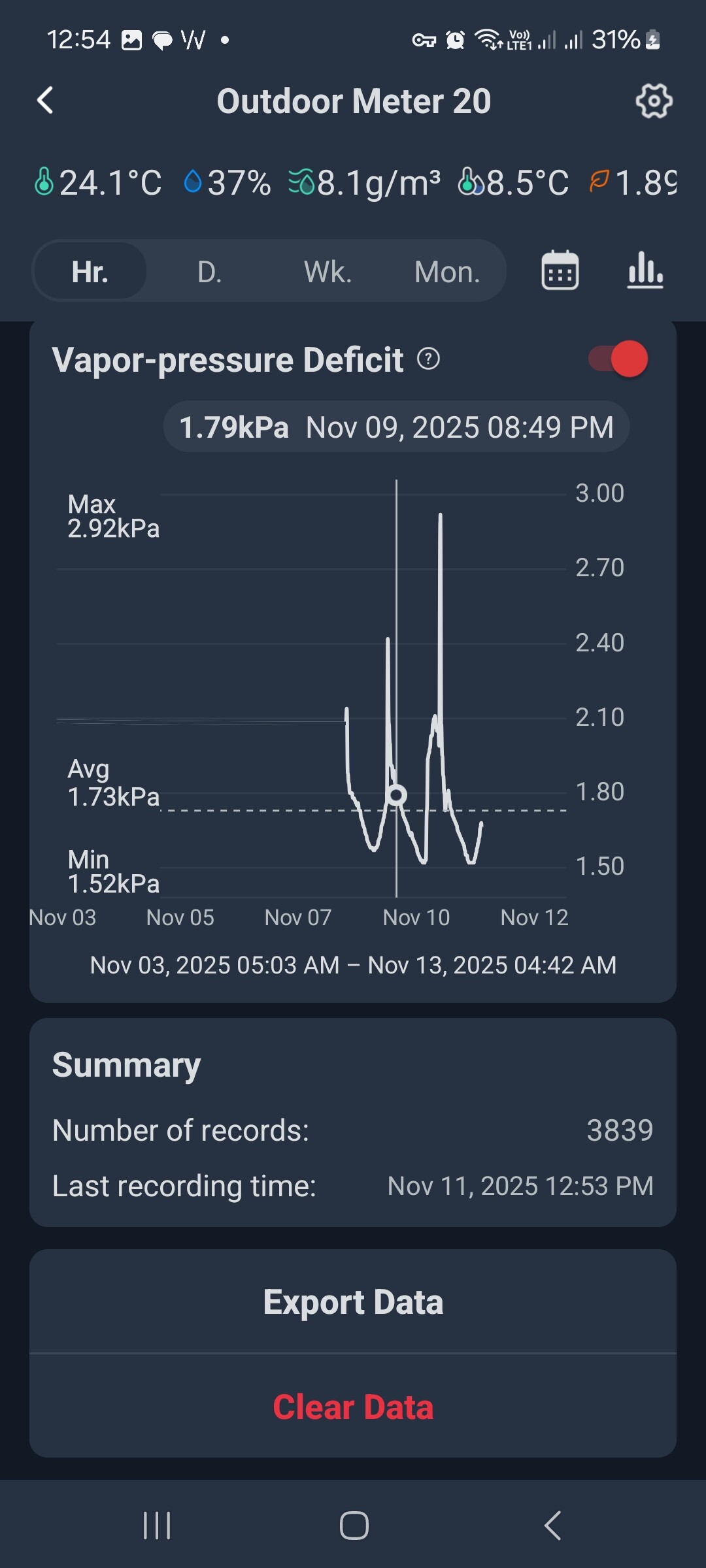
dpt. - Vapor Pressure Deficit (VPD): Measures the difference between the amount of moisture in the air and how much moisture the air can hold when it is saturated, expressed in kilopascals (kPa). Internally stored as
vpd_kpa. - Question ID + Activity ID (QMN): Identifies the specific File question ID used for uploading the collected data and the survey ID associated with that uploaded data. Internally stored as
qmn.
[!note]
The CSV export generated by the SwitchBot app does not include any device identifier. As a result, Avicenna cannot distinguish between multiple SwitchBot devices within the same export file. All records in an uploaded file are linked only to the participant, the Activity, and the File question.
Data Collection Behavior
The SwitchBot WoIOSensor collects a new record of environmental data every minute, and syncs it with SwitchBot’s mobile app when the phone is in range through the Bluetooth Low Energy (BLE) protocol. See the next sections for more details.
Adding SwitchBot As a Data Source
SwitchBot integration is implemented through File questions in surveys since the SwitchBot API only provides access to the most recent data point rather than historical data.
To add SwitchBot as a data source to your study, please contact our support team. Please provide the following information to the Avicenna support team:
- Activity ID containing the File question
- File question ID within that activity
Monitoring and Exporting SwitchBot Data
You can export and download the collected SwitchBot data using the Data Export page.
SwitchBot Data Source in Participant App
-
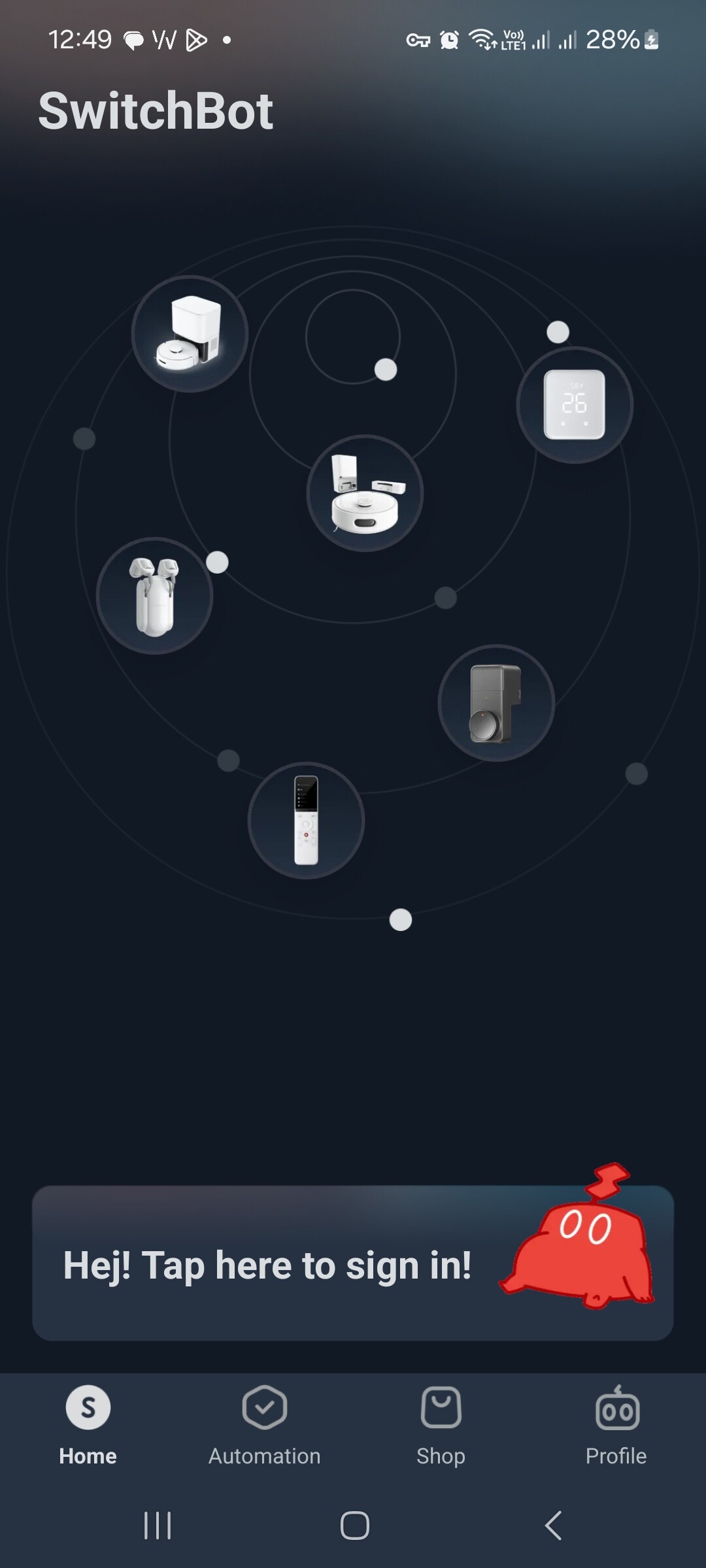
Open the app and tap Sign in.
-
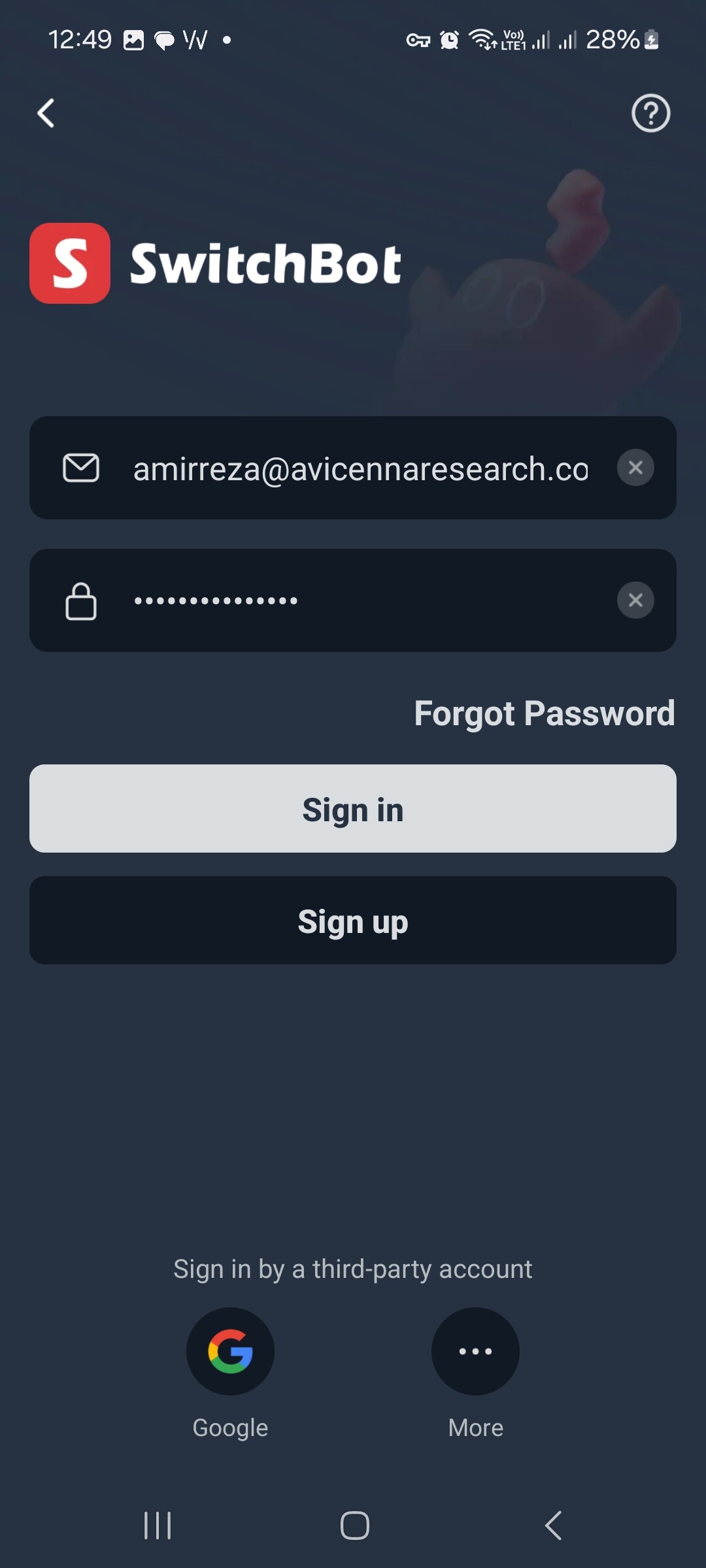
If you already have an account, enter your email address and password. Otherwise, create a new account.
-
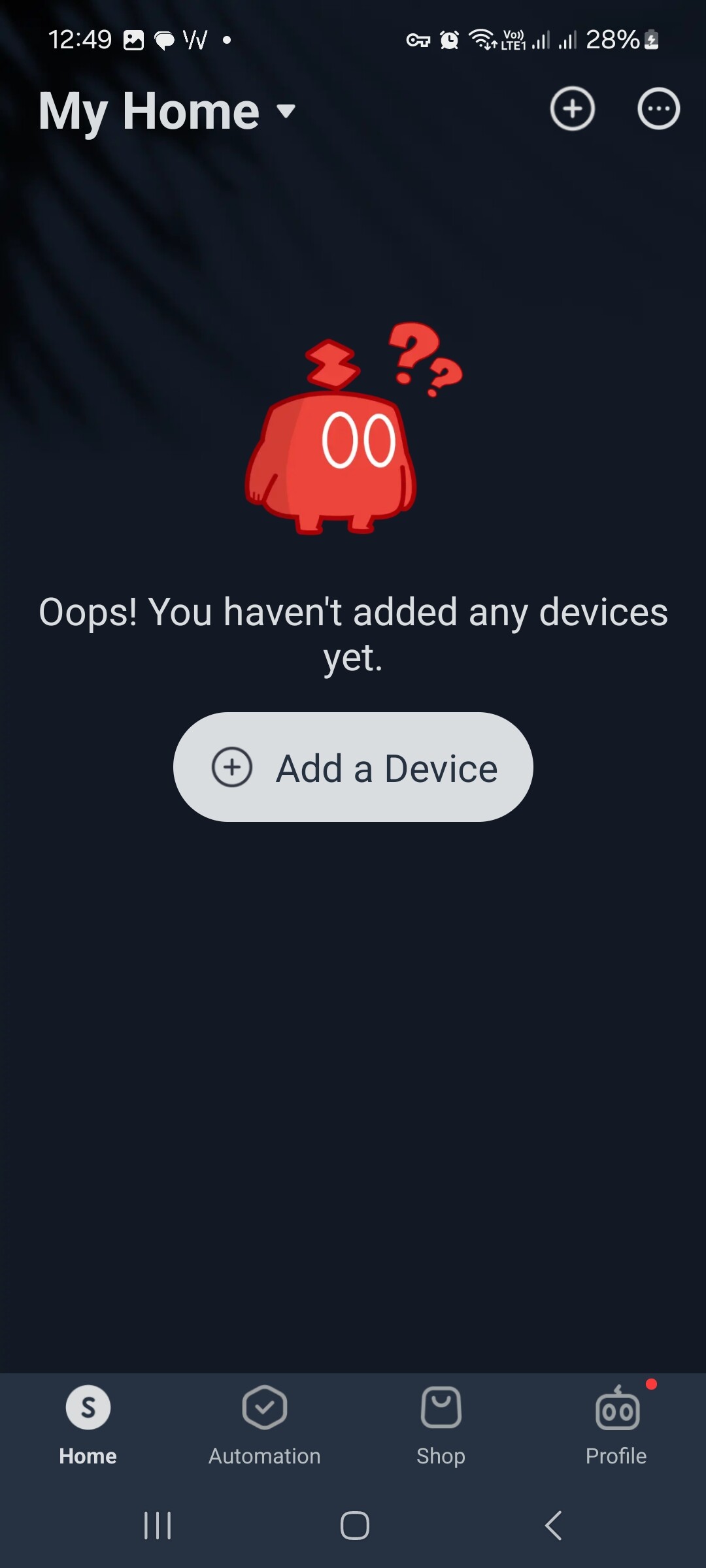
After signing in, on the app’s Home page, tap the Add a Device button.
-
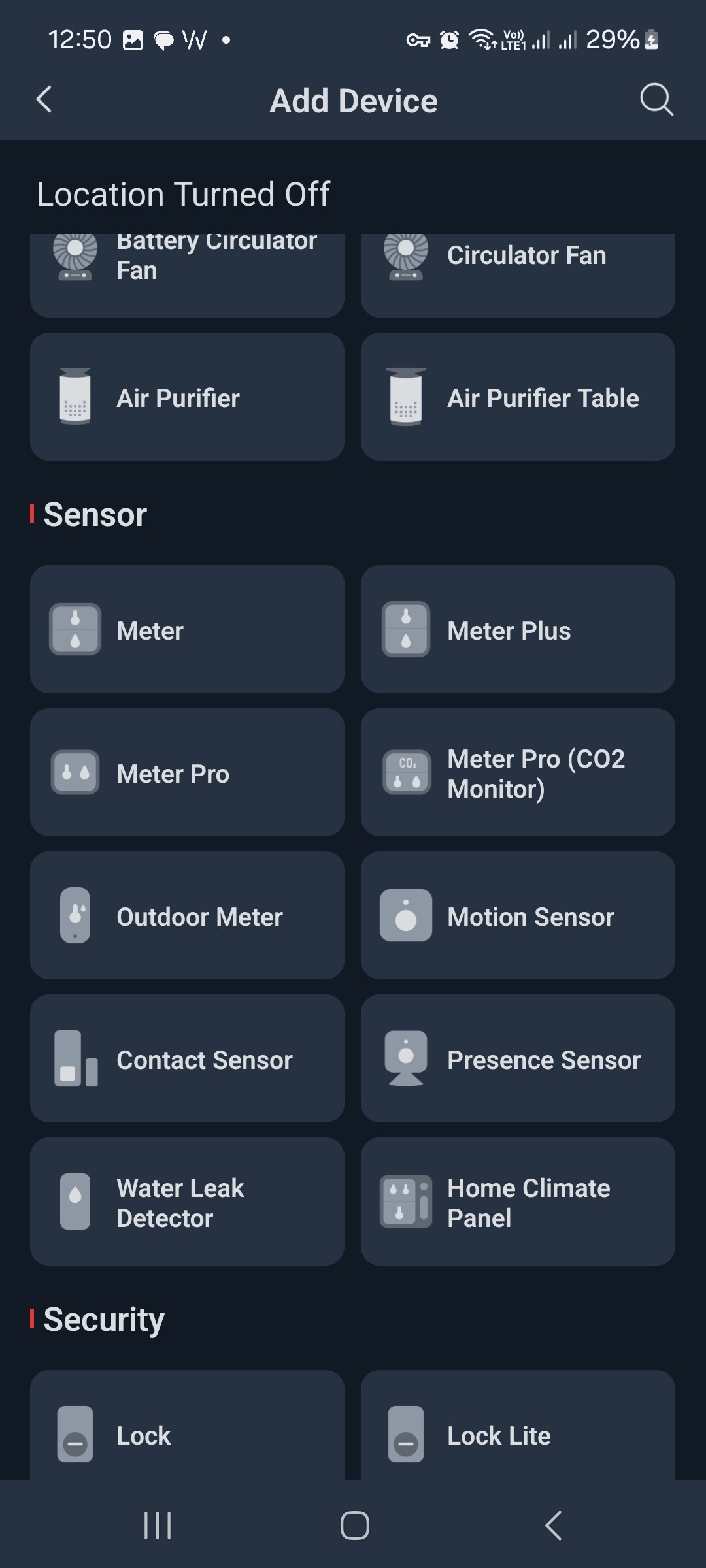
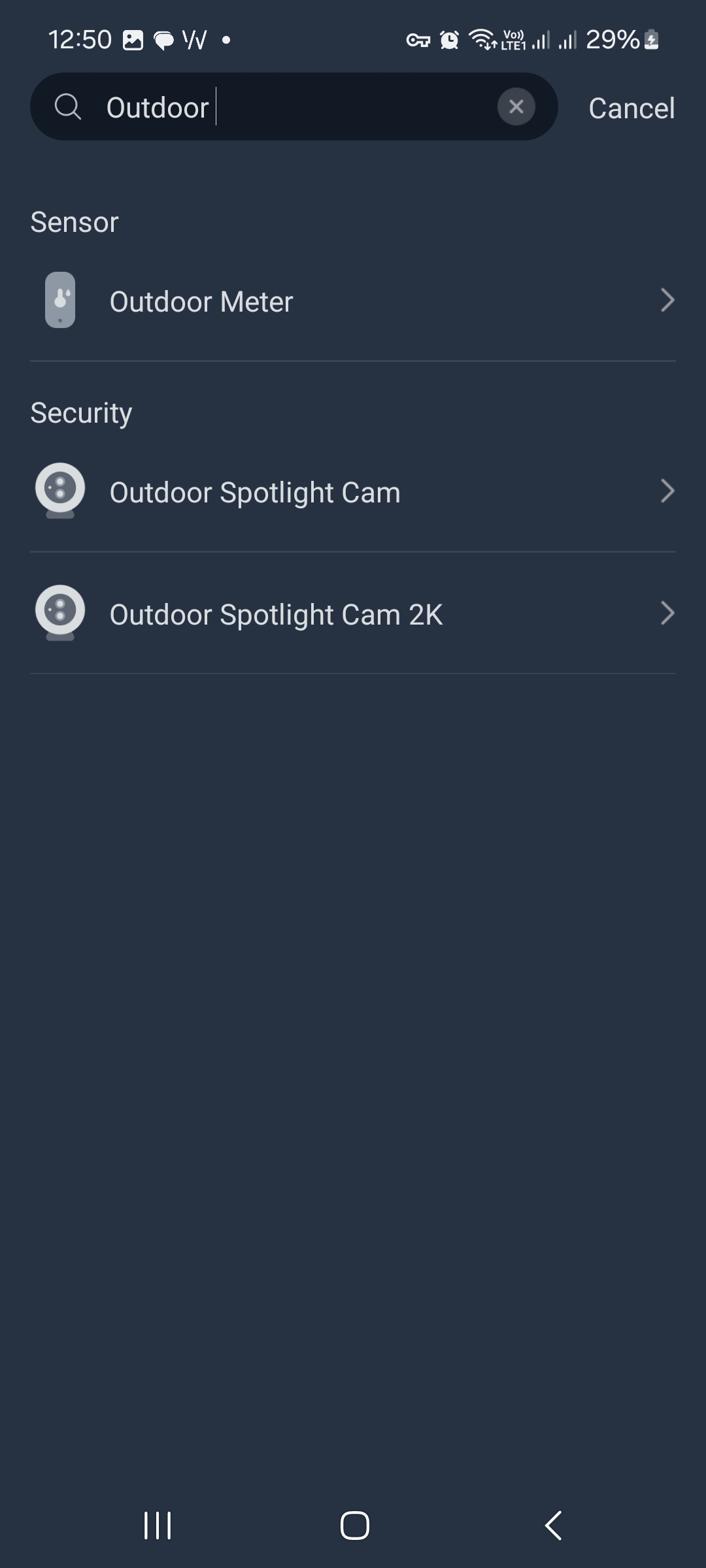
On the devices list, search for “Outdoor Meter” and select it.
-
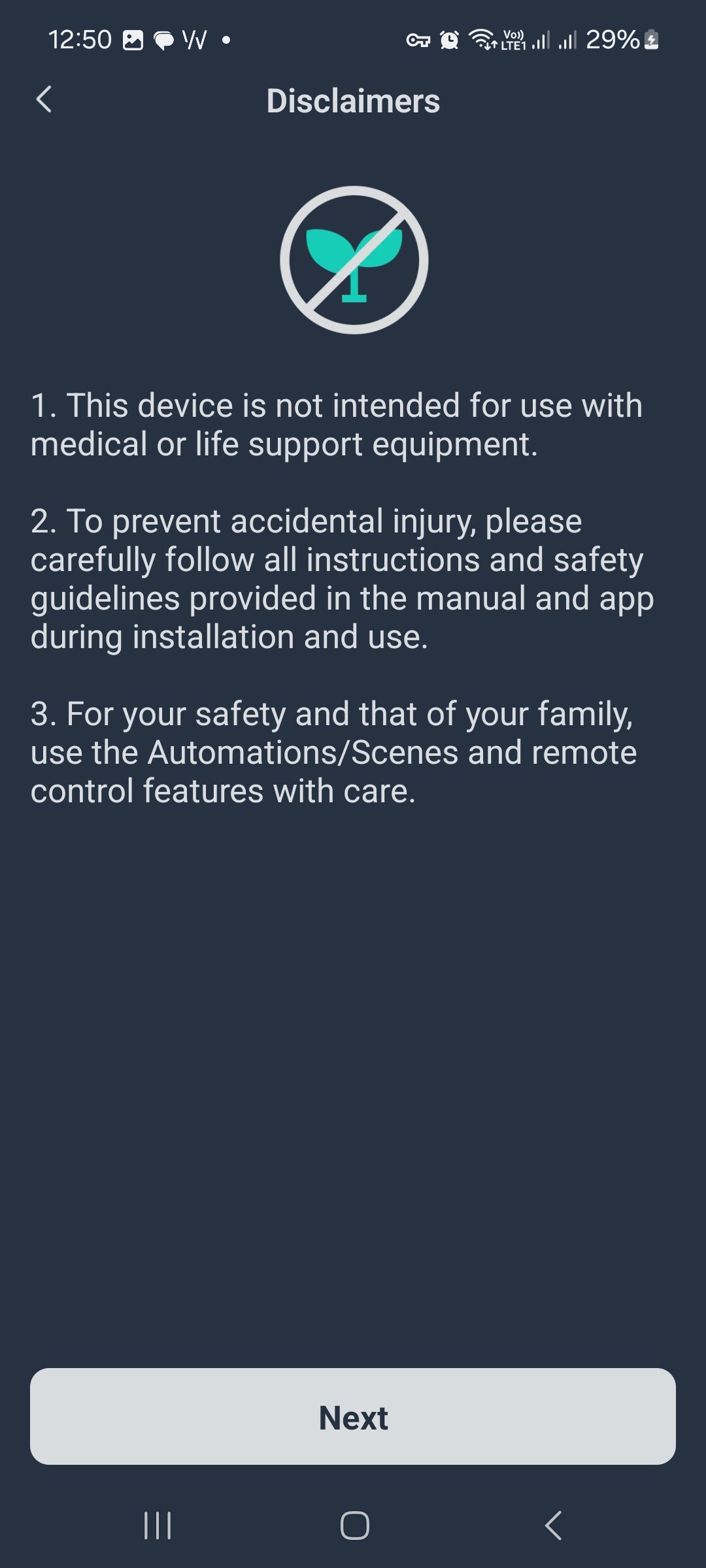
Read the disclaimers and tap Next.
-
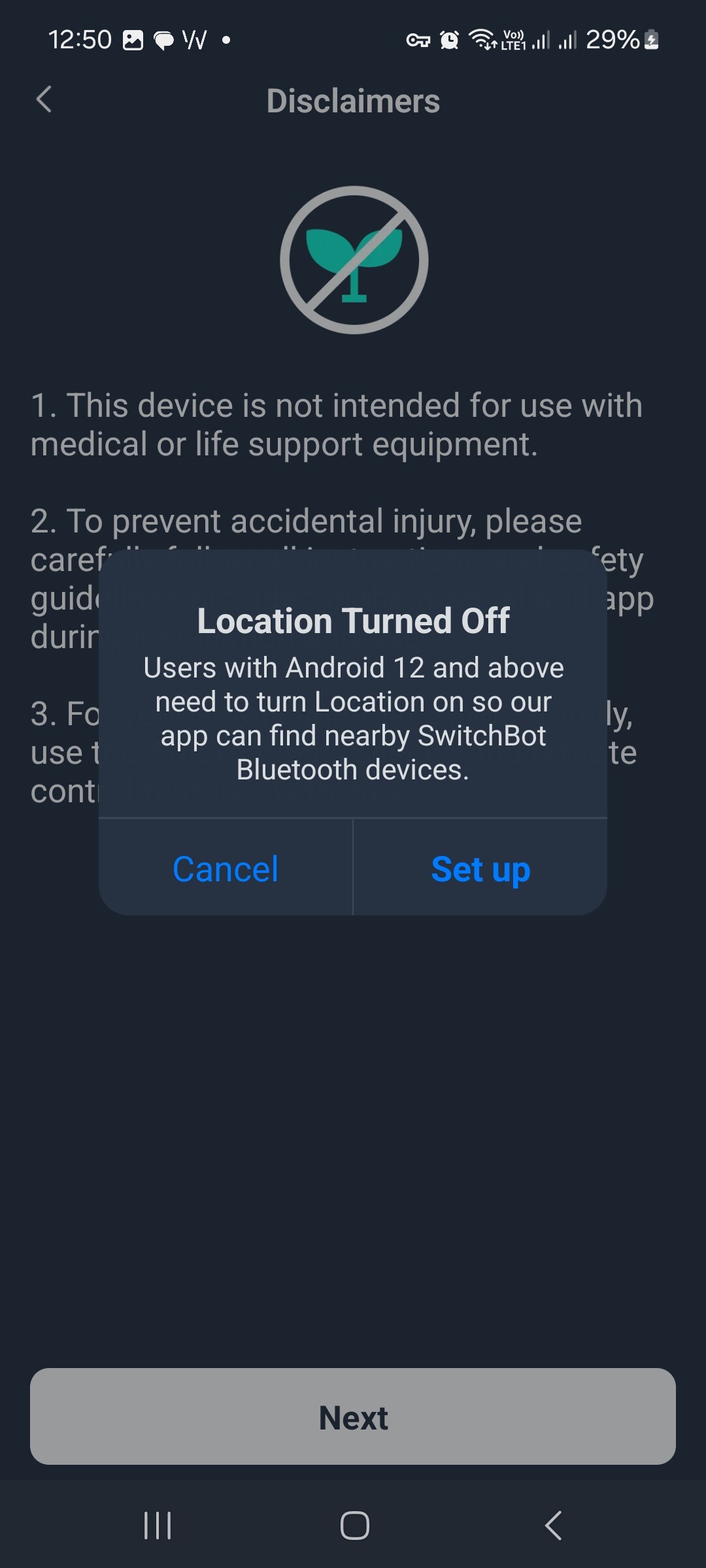
Grant the app location permission and turn on GPS.
-
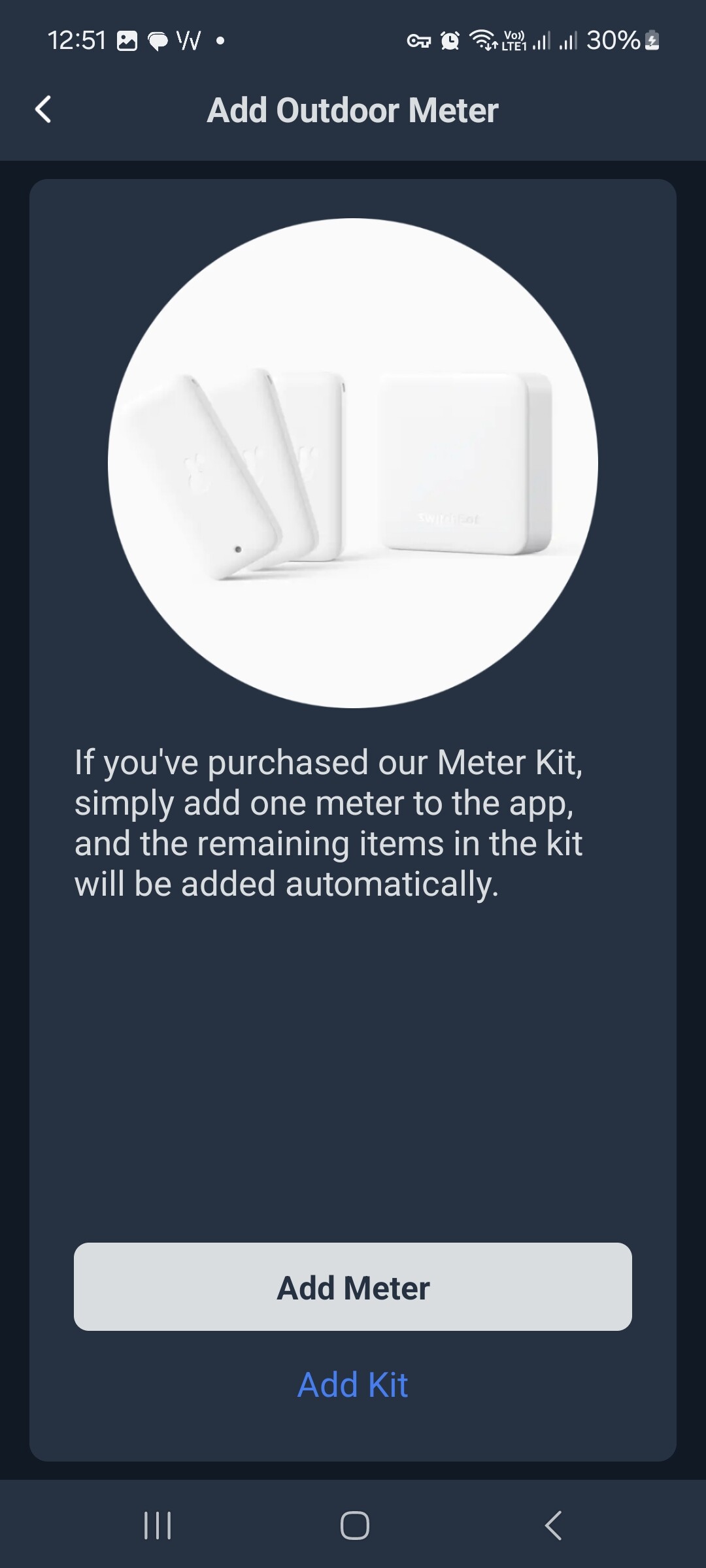
Tap Add Meter.
-
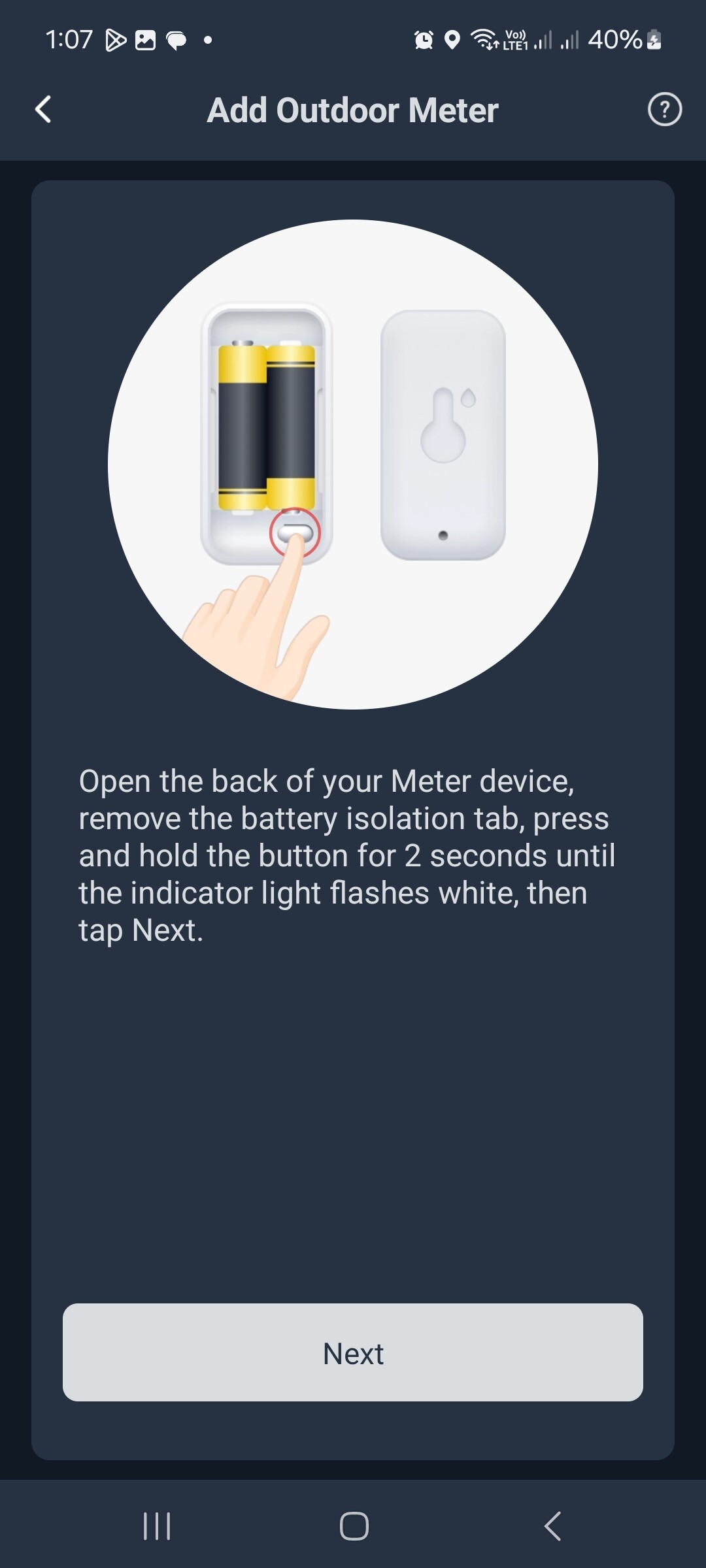
Pair the device with your phone following the on-screen instructions.
-
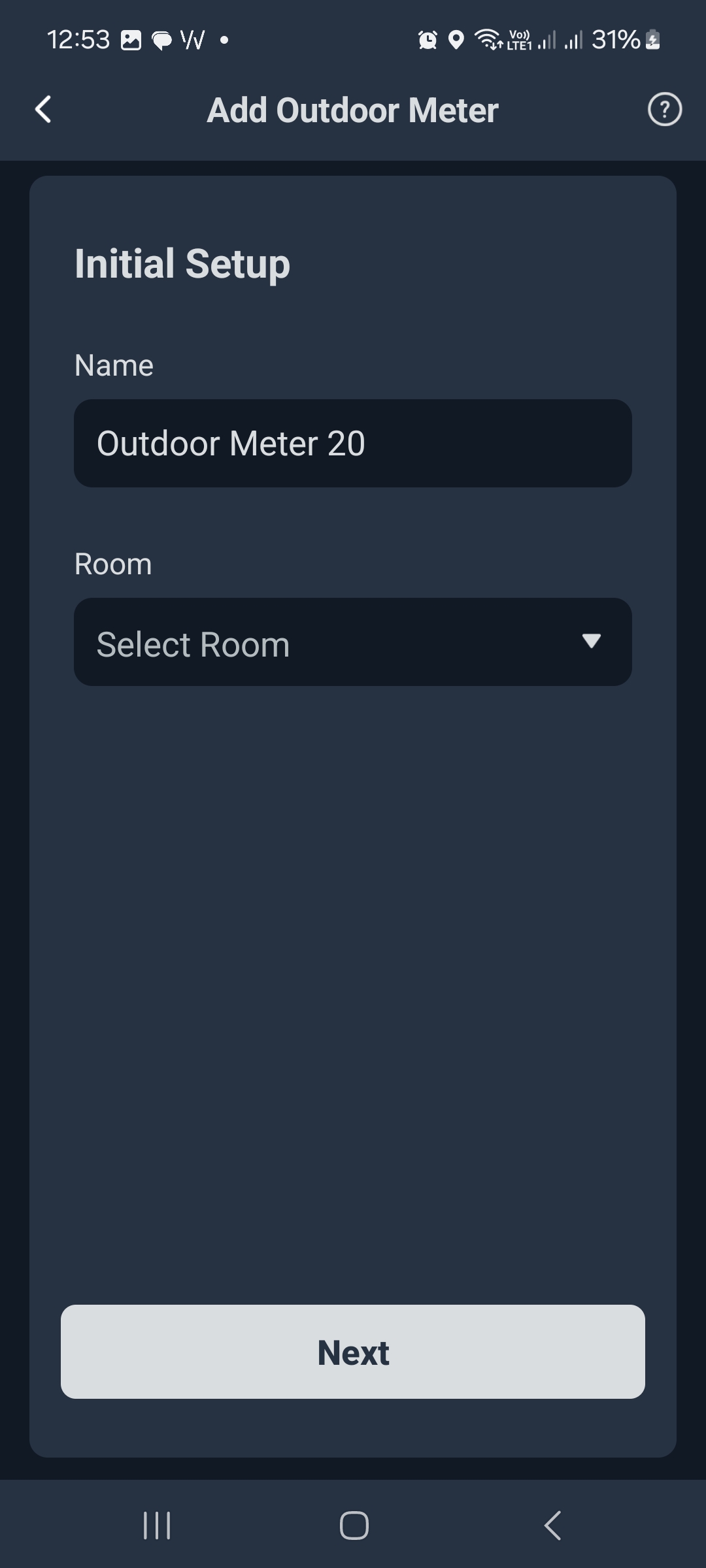
Set a name and optionally assign a room for the device.
-
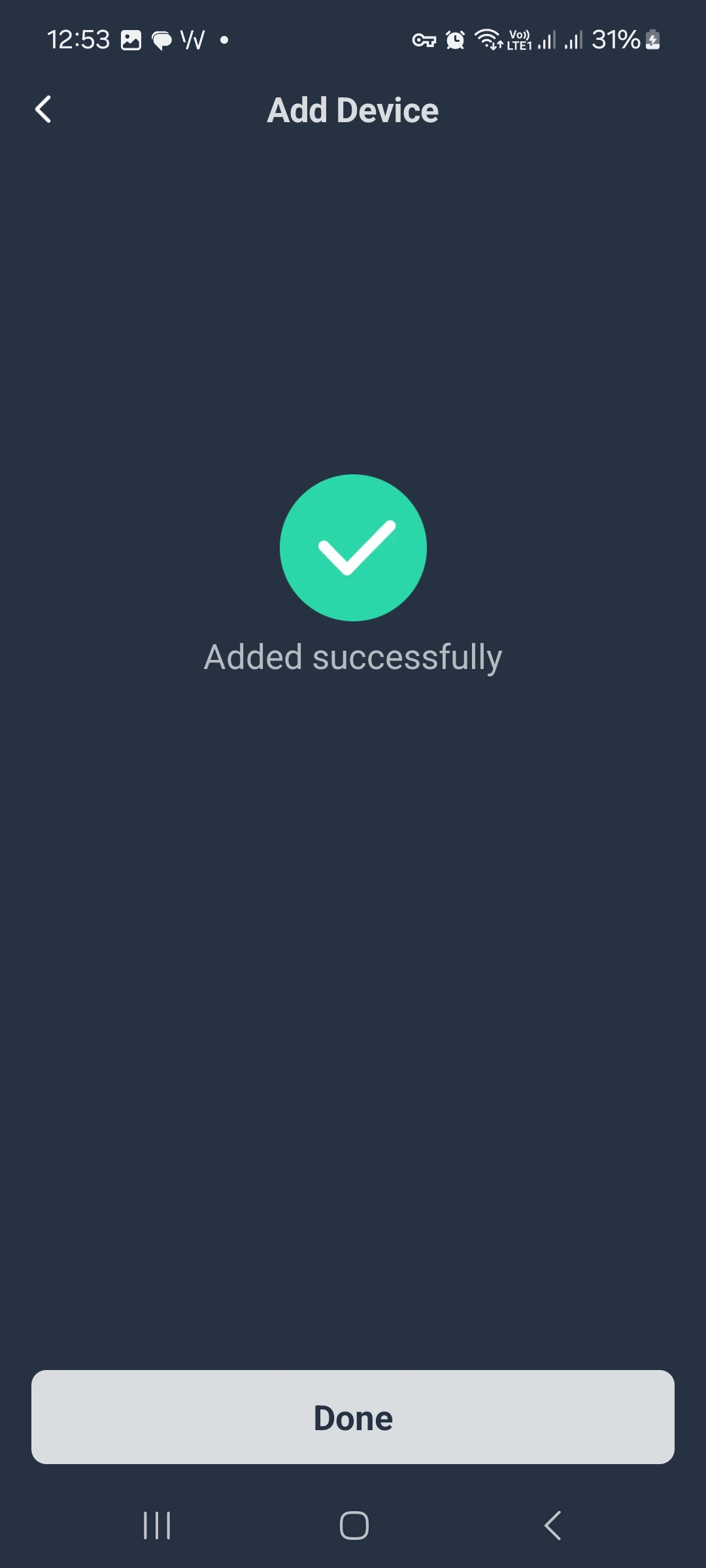
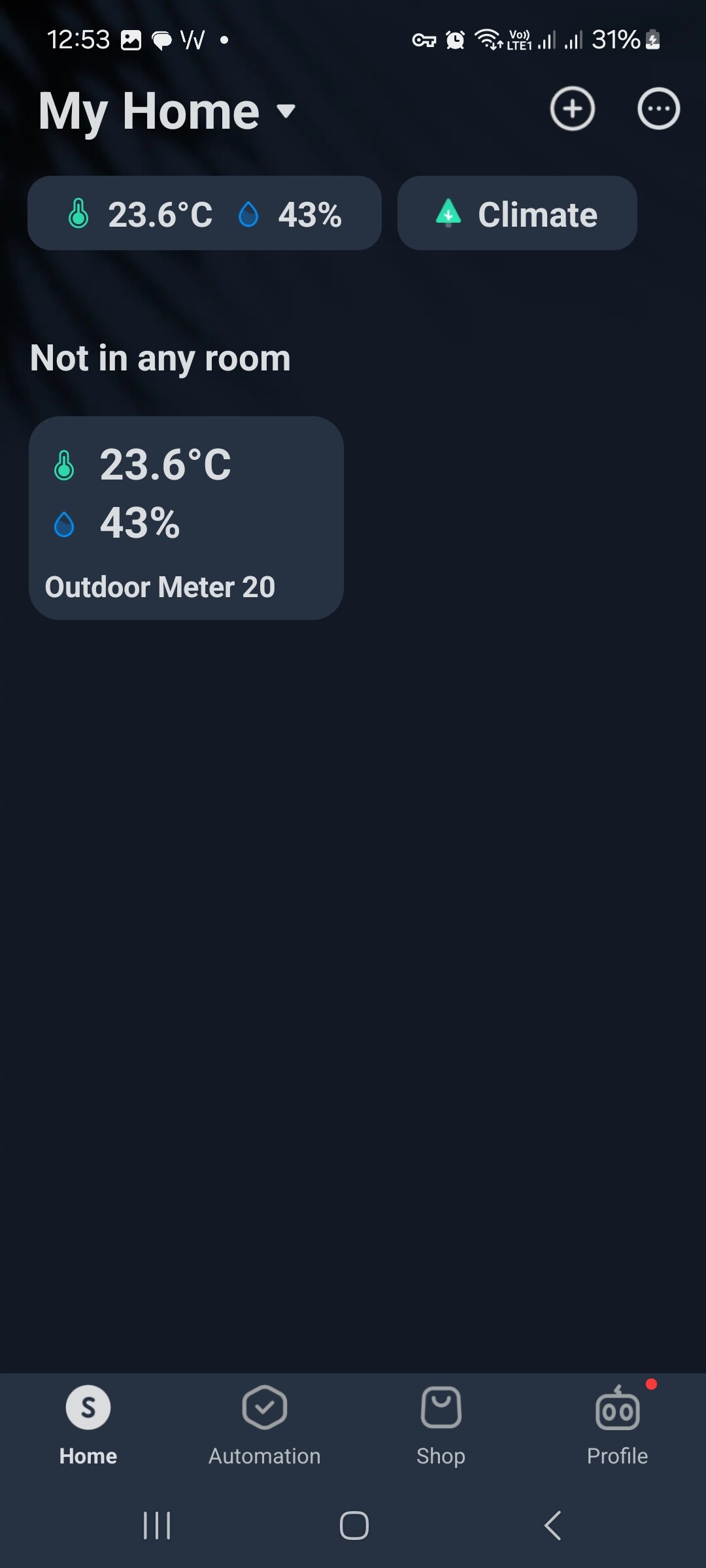
A success page will appear once the device is paired successfully. The device will now appear on the Home page.
-
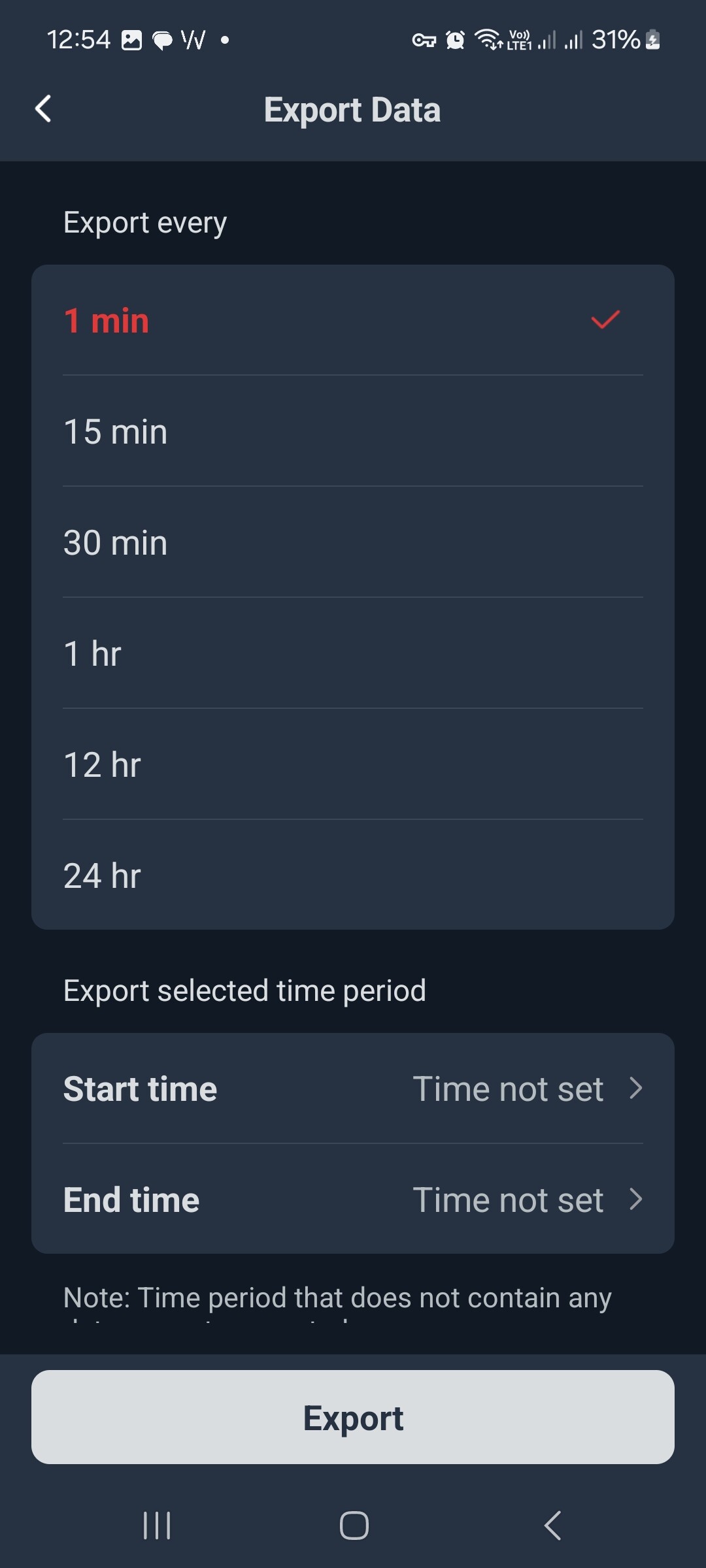
To export data, tap on the device, then scroll down and tap Export Data.
-
Select 1 min for Export every to export the full history, then set the Start time and End time.
-
When your data export is ready, upload the exported CSV file through the designated File question in your survey.
[!important]
The device name you set in the SwitchBot app and the CSV file name are not used by Avicenna as a device identifier. File names can be changed by participants or by the operating system during upload, so Avicenna relies only on the contents of the CSV and the survey metadata.
- Data is automatically processed and integrated into the study dataset.