Matrix Reasoning is a cognitive activity that asks participants to complete a visual pattern. Each round shows a matrix image with a missing piece and a set of candidate pieces, and the participant picks the one that completes the pattern. It is a non-verbal reasoning task, so it works across languages and reading levels.
Avicenna records every round separately, including which option was chosen, how long the participant took, and whether they answered, skipped, or ran out of time. You can review the results on the Activity Responses page.
[!note]
Matrix Reasoning is a licensed feature. If you do not see it listed when adding a new activity, contact support to have it enabled for your license.
Use Cases
- Collect a quick, language-independent measure of fluid reasoning alongside your surveys.
- Repeat a short, timed version of the task throughout the day to study within-person variation in cognitive performance.
- Add a baseline cognitive measure at enrollment that you can later use to interpret other outcomes.
Configure a Matrix Reasoning Activity
To add and configure a Matrix Reasoning activity in your study:
- Go to the Activities page on your researcher dashboard.
- Click Add Activity and select Matrix Reasoning.
- Enter a name and description for the activity.
- Configure the game on the Content tab, as described below.
- Set up Triggering Logics and Notification Templates.
- Preview and publish the activity.
The questions themselves come from a fixed bank that Avicenna ships with the activity; you cannot add your own images. You choose how many of those questions each session uses, and in what role.
General Settings
These settings control the length of the game and how long a participant has on each round.
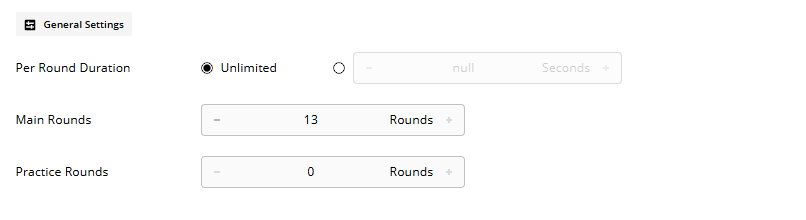
Per Round Duration
How long the participant has to answer each round. Choose Unlimited to let them take as long as they need, or enter a number of seconds.
When a limit is set, a countdown is shown during every round, including practice rounds. If the countdown reaches zero, the round ends automatically and the game moves on. What the round counts as is controlled by Timed-out Unanswered Round Behavior below.
Main Rounds
The number of scored rounds in the game. These are the rounds recorded in your data.
Practice Rounds
The number of unscored rounds shown before the main game starts. Set it to 0 to skip practice entirely.
[!note]
The question bank contains 13 standard questions in a fixed order; they are never shuffled and are identical for every participant. Practice rounds take the first questions, and the main rounds follow, so the two never overlap and their total cannot exceed 13. With 3 practice and 10 main rounds, practice uses questions 1–3, and the main rounds use questions 4–13. Practice responses are not submitted and do not appear in your data.
Game Messages
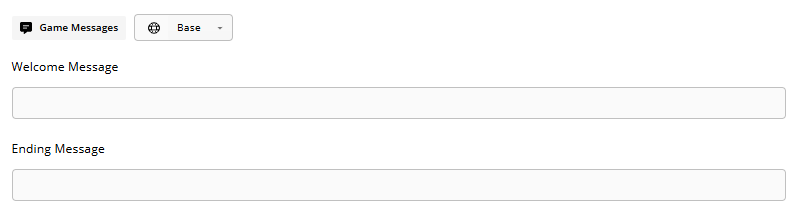
The Welcome Message is shown on the first screen, before the participant starts. The Ending Message is shown on the last screen, after the final round. Both are optional, and each is limited to 500 characters. The instructions between these screens are provided by Avicenna and cannot be edited.
[!note] Multi-Language Studies
If your study includes localizations, the Welcome Message and Ending Message can be translated. Because the questions are images with no text, the rounds themselves need no translation.
Game Layout
These settings control how the game behaves and what the participant sees while playing.
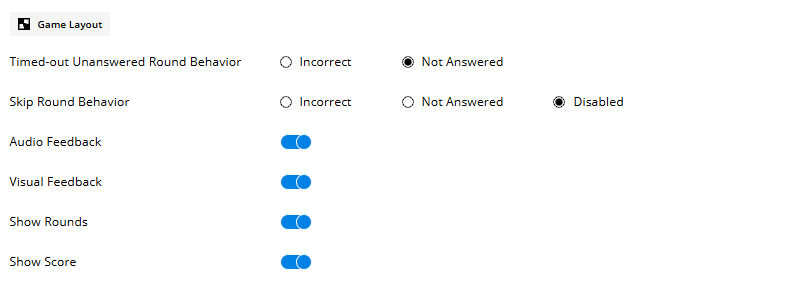
Timed-out Unanswered Round Behavior
How a main round is scored when the timer runs out before the participant confirms an answer. Choose Incorrect or Not Answered. This setting only appears in your data when a round actually times out with no answer recorded; if the participant had already selected an option when the timer expired, that selection is scored normally.
Skip Round Behavior
Whether participants can skip a main round, and how a skipped round is scored. Choose Incorrect, Not Answered, or Disabled.
Choosing Disabled hides the Skip button during the main game. Practice rounds can always be skipped, regardless of this setting.
[!note]
Skipping is final. Participants are warned before confirming, and they cannot return to a round once it has been skipped.
Audio Feedback
Plays a short sound after each answer indicating whether it was correct.
Visual Feedback
Shows an on-screen indicator after each answer indicating whether it was correct.
Show Rounds
Shows the round counter (for example, “3 of 10”) in the game header.
Show Score
Shows the participant their score at the end of the game, as the number of correct main answers out of the number of main rounds.
[!warning]
Audio Feedback, Visual Feedback, and Show Score reveal the correct answer to the participant. Turn them off if your design requires participants to stay blind to their performance, especially when the activity is triggered repeatedly.
Matrix Reasoning in the Participant App
When participants open the activity, they move through the game in this order:
- The Welcome Message, with a Start button.
- The practice rounds, if you configured any, introduced by a short instruction screen.
- A short screen confirming the main game is about to begin.
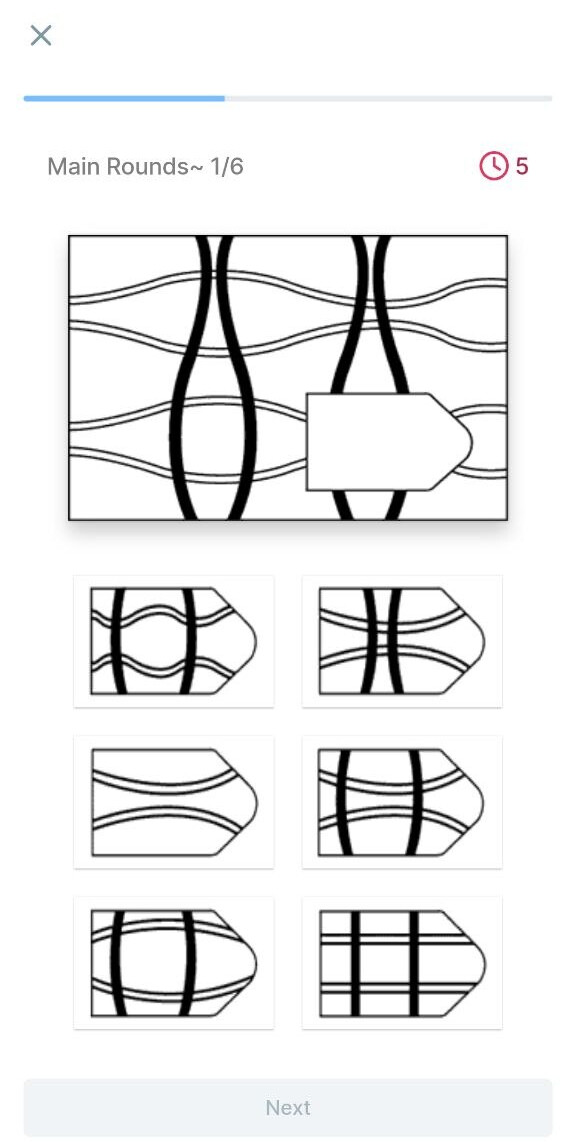
- The main rounds, one question per screen. The participant taps an option to select it and then taps Next to confirm. Next stays disabled until something is selected.
- The Ending Message, with the score if Show Score is on, followed by a Finish button.
If a per-round limit is set, the countdown appears in the header. If Show Rounds is on, the round counter appears there too. When skipping is allowed, a Skip button sits in the top corner and asks for confirmation before it is used.
Responses are uploaded when the participant reaches the final screen. If the upload fails, the participant is shown an error with the option to retry, and the Finish button appears only once the upload succeeds.
View and Filter Responses
Open the Activity Responses page to review sessions. Alongside the standard activity response columns, Matrix Reasoning adds four columns, all shown by default:
| Column | Description |
|---|---|
| Correct Answers | Number of main rounds answered correctly in the session. |
| Incorrect Answers | Number of main rounds answered incorrectly in the session. |
| Unanswered Rounds | Number of main rounds with no answer recorded. |
| Response Duration | Total time the participant spent answering, in seconds, summed across the session’s main rounds. |
You can hide or show any of these from the column selector, and you can use all four as conditions in Data Filtering to narrow down which sessions you see.
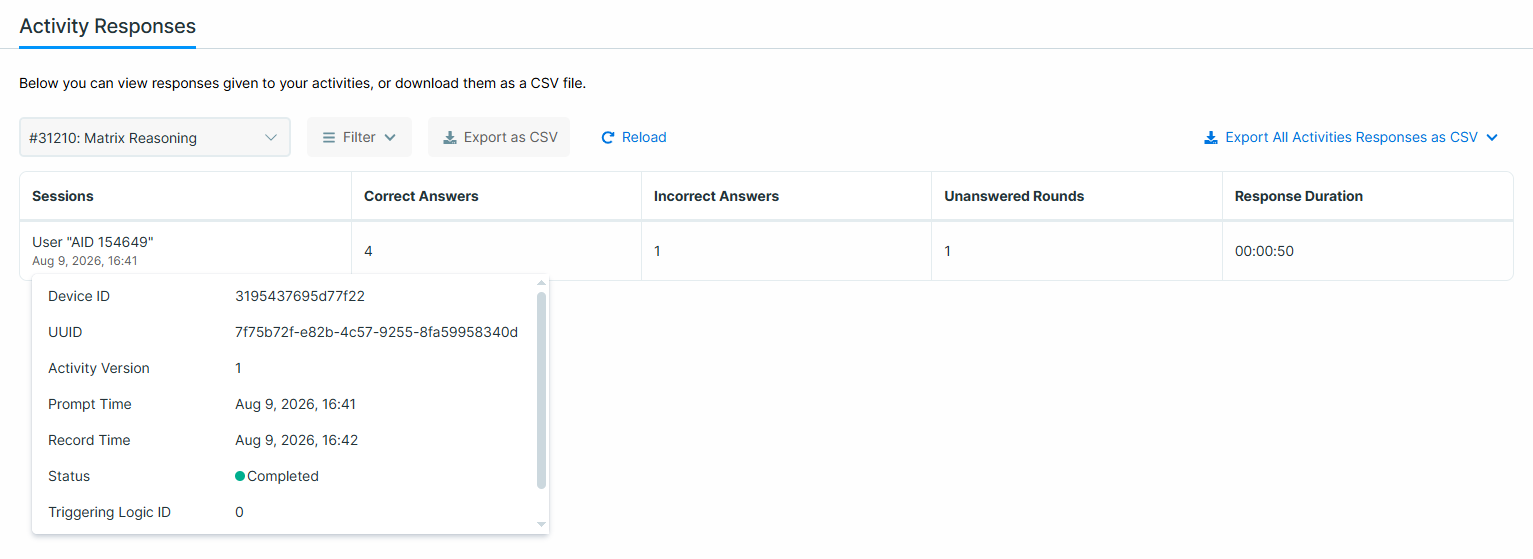
How skipped and timed-out rounds are counted in these columns follows the Skip Round Behavior and Timed-out Unanswered Round Behavior you configured.