Avicenna allows you to modify the look and feel of the mobile and web-based app to match the theme of your study. To do so, all you have to do is pick a background image for your study and set it either while creating the study (as described here), or later on through the Basics page.
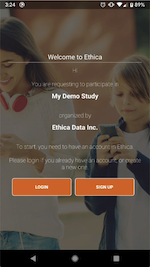
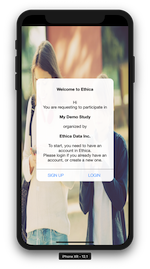
Avicenna will use this image throughout the application. For example, when a participant is invited to join your study and opens the Avicenna app for the first time, the home screen will be branded for your study, as shown in the image below:
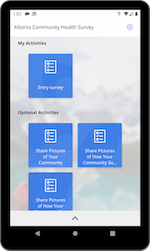
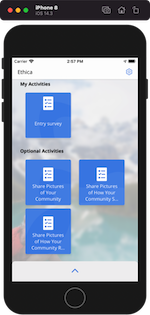
Further, throughout the app, your chosen background will be shown:
Custom Apps
While study background images are very helpful for participants who potentially are familiar with the name and brand of your study and your institution, the name, logo, and introduction screen of the app remain to belong to Avicenna. So the participants still should be instructed to search for the “Avicenna” app.
If you want the app to be fully branded for your study, including the name of the app in Apple’s App Store and Google’s Play Store, the logo, and other sections of the app, you can request the full customization of the app. The image below shows one of the applications that uses a fully customized name and logo, though it’s powered by Avicenna, and therefore it benefits from all the features Avicenna offers:
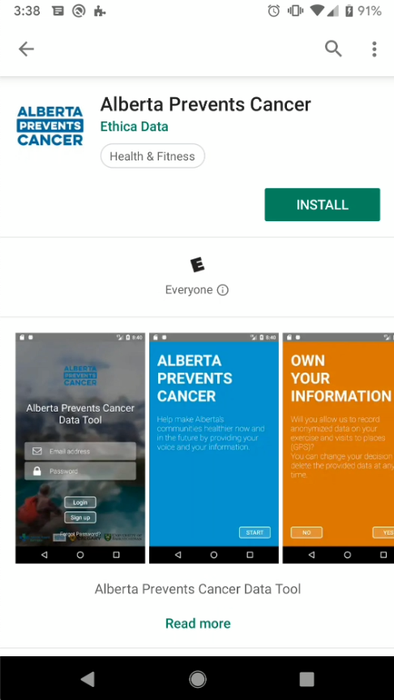
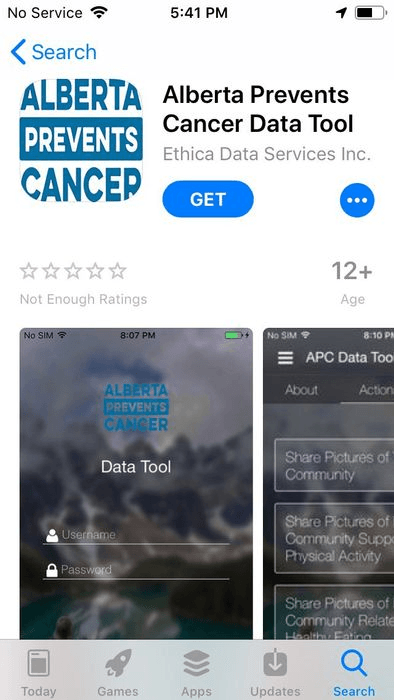
If your study has customized apps, Avicenna will show and redirect participants to your apps instead of Avicenna’s apps, wherever necessary. One example would be when the participants open your study’s registration URL.
Customized apps can be published in one of these modes:
- Single-Study: The app can only be used for a single study. Participants will be enrolled in the study automatically when they log in to the app and they won’t be able to join any other study.
- Multi-Study: The app can be used for any number of studies. Participants can join multiple studies using the app just like what the main Avicenna app supports.
- Restricted Multi-Study: The app can be used only for a specific set of whitelisted studies. In these custom apps, the whitelist can be updated only through an application update, and the updated whitelist must be communicated to the team before the app is released.
Additionally, if a participant tries to join a study using a registration URL with a Single-Study custom app that is not set up for that specific study, they will be notified within the app, and the enrollment process will be stopped.
Note that switching between different custom app modes (such as from Single-Study to Multi-Study) requires a new version of the app to be released.
Please note, customizing the apps is not currently available from the Researcher Dashboard due to the technical limitations. If you are interested, please contact Avicenna Support for more details on this option.
Custom Registration Pages
If your study requires a tailored registration experience, Avicenna supports custom registration pages. Instead of the standard registration page, participants visiting your study’s registration URL will see a fully customized HTML page designed specifically for your study.
How It Works
If a study has a custom registration page, participants visiting the study’s registration URL will see that custom HTML page instead of the standard registration page. The custom page can include any content, styling, and layout that fits your study requirements.
Template Placeholders
To make custom registration pages dynamic, Avicenna supports a set of template placeholders. These placeholders are automatically replaced with the corresponding study-specific values when the page is shown to a participant.
The following placeholders are available:
| Placeholder | Description |
|---|---|
{{study_id}} |
Replaced with the study’s unique ID. |
{{study_name}} |
Replaced with the study’s name. |
{{study_consent_materials}} |
Replaced with the study’s consent materials. |
{{study_organization_name}} |
Replaced with the study’s organization name. |
{{study_background_image}} |
Replaced with the study’s background image URL. |
{{study_participation_url}} |
Replaced with the URL for joining the study, resolved based on the participant’s device and the study’s configured app store links. See Join Study for more details. |
{{query_params}} |
Replaced with all query parameters (keys and values) present in the registration URL (as is, but without the ? prefix). |
{{query_params[key]}} |
Replaced with the value of a specific query parameter. For example, {{query_params[site_id]}} will be replaced with the value of the site_id parameter from the registration URL. |
[!note]
If a placeholder’s value is not available, it will be replaced with an empty string.
Query Parameters
Custom registration pages support query parameters in the registration URL. Any query parameters passed to the registration URL are available for use within the custom page through the {{query_params}} and {{query_params[key]}} placeholders.
Example:
If your registration URL is https://avicennaresearch.com/study/4509?site_id=1&test=asd, then:
{{query_params}}will be replaced withsite_id=1&test=asd{{query_params[site_id]}}will be replaced with1{{query_params[test]}}will be replaced withasd
Localization Support
Localization can be specified via the localization query parameter in the registration URL. When a localization is specified, Avicenna will replace the following placeholders with their corresponding translations when available:
{{study_name}}{{study_consent_materials}}{{study_organization_name}}{{study_background_image}}
[!note]
If a translation for the specified localization is not available, the placeholder will be replaced with the Base translation by default.
Example:
https://avicennaresearch.com/study/(Study ID)?localization=es: Participants will see Spanish translations if available.https://avicennaresearch.com/study/(Study ID): Participants will see the Base translation by default.
Troubleshooting
Participants can’t have two Avicenna Android apps installed simultaneously
Due to Android limitations and how apps published by Avicenna are developed, participants cannot have two Avicenna apps (e.g., the main Avicenna app and a custom app) installed simultaneously on their Android devices.
To ensure participants can join and continue participating in multiple studies, you can go with one of these options:
- Use the main Avicenna app, which supports participation in multiple studies.
- Request a custom app with a multi-study mode, which allows participants to join multiple studies through the custom app.