Welcome to Avicenna! This guide will help you get started with the Avicenna participant app, from installation to daily usage. Whether you’re participating in a research study or just want to understand how the app works, this guide covers everything you need to know.
Getting Started
The Avicenna participant app is designed to make your research participation experience smooth and engaging. The app allows researchers to collect data through surveys, activities, and passive data collection from your device (all with your permission).
What You’ll Need
- A smartphone (iOS 16.0+ or Android 9.0+ / API level 28+)
- A stable internet connection
- An email address for account creation
- The study invitation code from your researcher
Installing the App
Follow the steps below to install the app on your device:
iOS (iPhone/iPad)
-
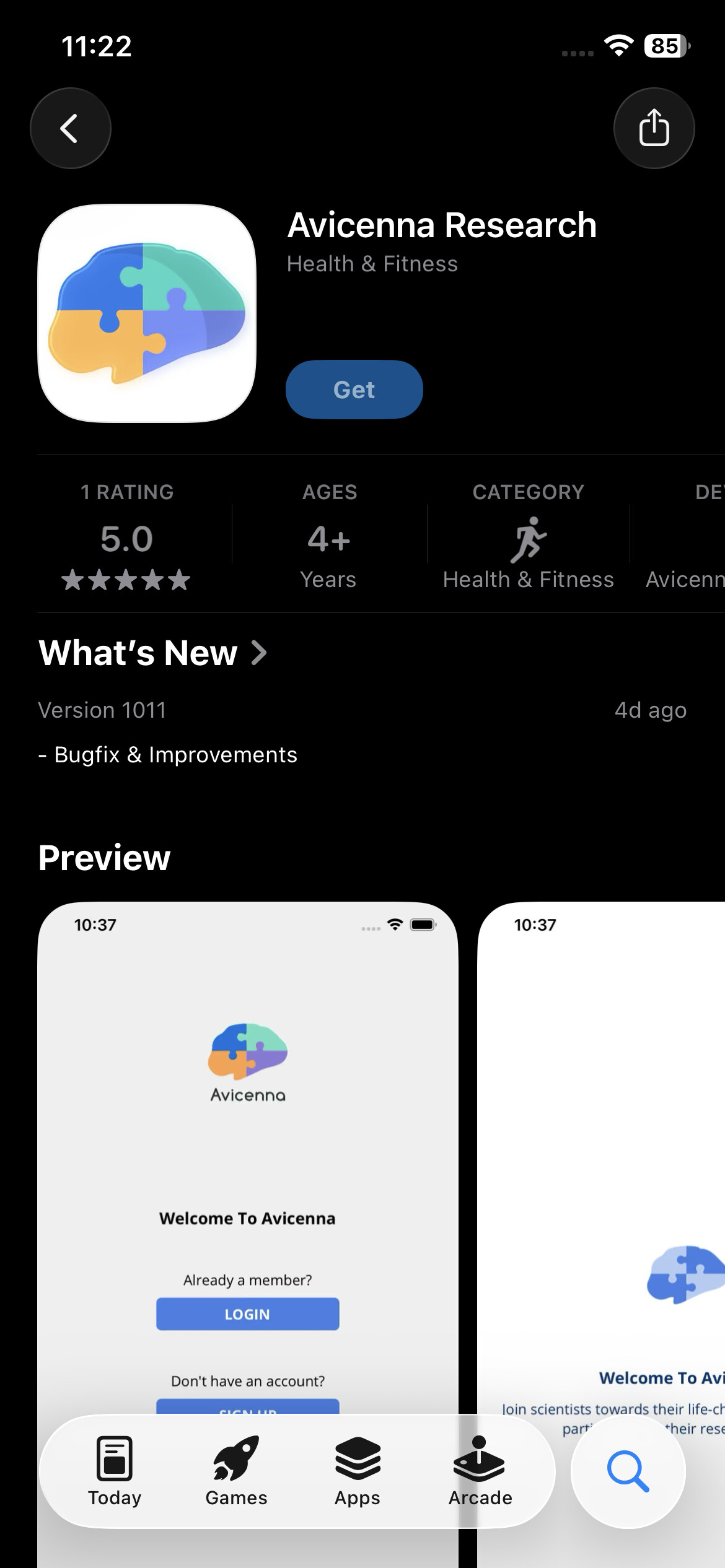
Open the App Store on your iOS device
-
Search for “Avicenna Research” in the search bar
-
Tap “Get” button
-
Authenticate with Face ID, Touch ID, or your Apple ID password
-
Wait for the download to complete
-
Tap “Open” when the installation is finished
Android
-
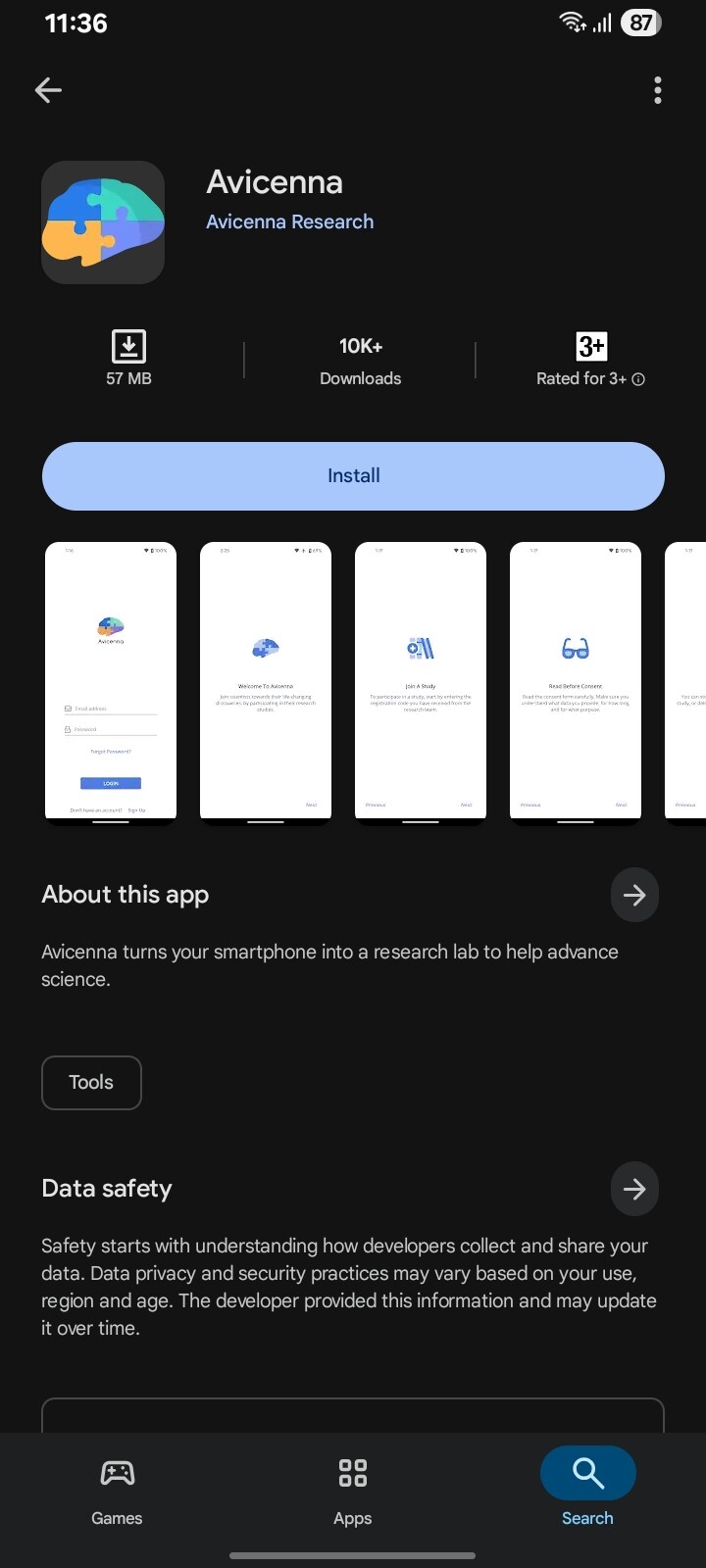
Open the Google Play Store on your Android device
-
Search for “Avicenna Research” in the search bar
-
Tap “Install”
-
Accept permissions if prompted
-
Wait for the download to complete
-
Tap “Open” when the installation is finished
Alternative Installation (Android)
If you can’t find the app on Google Play Store, your researcher may provide you with an APK file:
-
Enable “Unknown Sources” in your device settings
Go to Settings > Security > Unknown Sources
Toggle the switch to allow installation from unknown sources -
Download the APK file from the link provided by your researcher
-
Tap the downloaded APK file to install
-
Follow the installation prompts
Creating Your Account
Get started by setting up your account with the following steps:
First Launch
-
Open the Avicenna app on your device
-
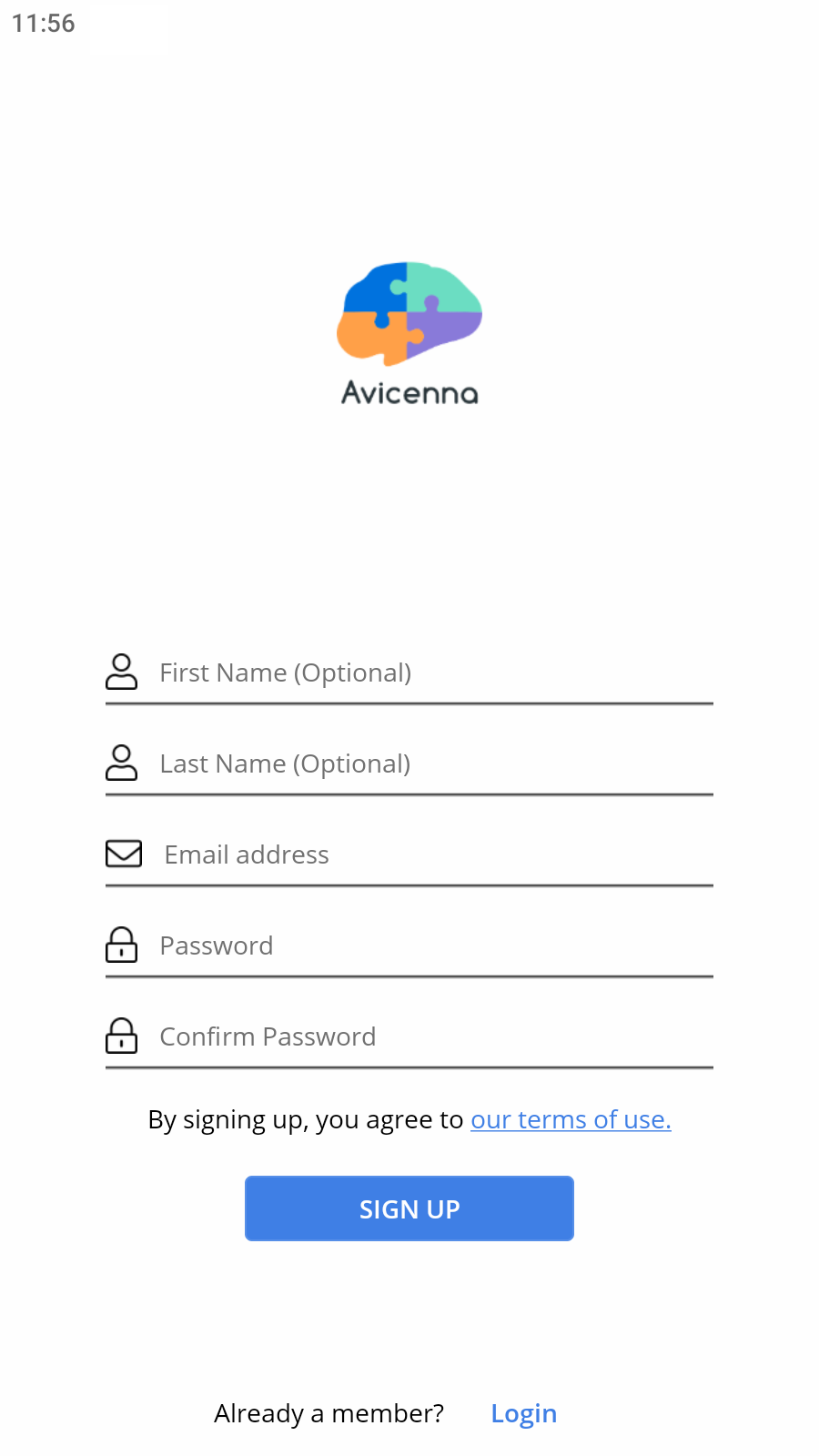
Tap “Sign Up” to create a new account
-
Select “I am a Participant” when prompted
-
Enter your information
-
First name
-
Last name
-
Email address
-
Password
-
Confirm password
-
-
Tap “Create Account”
Signing In
-
Enter your email and password
-
Tap “Log in”
Joining a Study
To join a study, use your invitation code and follow the steps below
Using an Invitation Code
-
Log in to your Avicenna account
-
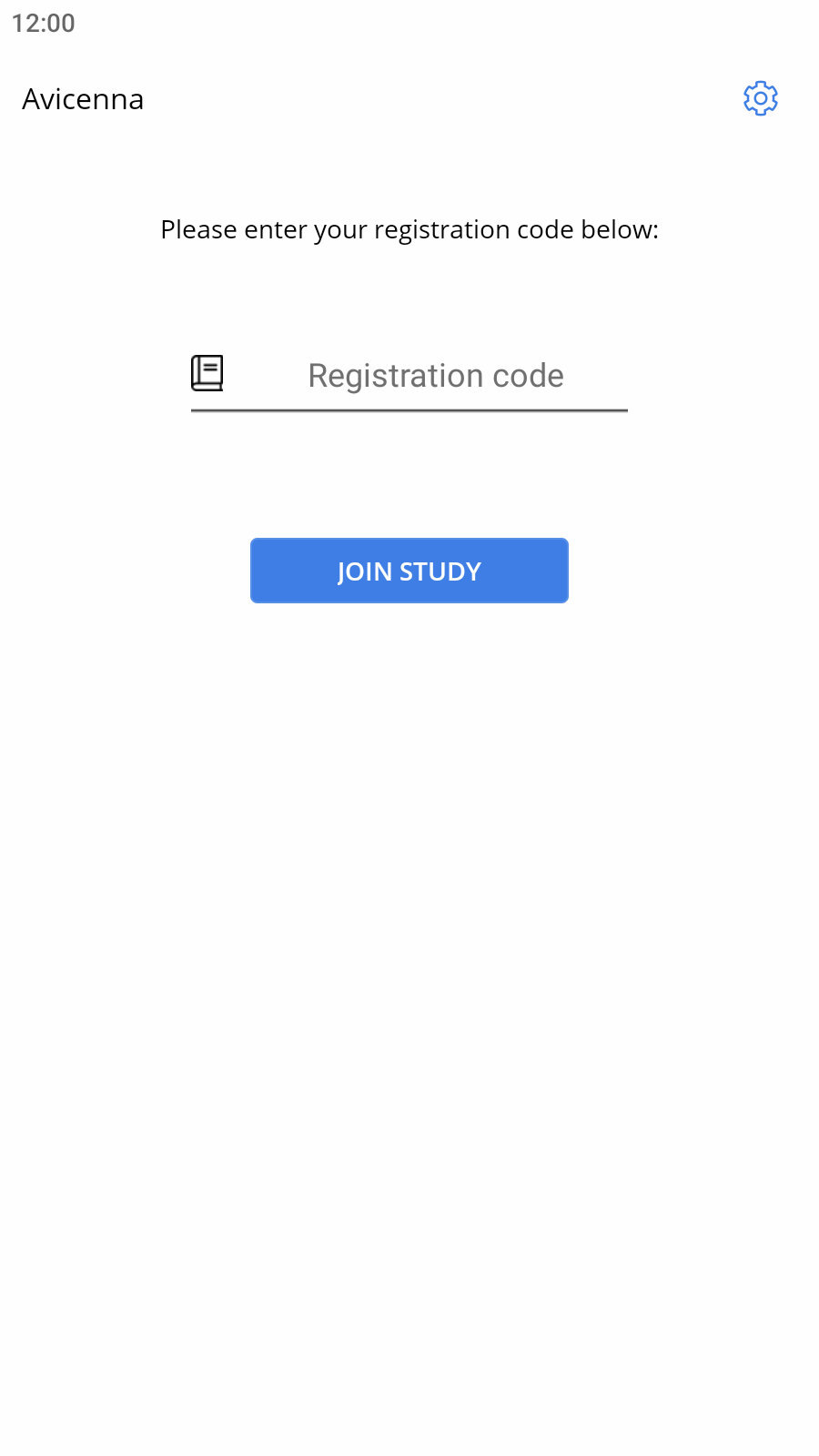
Enter the registration code provided by your researcher
-
Complete the eligibility survey
-
Review the study information and consent form
-
Tap Participate
Accepting Email Invitations
-
Check your email for a study invitation from Avicenna
-
Click the invitation link in the email
-
Sign in to your Avicenna account
-
Review and accept the consent form
Using the App
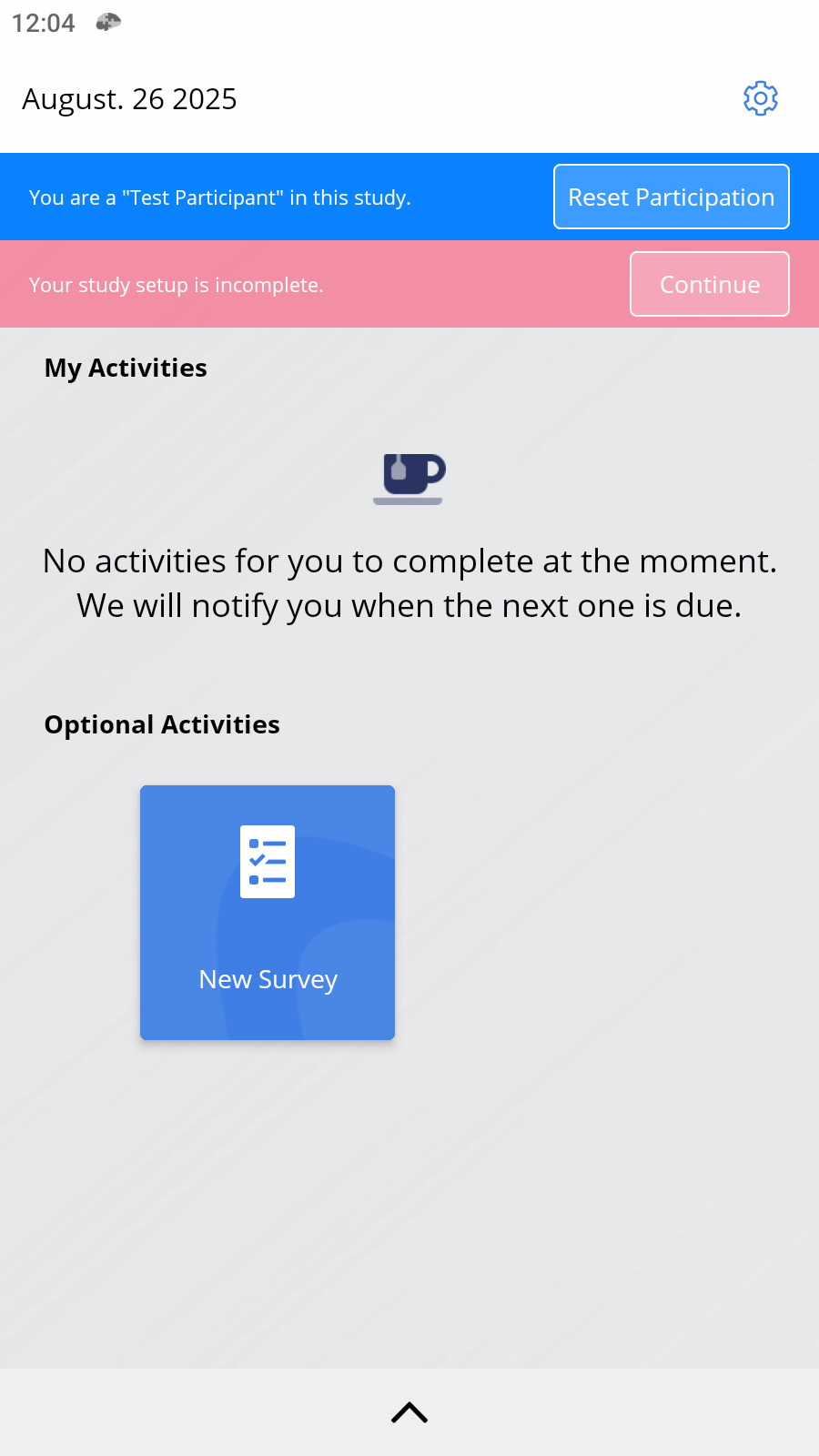
Next, learn how to complete surveys from your home screen, the home screen shows:
-
Activities: Where you can view and track your study activities.
-
Notifications Bar: Which displays alerts from the app.
-
Settings Icon: Provides quick access to the app’s settings and customization options. You can find information by going to this.
Completing Surveys
You can complete the surveys by following steps below:
-
Tap on a survey button
-
Answer each question
-
Tap “Submit” to complete the survey

Participant App Settings
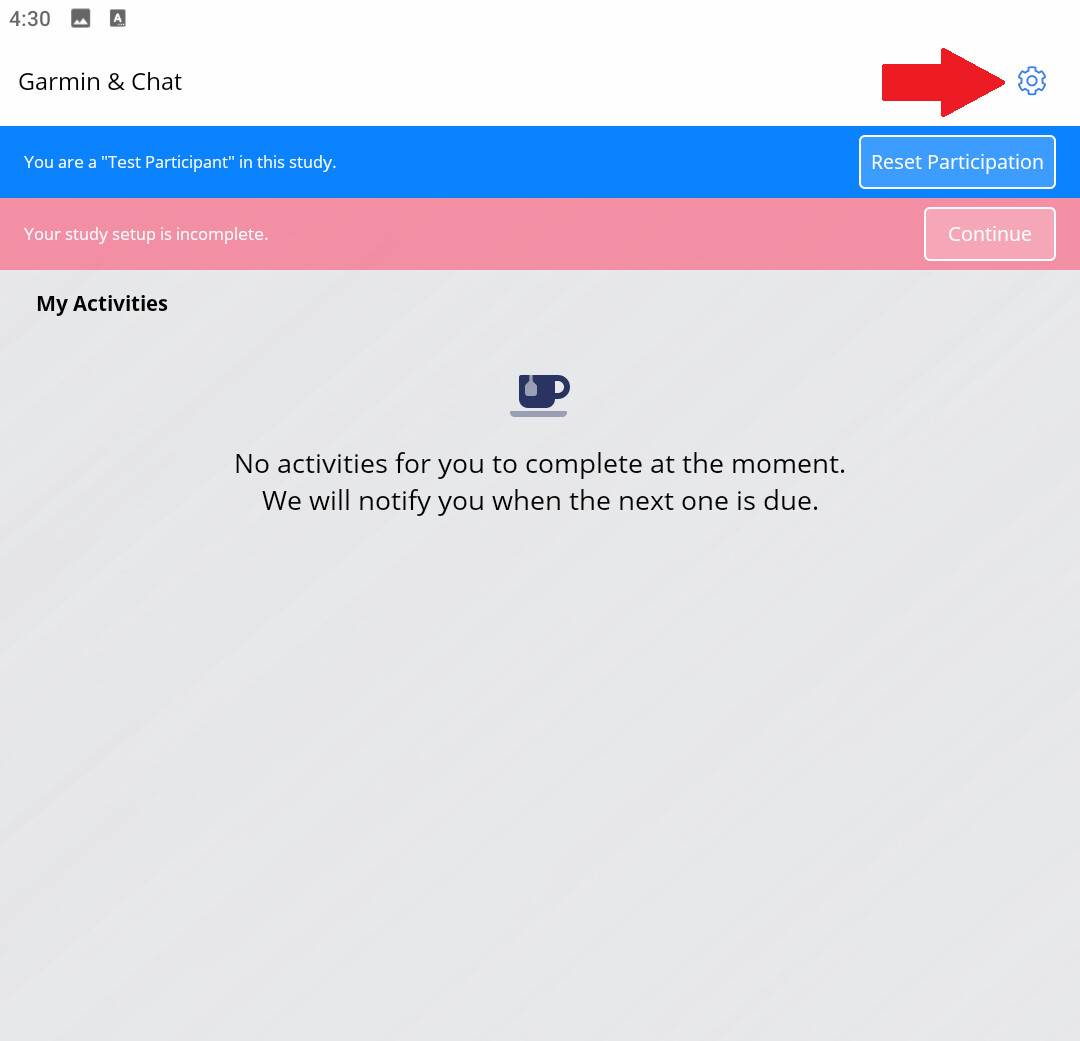
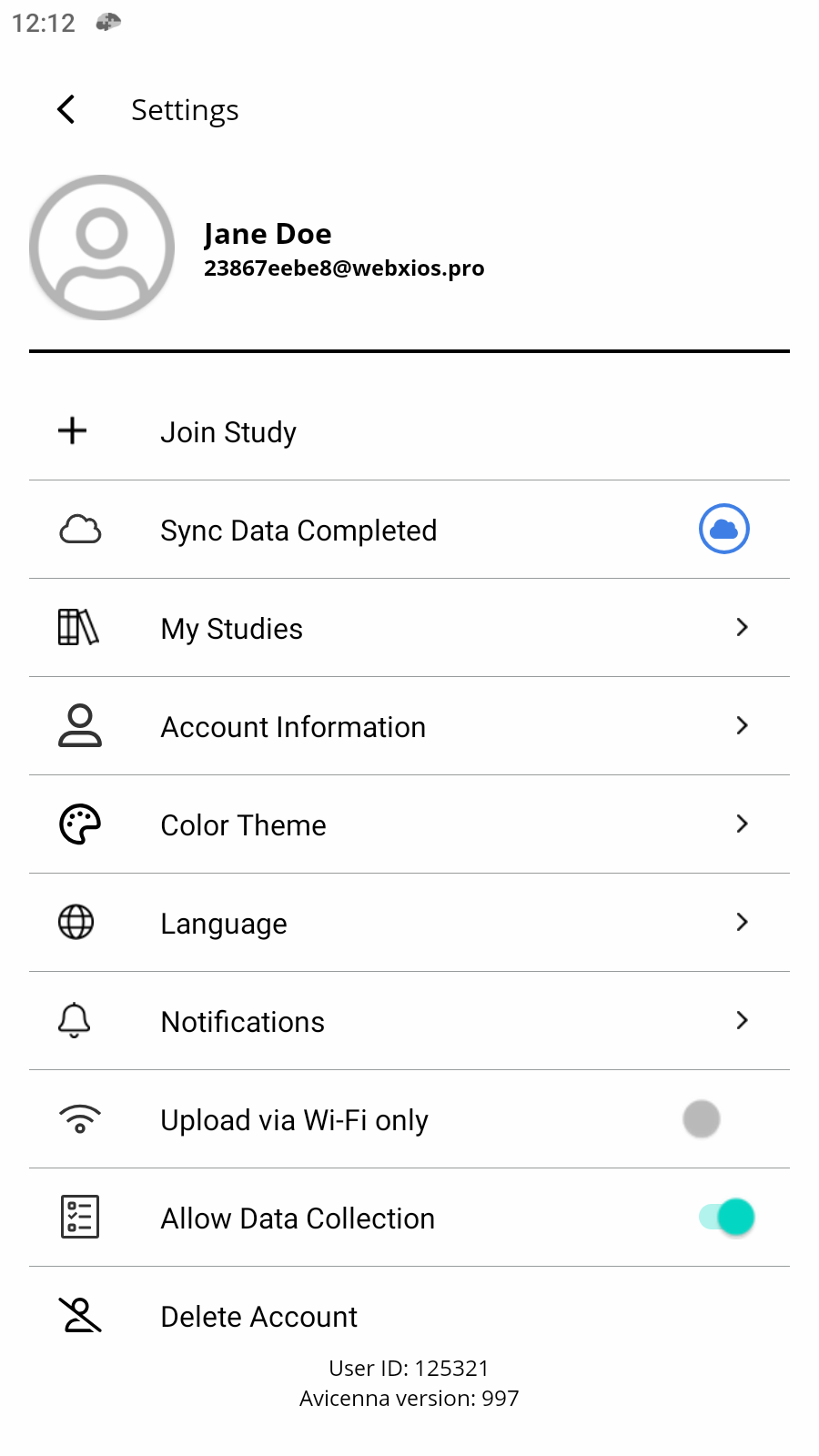
The Settings page in the Avicenna participant app allows you to manage your account, customize your experience, control your data preferences, and more. To access the Settings page, tap on the gear icon in the top-right corner of the app.
[!note]
Below, we will explain each of the available options in detail.
Join Study
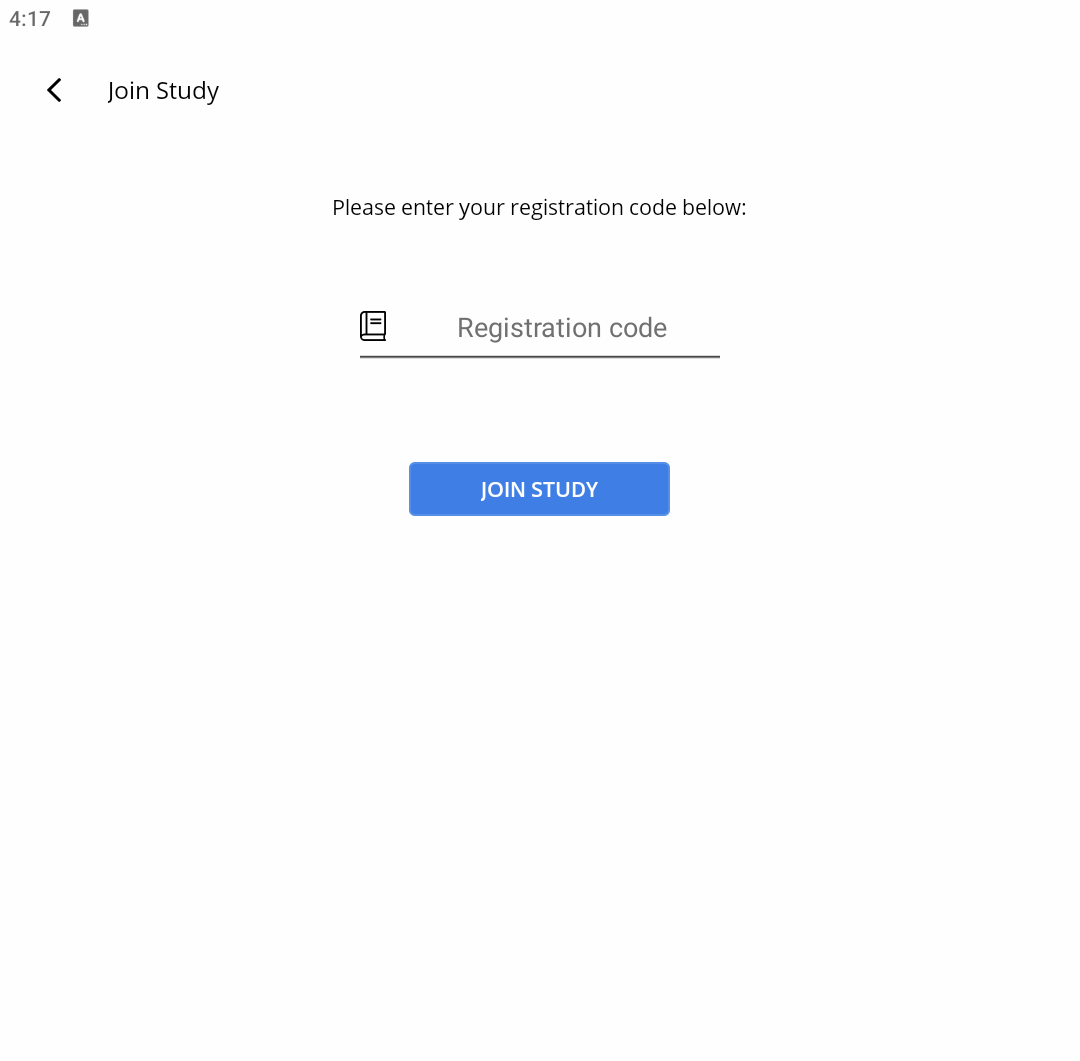
The Join Study option allows you to enroll in research studies. After selecting, you will be prompted to enter a registration code. Once done, you will be added to the study, and will be able to begin participating.
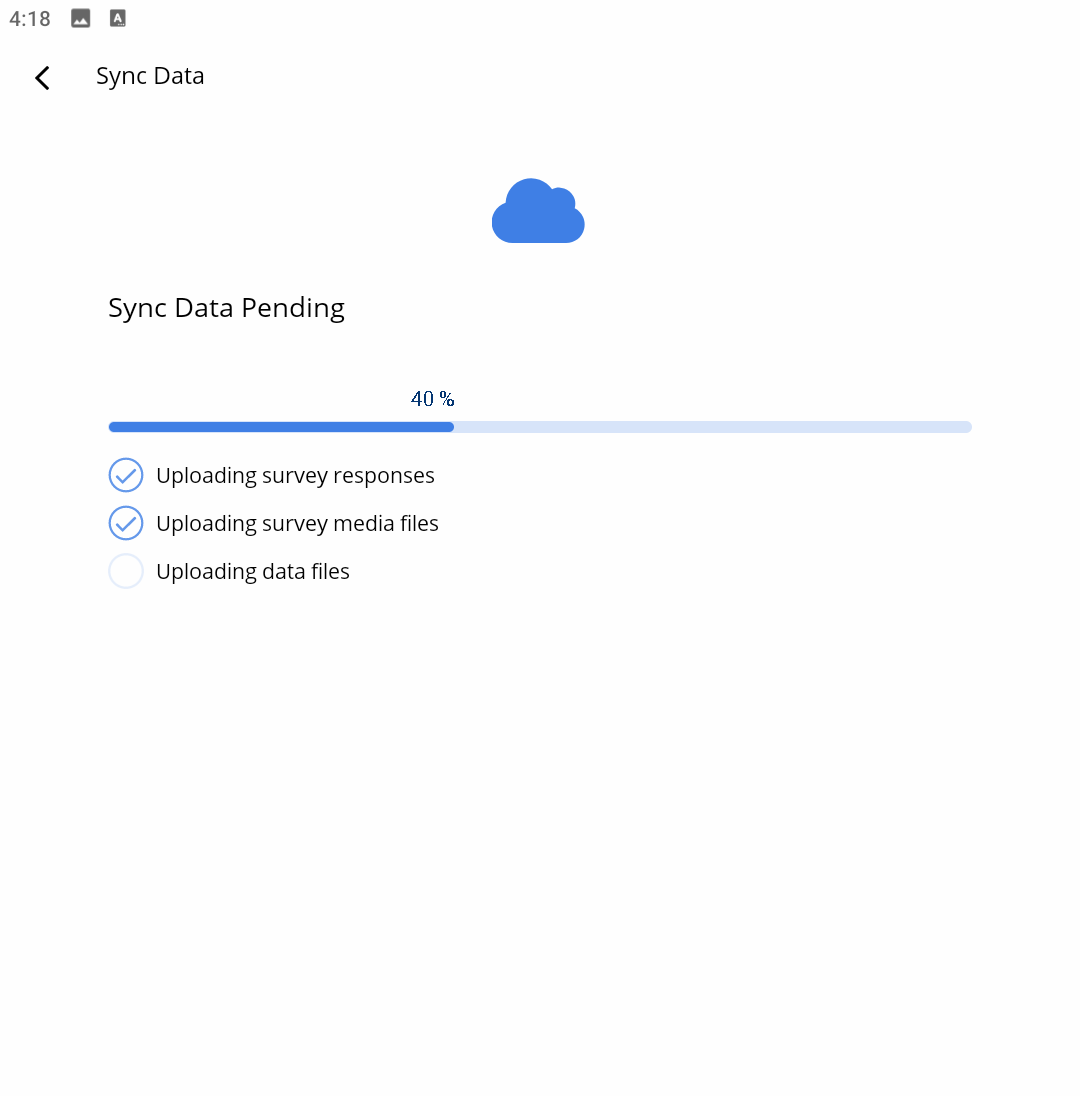
Sync Data Completed
The Sync Data Completed notification indicates that your data has been successfully synced in the system. Selecting this option will also synchronize all data, ensuring that everything is up to date. Once the process is complete, you can continue using the app with confidence that your information has been saved.
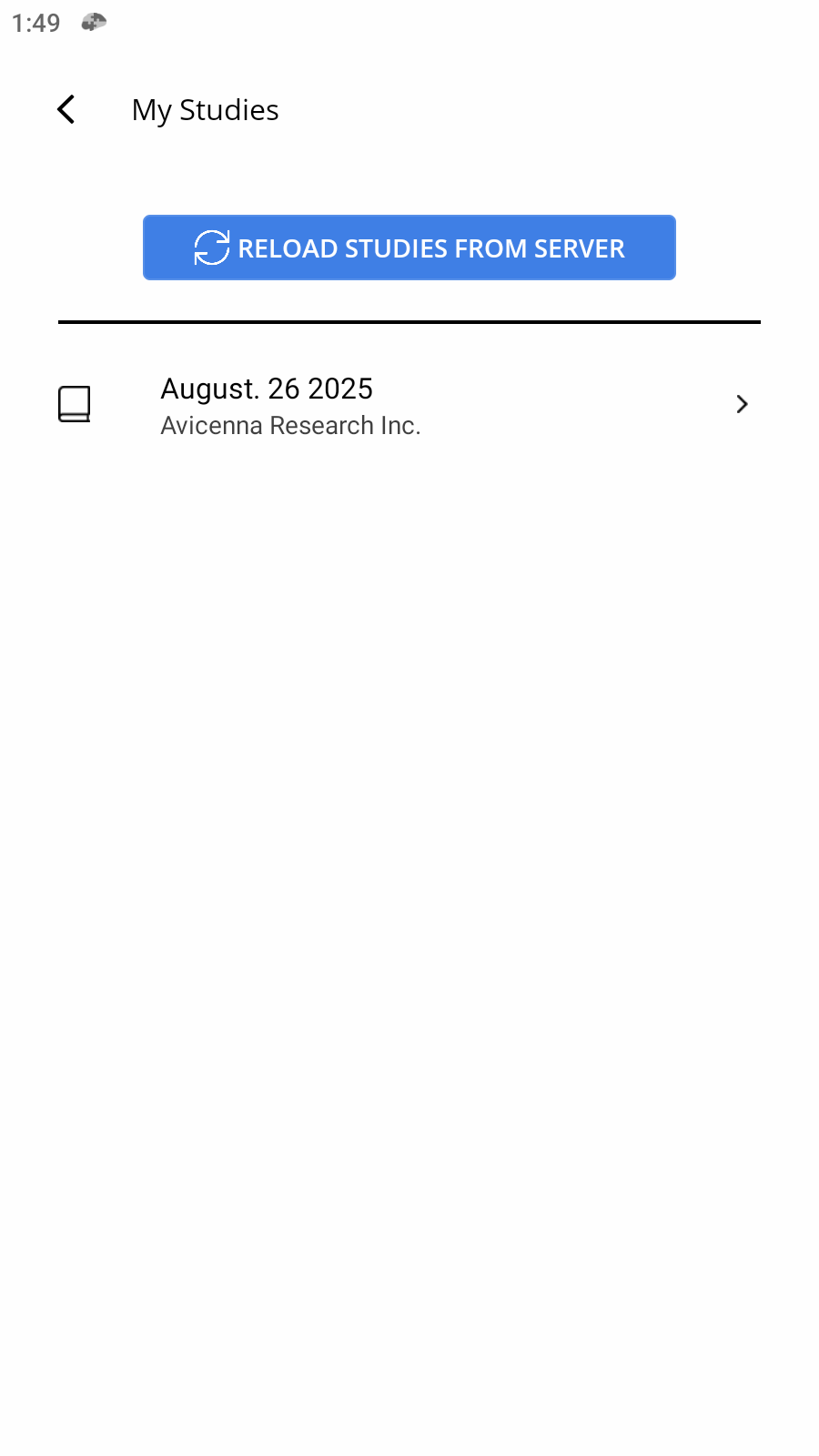
My Studies
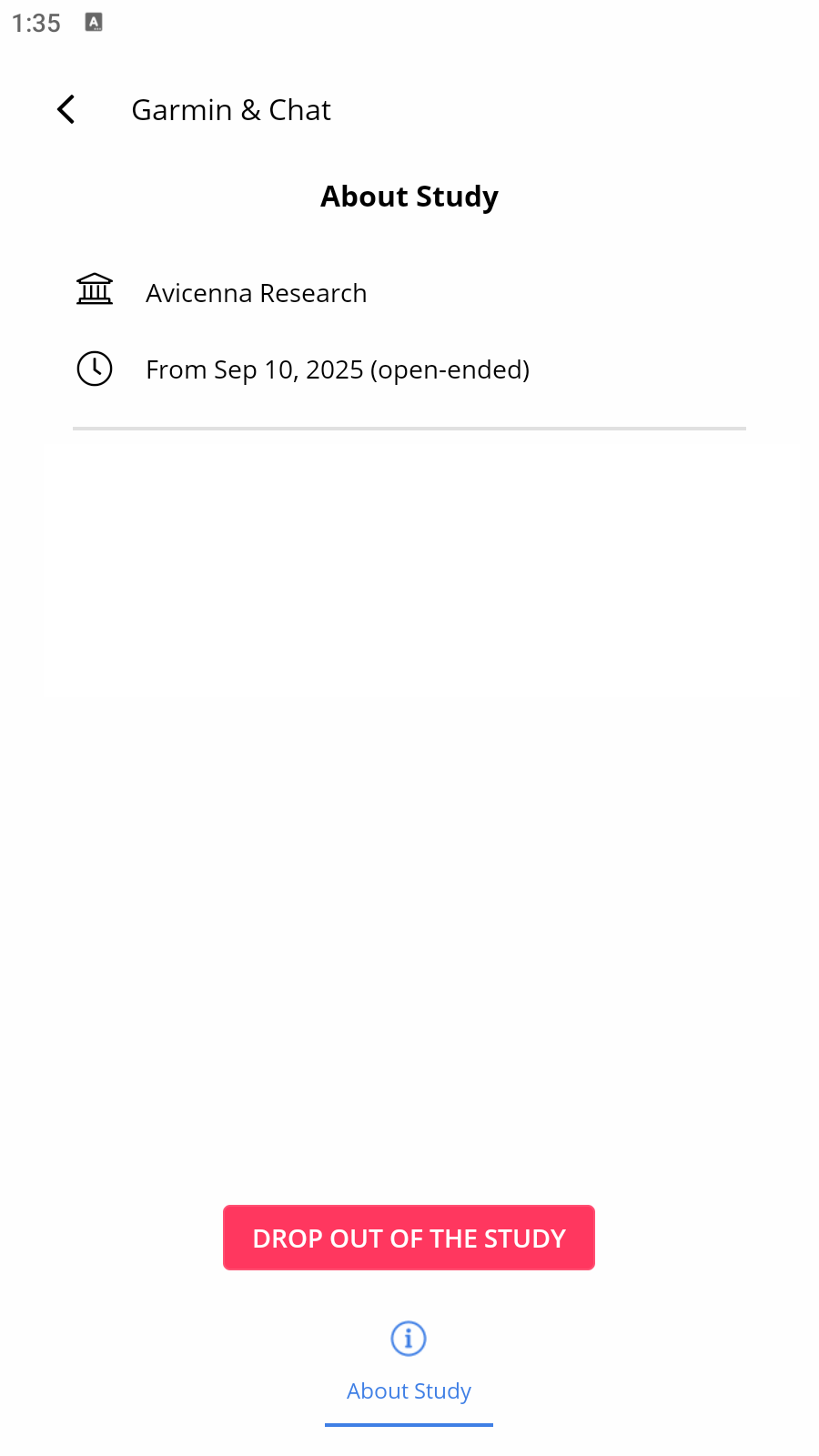
The My Studies tab provides an overview of all the studies you are currently enrolled in. Here, you can view study information and drop out from a study.
Color Theme
Supported in Android and iOS.
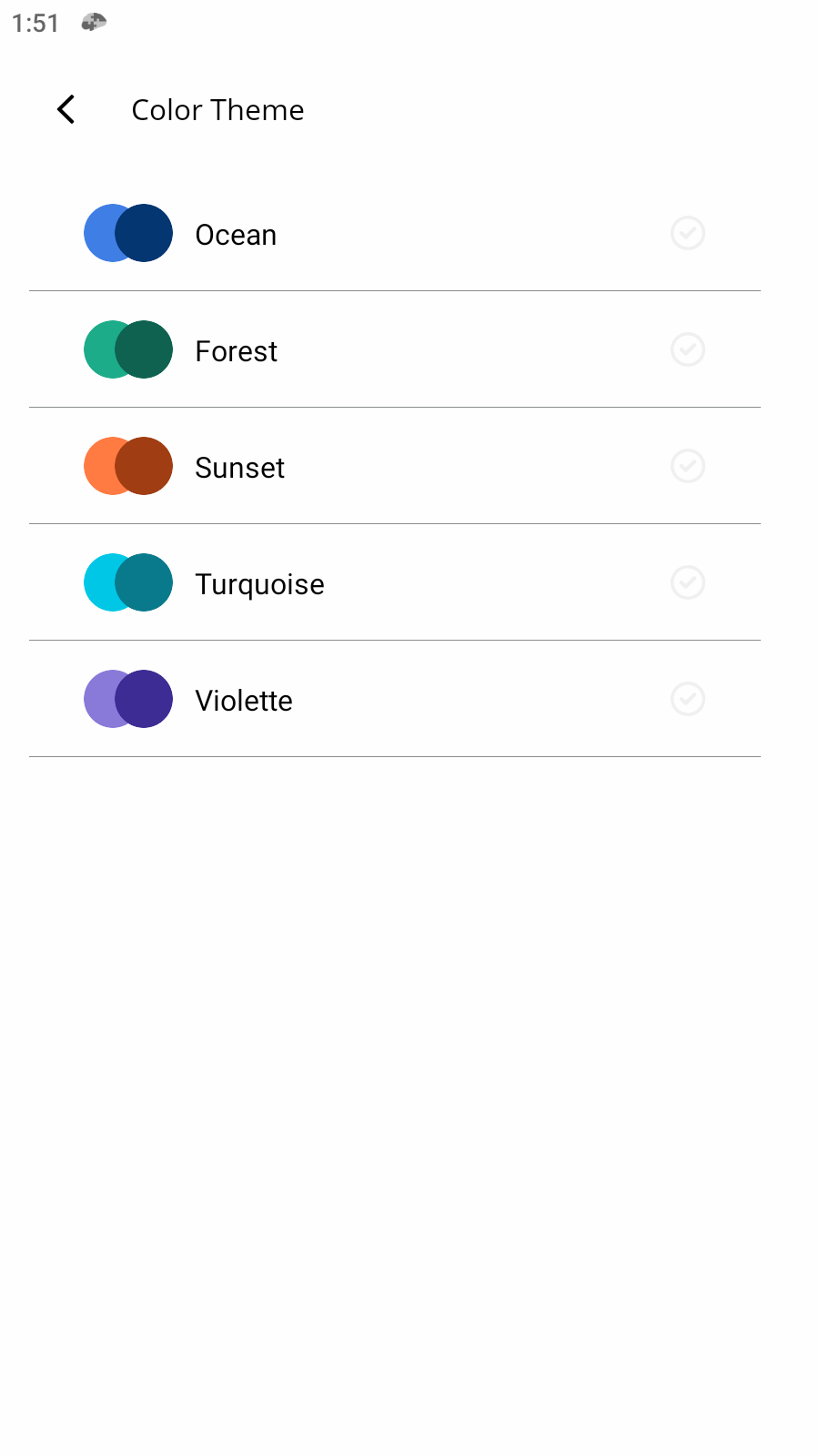
Avicenna allows you to personalize your experience by choosing from a selection of color themes within the mobile app. To do so, follow these steps:
-
Open the Avicenna app on your mobile device
-
Go to the Settings page
-
Tap/click on Color Theme
-
Select your preferred theme from the available options
Once you select a color theme, the app’s appearance will immediately update to reflect your choice throughout the app, including menus, buttons, and icons.
[!note]
Color theme changes are device-specific and will not sync across multiple devices.
The Avicenna app offers several visually distinct color themes, each with its own color palette.
-
Ocean
-
Forest
-
Sunset
-
Turquoise
-
Violette
Account Information
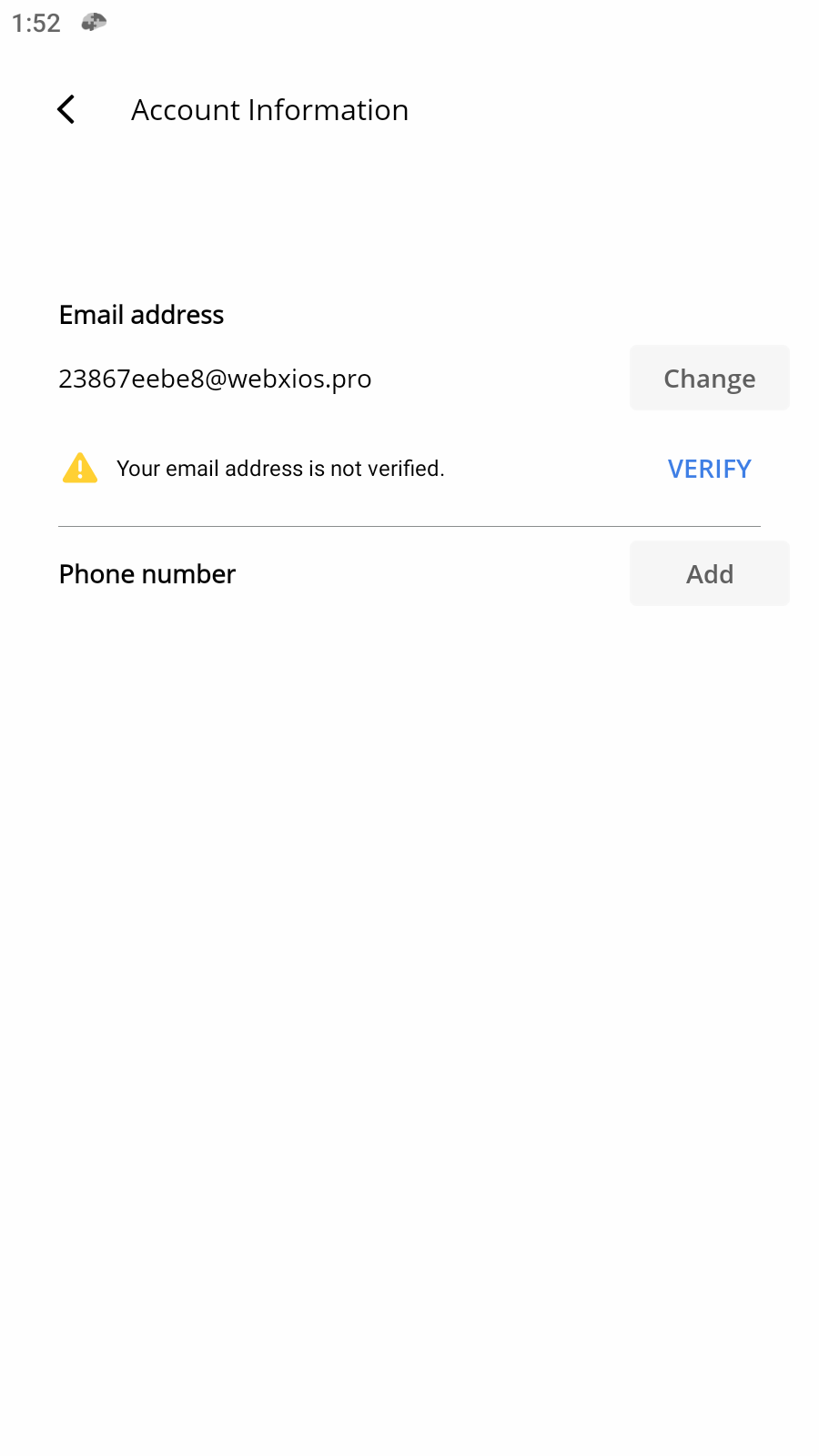
In Account Information, you can review and update your profile details, such as your Email address, and phone number.
Email Address
Your email address is used as the main contact point for account access and notifications. If the address has not yet been verified, you will see a warning message.
To Verify your Email address:
-
Select Verify
-
Enter your password
-
You will receive a verification code via email
-
Enter the Verification code to finish the process
You can also update your email address by tapping Change. This requires re-entering your password to confirm your identity before the new address is saved.
Phone Number
Adding a phone number is essential if you want to receive SMS notifications or enable security features such as Two-Factor Authentication.
To add your phone number:
-
Tap Add
-
Verify your password
-
And then enter your phone number
-
You will receive a verification code on your phone
-
Enter the verification code
Supported Countries
The Avicenna app supports phone numbers from the following countries:
Europe
| Albania | Andorra | Austria |
| Belarus | Belgium | Bosnia and Herzegovina |
| Bulgaria | Croatia | Cyprus |
| Czech Republic | Denmark | Estonia |
| Faroe Islands | Finland | France |
| Germany | Gibraltar | Greece |
| Guernsey/Jersey | Hungary | Iceland |
| Ireland | Isle of Man | Italy |
| Kosovo | Latvia | Liechtenstein |
| Lithuania | Luxembourg | Malta |
| Moldova | Monaco | Montenegro |
| Netherlands | North Macedonia | Norway |
| Poland | Portugal | Romania |
| San Marino | Serbia | Slovakia |
| Slovenia | Spain | Sweden |
| Switzerland | Turkey | Ukraine |
| United Kingdom | Vatican City |
Americas
| Canada | Chile | United States |
Other Regions
| Australia | South Africa |
Note: If your country is not listed above, you won’t be able to add your phone number. For assistance, please contact your researcher or Avicenna support.
Language
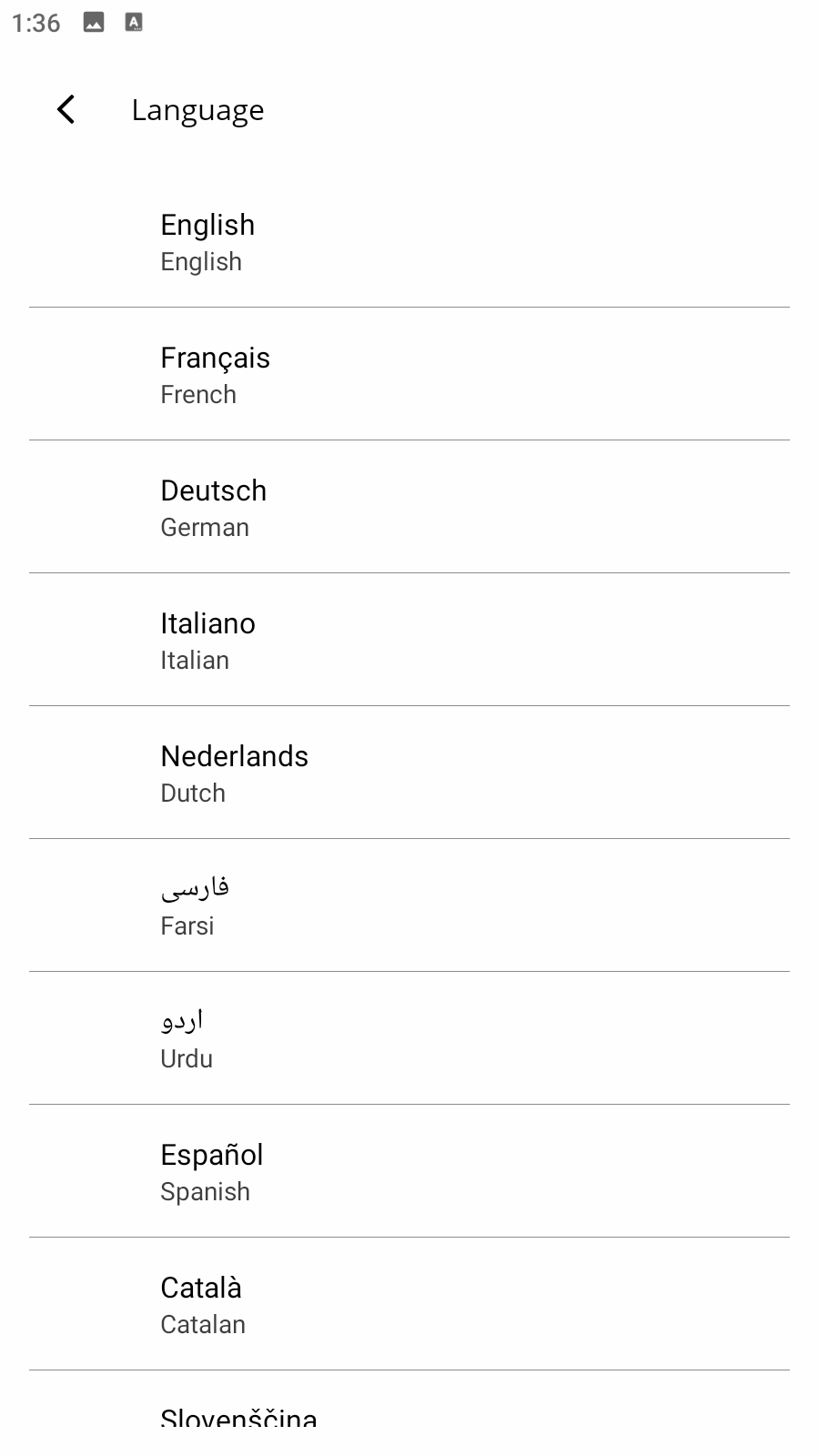
The Language setting allows you to choose the display language. Select from the available options to interact with the system in the language of your choice.
Notifications
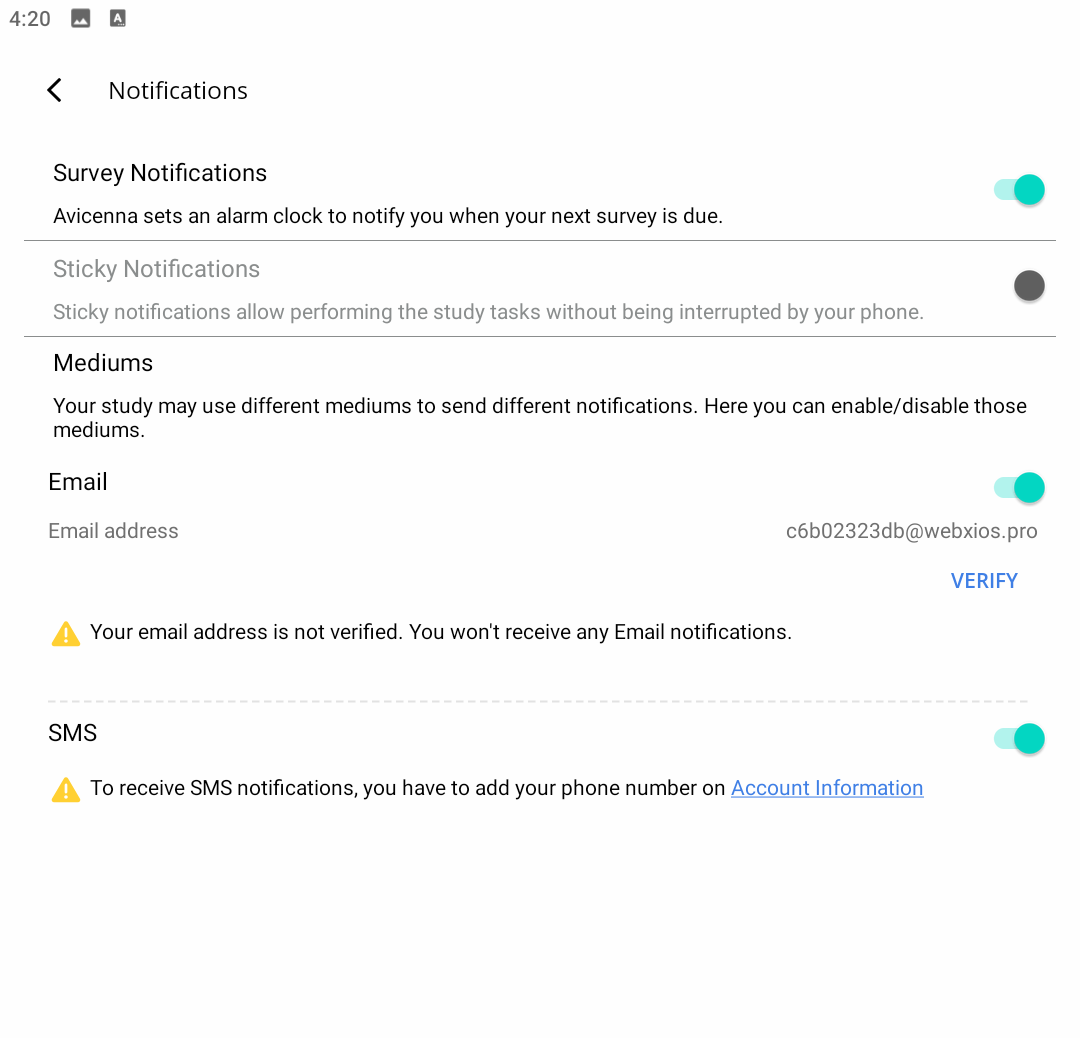
The Notifications tab allows you to manage how and when you receive reminders related to your studies. You can customize the notification types, choose the delivery medium, and verify your contact details to ensure you never miss important updates.
Survey Notifications
Enabling this option ensures that Avicenna will notify you whenever a new survey is available or when a scheduled survey is due. These notifications act like reminders, helping you stay on track with your study tasks.
Sticky Notifications
If you prefer uninterrupted access while completing your surveys, you can enable Sticky Notifications. This feature allows you to perform study-related tasks directly without being interrupted by other notifications on your phone.
Mediums
Studies may use different communication channels to send notifications. Within this section, you can decide which mediums you want to enable or disable, depending on your preferences.
Email
Here, you can set your email address as a notification channel. Please note that your email must be verified to receive updates. If your email address is not verified, you will see a message prompting you to complete the verification process. Select Verify to receive a verification email and follow the instructions to complete the process.
SMS
To receive SMS notifications, you need to have a verified phone number linked to your account. If your phone number has not yet been added, you will be directed to the Account Information tab to complete this step. Once verified, SMS will be enabled as a valid channel for your notifications
Upload via Wi-Fi Only
By enabling Upload via Wi-Fi Only, your data will be synchronized exclusively when connected to a Wi-Fi network. This prevents the use of mobile data and helps manage connectivity costs.
Allow Data Collection
The Allow Data Collection option enables the system to gather the information required for your participation in studies. You can control this setting at any time depending on your privacy preferences.
Account Deletion
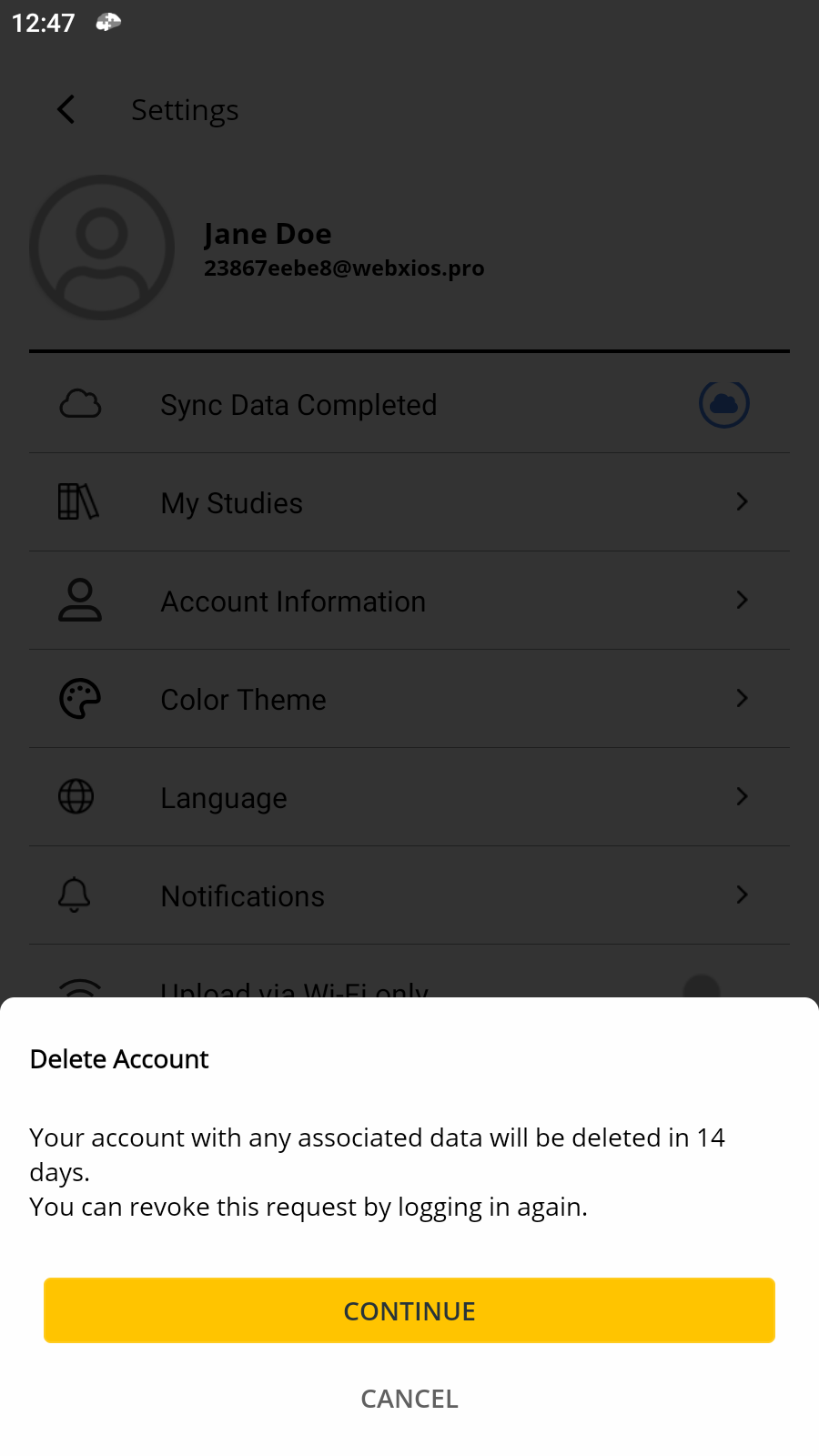
For a detailed, step-by-step guide on how to permanently delete your participant account and all associated data and what happens after, please refer to the Account Deletion documentation.
Sign Out
Selecting Sign Out will log you out of your account. You will need to re-enter your login credentials the next time you wish to enter your account.
Introduction Pages and Onboarding Alerts
When participants first log in to the Avicenna app or join a study, they go through two distinct onboarding experiences: Introduction Pages and Onboarding Alerts. Each of them is explained in detail below.
Introduction Pages
Introduction pages are informational screens that appear immediately after a participant signs up or logs in to the Avicenna app for the first time. These pages help participants understand the app’s features, their rights, and what to expect during their study participation. These pages are a series of welcome screens that educate new participants about:
-
Welcome To Avicenna: Introduces the app’s purpose, which is to allow users to participate in scientific research studies.
-
Join A Study: Explains that participation begins by entering a unique registration code provided by a research team.
-
Read Before Consent: Prompts the user to carefully review the study’s consent form, focusing on data usage, duration, and purpose.
-
Own Your Data: Informs the user of their rights to control their data, including stopping collection, leaving the study, or deleting data at any time.


Onboarding Alerts
Onboarding alerts are action-oriented prompts that guide participants to complete necessary setup steps for their specific study. These alerts require participants to take specific actions to ensure proper data collection and study compliance. They are study-specific notifications that prompt participants to:
-
Grant necessary permissions (GPS, sensors, notifications, etc.)
-
Verify contact information (email address, phone number)
-
Adjust device settings (battery optimization, background app refresh)
-
Connect wearable devices (Fitbit, Garmin, WHOOP, etc.)
-
And enable other required features for the study
When a participant joins a study that requires specific permissions or setup, a pink banner appears at the top of the study homepage with the message, “Your study setup is incomplete.” Upon tapping the Continue button on the banner, participants are presented with a list of actions needed to complete their setup, and each alert can be addressed individually by following the prompts.

Onboarding alerts ask participants to complete various settings. Below is a list of the settings required to complete the onboarding process.
Location and Sensors
| Alert Type | Description | Platform |
|---|---|---|
| GPS | Requests permission to collect GPS location data. On iOS, GPS permission also allows Avicenna to keep the app running in the background for longer periods. | Android, iOS |
| Activity Recognition | Requests permission to collect motion sensor data for activity tracking. | Android, iOS |
| Location Service | Prompts participants to enable location services on their device. | Android, iOS |
Wearable Devices
| Alert Type | Description | Platform |
|---|---|---|
| Garmin | Requests permission to connect to a Garmin account and access Garmin Health data. | Android, iOS, Web |
| Fitbit | Requests permission to connect to a Fitbit account and access Fitbit data. | Android, iOS, Web |
| WHOOP | Requests permission to connect to a WHOOP account and access WHOOP data. | Android, iOS, Web |
| HealthKit | Requests permission to access Apple HealthKit data. | iOS only |
| SensorKit | Requests permission to access Apple SensorKit data (device usage, ambient sound, etc.). | iOS only |
Notifications and Background Operation
| Alert Type | Description | Platform |
|---|---|---|
| Notifications | Requests permission to send push notifications to the participant. | Android, iOS |
| Survey Notifications | Ensures survey notifications are enabled. | Android, iOS |
| Sticky Notifications | Enables persistent notifications that remain visible during survey completion. | Android, iOS |
| Time-Sensitive Notification | Requests permission to send time-sensitive notifications that bypass Focus modes. | iOS only |
| Persistent Notification Banner | Enables persistent notification banners that stay visible on the screen. | iOS only |
| Background App Refresh | Prompts participants to enable background app refresh so the app can collect data when not actively in use. | iOS only |
| Schedule Alerts | Requests permission to schedule notifications and alarms. | Android only |
Battery and Power Management
| Alert Type | Description | Platform |
|---|---|---|
| Battery Optimization | Prompts participants to disable battery optimization for the Avicenna app, ensuring continuous background data collection. | Android only |
| Battery Optimization (Device Specific) | Special battery optimization settings for certain manufacturers (Sony, Samsung, Huawei, Xiaomi, OnePlus). | Android only |
Connectivity
| Alert Type | Description | Platform |
|---|---|---|
| Bluetooth | Prompts participants to turn on Bluetooth. | Android, iOS |
| WiFi | Prompts participants to turn on WiFi. | Android, iOS |
Data Collection
| Alert Type | Description | Platform |
|---|---|---|
| App Usage | Requests permission to collect app usage data (which apps are used and for how long). | Android, iOS |
| Audio Capture | Requests permission to record audio from the device microphone. | Android, iOS |
Account Verification
| Alert Type | Description | Platform |
|---|---|---|
| Email Validation | Prompts participants to verify their email address. | Android, iOS, Web |
| Phone Validation | Prompts participants to verify their phone number. | Android, iOS, Web |
App Maintenance
| Alert Type | Description | Platform |
|---|---|---|
| Application Update | Notifies participants when a new version of the app is available on the app store. | Android, iOS |
Study-Specific Onboarding Alerts
The onboarding alerts that participants see depend entirely on the study configuration. For example:
Example 1: GPS and Pedometer Study
If a researcher creates a study that collects GPS and pedometer data, participants will see onboarding alerts for:
-
GPS permission - To allow location tracking
-
Battery Optimization (Android) - To ensure continuous background data collection


Example 2: Fitbit Integration Study
If a researcher creates a study that collects Fitbit data, participants will see onboarding alerts for:
-
Fitbit permission - To connect their Fitbit account

Data Sources Setup
When you join a study, you may need to connect wearable devices or external data sources. The data sources available to you depend on your study’s requirements. To view and set up available data sources:
- Open Avicenna app.
- Go to App Settings > Data Sources.
- Review the available data sources.
- Connect any required devices by following the instructions below.
Quick Setup Guide by Device
Fitbit
-
Go to App Settings > Data Sources.
-
Click Grant Access next to Fitbit.
-
Sign in to Fitbit official website.
-
Check Allow All to collect all data types.
-
Grant access to Fitbit Profile for timezone accuracy.
See the Fitbit Setup Guide for screenshots and a detailed walkthrough.
Garmin API
-
Install and set up the Garmin Connect app on your device.
-
In the Avicenna app, go to Settings > Data Sources.
-
Find Garmin data source and click Grant Access.
-
Sign in to your Garmin account.
-
Review and confirm information sharing.
-
Click Agree to complete setup.
See the Garmin API Setup Guide for screenshots and a detailed walkthrough.
Garmin SDK
-
Uninstall all other Garmin apps (including Garmin Connect).
-
Put your Garmin watch in pairing mode.
-
Open the Avicenna app and navigate to the Garmin onboarding alert, then tap START PAIRING .
-
Grant Bluetooth permission when prompted.
-
Select your Garmin device from the list.
-
Enter the requested information (gender, birth year, height, weight, sleep schedule).
-
Tap Pair Device to complete setup.
See the Garmin Direct Pairing Setup Guide for screenshots and a detailed walkthrough.
Hexoskin
-
Go to App Settings > Data Sources.
-
Find Hexoskin and click Grant Access.
-
Sign in to Hexoskin website.
-
Click Allow to authorize access.
See the Hexoskin Setup Guide for screenshots and a detailed walkthrough.
Polar
-
Go to App Settings > Data Sources.
-
Find Polar and click Grant Access.
-
Sign in to Polar website.
-
Click Accept to authorize access.
See the Polar Setup Guide for screenshots and a detailed walkthrough.
WHOOP
-
Go to App Settings > Data Sources.
-
Find WHOOP and click Grant Access.
-
Sign in to WHOOP website.
-
Click Grant to authorize access.
See the WHOOP Setup Guide for screenshots and a detailed walkthrough.
Stopping Data Collection
You can stop sharing data from any connected source at any time.
- Go to App Settings > Data Sources .
- Find the device or data source you want to disconnect.
- Click Revoke Access .
Once access is revoked, Avicenna will stop receiving data from that source.
Important Notes
-
Garmin API and SDK cannot be used simultaneously - choose one method for your device
-
Keep apps installed: For Fitbit, Garmin (API), Hexoskin, Polar, and WHOOP - keep the respective apps installed or data collection stops
-
Regular syncing: Ensure your devices sync regularly to Garmin/Fitbit/WHOOP servers so Avicenna can access the data
-
Permissions matter: Some data requires active permissions - check your onboarding alerts for any setup needed
Troubleshooting and Common Issues
App Won’t Open
-
Restart your device and try again
-
Check for app updates in the app store
-
Reinstall the app if the problem persists
Can’t Sign In
-
Verify your email and password are correct
-
Check your internet connection
-
Try “Forgot Password” if you can’t remember your password
-
Contact support if the issue continues
Surveys Not Loading
-
Check your internet connection
-
Close and reopen the app
-
Try refreshing the survey page
-
Contact your researcher if the problem persists
Notifications Not Working
-
Check app permissions in your device settings
-
Verify notification settings in the app
-
Restart the app to refresh notification services
Privacy and Data
Your Rights
-
You control your data - you can withdraw from studies at any time
-
Your information is protected by strict privacy policies
-
You can request data deletion at any time
Data Security
-
All data is encrypted during transmission and storage
-
Your personal information is kept confidential
-
Researchers only see anonymized or aggregated data
-
Your identity is protected throughout the research process
Tips for Better Participation
Stay Engaged
-
Set daily reminders for study activities
-
Complete surveys promptly when notified
-
Keep the app updated for the best experience
-
Check notifications regularly for important updates
Maximize Data Quality
-
Answer surveys honestly - there are no wrong answers
-
Complete activities fully when possible
-
Report any issues to your researcher
-
Keep your device charged for continuous participation
Communication
-
Respond to researcher messages when possible
-
Ask questions if something is unclear
-
Report technical problems promptly
-
Provide feedback on your experience
Frequently Asked Questions
What if I miss a survey or activity?
Don’t worry! Most studies allow you to complete missed activities later. Check your app for any overdue items.
How long do studies typically last?
Study duration varies widely - from a few days to several months. Your researcher will inform you of the expected timeline.
Can I withdraw from a study?
Yes, you can withdraw from any study at any time without penalty. Your data will be handled according to the study’s withdrawal policy.
Is my data safe?
Yes, Avicenna follows strict data protection standards and complies with relevant privacy regulations. Your data is encrypted and protected.
Need More Help?
If you have questions that aren’t covered in this guide:
- Check the FAQ section
- Contact your researcher for study-specific questions
- Visit our help center at forum.avicennaresearch.com
Thank you for participating in research with Avicenna! Your contribution helps advance scientific knowledge and improve health outcomes for everyone.