Data collection from most data sources in Avicenna happens behind the scenes without any participant involvement. After participants join your study and give consent, if your study involves any automated data sources, Avicenna will continuously run on the participant’s phone, capturing data, encrypting it, and uploading it to the server.
While this minimizes participants’ burden and helps prevent the Hawthorne effect, it differs from how most apps work. Both Android and iOS are designed to stop and terminate apps that users don’t actively use, to free resources for other, more important apps. This can result in incomplete data for your study.
There are many factors that determine when the operating system may terminate an app, including but not limited to:
- The amount of resources the app is using (e.g., battery or processing power)
- The version of Android or iOS on the device
- The remaining battery level
- The operation of other intensive or important apps running
- The make and model of the phone
We are always working to prevent app termination like this as much as possible. For the most part, you don’t need to worry about the details. At the same time, there are a few items discussed below that are important to know in order to improve the data quality.
Keeping the Study Light
One of the essential factors that can cause an app to be terminated is the amount of resources it consumes. If the data sources that you monitor for your study generate large amounts of data, Avicenna will use more resources for storage, encryption, compression, and upload. This, in turn, will increase the chances of app termination. Therefore, you need to make sure your study only collects data from the necessary data sources.
On the other hand, not all data sources generate the same amount of data. For example, the pedometer generates a record every time a step is captured, or GPS generates fewer than 50 records per data collection cycle, which is every 5 minutes by default. However, some data sources, such as Accelerometer, Gyroscope, Magnetic Field, and other software- or hardware-based motion sensors, generate thousands of records per cycle. Using such data sources in your study can increase the chance of the app being terminated.
In most cases, it’s better to replace raw motion-sensor data (Accelerometer, Magnetic Field, Gyroscope, Linear Acceleration, Gravity, and Orientation) with their high-level equivalent data sources (Motion-Based Activity Recognition and Pedometer). They can provide you with the data which are easier to analyze, and multiple orders of magnitude smaller in volume.
Even if you have to collect raw motion-sensor data, you probably need either the raw data from hardware (i.e., Accelerometer, Magnetic Field, and Gyroscope) or software-based sensors (i.e., Linear Acceleration, Gravity, and Orientation). Collecting all this data is almost always unnecessary, as the software-based sensors can be derived from the raw data from the hardware.
Data volume also determines how much sits on the phone at any moment. Avicenna buffers what it collects into files on the device and uploads them in small batches, deleting each batch as soon as it uploads successfully. Activity responses are removed from the app’s local database the same way. Nothing expires on a timer, so what remains on a participant’s phone is exactly what has not yet reached the server. Anything that delays uploading, such as long periods offline or an app the operating system keeps shutting down, causes that data to accumulate until the uploads succeed. You can also control how often data is collected and whether uploads are restricted to Wi-Fi, under Data Collection Configuration.
Background Activity in iOS
iOS is very strict on applications that perform background activity. In the App Store’s App Review guidelines, Apple has defined a few categories, and only apps in those categories are allowed to perform any background activity. Unfortunately, research applications are not one of those categories, though location-aware applications are. In other words, while an application is actively using GPS, it can remain active in the background and perform other tasks as well.
Avicenna uses the category of “GPS-based apps” to remain active while not being visible. That means it requires actively using GPS in order to perform any task in the background. Therefore, if your study includes one or more non-cloud-based data sources, Avicenna will ask the participant for GPS permission.
If your study monitors GPS, Avicenna will capture accurate GPS records and upload them periodically, together with other data sources. If your study includes non-cloud-based data sources but does not require GPS, Avicenna “pretends” to be using GPS by asking for a very coarse GPS location, but it does not store or upload the GPS data. This allows Avicenna to remain active in the background to record and upload other requested data sources while minimizing battery consumption. If your study includes only cloud-based data sources, Avicenna does not request GPS permission.
[!note]
On iOS devices, collecting data from non-cloud-based data sources relies heavily on the location permission being set to “Always Allow”. If the app does not have this permission, background data collection fails. If your study includes only cloud-based data sources, this permission is not required. See here for more information on granting GPS permission.
Report Section of the Avicenna App
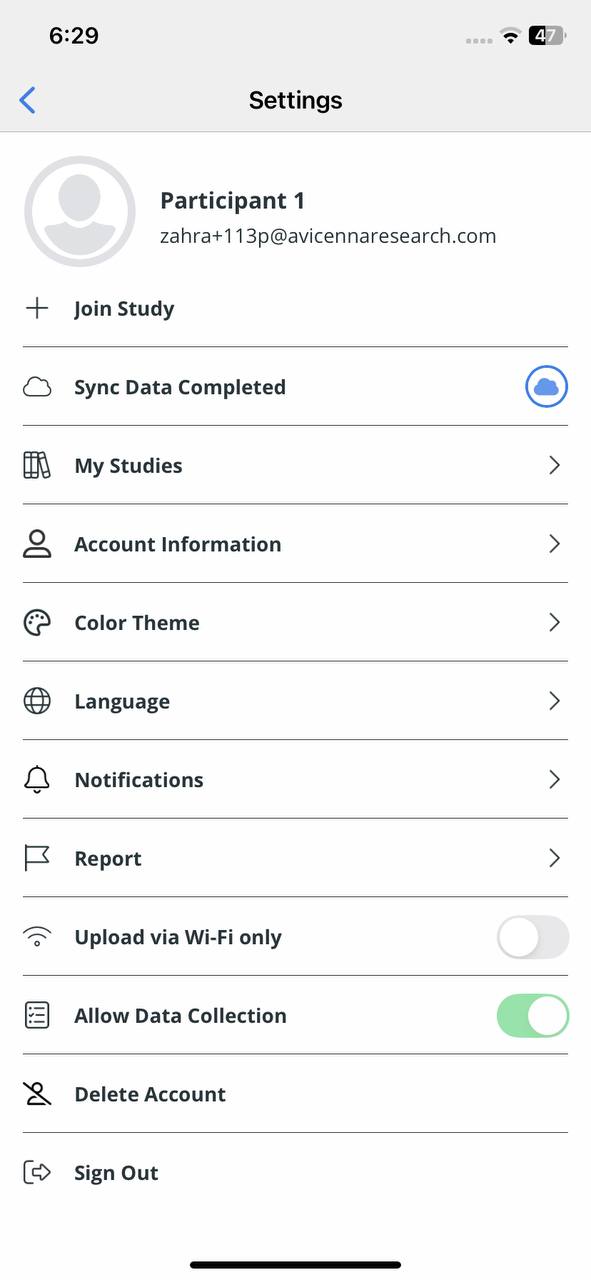
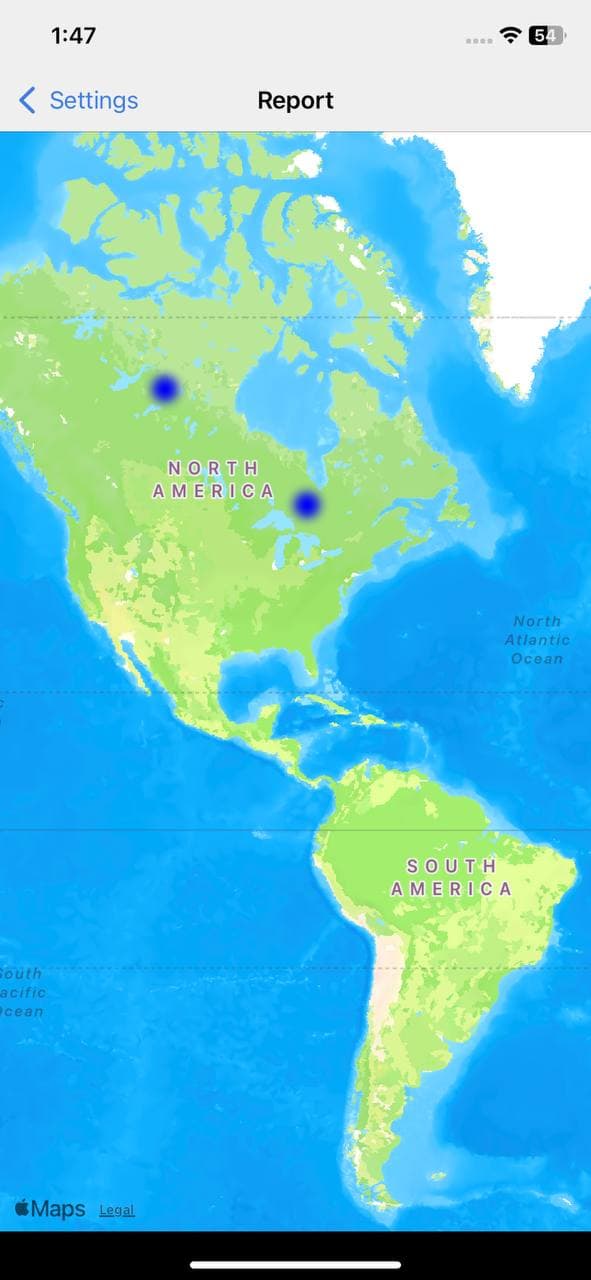
Both the Android and iOS apps include a page called Report, found under Settings. Its purpose is to demonstrate to app store reviewers why Avicenna requests background location access, which is what allows background data collection to keep running. It is not a view of your study’s data.
The Report page shows the participant’s current location on a map and keeps updating it as they move while the page is open. It also shows the locations it recorded during any earlier report sessions in the previous 24 hours.
If location permission has not been granted, the report asks the participant to grant it before showing anything.
[!note]
The locations shown on theReportpage are recorded by the report itself while it is open. They do not come from the GPS data collected for your study, and opening the report does not add anything to your study’s data.
The feature can be enabled or disabled for each app.
Handling App Termination in iOS
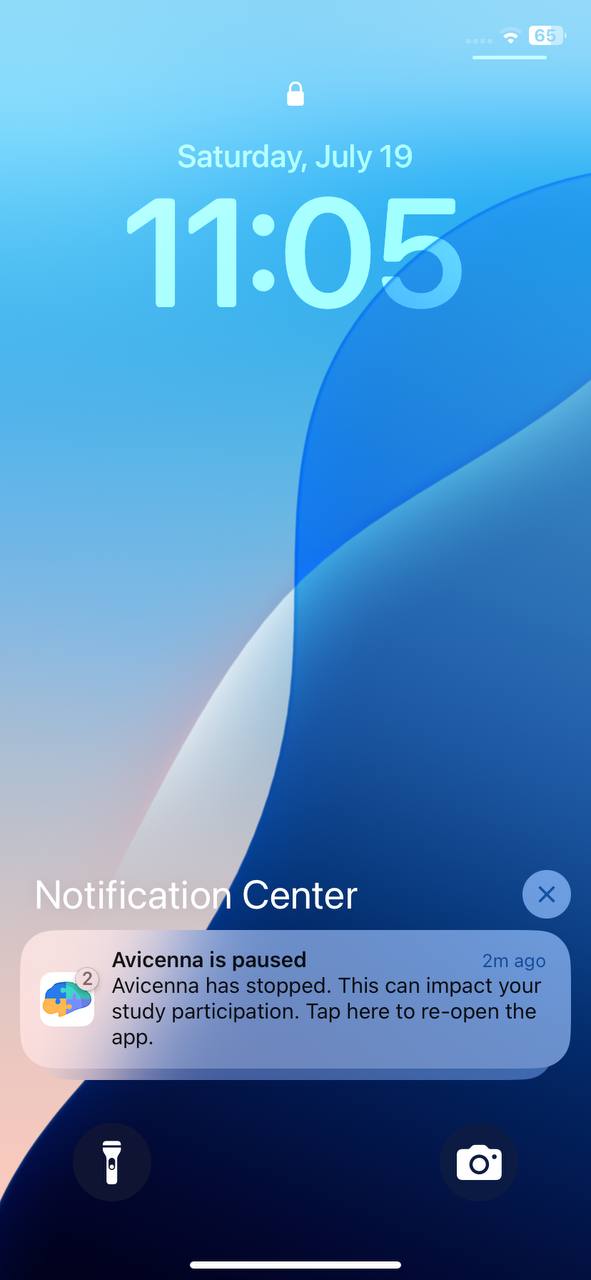
Avicenna in iOS automatically detects if it’s been terminated by the iOS operating system or not. If yes, it shows a message (like “Avicenna is paused” or “App paused”) to the user, asking them to open Avicenna. Clicking that notification will simply open the Avicenna app, which is enough for Avicenna to resume its operation. Avicenna only sends one notification when it detects that the app is terminated. If the user discards this message, Avicenna will not send any additional reminders. If the user opens the Avicenna app and iOS terminates the app again, Avicenna will prompt another notification to the user.
[!note] Tips that may help reduce the number of such notifications
- Do not deliberately close the app (by swiping it off the screen), as this signals the OS that you no longer need the app, and it’s treated the same as app termination by the operating system.
- Close the apps you don’t need to free up memory.
- Keep both the app and your operating system updated.
- Disable Low Power Mode.
- Turn off Background App Refresh for other apps that don’t require constant updates, but leave it on for Avicenna, which needs it to keep collecting in the background.
Background Activity in Android
Android handles background applications differently from iOS. Therefore, the model described for Avicenna iOS does not apply to Android users.
Sticky Notifications
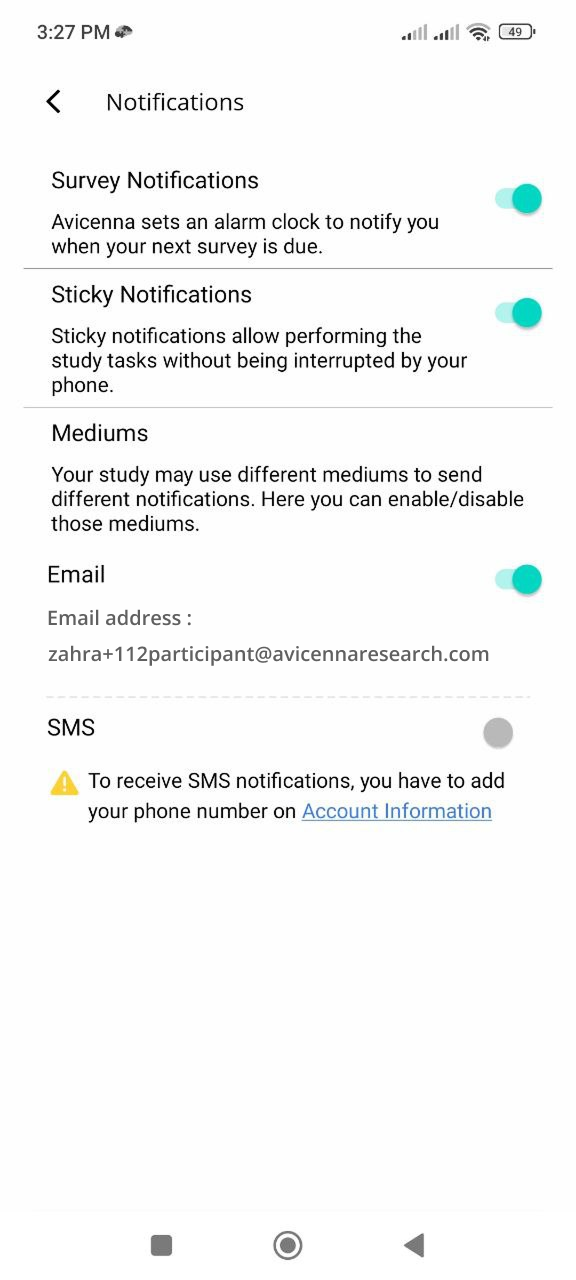
In Android, applications that wish to run continuously in the background are required to have a Sticky Notification: a permanent notification shown on the top of the screen that cannot be dismissed by the user. Such notifications tell Android, “this application is performing an important task for the user, and it should not be terminated as long as possible”.
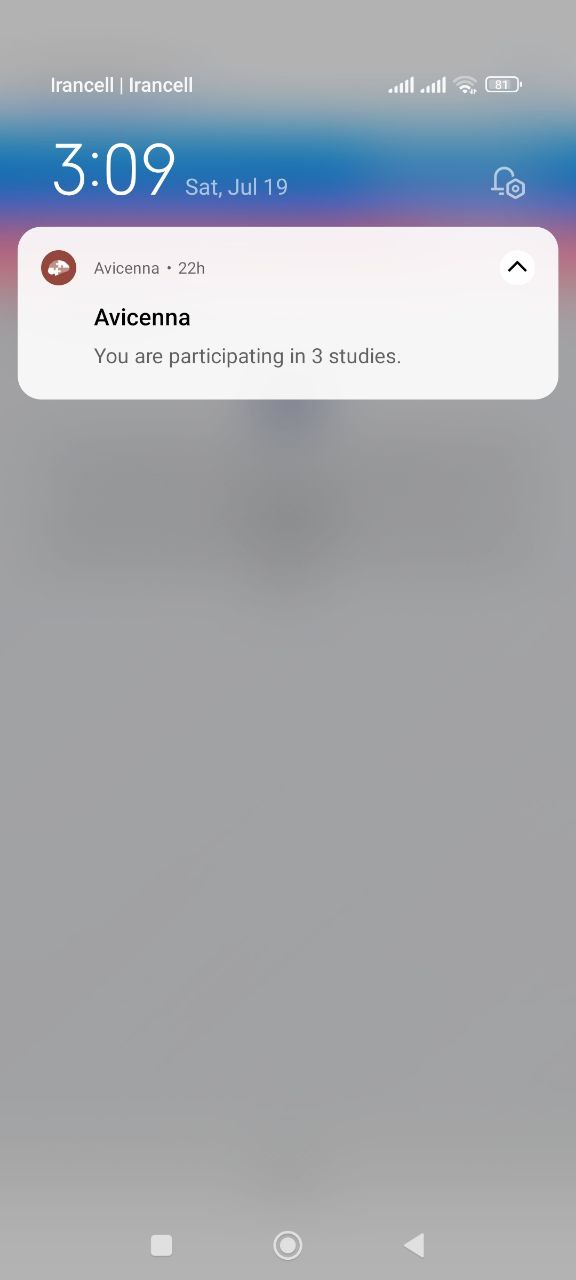
Sticky Notifications can be annoying for some users and might force them to drop out of the study. Therefore, Avicenna allows users to disable them through the Settings page if they choose to. Of course, disabling Sticky Notifications will make the app subject to termination by Android and can impact the data collection for the study. While Avicenna informs the user about such an impact, it respects their choice if they decide to disable such notifications.
Battery Optimization
On Android, the behavior we described above, where the operating system terminates apps the user has not opened recently, is managed by a feature called Battery Optimization. This process may differ slightly across different devices and manufacturers. Android allows users to disable Battery Optimization for their apps. When a participant joins your study using their Android phone, Avicenna shows them a notification and asks them to disable the Battery Optimization for the Avicenna app:
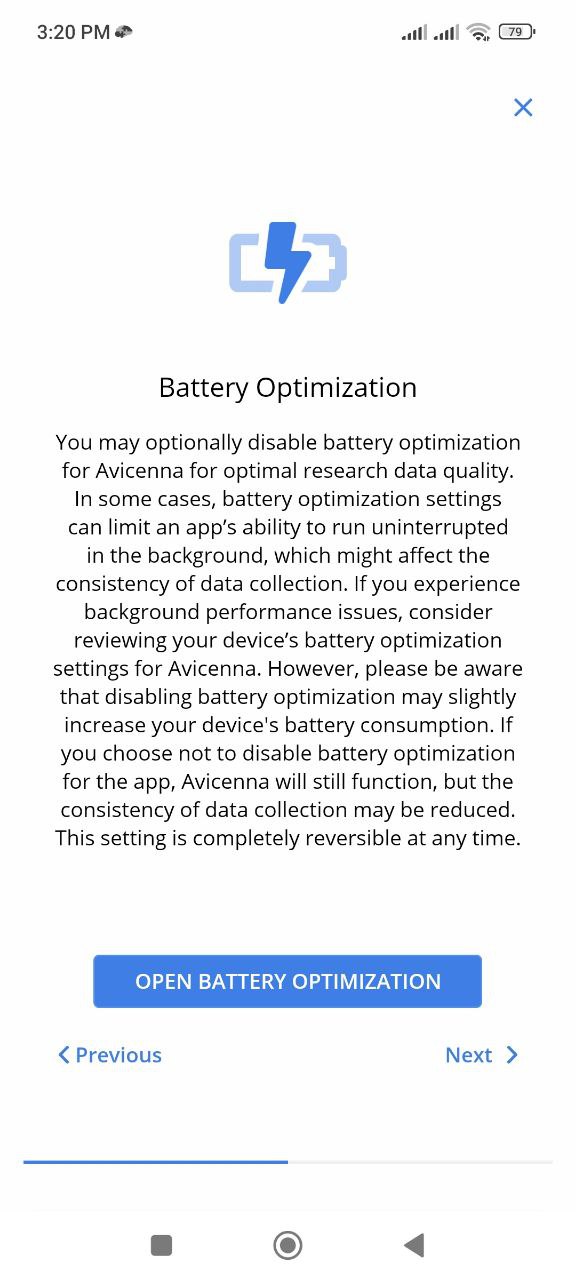
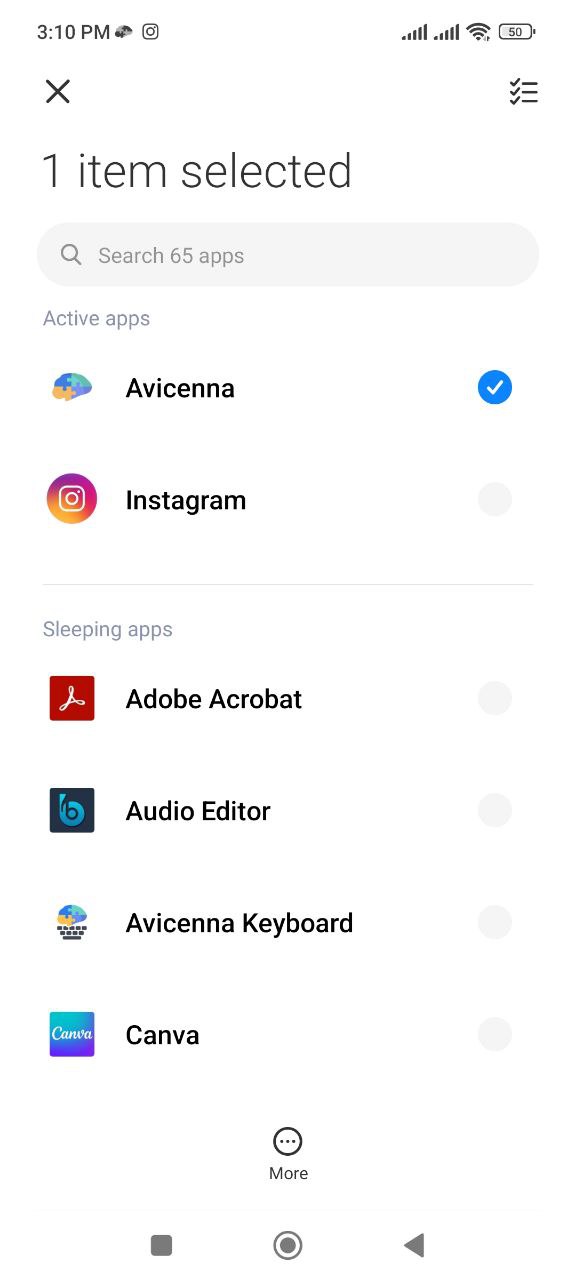
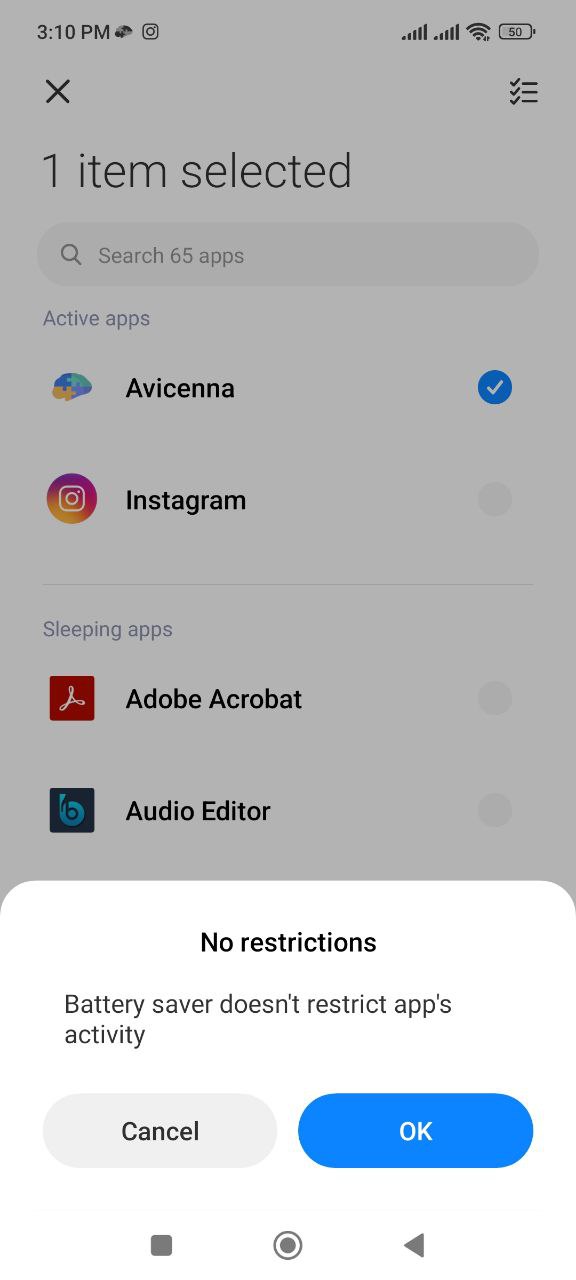
Clicking this notification will open the Battery Optimization page. In the list of all apps, the participant should select the Avicenna app and then tap the three-dot menu at the bottom of the page.
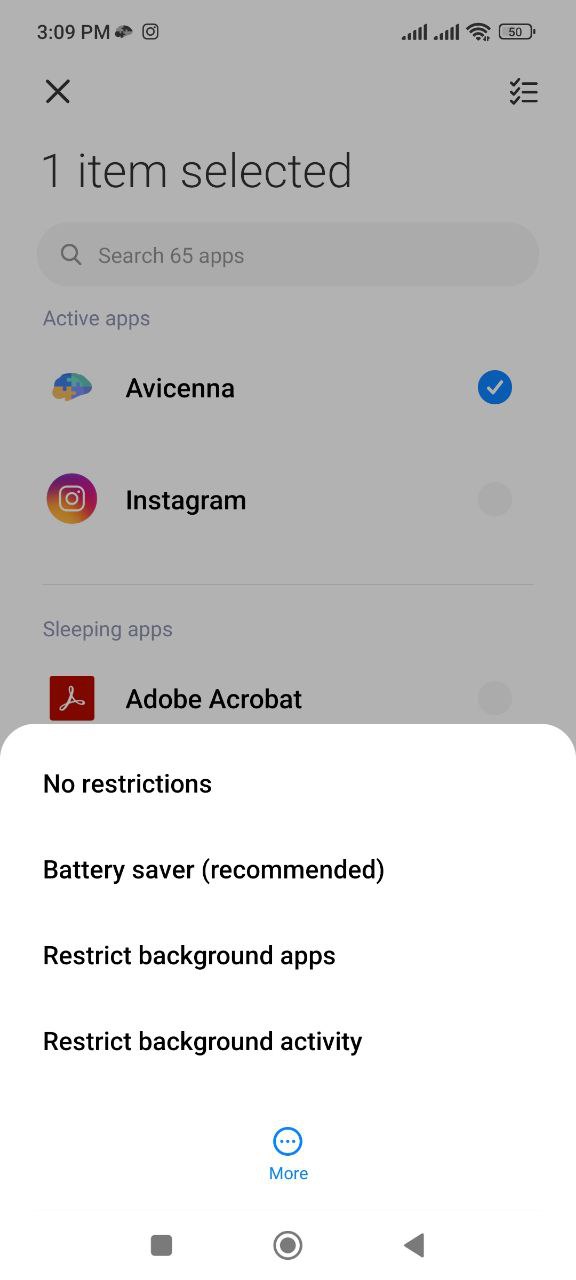
From the available options, select No restrictions. This will exclude Avicenna from battery optimization on the device, allowing it to run and operate in the background as expected.
Finally, tap OK to save the setting.
While the above setting exists on all Android devices, not all Android manufacturers, such as Huawei or Samsung, respect these settings. Different manufacturers often have their own settings to disable Battery Optimization.
When the Avicenna app detects that it’s not operating as expected, it assumes that such manufacturer settings prevent the operation. Therefore, it shows instructions to the participants relative to the type of phone they are using. You can also find these manufacturer-specific settings in the following sections.