Participants may quit your study at any time, and you may also drop participants when necessary. This section describes how to manage withdrawals, how to access reports on dropped participants, and how to configure a dropout survey to collect the reasons for withdrawal.
Dropping Participants
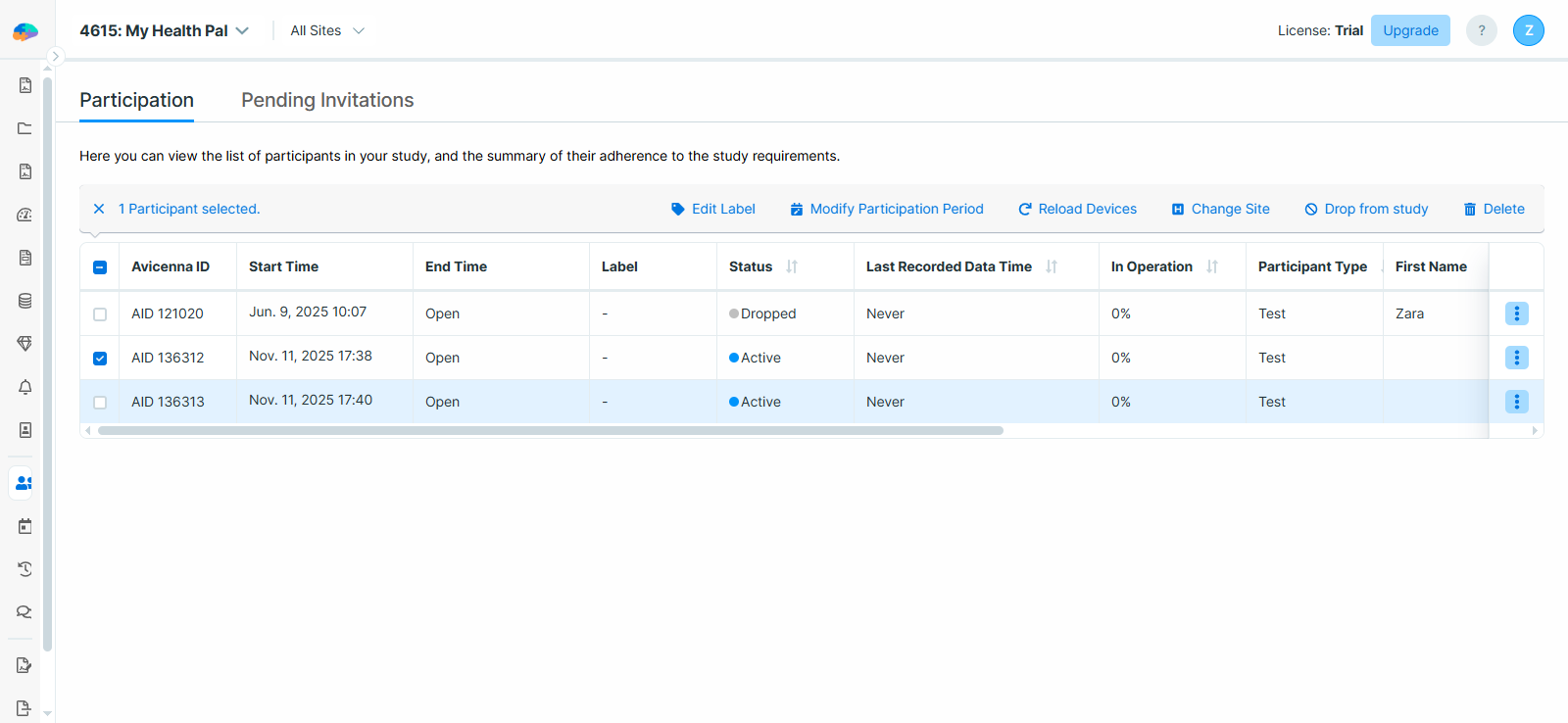
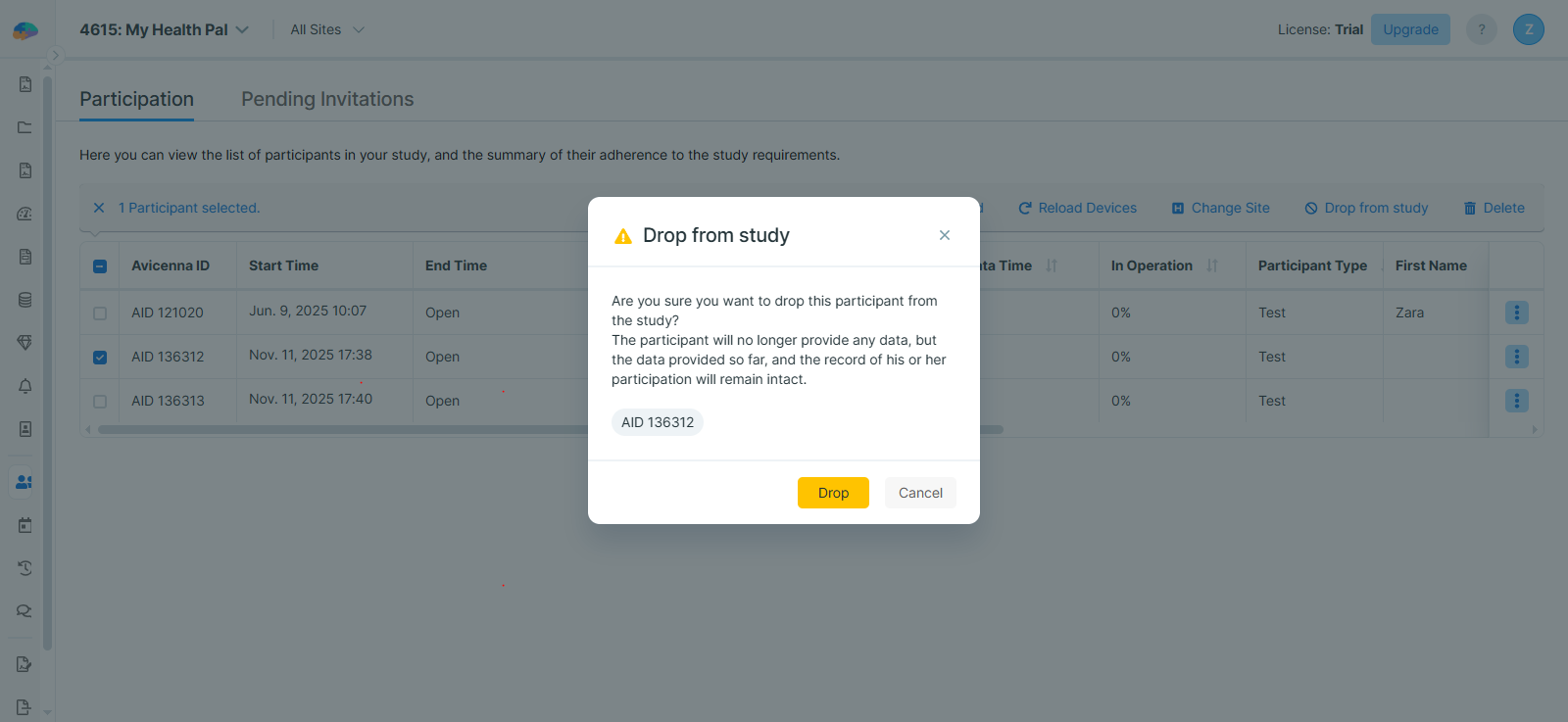
You can remove participants from a study. This action immediately stops all data collection and removes the study from their app (you may need to reload participants’ devices after performing this action).
To drop a participant from the study:
-
Go to the Participation page on the researcher dashboard.
-
Select the participant.
-
Click on the Drop from study button.
-
Confirm your action.
Participant Dropout
To leave a study, follow these steps:
-
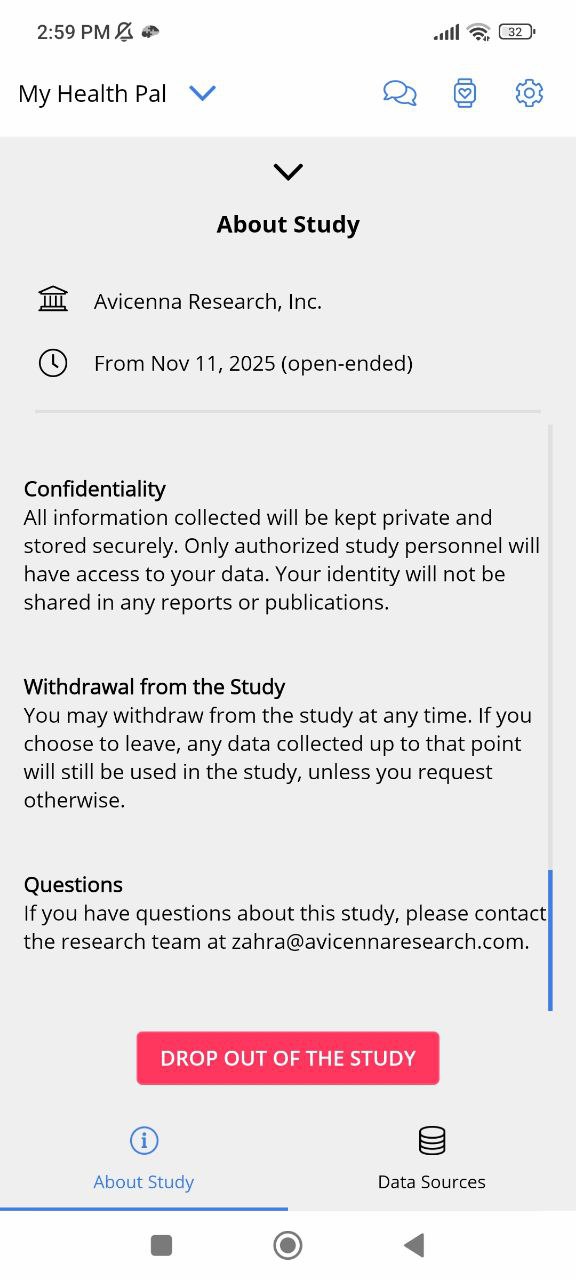
Open the Avicenna app.
-
Go to the study home page.
-
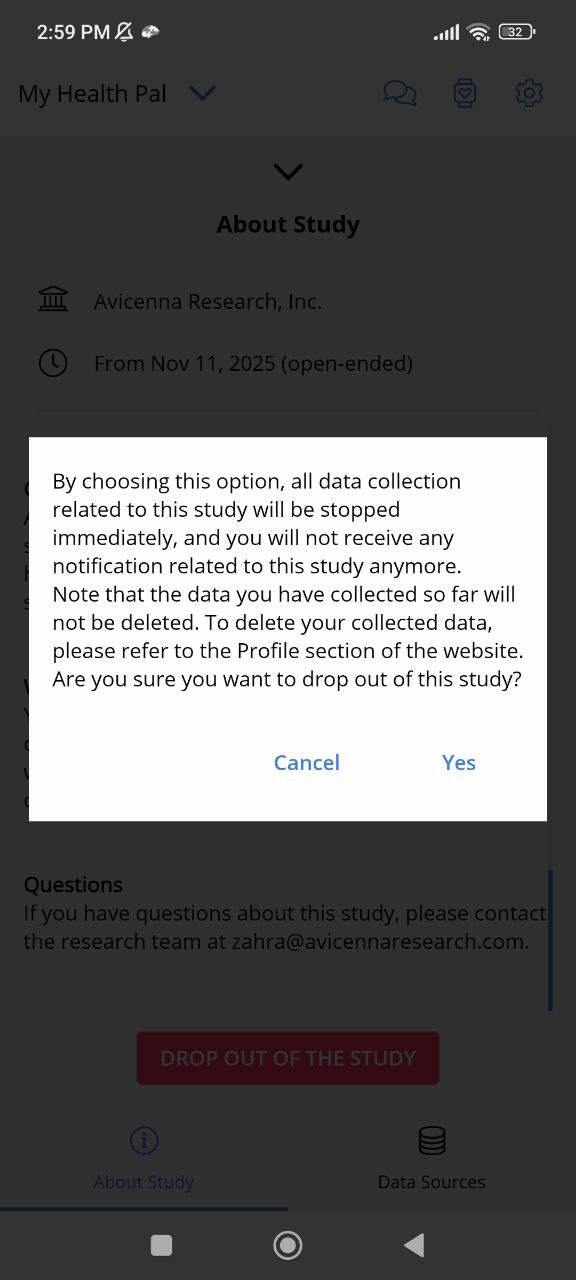
On the About Study page, tap the DROP OUT OF THE STUDY button.
-
Confirm your decision.
-
After selecting Yes, Avicenna checks whether a Dropout Survey is configured for the study:
- If a Dropout Survey exists: You will be prompted to complete it. Once the survey is completed or canceled, Avicenna finalizes the process and removes you from the study.
- If no Dropout Survey exists: Avicenna immediately proceeds with the withdrawal and removes you from the study.
[!note]
When a participant leaves your study, either by dropping out themselves or by you removing them, data collection stops immediately. However, all data they have provided up to that point, along with their participation record, will be retained. The participant ID will still appear in the list of your participants, and their status will be marked as Dropped.
Dropout Survey
You can create a Dropout Survey to collect information on why participants decide to leave your study. This survey is displayed immediately before a participant leaves the study.
To create a Dropout Survey, follow these steps:
-
Start by creating a new activity. For detailed instructions on creating activities, see Accessing Activities.
-
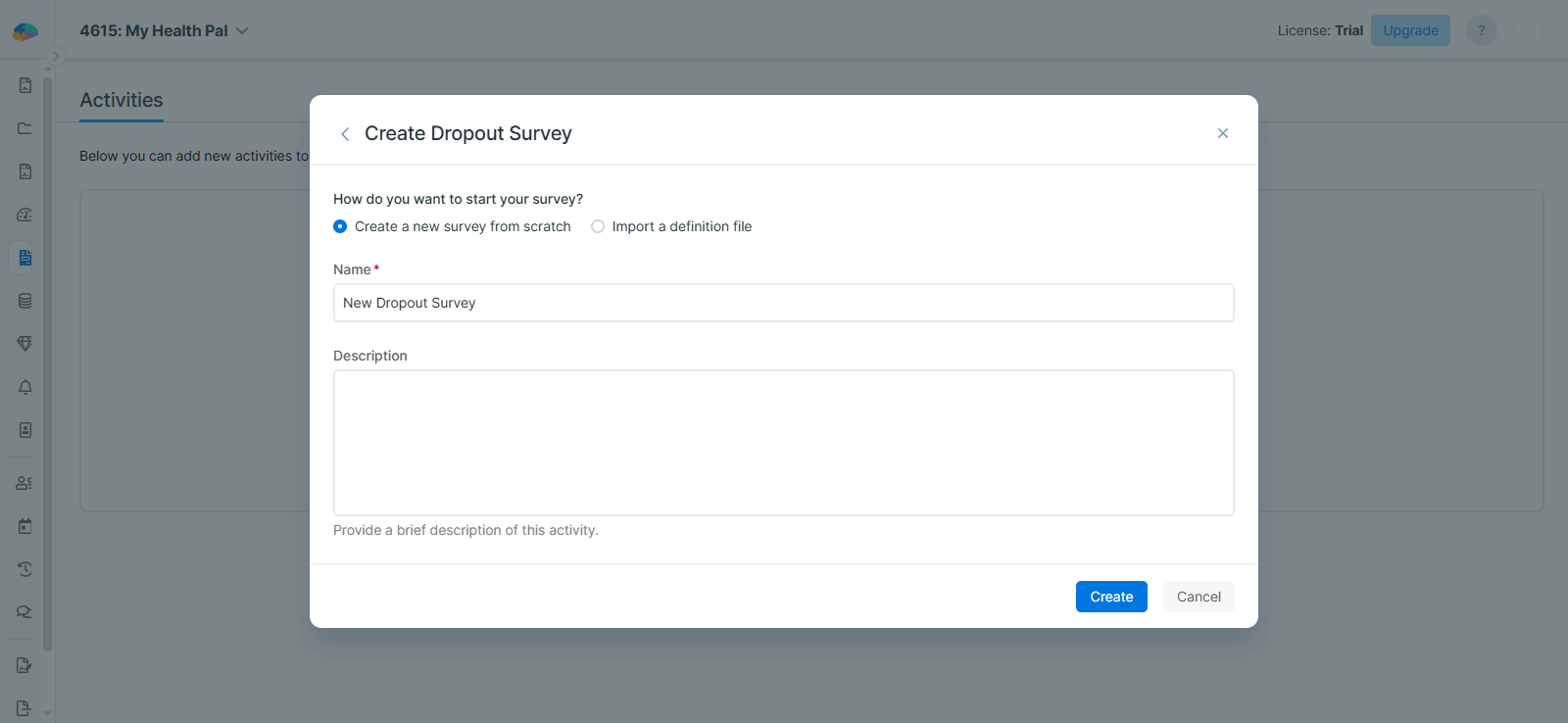
When selecting an activity type, choose Dropout Survey.
-
After providing a Name and Description, click Create to open the Activity Editor.
[!note] Note
The Dropout Survey Activity editor does not include Triggering Logics or Notifications, as these sections are not applicable for dropout surveys. -
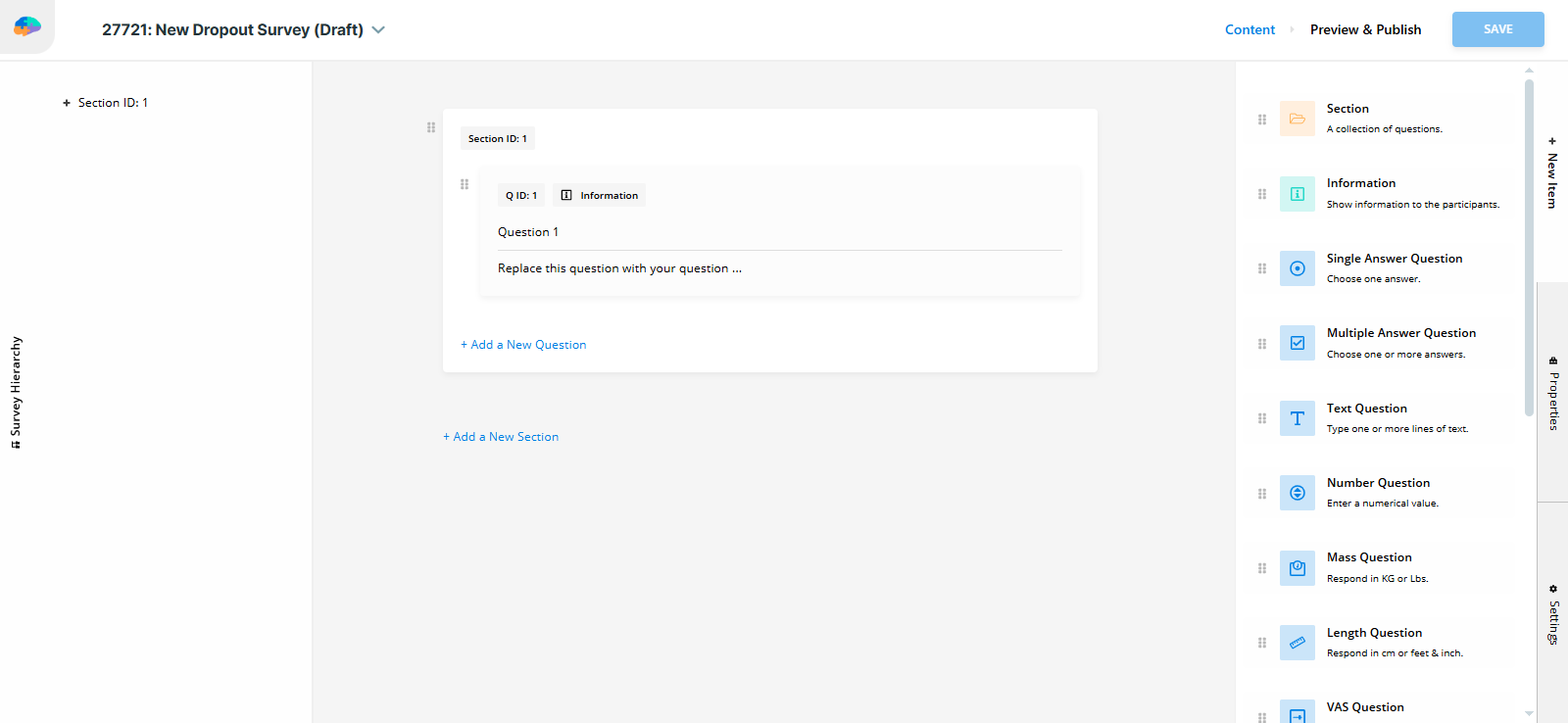
On the Content page, add the questions you want participants to answer before leaving your study.
-
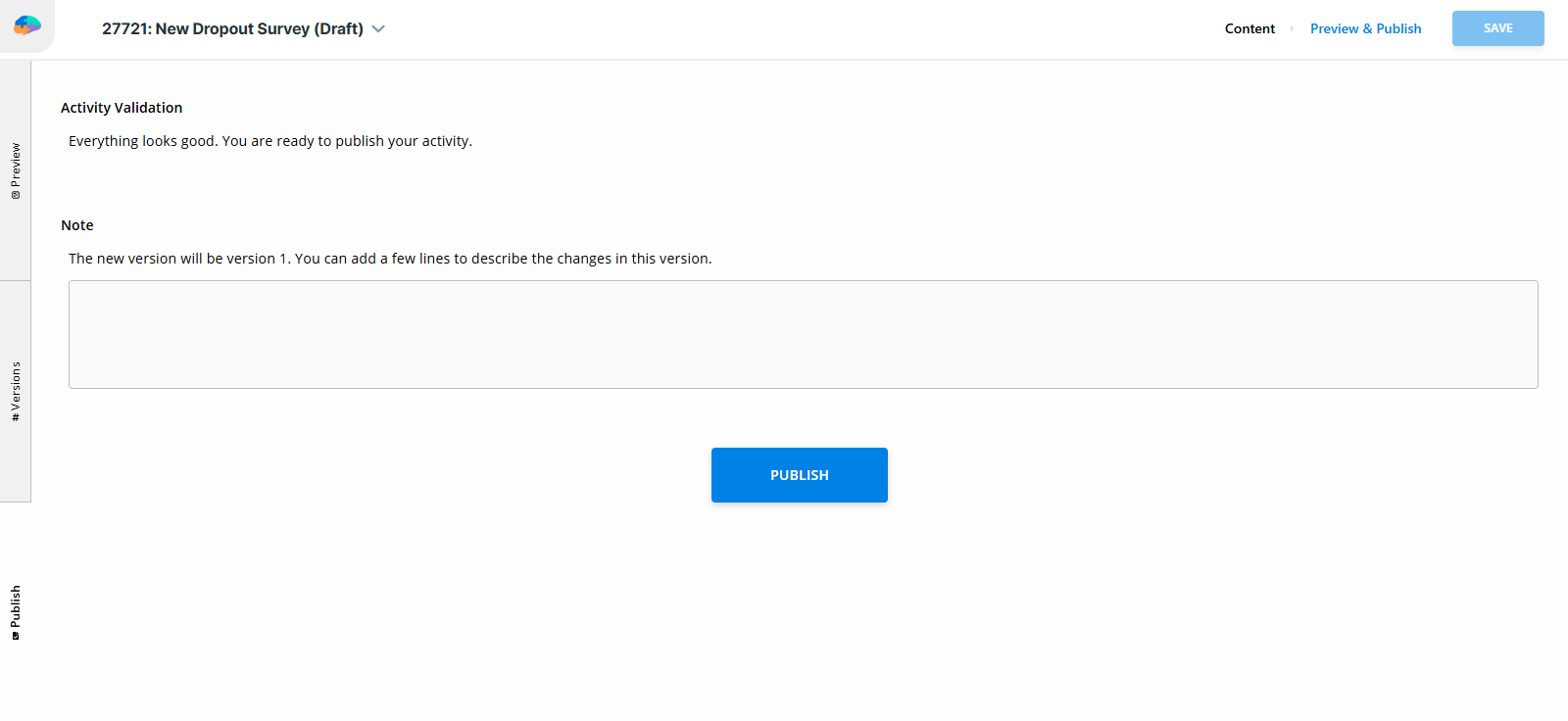
Go to the Preview and Publish page and publish your survey.
View and Export Dropout Survey Responses
You can view or export responses to your Dropout Survey by going to the Activity Responses page.
Rejoining the Study
Participants can rejoin your study at a later time. If they do, Avicenna will use their existing participation record.
- If the participant dropped out voluntarily: They can rejoin at any time before their original participation end time and continue where they left off. If their original end time has passed, the researcher must extend their participation period first.
- If the participant was removed by the researcher: They can rejoin only if the researcher extends their participation end time. Upon rejoining, they will continue from where they left off.