Sometimes you may need to assign specific permissions to each of the contributing researchers in your study based on their responsibilities. For instance, you may need to assign the Data Manager role to one of your researchers and grant them permission to access, view, and export data for further analysis. In another case, you may need to assign another researcher the Recruiter role with permission to enroll new participants, view participant information, and modify their enrolment data, but not be able to access their study data.
Our platform allows you to define and modify the roles and permissions for each one of your researchers inside the Researchers page on your researcher dashboard.
In the following sections, we will discuss how you can create a role, assign it to a researcher, and modify their permissions, so each of the researchers has specific permissions based on their responsibilities.
Managing Study Roles
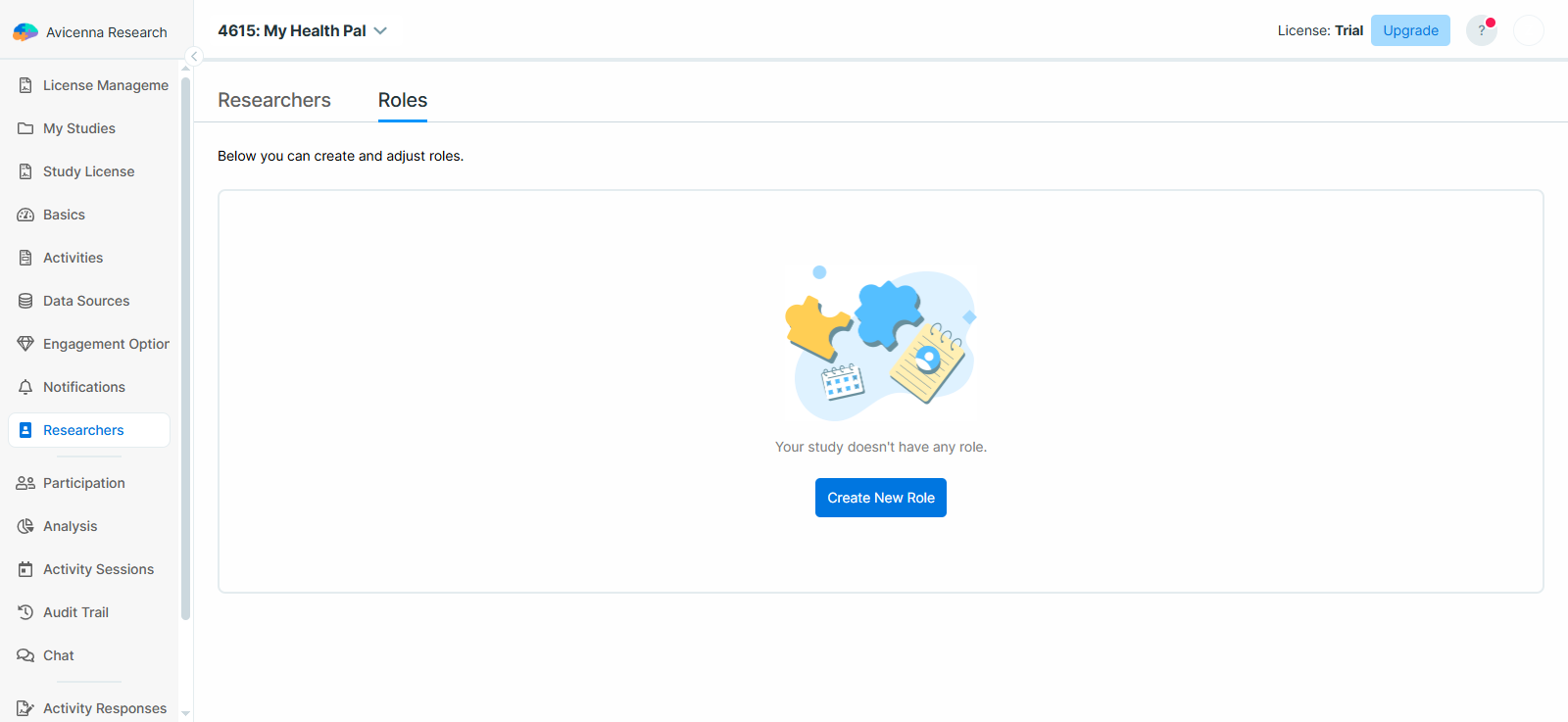
Within the Roles tab of the Researchers page on your dashboard, you can create, edit, delete, and view roles.
When you create a role inside the Roles tab, you are defining a role and its permissions throughout your study. As a result, you will not be able to select a site in the Create a New Role dialog. To modify the access of a role for a specific site, please see Adjusting Researcher Permissions.
After creating a role, you can assign it to researchers on the Researchers tab and further customize their permissions if needed.
Creating a New Role
To create a new role with specific permissions:
-
Open the Researchers page on your dashboard.
-
Navigate to the Roles tab.
-
Click on Create New Role.
-
Enter a unique name for the role.
-
Select the permissions you want to grant to this role.
-
Click Create to save the role.
Editing an Existing Role
To modify an existing role:
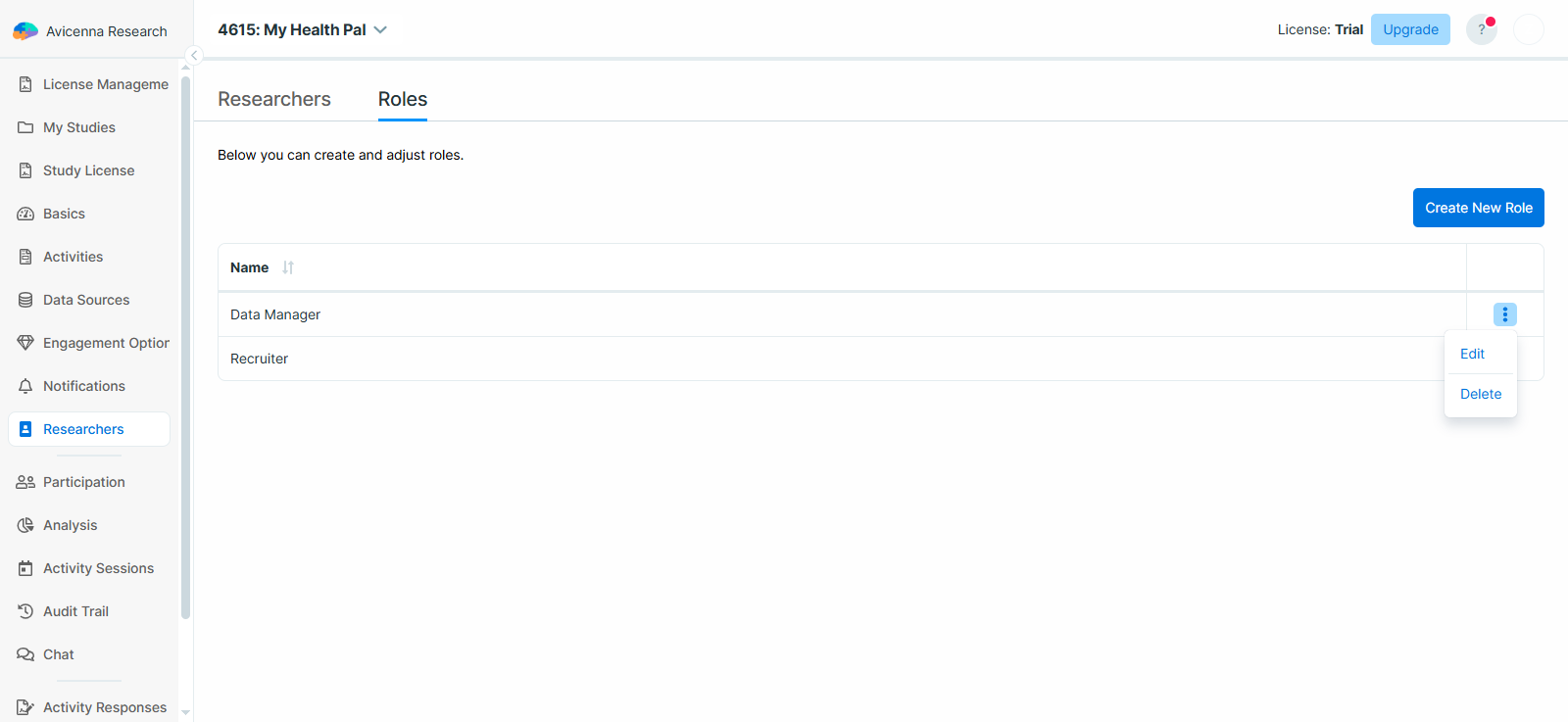
- Open the Roles tab and locate the role you want to update.
- Click the three-dot menu and select Edit.
- Update the role name and/or permissions.
- Save your changes.
[!note]
These changes are applied immediately to all researchers assigned to that role.
Deleting a Role
To delete a role:
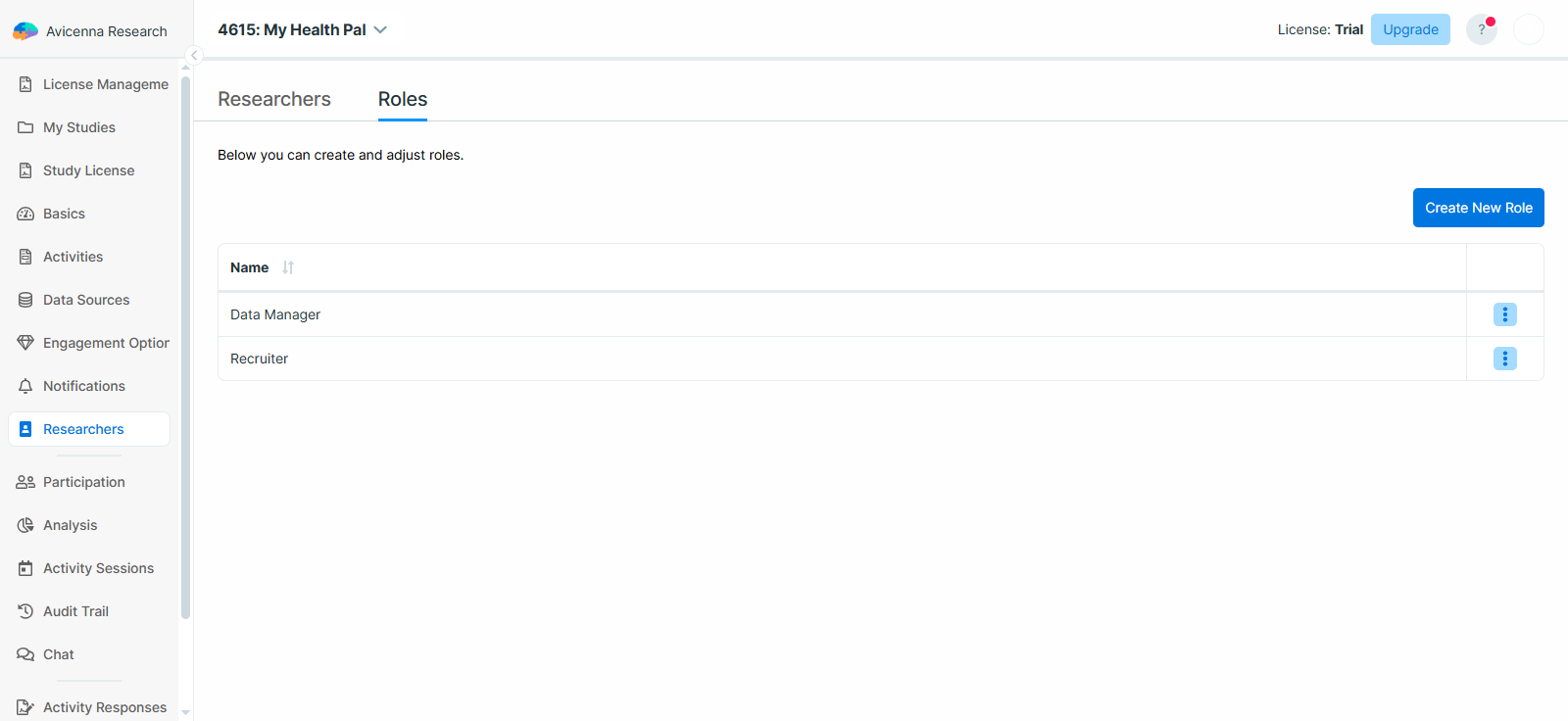
- Open the Roles tab and find the role you want to remove.
- Click the three-dot menu, select Delete, and confirm.
[!note]
Deleting a role will revoke its permissions from all researchers who were assigned to it.
Pre-defined Roles in Avicenna
In addition to the roles that you can define in the Roles tab, there are two pre-defined roles.
Study Owner
The study owner is the person who owns the study and has full control over all of it. Each study can have only one owner, and by default, the person who creates the study becomes the owner.
For example, the study owner is the only person who can access and manage the study license. They are also the main point of contact for communication from Avicenna.
The study owner can change the roles and permissions of any researcher, including their own. They can also promote or demote a researcher to the permission manager role, or transfer study ownership to another researcher.
To transfer study ownership:
-
As the current study owner, go to the Researchers tab.
-
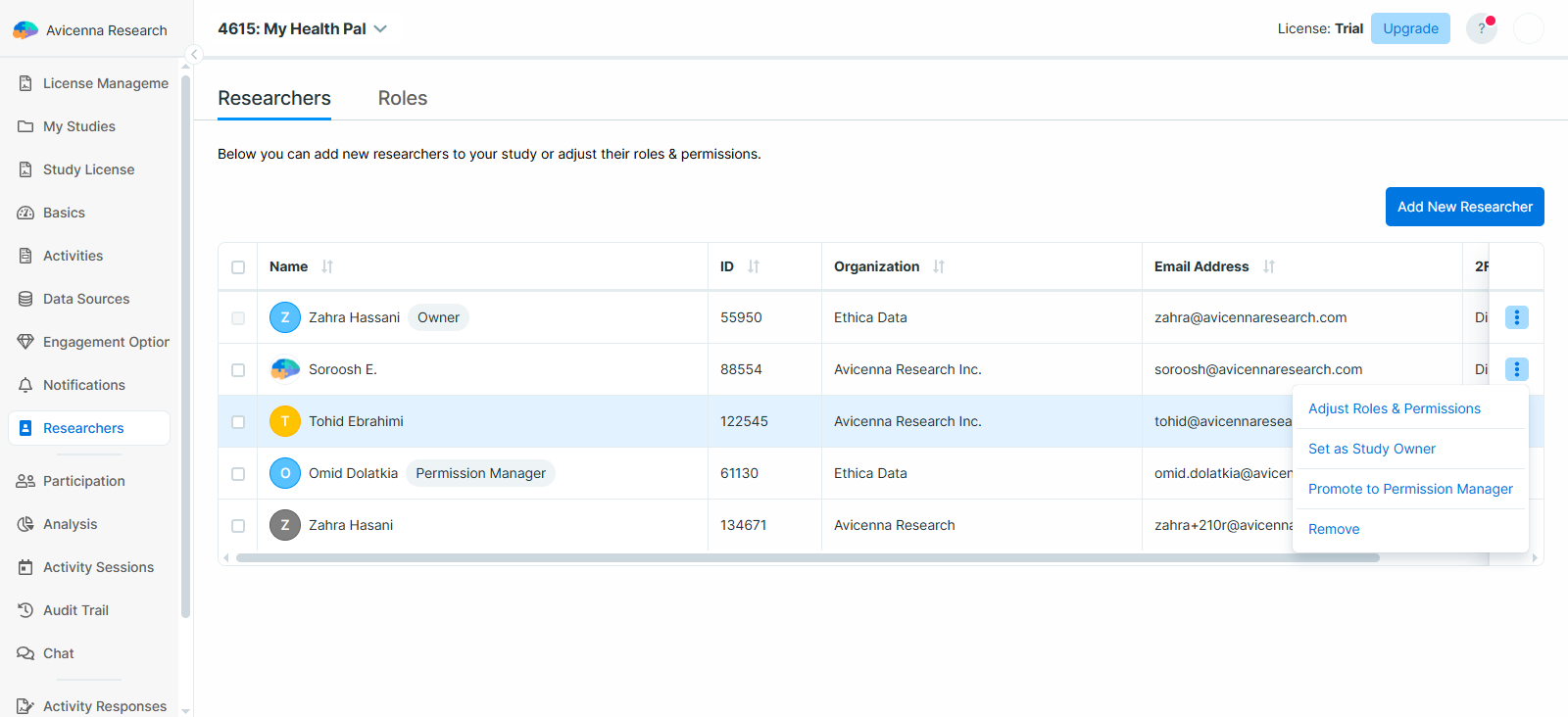
Click the three-dots menu next to the researcher you want to transfer ownership to.
-
Confirm the transfer.
[!note]
Once you transfer ownership, it will be removed from your account and assigned to the selected researcher.
Permission Manager
The permission manager is another pre-defined role that can be assigned by the study owner or another permission manager.
Researchers with this role can modify the roles and permissions of any researcher in the study, including themselves, except for the study owner. They can also promote or demote other researchers to or from the permission manager role.
By default, there are no permission managers when a new study is created. The study owner can promote any researcher to this role.
To promote or demote a researcher to this role:
-
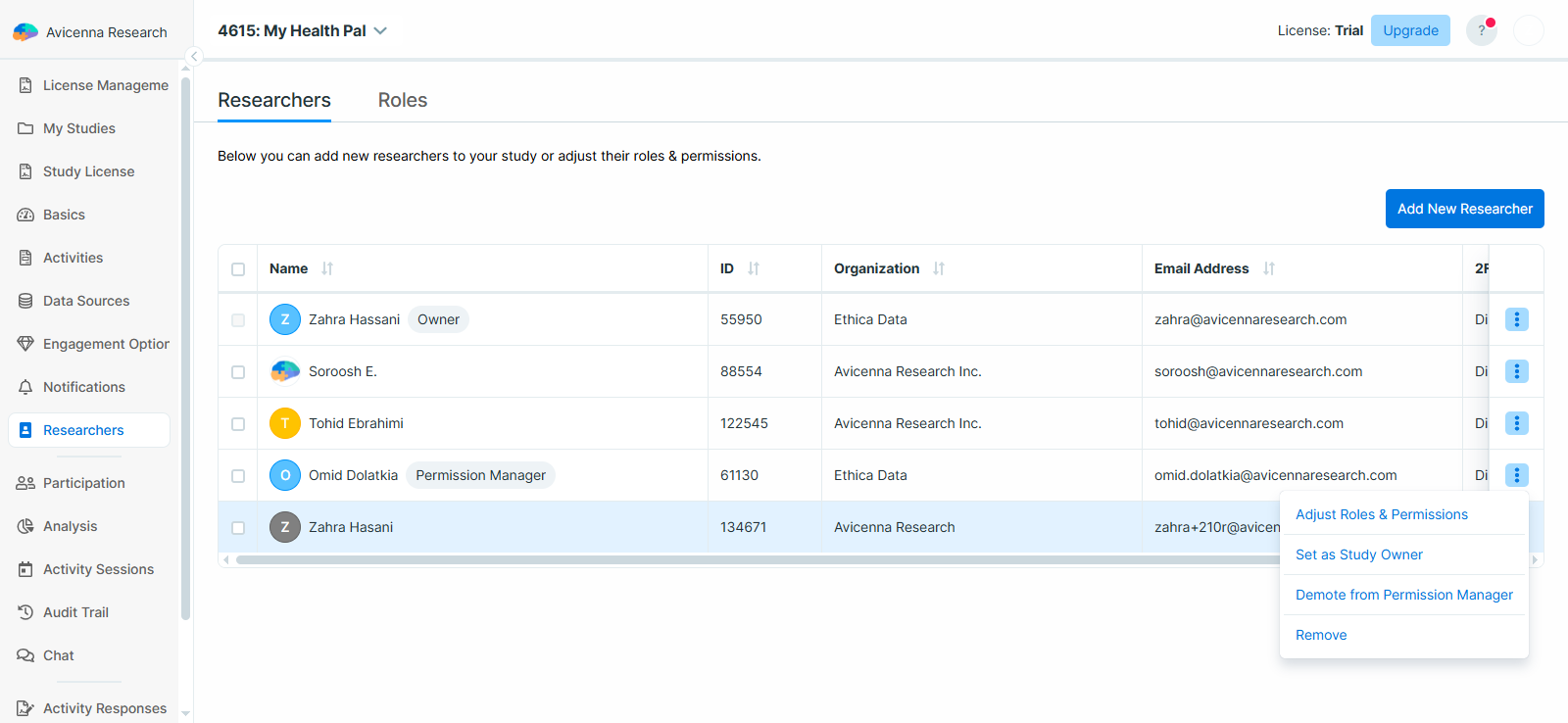
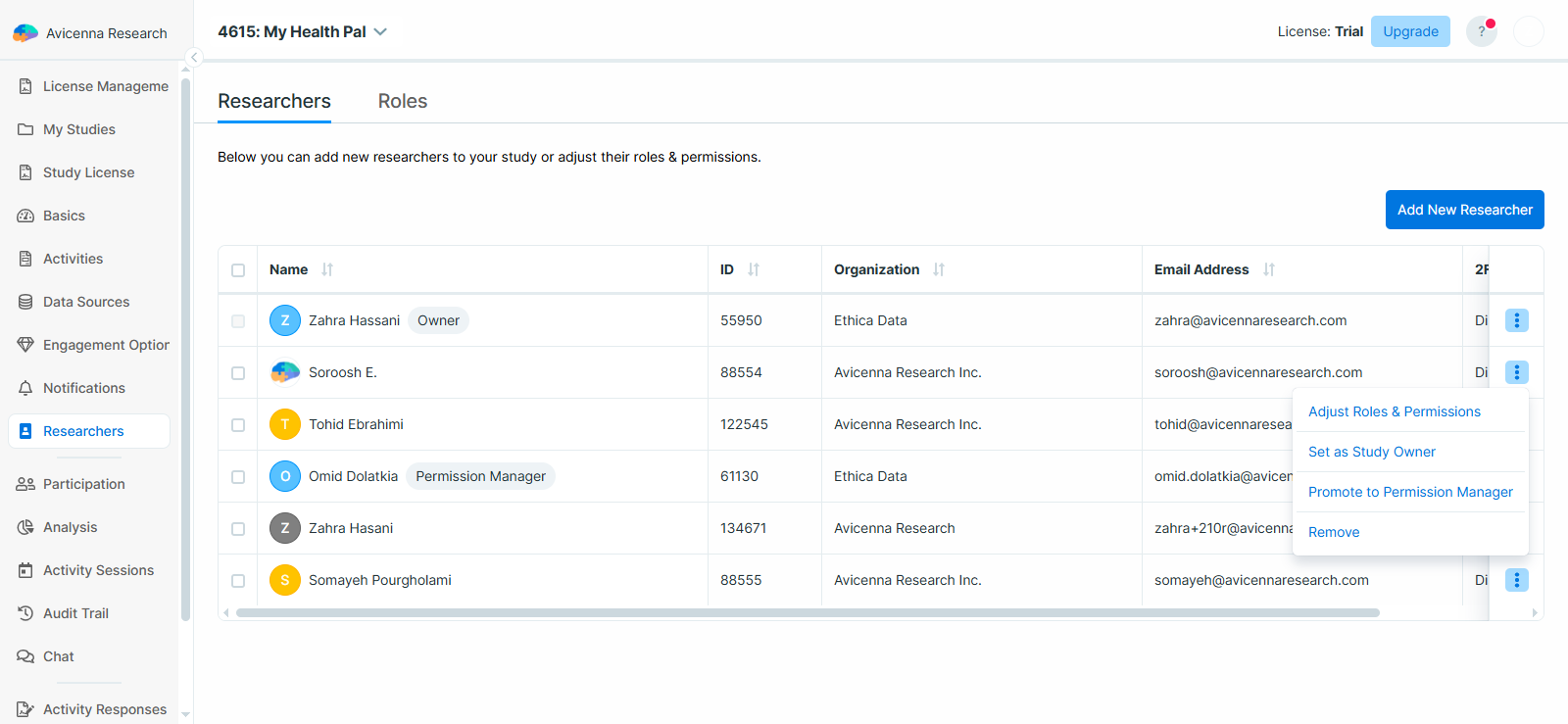
In the Researchers tab, click the three-dots menu next to the researcher’s name.
-
Select Promote to Permission Manager or Demote from Permission Manager, and confirm.
Managing Researchers and Permissions
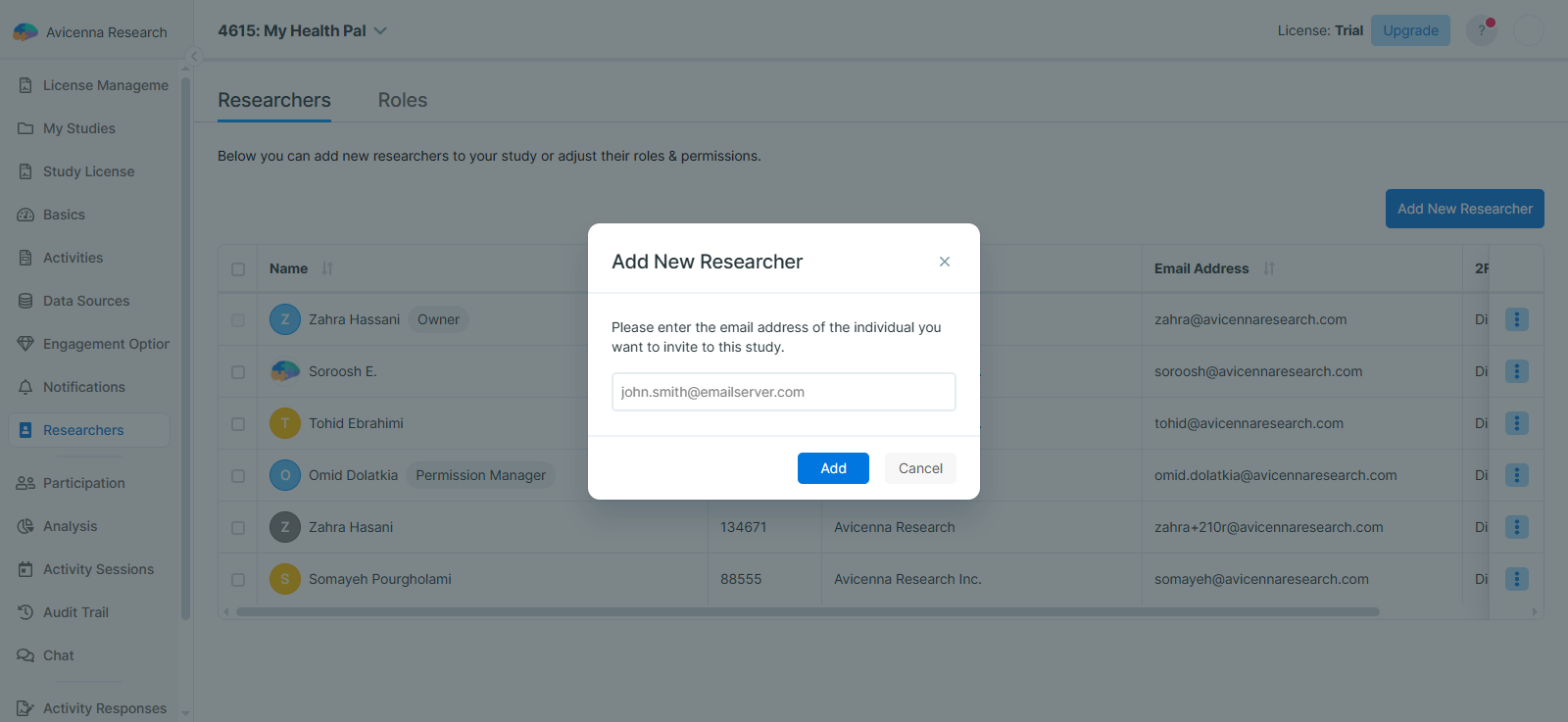
In the Researchers tab, you can invite new researchers to your study, assign or remove roles for each researcher, adjust or customize their permissions, or completely remove their access from the study.
Adding Researchers to a Study
To add new researchers to your study:
-
Open the Researchers page.
-
Click Add New Researcher and enter their email address.
[!note]
The person must already be registered in Avicenna as a researcher and must have verified their email. -
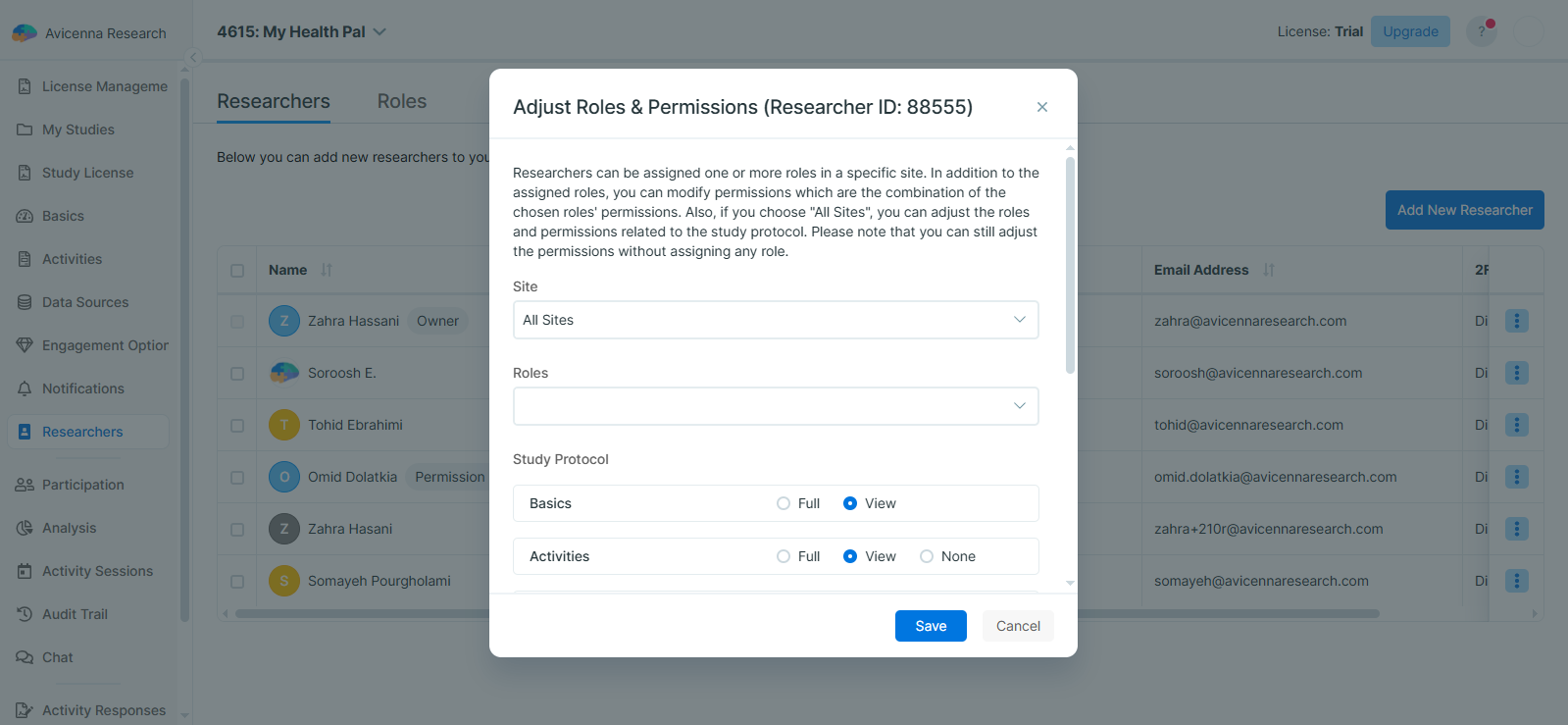
Assign the appropriate role or adjust their permissions to define their level of access. You can also select the site you want the researcher to be added to.
-
Click Save to confirm adding the researcher to the study.
Adjusting Researcher Permissions
You can adjust a researcher’s permissions and/or assign them a new role in the Researchers tab.
To modify the researcher’s permissions, follow these steps:
- In the Researchers tab, click the three-dots menu next to the researcher’s name.
- Select Adjust Roles & Permissions.
- Update their roles or individual permissions as needed.
- Save your changes to apply the new access levels.
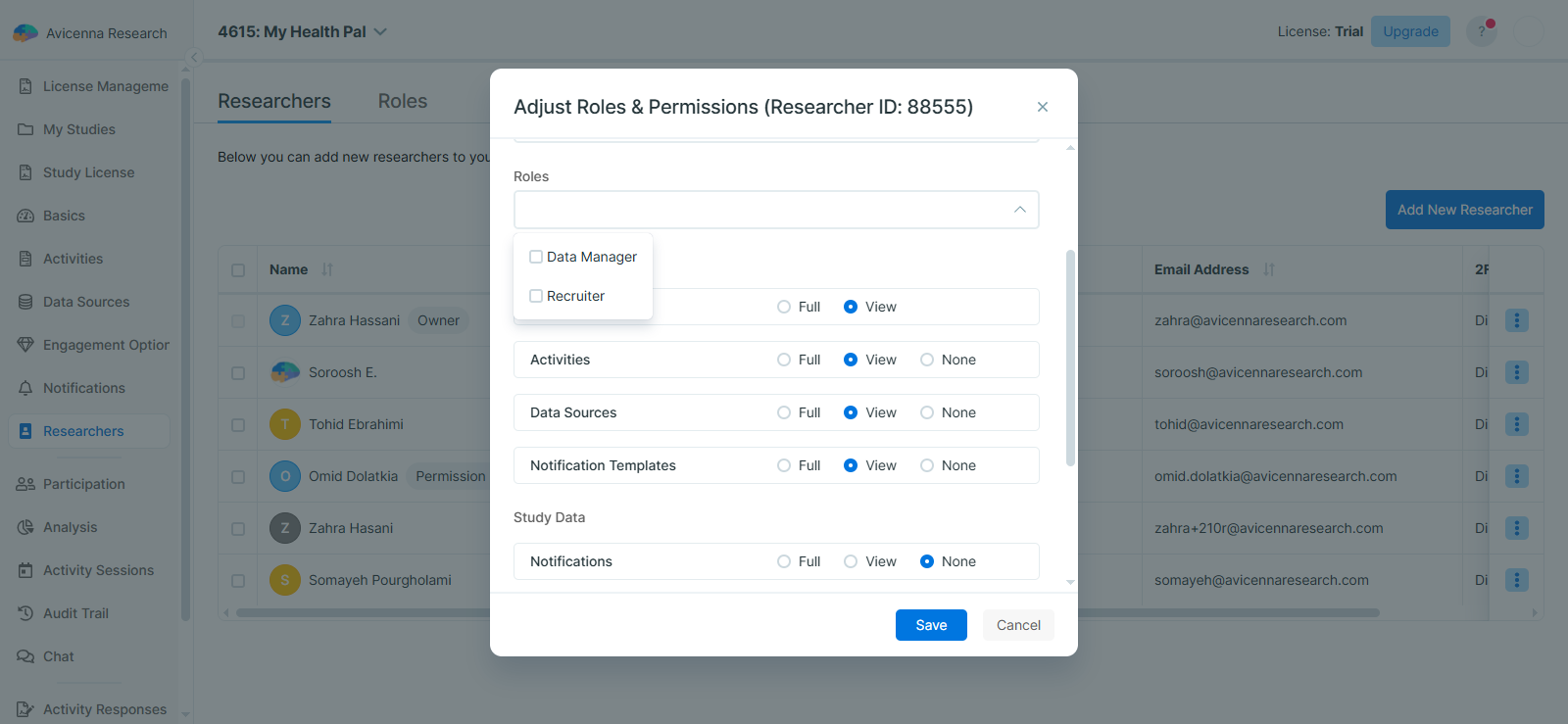
When adjusting a researcher’s permissions, you can configure the following:
-
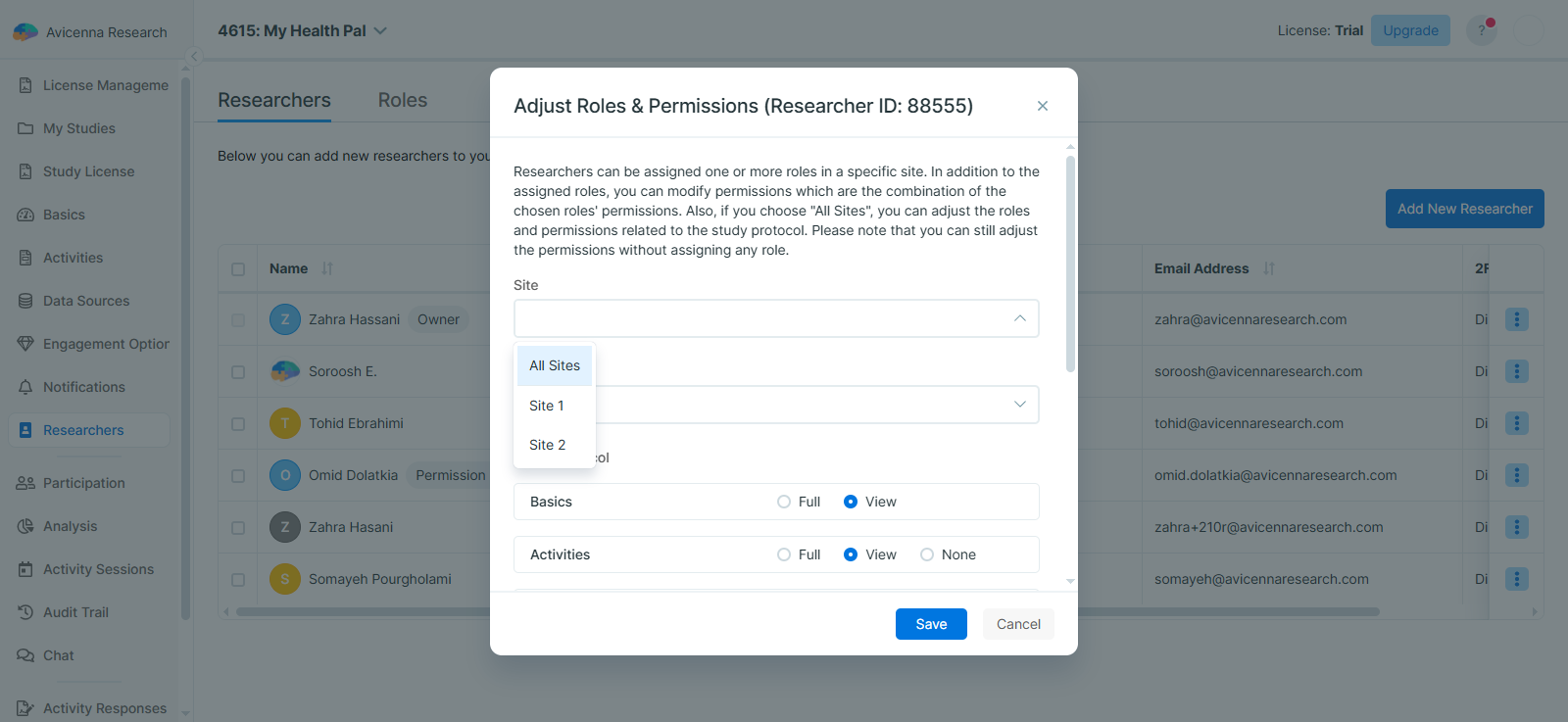
Site: Use this dropdown to choose whether the researcher’s permissions apply to all sites or to one specific site.
[!note]
A researcher cannot be given access to multiple individual sites. It must be either one site or all sites. -
Roles: Use this dropdown to assign one or more roles to the researcher. The researcher will receive the combined permissions of all selected roles.
[!note]
Selecting a predefined role from the Roles dropdown will overwrite any existing permissions with those defined for that role. These roles and their permissions can be managed in the roles tab. -
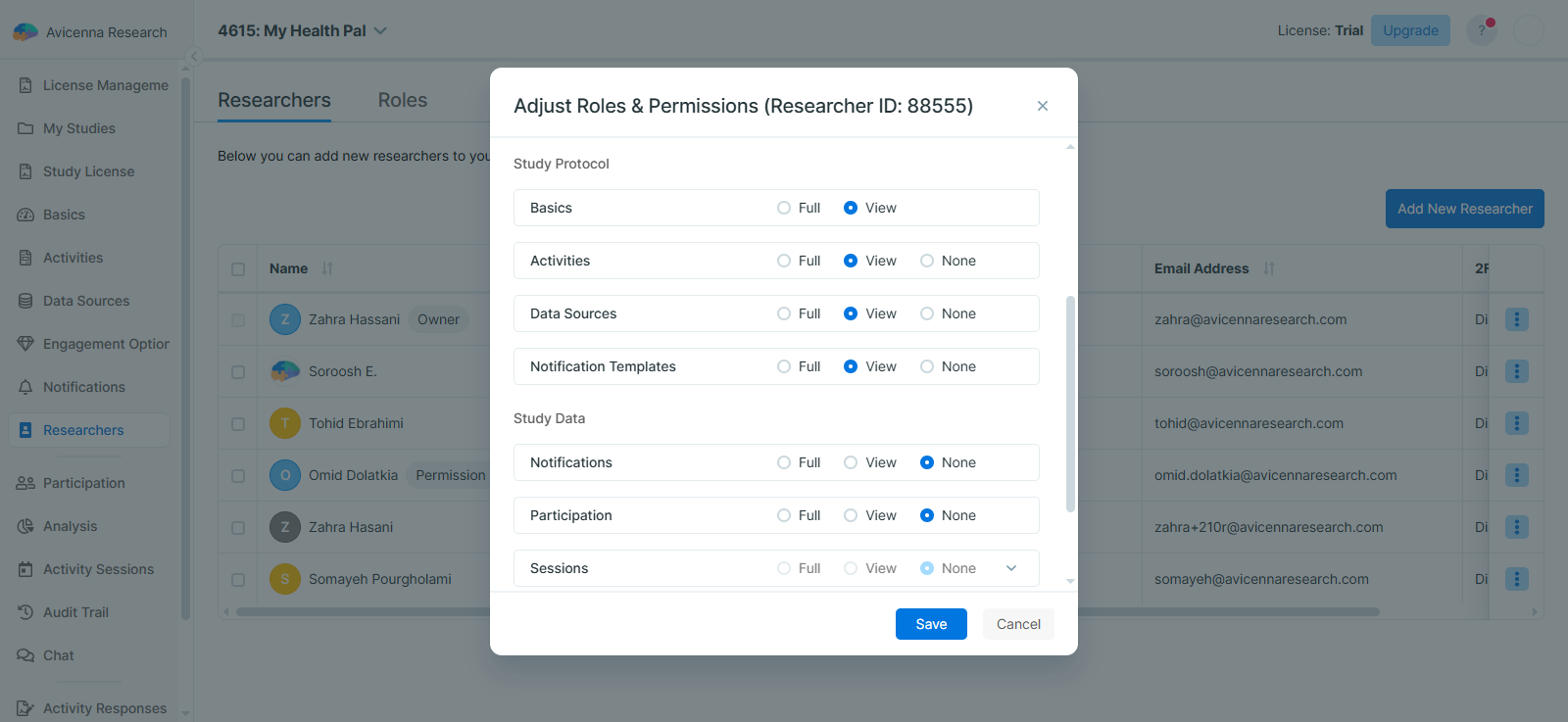
Study Protocols and Study Data: In this section, you can adjust individual permissions for this researcher only. Any changes made here will override the permissions defined in the assigned roles.
There are three permission levels available in the Study Protocol and Study Data sections:
- Full: This allows the researcher to view, edit, and export data. For example, they can create new sessions for participants or export responses for a specific activity.
- View: This allows the researcher to view the data only. Using the same example, they can see each session and its status, but they cannot export the data.
- None: This removes all access to that part of the study.
[!note]
When a permission is set to None, the related page will not be visible to the researcher. For example, if the Notification Templates permission is set to None, then the Notifications page will not appear in the researcher dashboard.[!note]
If a permission change overrides a permission that was originally defined through a role, a warning message will appear next to that permission to let you know.
Permissions Hierarchy and Dependencies
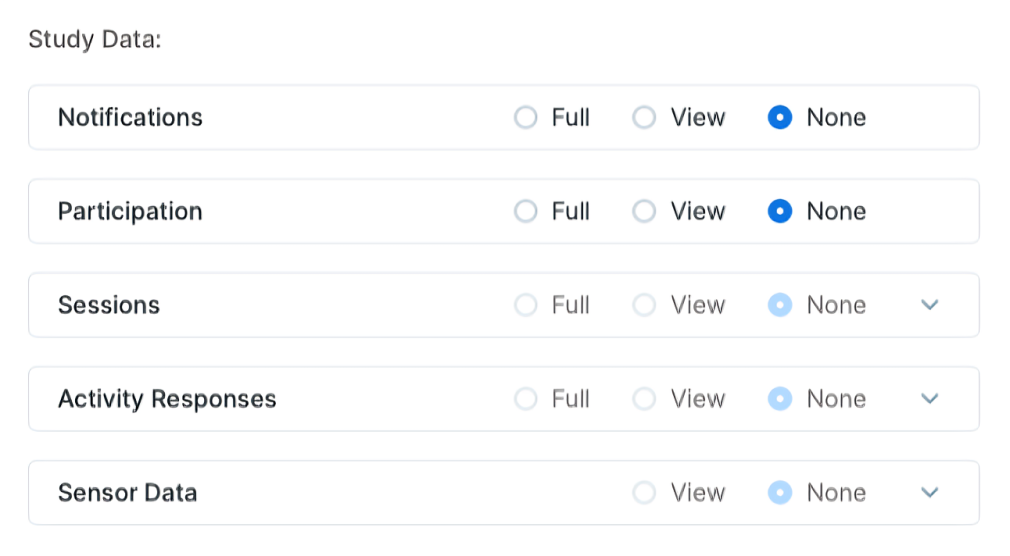
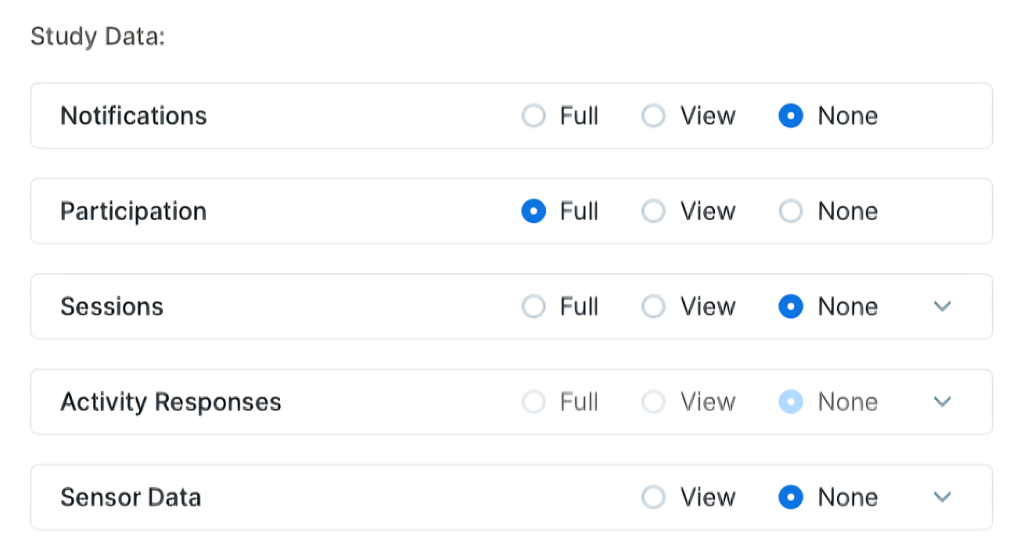
In the Adjust Roles & Permissions panel, some permissions depend on others. This means that what you can select in one place may change based on another permission setting.
-
Participation Dependence: The permissions for Sessions, Activity Responses, and Sensor Data can only be changed if Participation is set to View or Full.
-
Sessions and Activity Responses Relationship: The Activity Responses permission depends on the Sessions permission.
- If Sessions is set to View, then Activity Responses can only be None or View.
- If Sessions is set to Full, then Activity Responses can also be set to Full.
Removing Researchers from a Study
To remove a researcher from your study:
-
Go to the Researchers tab.
-
Click the three-dots menu next to the researcher’s name and select Remove.
-
Confirm the action to complete the removal.
Troubleshooting
I can’t see one or more pages or elements in the researcher dashboard
This is most likely due to your permissions. Please contact your study owner or a permission manager to request the required access.
If you are a Permission Manager, you can also review and adjust your own permissions.