Inclusive research initially referred to studies that employed approaches designed to work with participants who have learning or intellectual disabilities. Scholars are increasingly expanding the scope of this definition to cover any research project that attempts to work with groups of people who are usually neglected in studies. These people could belong to minority nationalities, races, sexual orientations, or gender identities. They could come from lower economic classes and underrepresented age or language groups.
One of the most common and effective methods applied by researchers to achieve such inclusivity is localization. Researchers can appeal to a more diverse language group, include a larger collection of participants, reach less biased conclusions, and increase the applicability of their research results.
Localization in Avicenna can be divided into two general categories: localization of the participant app interface and localization of the study content (i.e., multilingual studies). Each of them is explained below. But first, let’s see which languages are currently supported by Avicenna and how we can support a new language.
Supported Languages
Avicenna supports the following languages for both the participant app interface and study content:
- Catalan
- Chinese
- Dutch
- English
- French
- German
- Italian
- Persian (Farsi)
- Portuguese
- Slovenian
- Spanish
- Spanish Colombian
- Urdu
- Welsh
- Zulu
Supporting a New Language
If you want to support a new language for your study, the general process is as follows:
- Translate all the text content used in the participant app interface. This can be done by you (the researcher) or by us.
- Update the participant apps to include the new language and the corresponding translations.
- Adjust our researcher dashboard to show the new language and let you add the new language to your study.
[!info]
This might incur additional costs. Contact us for the details.
App Interface Localization
The Avicenna participant app automatically sets its user interface language to match the system language by checking and updating it each time the app is opened. If Avicenna is not available in the system language, it switches to English by default.
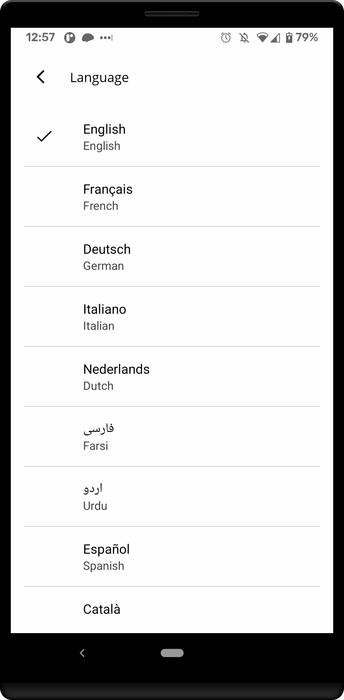
Participants can also choose the language by opening the Avicenna app, going to the Settings → Languages, and then selecting their desired language. This will override the language of their device, and instructs Avicenna to always appear in the language they chose, regardless of the language of their device:
[!info]
If you are interested in helping us with translations in your local language, we would love to hear from you.
Study Content Localization
Avicenna supports creating studies where the content, for example, the consent materials, survey questions, or notifications, are translated and available in multiple languages. This way every participant interacts with the study using their app language, wherever applicable.
Notification content is localized on the notification template itself rather than on this page. See Creating Notification Templates for how to add a translated subject and body for each of your study’s languages, and note that study invitations are a special case, because the person being invited has no app language yet.
Adding Localization
By default, Avicenna assumes your study is only available in one language. We refer to this as the Base Language. It can be any language. For example, if your participants are predominantly familiar with Dutch, you can consider the Base Language to be Dutch. Note that you do not have to set Base Language to anything. Base Language just refers to the language of the content you enter in your study when no language is chosen.
Now, you may choose to have your study only in one language, for example, Dutch. In this case, all you need to do is enter all fields of study in Dutch. Hence, the participants will also see the study in Dutch. Note that Avicenna doesn’t actually know which language you’re using as the Base Language.
If you choose to add other languages to your study, you can do that through the researcher dashboard by selecting your study and navigating to the Basics page. Towards the bottom of the page, you will find the Localization table.
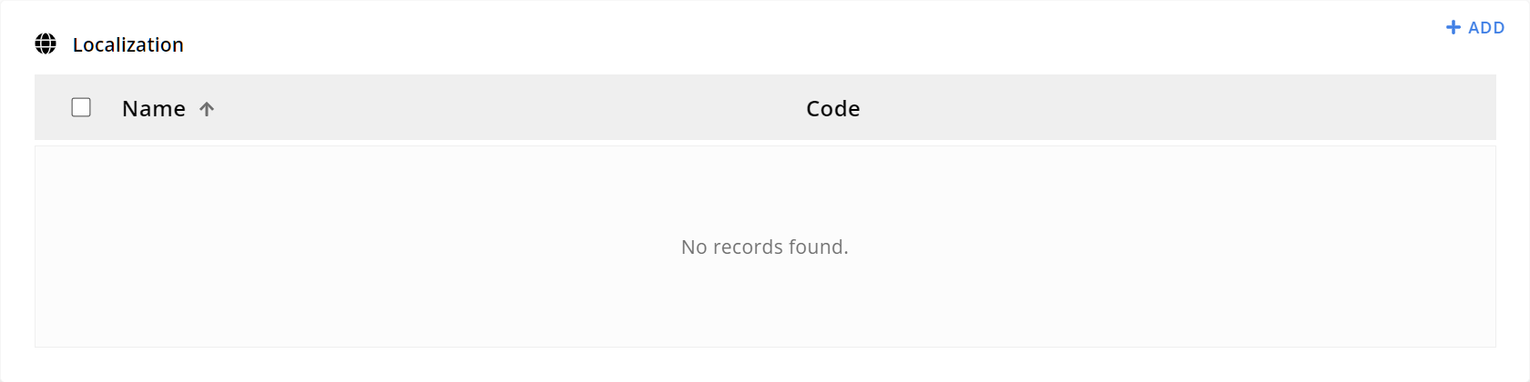
As you have not added any localization, you will notice that the table is empty. Click on Add to add a new language.
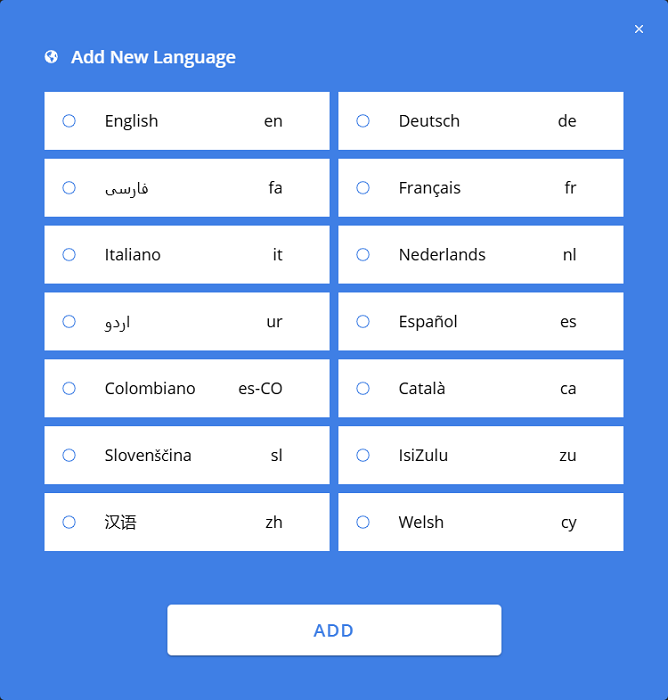
For example, you may decide to add an English translation for your study as well, for those participants who cannot understand Dutch. In this case, you can add English to your study localization. As a result, your study will have two languages: the Base Language which is Dutch, and English.
If your study contains at least one localization, like the last example, the Researcher Dashboard will show a Language Selector option next to all text, and in some cases image fields across the entire study, as shown below:
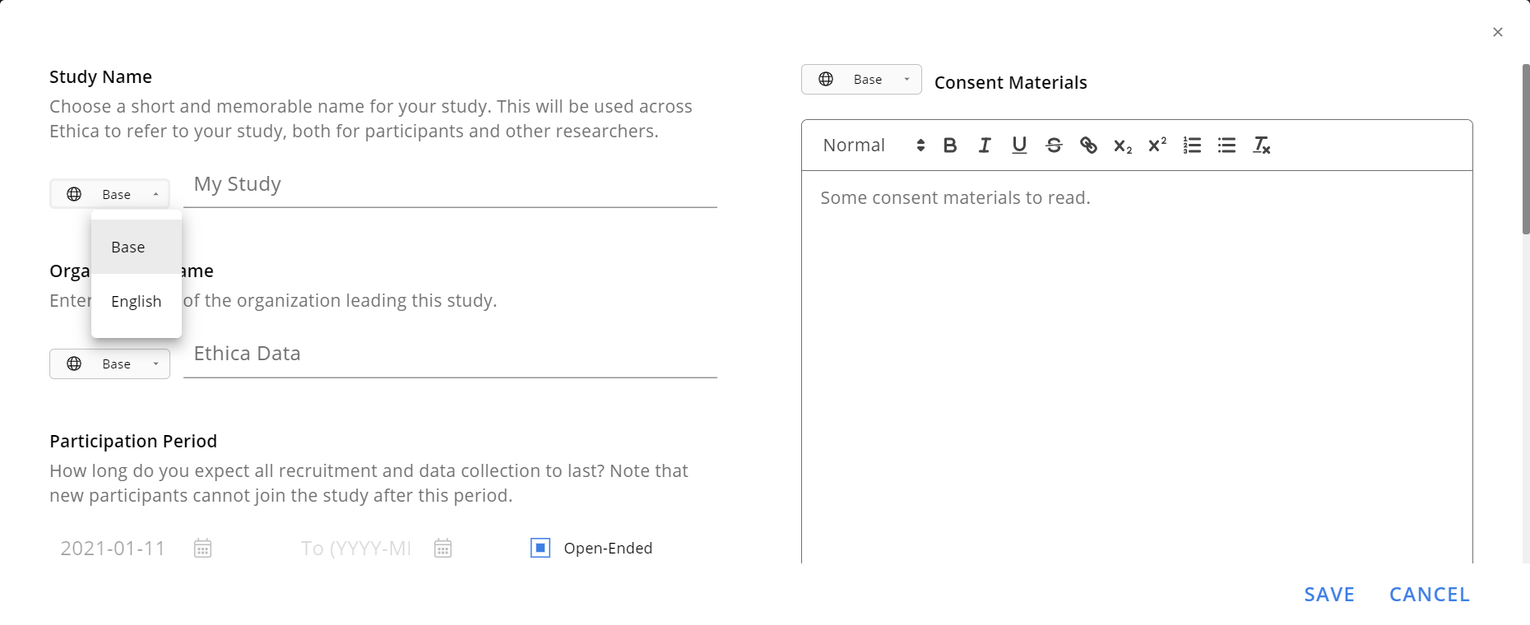
Sometimes, you might find the Language Selector at the top of a dialog, in a section next to the title, or in a tab (like the Settings tab of activity editors). In such cases, all available fields in that dialog, section, or the whole page (in the case of activity editors) are considered translatable. So, you can provide translations for all of them by simply changing the localization in that selector, as shown below:
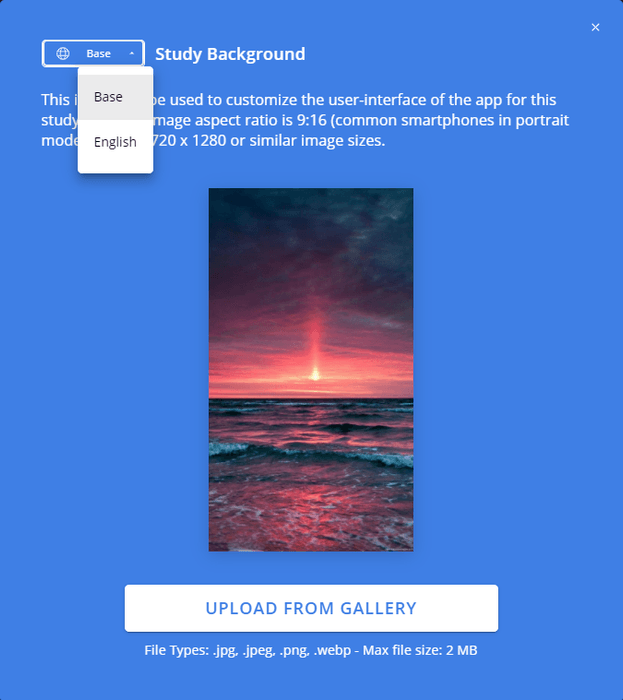
In this case, when you are adding content to a given field, by default the Language Selector (hence the content you want to modify) will be in the Base language. You can open the Language Selector next to the field, choose one of the localizations, and then enter/select the translation of that content into the new language.
[!info]
The Base Language can be any language, not necessarily one of the languages listed here. Localization can also be done in any language of your choice. In theory, you can add the content of the Base Language in a language like Dutch, and add the same Dutch translation as well. While this is possible, it does not make sense semantically and will have no impact on how Avicenna shows the localized content.
Displaying Localized Content
If your study is available in multiple languages, Avicenna chooses the right language before showing any content, such as the app homepage, a survey, or a notification. The language is detected based on the following algorithm:
- Avicenna checks whether the participant has chosen a language in the app’s Settings. If yes, Avicenna uses it as the participant’s preferred language.
- If no language is selected, Avicenna checks whether the participant’s device has been set to a specific language.
- If no custom language is chosen from steps 1 or 2, Avicenna sets the participant’s language to Base.
- For showing every study content, Avicenna checks whether the content is provided by the researcher in the participant’s preferred language.
- If the content is available in the participant’s preferred language, then Avicenna shows the content in that language.
- If the content is not available in the participant’s preferred language, the Base version of the content is loaded and shown.
Note that you should always provide the Base version of each content. So Avicenna can always fall back to displaying the Base content.
Removing Localization
To remove a given localization from your study, open the Researcher Dashboard, select your study, and navigate to the Basics page. In the Localization table, select the languages you want to remove, and press Remove. You’ll be prompted with a confirmation dialog. If you confirm, the selected localizations and all translated content related to them will be removed.
[!note]
This action cannot be undone. If you have entered a substantial amount of localized content, removing the localization will delete all of it.
Translating the Avicenna User Interface Using Loco
To translate the UI, we use the Loco platform, which helps streamline the translation process by providing easy access to all text elements. This method ensures that the translations stay within design constraints while preserving the original meaning. To begin translating the Avicenna User Interface, you’ll first need to set up your Loco account and gain access to the necessary projects.
Setting up Loco Account
-
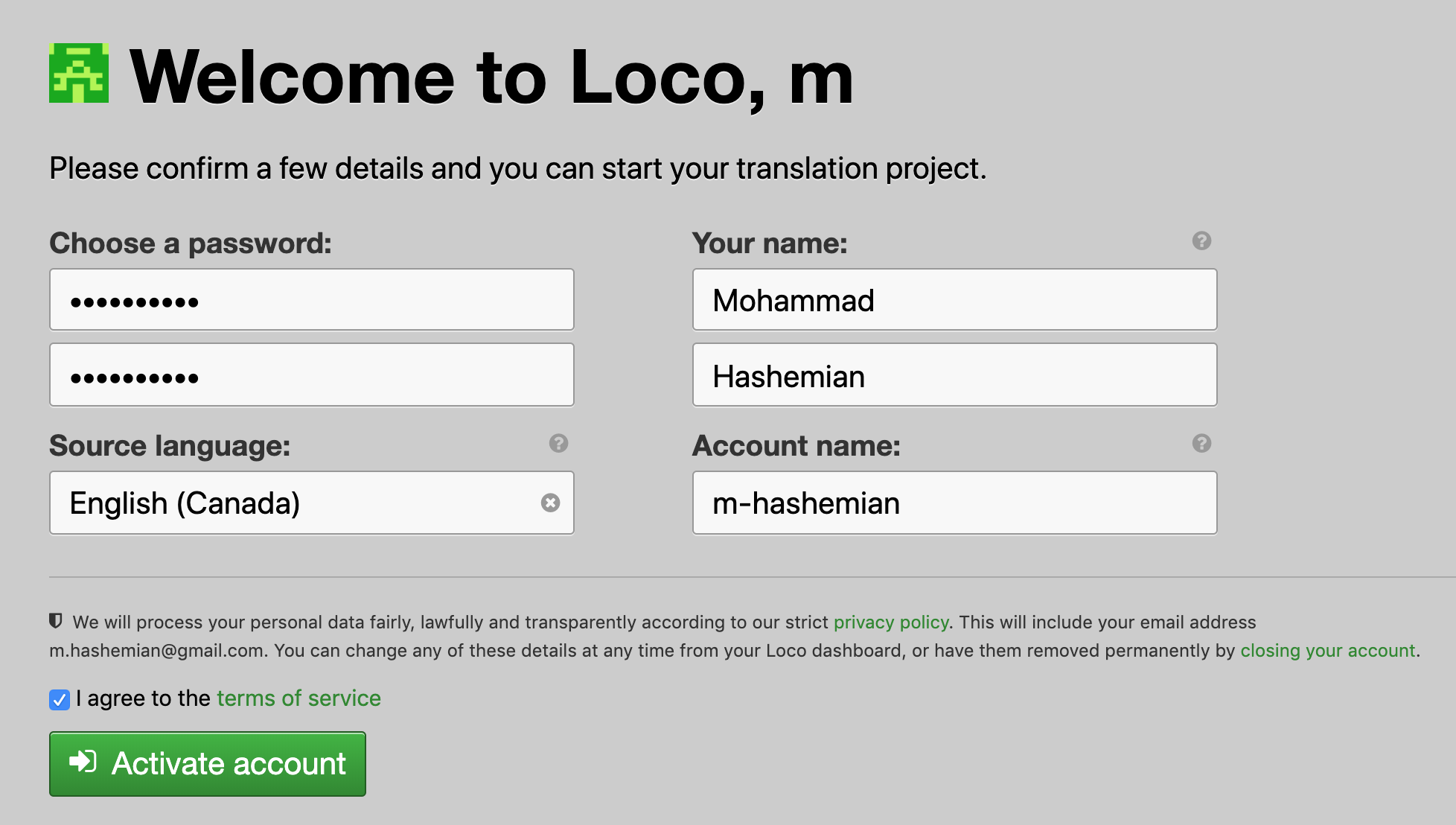
Create a new account on Loco by following the email validation process and completing the registration form.
-
Send the email address you used to register on Loco to support@avicennaresearch.com.
-
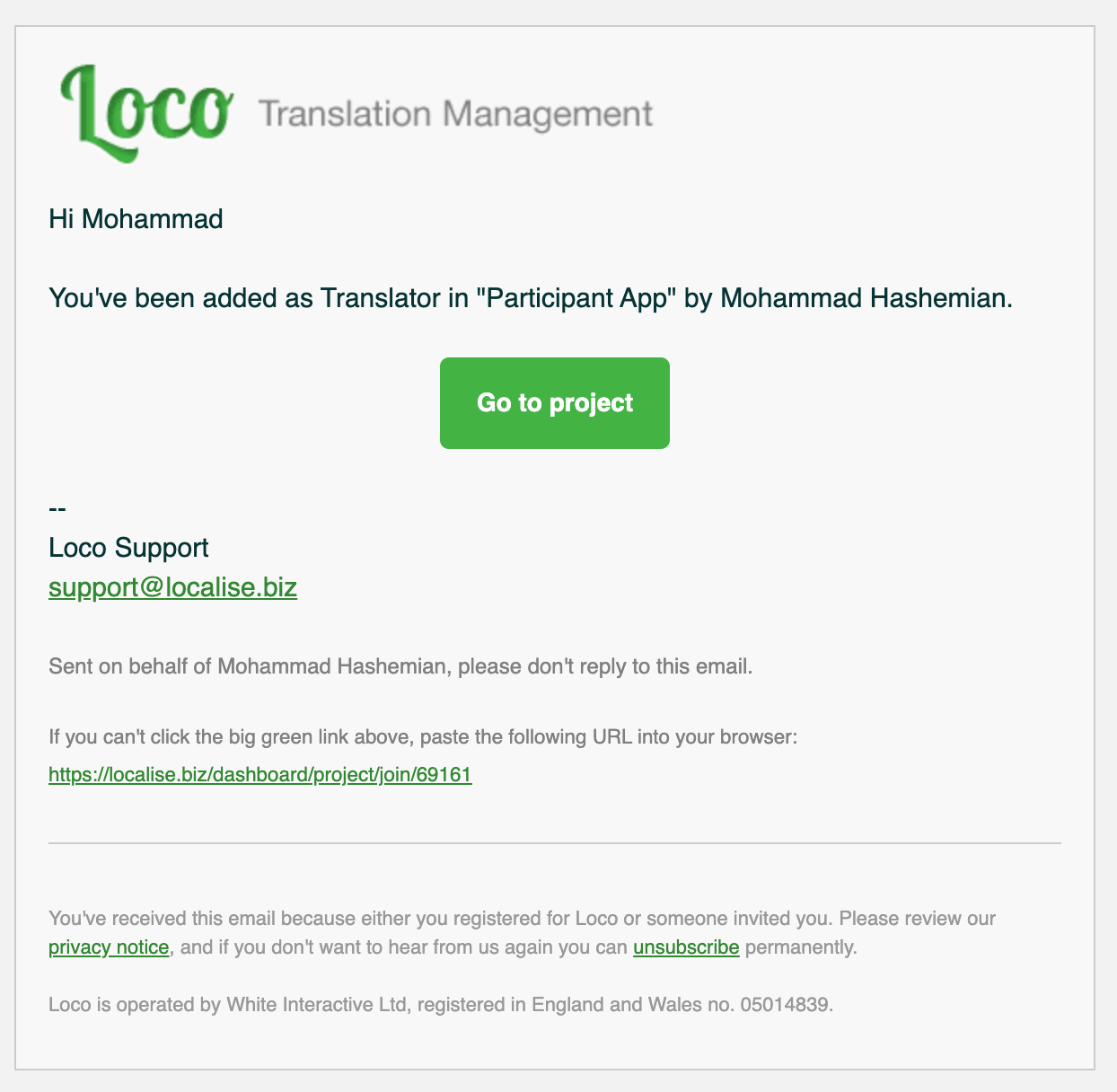
Once you gain access to the content, you will receive an email similar to the one below:
-
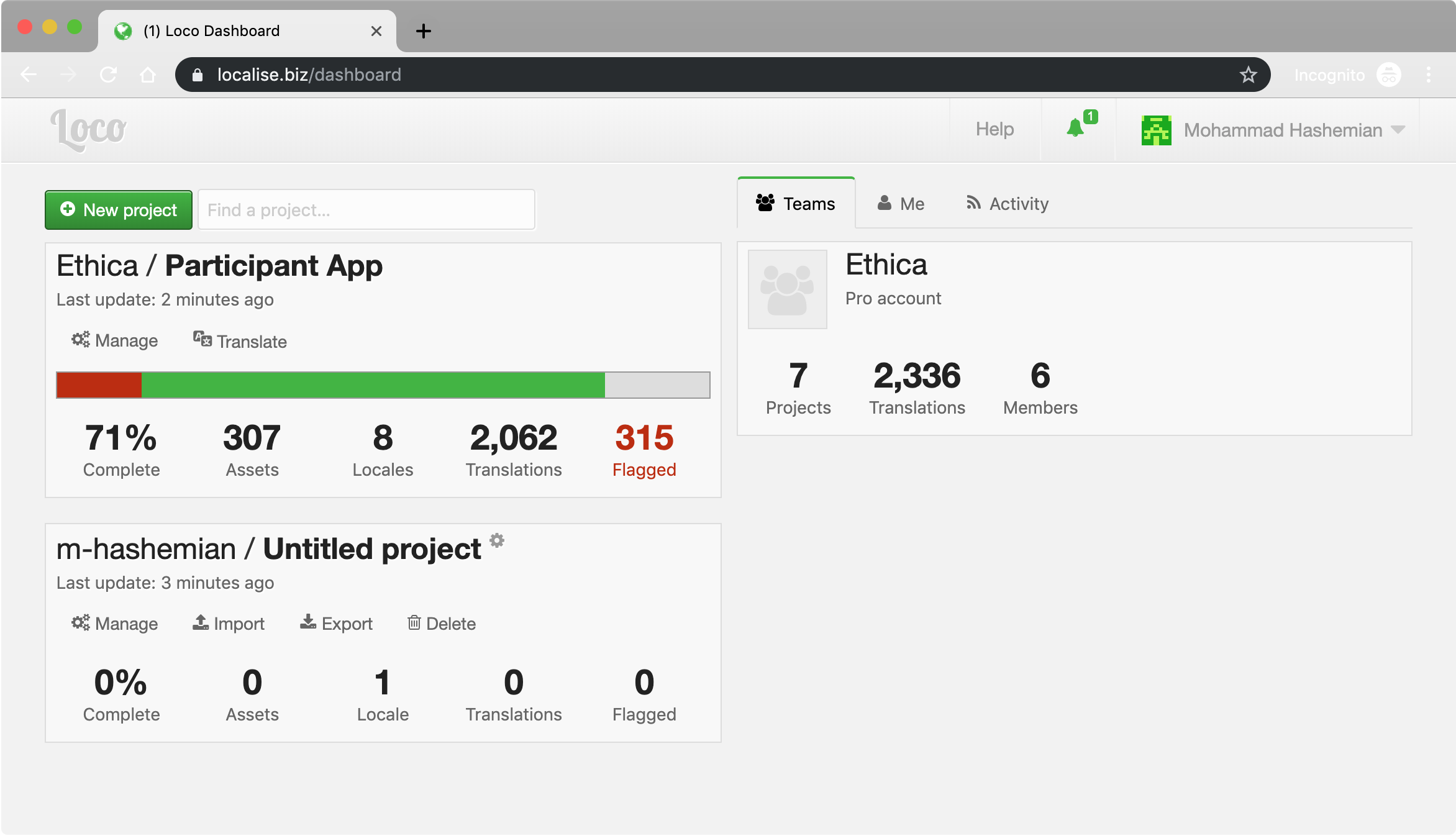
Click on the “Go to Project” link, or navigate to your Loco account dashboard, where you will see the project listed:
-
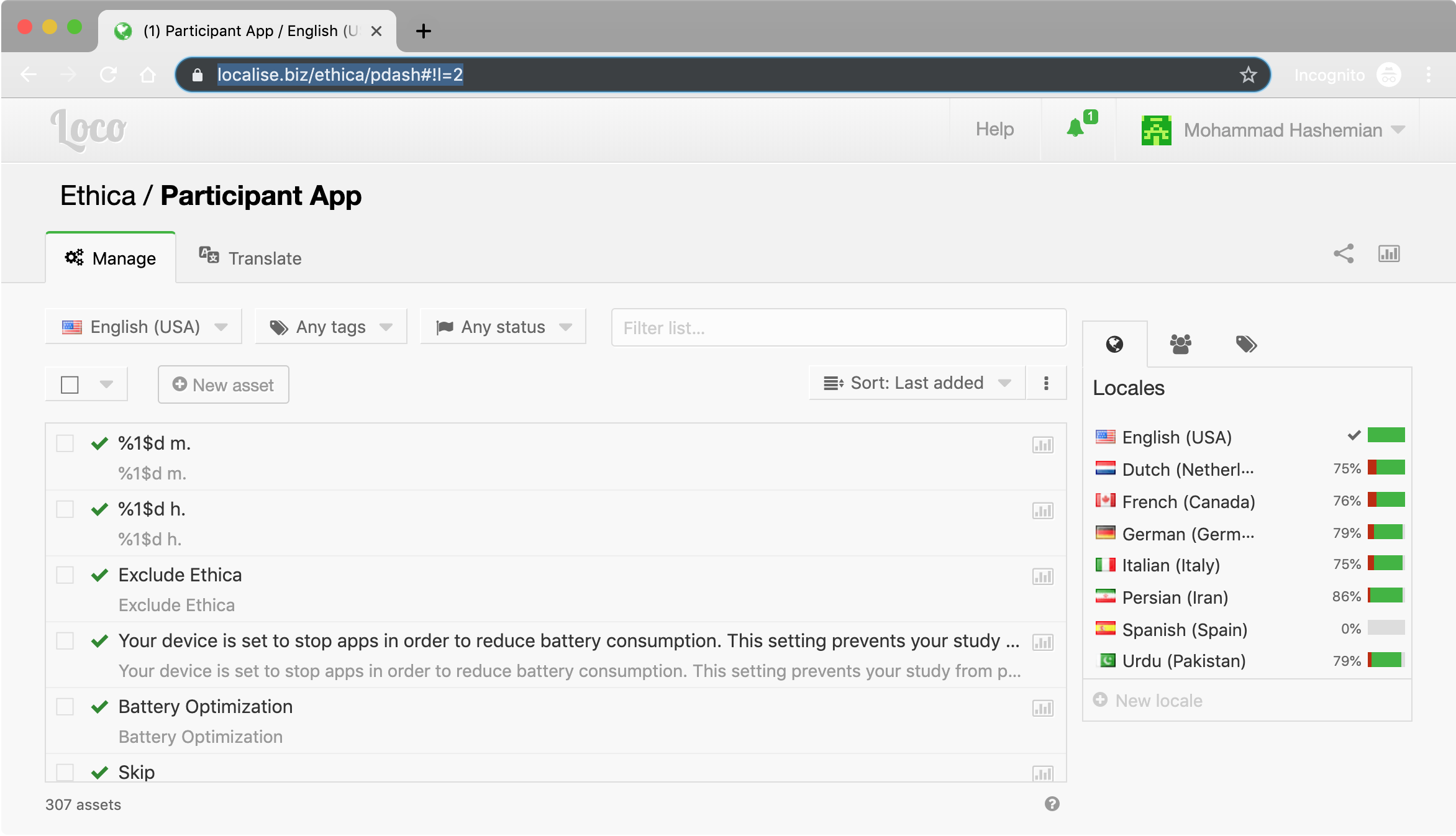
Click on the project you are asked to translate (for example, “Participant App”):
-
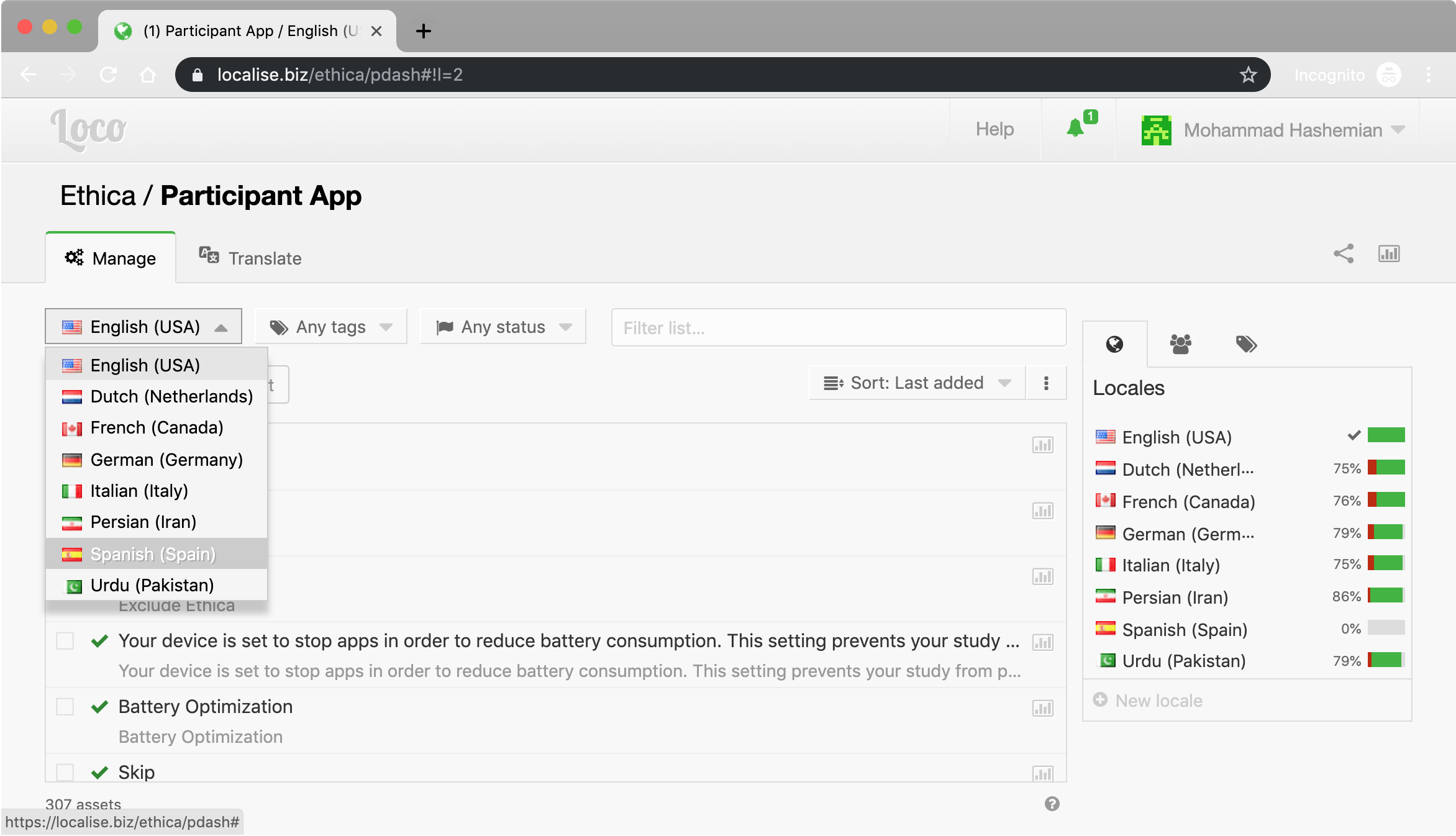
From the top left corner, pick the language you are expected to translate, e.g., Spanish:
-
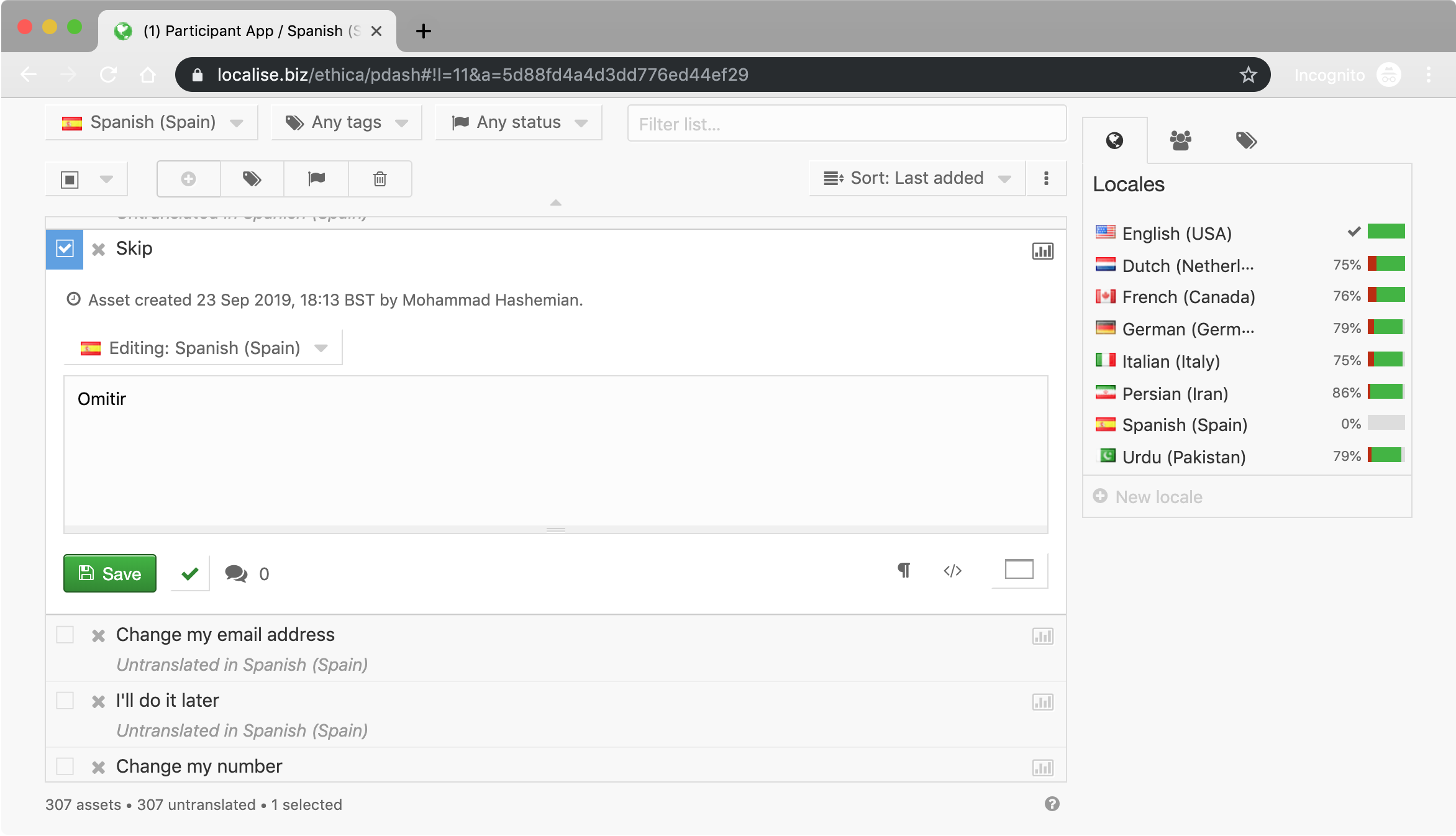
Add your translation for each text.
-
Press “Save”.
[!note]
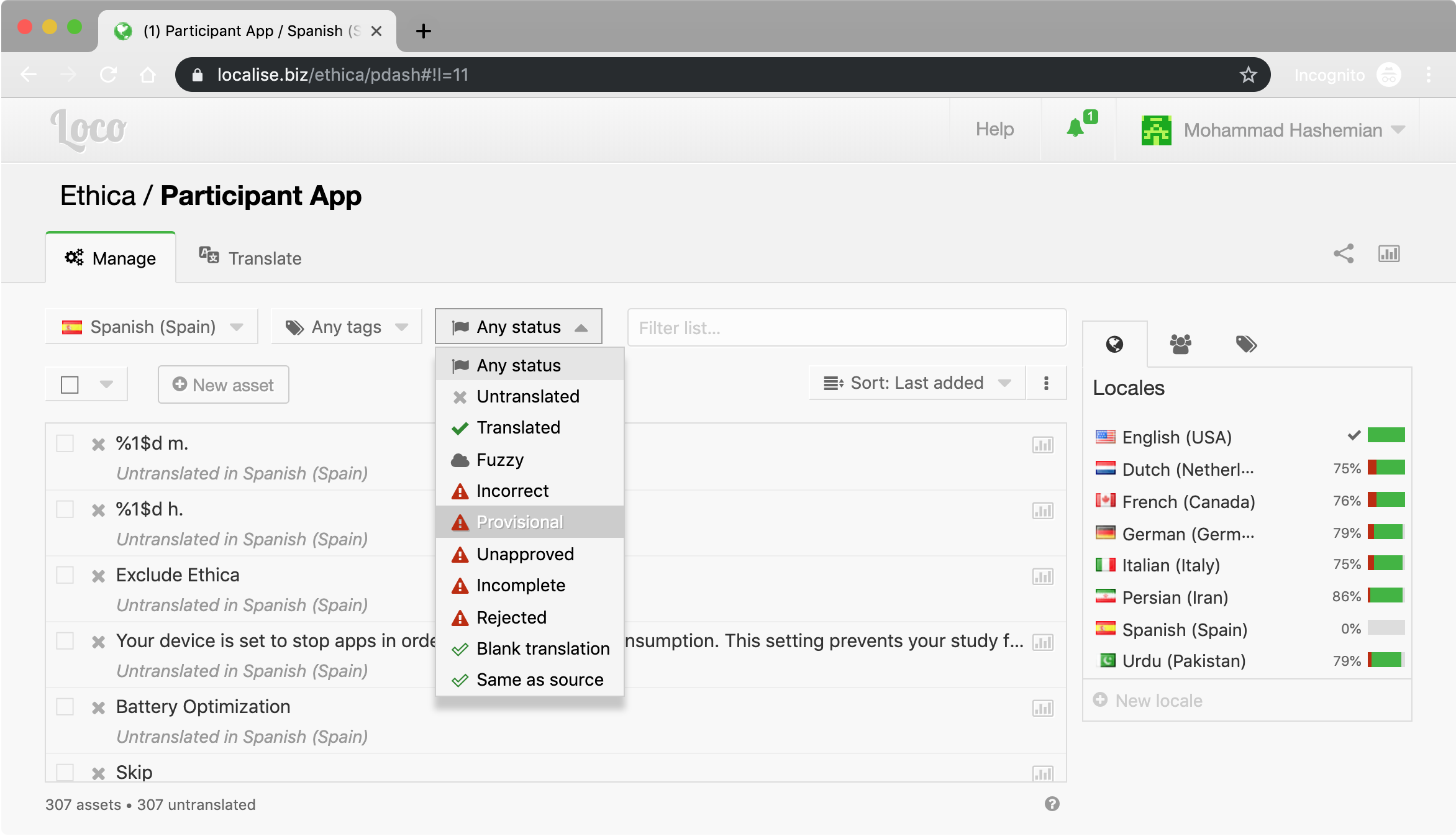
If you’re working with “Provisional texts only”, be sure to follow the steps outlined above and also mark the status as “Provisional” as shown in the image below.
Important Notes
When translating text for an app, it’s important to follow some rules to make sure the interface works well and looks good in different languages.
-
The text should be about the same size as the English (~10% more or less). If the text is significantly longer, it may distort the interface.
-
The special placeholders should be kept exactly as they are in English. For example, ‘Step %1$d’ should be translated to “Isinyathelo %1$d”. Any extra or misplaced characters in %1$d can cause the app to crash unexpectedly.
-
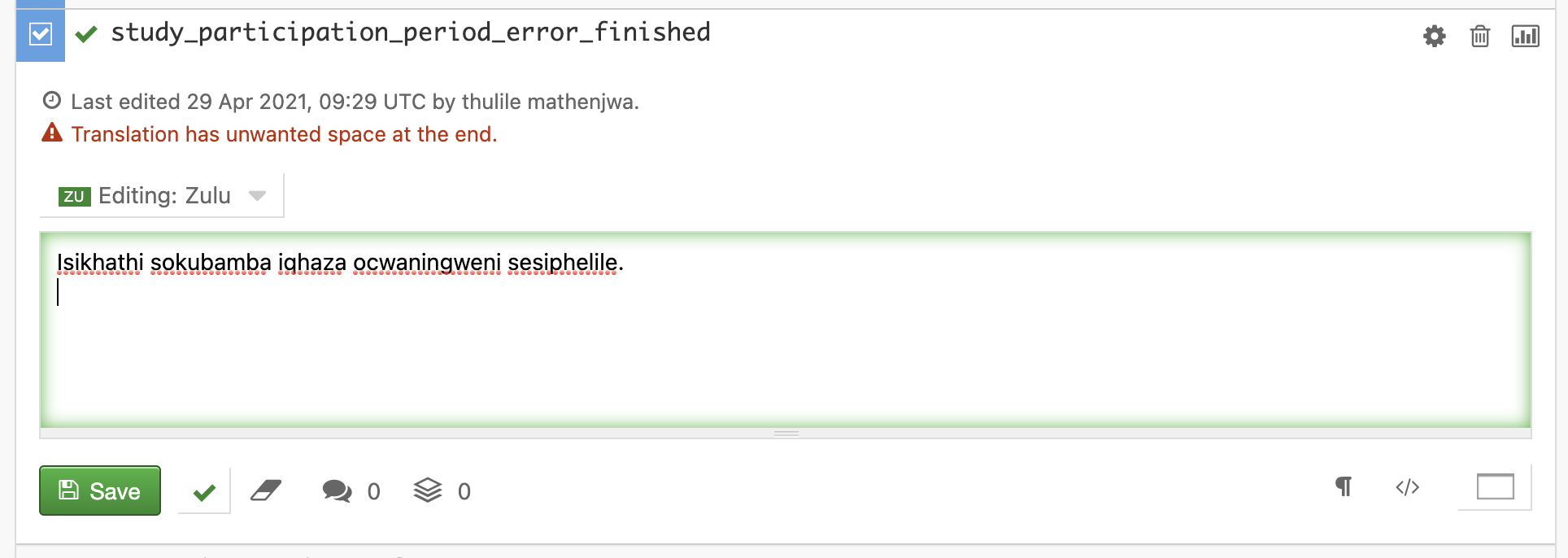
There should be no extra spaces at the end of the text. These will appear as additional empty spaces in the app and distort the UI. The website will warn you about this item:
List of Projects
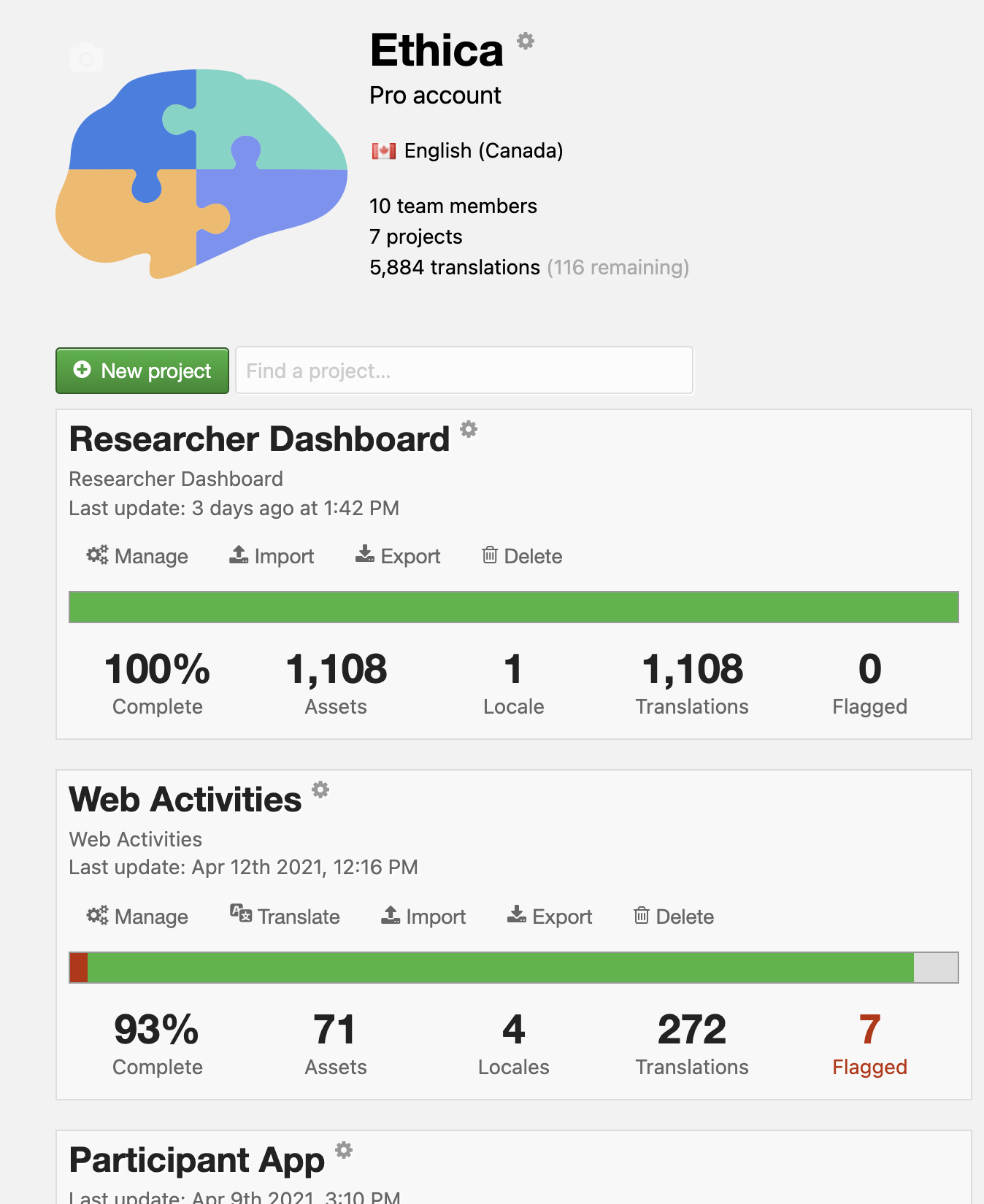
When you log in to the Loco website, you will see multiple projects listed, as shown in the following image:
Here we list all projects and describe the type of content available in them:
-
Researcher Dashboard: This project contains the text used in Avicenna’s Researcher Dashboard. As the Researcher Dashboard is only available in English, no translation is required for this project.
-
Researcher Dashboard Translatable: This project contains the translatable texts used in the Researcher Dashboard, which appear in the survey editor when you choose to use the answer options suggested by Avicenna. All of these texts must be translated if you plan to use the suggested answers.
-
Participant App: Contains all texts used in the participant app, whether mobile or website. All contents here should be translated in order for participants to see the app in their local language.
-
Web Activities: Contains texts used in Avicenna’s cognitive tasks, such as Stroop. The content also must be translated, as it is shown to participants. Note that for this project, the texts for each cognitive task start with a similar name. For example, all texts for the Stroop cognitive task start with stroop_.
-
Other Resources: These are pieces of content used outside the Avicenna app, such as in the App Store, on Google Play, or in banners. They are participant-facing and must be translated.